Field Worker's Mobile App
Updated November 20, 2026
Overview of Field Worker Modules
For field workers, the app consists of 5 pages:
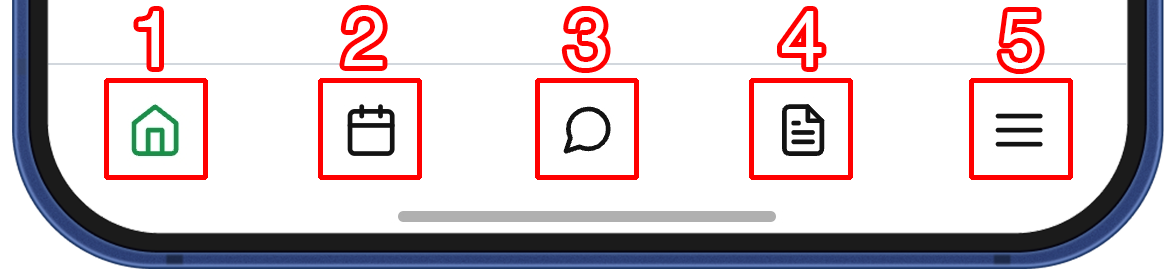
Dashboard(1), Agenda(2), Messenger(3), Forms(4), and Menu(5). |
The Dashboard
The dashboard is the field worker’s home screen, showing today's team and expense information. To change the date, click the “date” button in the upper-left corner, then choose the needed date from the calendar. The team lead can add expenses for the team members.
To add one, navigate to the "Expenses" section, tap the crew member to open the form, enter expenses, and add a note if needed. The team lead can add or edit the work time of the team members.
To add the work time, navigate to the “Work Time” section, tap “Add Time” next to the team member, fill out the clock-in and clock-out time, and tap "Save". |
The Agenda
In the “Agenda” section, the field worker can find all jobs scheduled for the day.
It consists of 3 sections: - Scheduled - jobs to do for the selected date
- Incomplete - jobs that are done for today, but not finished
- Done - fully completed jobs
To change the date, click the “date” button in the upper-left corner, then choose the needed date from the calendar. |
Messenger
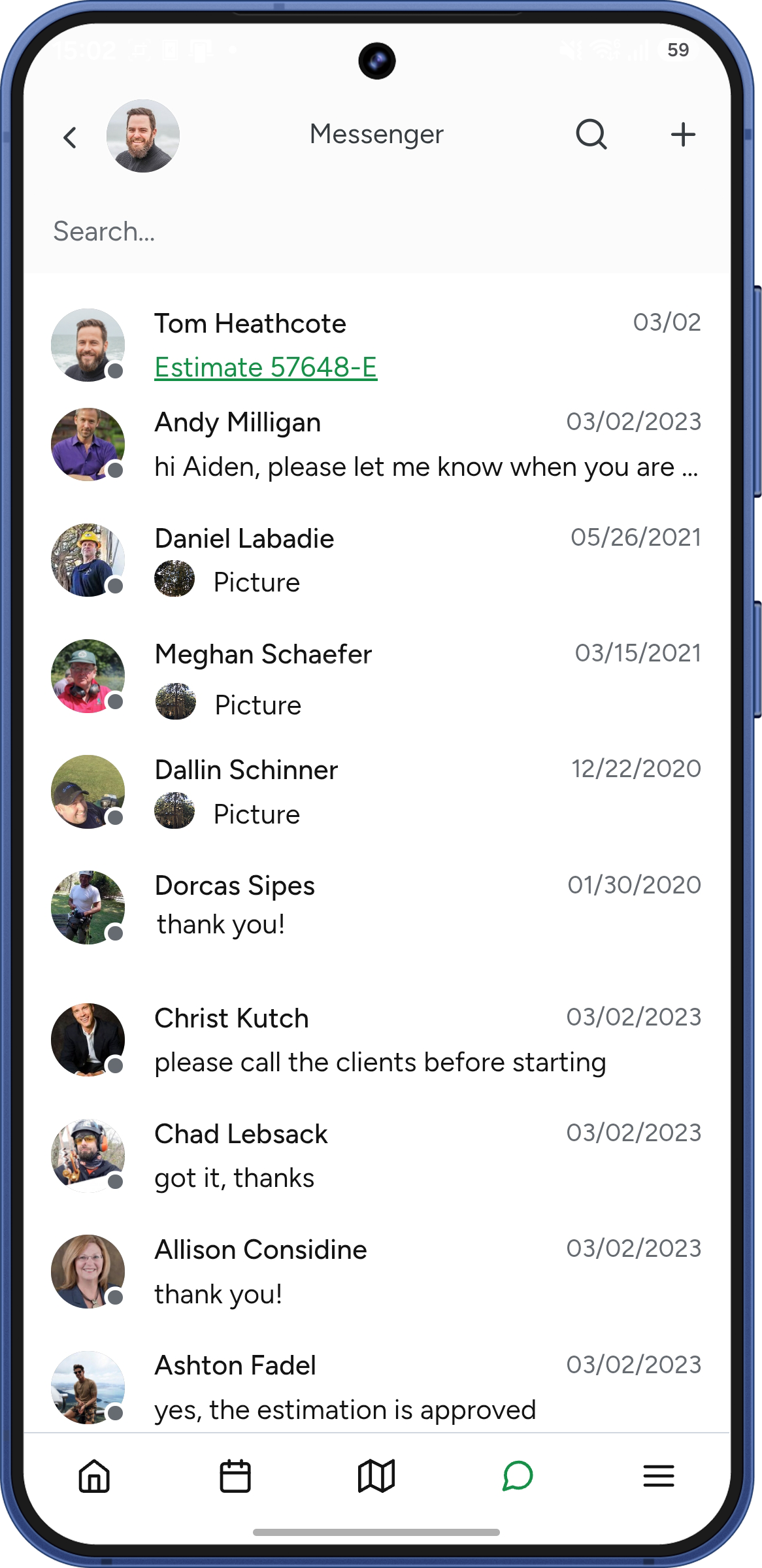
In the Messenger section, you can exchange messages and files with the team.
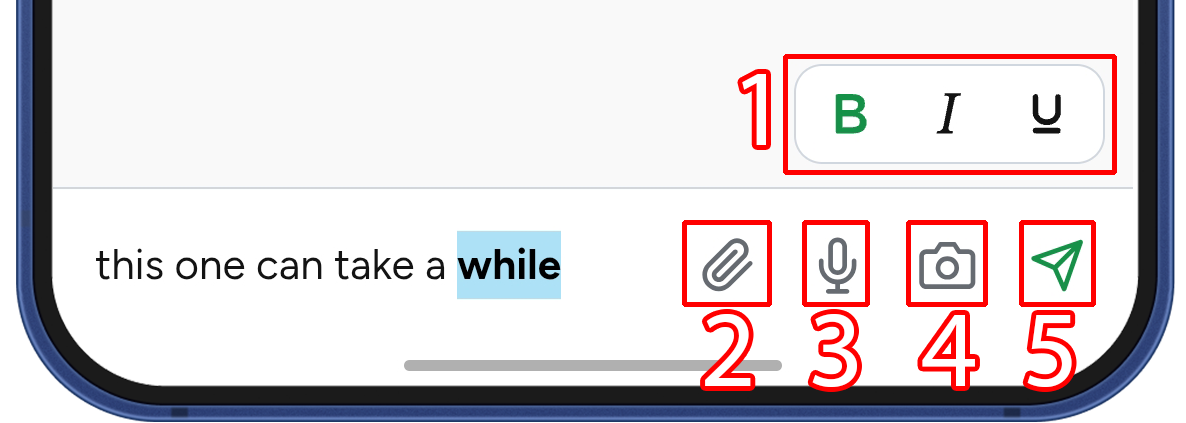
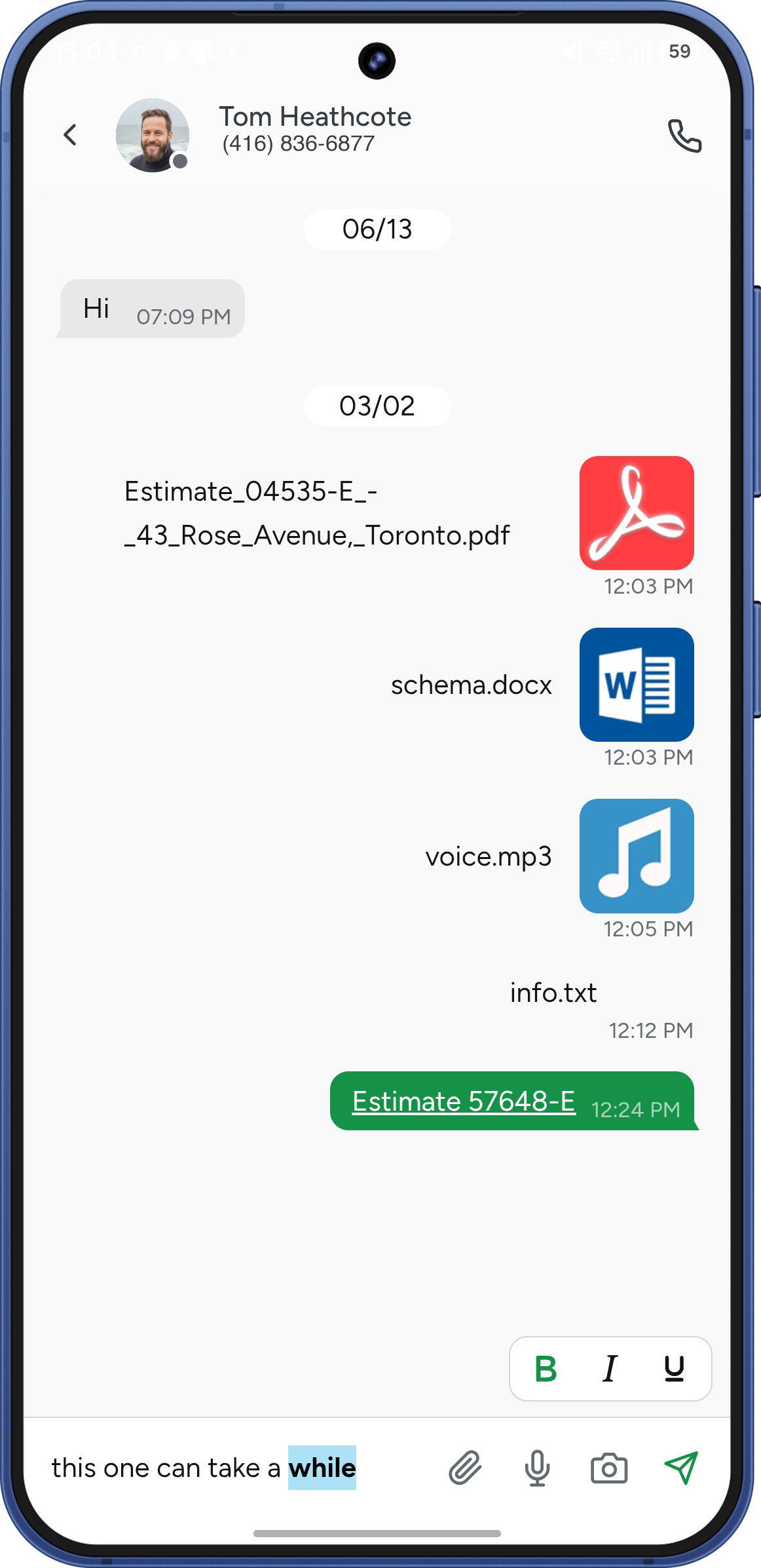
You can format text to be bold, italic, or underlined by surrounding the text with symbols: - * - for bold text (*bold* → bold)
- ~ - for italic (~italic~ → italic)
- _ - for underlined (_underlined_ → underlined)
- Text decoration buttons - an alternative option for formatting text more easily
- Send file - you can use this to send MP3, MP4, and PDF files
- Record audio message - chat also supports audio messages
- Camera button - to take a photo or record a video
- Send button - sends a message
|
- For MP3, MP4, and PDF files, a preview is available.
For the rest, instead of a preview, there is a download button. - When sending a lead/estimate/workorder/invoice from the web, the respective lead/estimate/WO/invoice number shows in the link name.
The link itself opens inside the app.
|
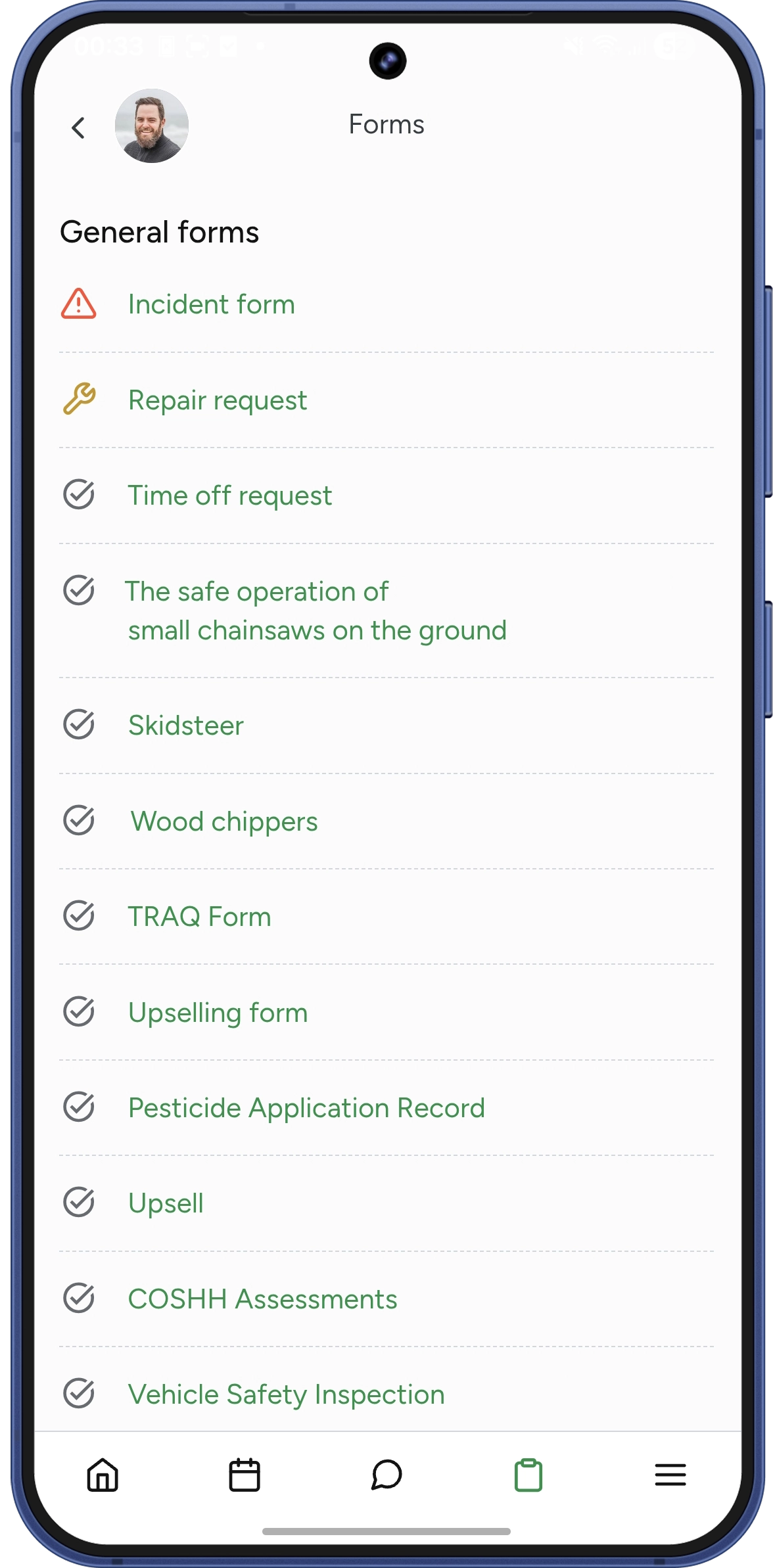
Forms
Menu
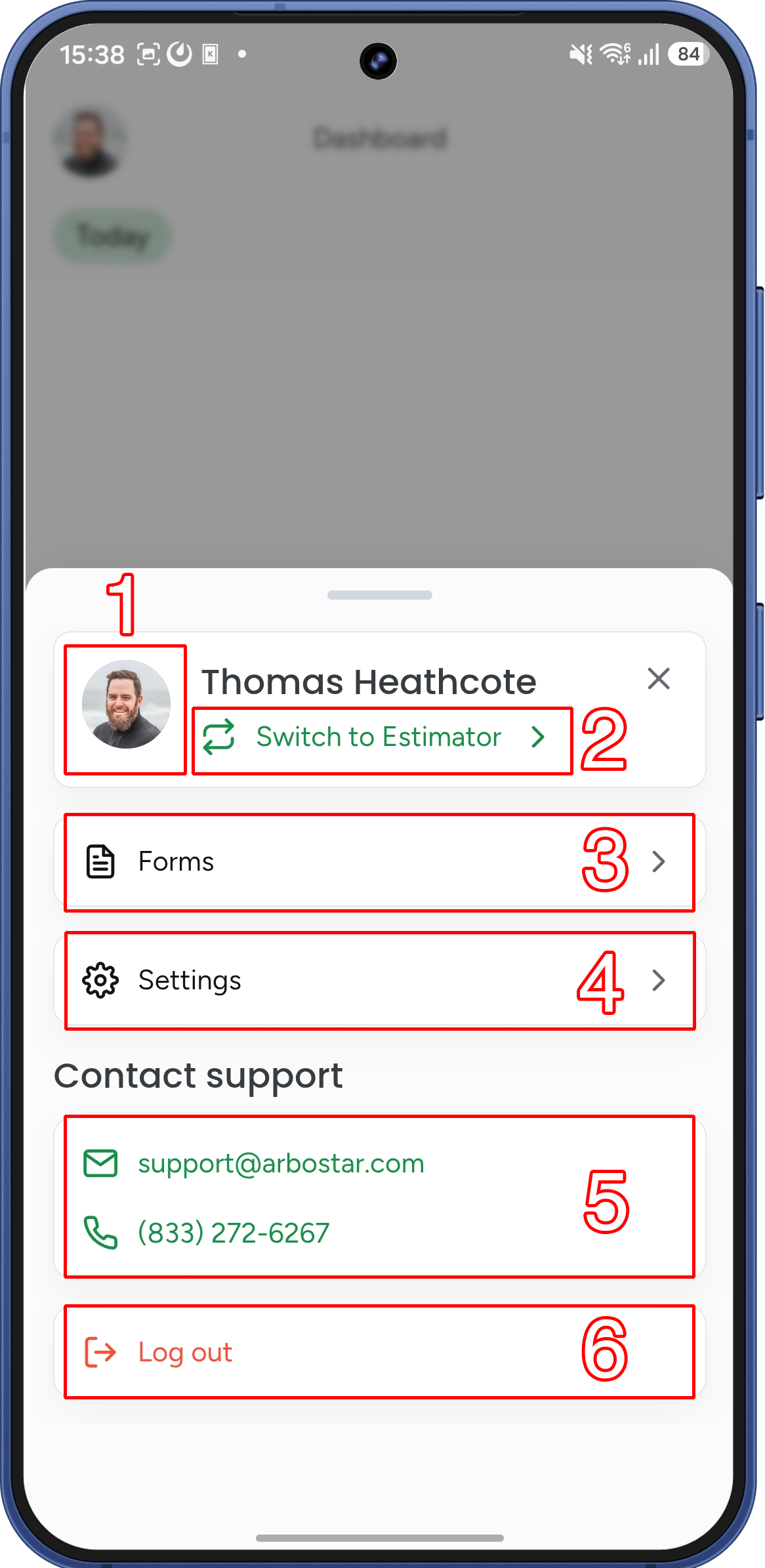
In the menu, you can find:- Profile link - same as in clock in / clock out
- Estimator / Fieldworker switch - only available on support licence
- Forms - a list of available forms, identical to a previous tab
- Settings - a link to the Settings module
- Contact support - an expandable list of contact information to reach our tech support team
- Log out button - to end your session
|
Clock in / Clock out
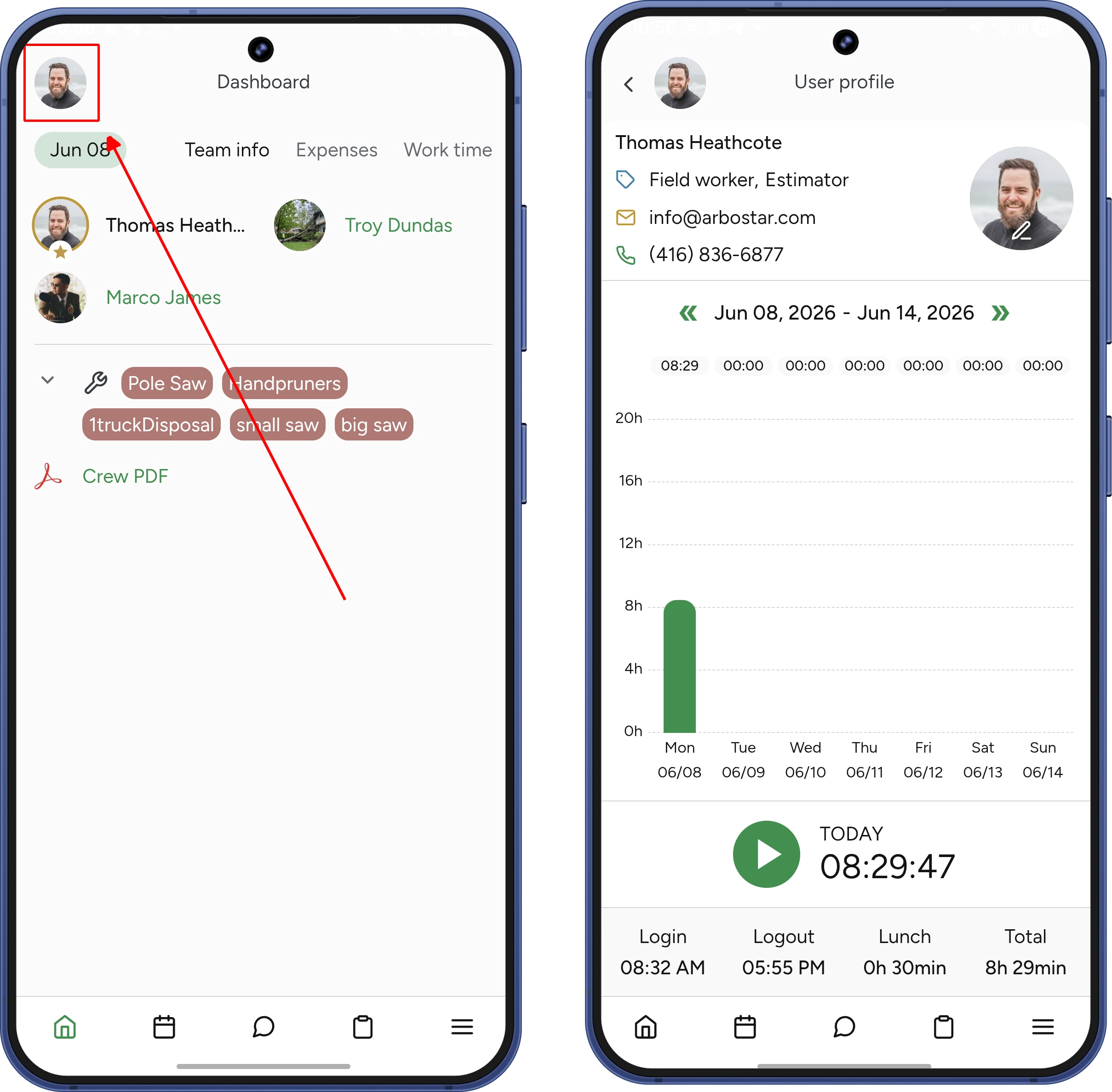
If you click on the bubble in the top left corner, you will be forwarded to the user's profile, where you can see the user's details and track time.
And below that, you can see the Clock in / Clock out button to start / end your shift. |
Did this answer your question?