
ArboStar integrates directly with QuickBooks Online, Xero, Sage, and Fortnox, so your clients, invoices, payments, and services can stay in sync between ArboStar and your accounting platform — without entering everything twice.
This guide covers the full relationship with your accounting system: how the connection is set up, how sync works day-to-day, and what to do when something needs troubleshooting.
We'll use QuickBooks Online (QBO) as our example throughout, but the same principles apply to all four supported systems.
In this guide:
- Getting connected
- What we import at setup
- Synchronization settings
- Sync direction: one-way vs. two-way
- Payment synchronization
- Manual synchronization
- Merging clients with an active connection
- Locating unsynced invoices
- Disconnecting from QuickBooks
- Reconnecting to QuickBooks
Getting connected
Setting up the integration takes just a couple of clicks on your end — our team handles the rest.
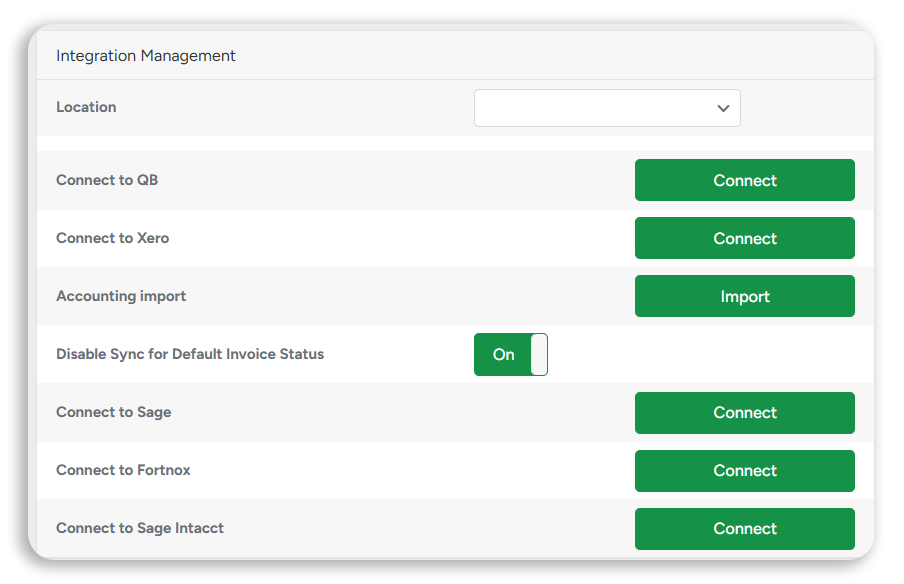
- Go to Company Management and open the Integration Management section.
- Find Connect to QB and click Connect.
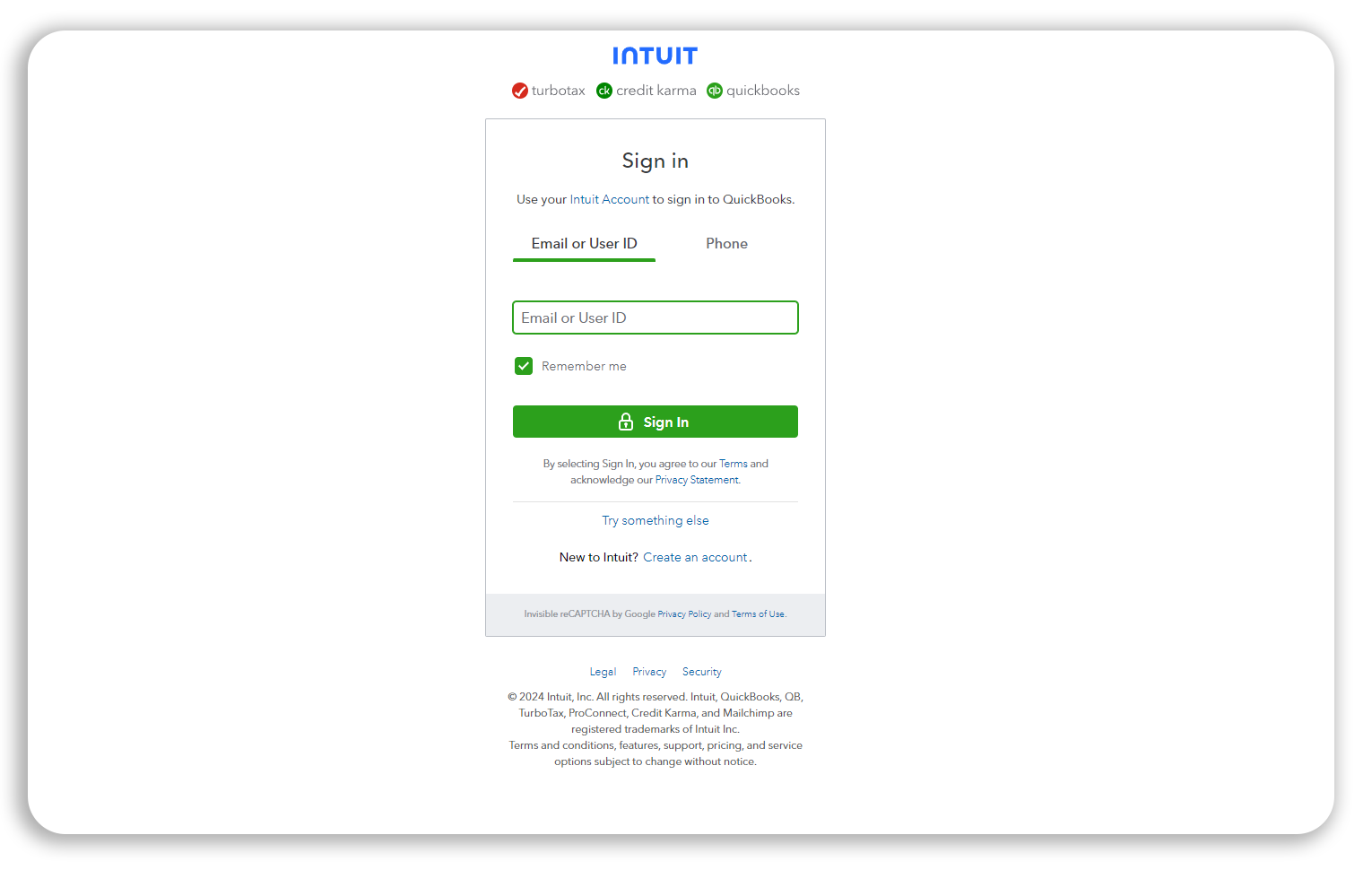
- You'll be redirected to log in with your QuickBooks credentials.
- Once you're logged in, let your dedicated Customer Success Manager know so our team can take over and complete the initial configuration for you.
What we import at setup:
We import... | Why it matters |
Services | Keeps the same set of services in both platforms and avoids duplicate entries in QuickBooks. |
Taxes | Lets you set up default taxes for your clients and keep tax sync accurate. |
Accounts | Lets you assign the correct account to a payment so it lands in the right place. |
Classes | Lets you prefill classes in your services as you build estimates, and sync invoices with default classes assigned to services — useful for reporting and data analysis in QuickBooks. |
At this stage, you can request an additional migration of clients, invoices, estimates to preserve historical data.
Synchronization settings
Once the initial integration is complete, our team can help you configure the following automatic-sync settings for you:
Setting | What it does | Default |
| Disable Sync for Default Invoice Status | Prevents invoices from syncing immediately after creation. Instead, they only sync once their status changes. | Off |
| Auto-sync Invoices (per client type: Residential, Commercial, Municipal) | Controls whether invoices sync automatically for each client type, or only manually. | On for every client type |
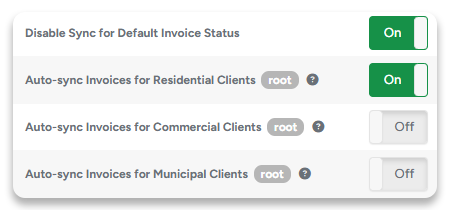 |
The Auto-sync Invoices setting isn't available for self-service in Company Management — it can only be changed by ArboStar. Contact your Customer Success Manager or support@arbostar.com to adjust it.
Automatic sync usually completes within 5–10 minutes, but can take up to 1–3 hours during peak hours.
Sync direction
One-way synchronization
In one-way mode, data only flows from ArboStar to QuickBooks — never the other way around. This makes ArboStar the single source of truth: anything you create, edit, or delete in QuickBooks will not sync back to ArboStar.
Important: Always create and edit records in ArboStar only. If you create or edit a record directly in QuickBooks, ArboStar won't recognize the change — and the next sync may create a duplicate in QuickBooks.
What syncs in one-way mode (creation, updates, and deletion all sync):
- Services (as QuickBooks Items)
- Clients (as QuickBooks Customers)
- Invoices
- Payments
This is the mode we recommend for most customers, since everything originates in ArboStar and flows in a single, predictable direction.
(1) example of one-way sync
Our recommendation:
Use one-way sync unless you have a specific reason to edit data directly in QuickBooks. It's simpler, more predictable, and avoids the reconciliation issues described below.
Two-way synchronization
In two-way mode, data flows in both directions: changes made in ArboStar sync to QuickBooks, and changes made in QuickBooks sync back to ArboStar. Since either system can originate a change, there's no single source of truth.
(2) example of two-way sync
What doesn't sync back, due to differences between the two systems:
- Bundles — see Bundles synchronization workflow below
- Taxes (synced by the total name and rate match)
- Removed interest
Important: Tax names must match exactly between ArboStar and QuickBooks — including spacing and capitalization — or the sync will produce a tax mismatch error.
The thing to watch for with two-way sync is rounding differences. ArboStar and QuickBooks calculate taxes and discounts slightly differently, which can produce small mismatches in totals.
Bundles synchronization workflow
QuickBooks' API doesn't support creating Bundles programmatically, so the standard "create in ArboStar → sync to QuickBooks" flow does not work for Bundles — regardless of which sync direction you use.
Warning: If you create a Bundle manually in ArboStar, it will not sync to QuickBooks.
How to add a new Bundle:
- Create the Bundle in QuickBooks first, manually.
- Contact ArboStar so our team can import that Bundle into ArboStar and link the two records.
Payment synchronization
Like invoices, payments can be synced one-way or two-way — and independently of your overall sync direction (see the hybrid setup below).
One-way payment sync
Payments can only be accepted in ArboStar, and ArboStar has no visibility into what happens to payments inside QuickBooks.
Important: If a payment is received directly in QuickBooks and someone later adds that same payment in ArboStar, it will sync to QuickBooks again and create a duplicate.
Two-way payment sync
Two-way sync for payments solves this visibility problem, and — unlike two-way sync for invoices — it doesn't come with the same list of caveats. If you receive or reconcile payments through QuickBooks, syncing payments two-way can help you keep both systems properly connected.
Hybrid setup: one-way overall, two-way for payments only
You can run one-way sync for everything else while enabling two-way sync specifically for payments. This lets your team accept payments directly in QuickBooks while continuing to manage services, clients, and invoices exclusively in ArboStar.
Gotcha: positive balances (credits)
QuickBooks automatically applies any positive balance (credit) on a customer's account to their next payment. This can cause a synced invoice to appear stuck as "Issued" even though it was effectively paid in full.
Example:
- A client has a $0.50 credit on their QuickBooks account and owes $855.00 on an invoice.
- When they pay, QuickBooks automatically applies the $0.50 credit, so the client only pays $854.50.
- ArboStar receives the synced payment of $854.50 — but since the invoice total was $855.00, ArboStar still shows $0.50 as outstanding.
- The invoice stays marked "Issued" in ArboStar instead of updating to "Paid."

Tip: To avoid this, apply the credit in ArboStar before sending the invoice to the client, rather than letting QuickBooks apply it automatically at payment time.
Manual synchronization
If the invoice hasn't synced automatically, you can sync it manually.
Finding the sync status
Look for the QB button, located either on the invoice label in the Projects section or inside the invoice itself.
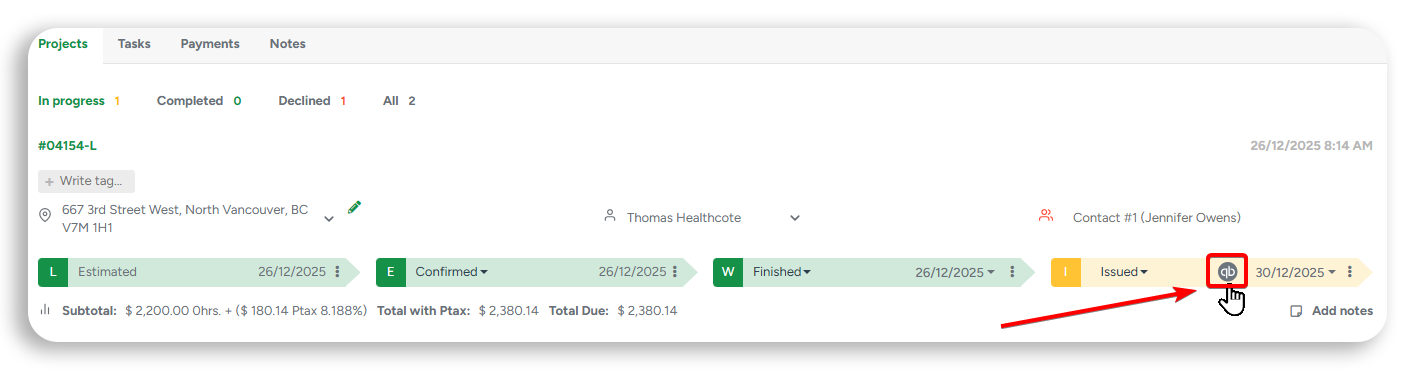
The colour of the button will help you to determine the sync status:
 synced successfully
 synced with warning
 not synced
 error
error
Syncing an individual invoice
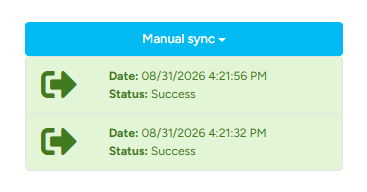
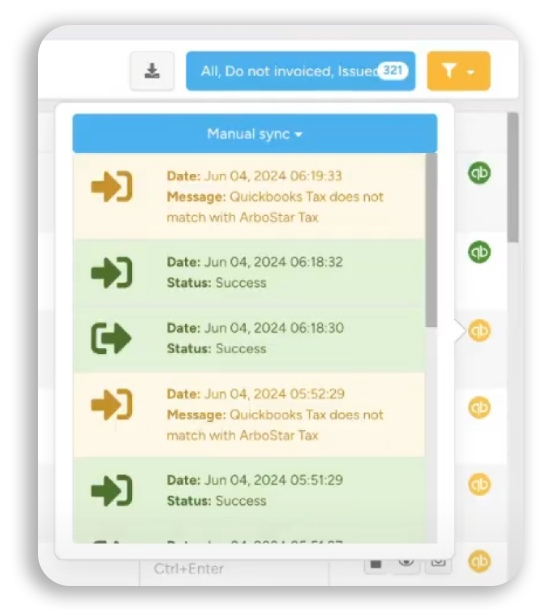
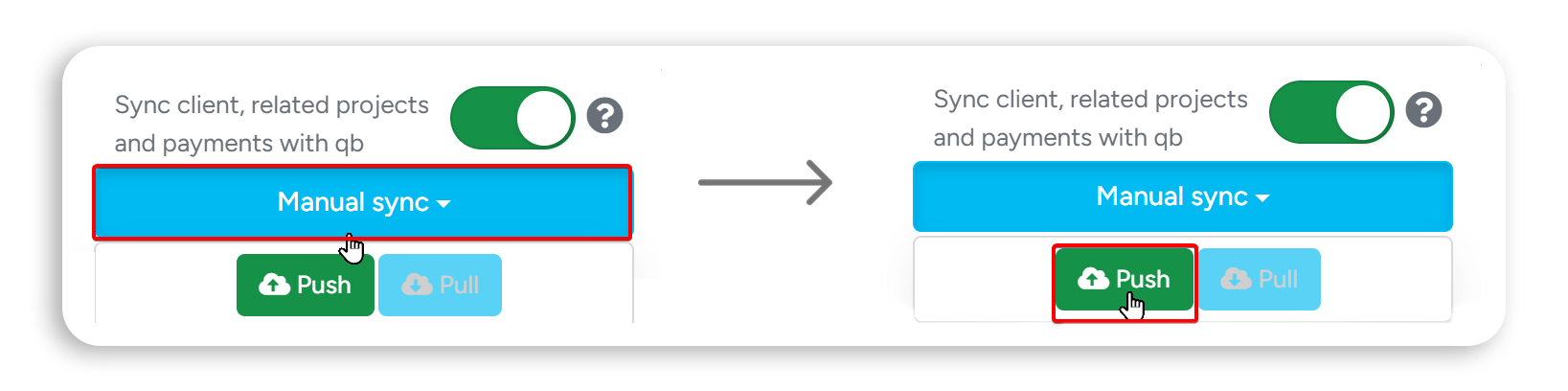
- Click the QB button to see the log (history) of all synchronization attempts for that invoice.
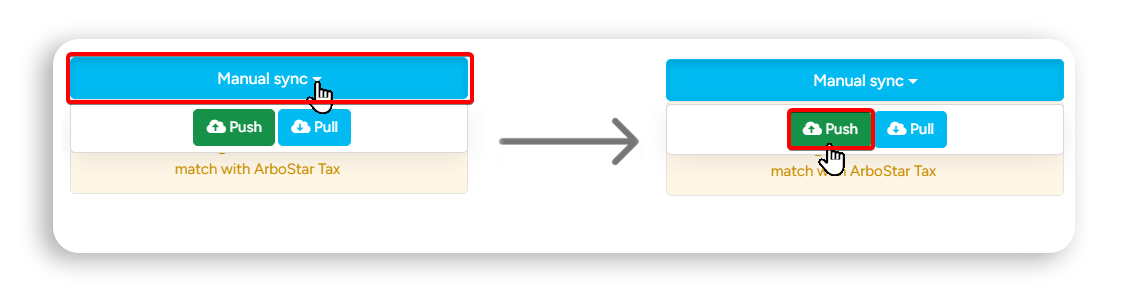
- Open the Manual sync dropdown and click Push to force-send the invoice to QuickBooks.
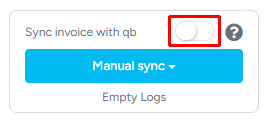
Note: If automatic sync is turned off for your account, the sync controls include an extra toggle that lets you turn on automatic sync for that individual invoice.
This action is not reversible.
Syncing a client's profile
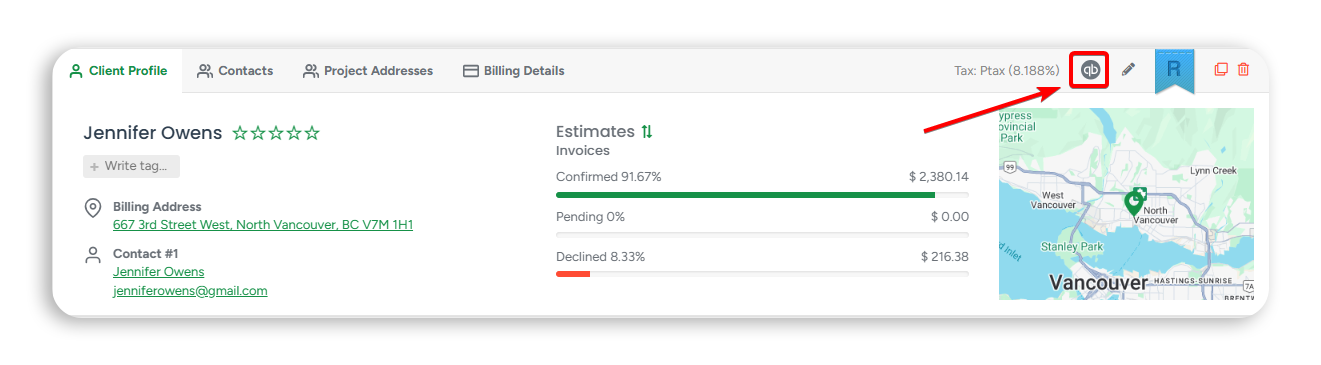
- On the client's profile page, click the QB button in the top-right corner to open the sync menu (same options as above).
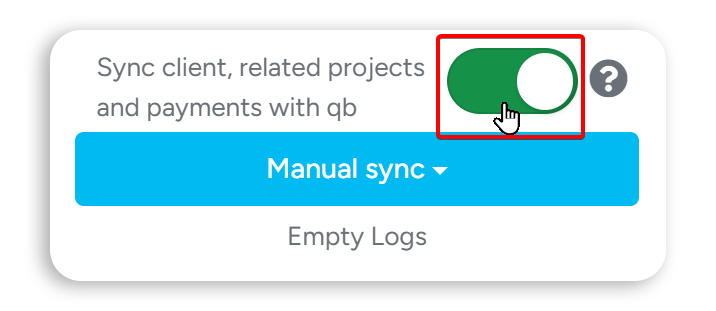
2. Use the general sync toggle to enable or disable synchronization for the entire profile.
Troubleshooting tip: If manual syncing fails for an invoice or a profile, toggle client profile level sync Off and then On again to reset the connection of all invoices and payments under this profile.
Merging clients with an active connection
If you have an active connection to QuickBooks or any other accounting system, you cannot merge clients using ArboStar's built-in merge feature. To preserve data integrity in both systems, client merges must be performed manually by our developers — contact ArboStar support for help.
Locating unsynced invoices
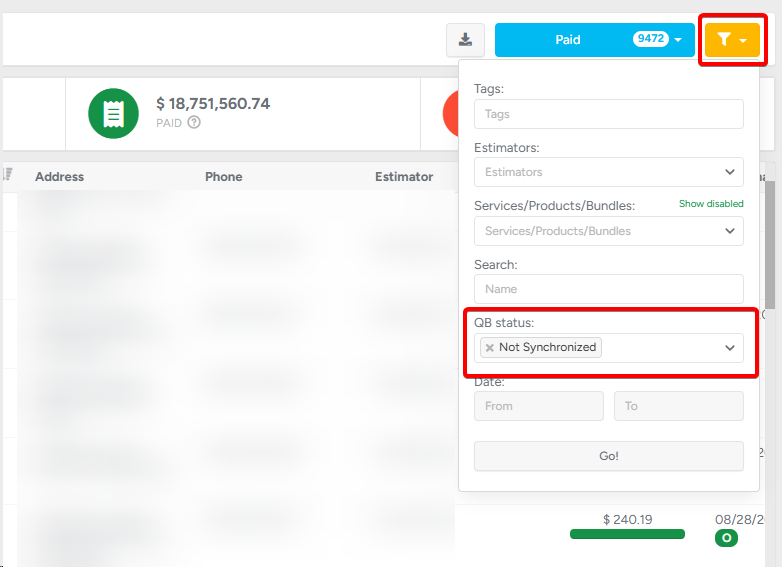
Use the sync filter on Invoices → Invoice List to quickly find every invoice that hasn't synced. This helps you spot "stuck" invoices so you can sync them manually or report them to ArboStar support if troubleshooting doesn't resolve them.
Note: An invoice that has shown "Not Synchronized" for a long time will not sync automatically on its own — it needs manual attention
Disconnecting from QuickBooks
You might need to disconnect ArboStar from QuickBooks — for example, when moving to a different account or troubleshooting a sync issue.
Important: You cannot disconnect from QuickBooks inside ArboStar's Company Management. This has to be done from the QuickBooks side.
In QuickBooks: go to Integrations → Manage Integrations → find ArboStar → Disconnect.
Reconnecting to QuickBooks
There are several reconnection options described below
Reconnecting to the same account
If you disconnected briefly for troubleshooting, the system reconnects immediately with no additional work required.
If there was a substantial delay between disconnecting and reconnecting, our developers may need to perform a manual data sync first. Without it, any invoices, clients, and other records created during the disconnected period won't be properly synced. Contact your Customer Success Manager or ArboStar support for help.

Reconnecting to a different account
This is similar to the delayed-reconnection case above, but slightly more complex. ArboStar only supports a connection to one QuickBooks Online account at a time.
Before reconnecting to a different account, our developers must first clear old project connections from the previous accounting account. Otherwise, invoices, clients, services, payments, and classes will still reference the old account, which will cause sync issues.
Contact your Customer Success Manager or ArboStar support before switching accounts.
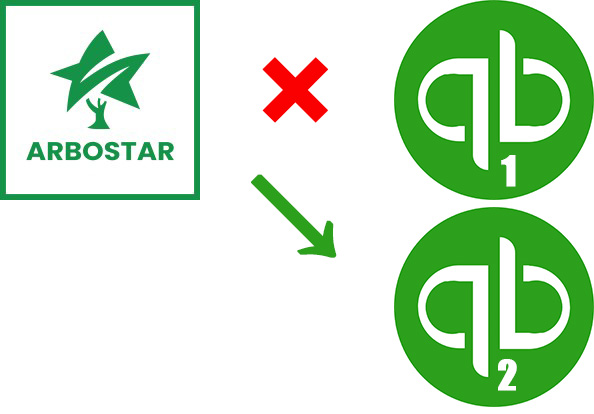
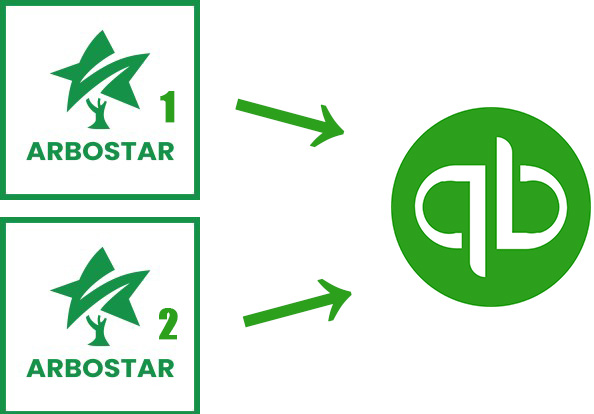
Two ArboStar instances with one QuickBooks
This is a more complex setup that requires funneling invoices into two different payment accounts.
Important: Two-way sync is not possible with this configuration.
See also: