
When ArboStar sends a client, invoice, payment, or product/service to your accounting platform, QuickBooks or Xero checks it and might occasionally reject it.
ArboStar will show you the raw error message text that can be hard to understand.
This guide walks you through those error messages and shows you how to resolve each situation.
Not found and reference errors
Message: Invalid reference ID Product / service assigned to this transaction has been deleted
Message: Invalid reference ID: Names element ID ##### not found
 QuickBooks
  Xero
Xero
Cause:
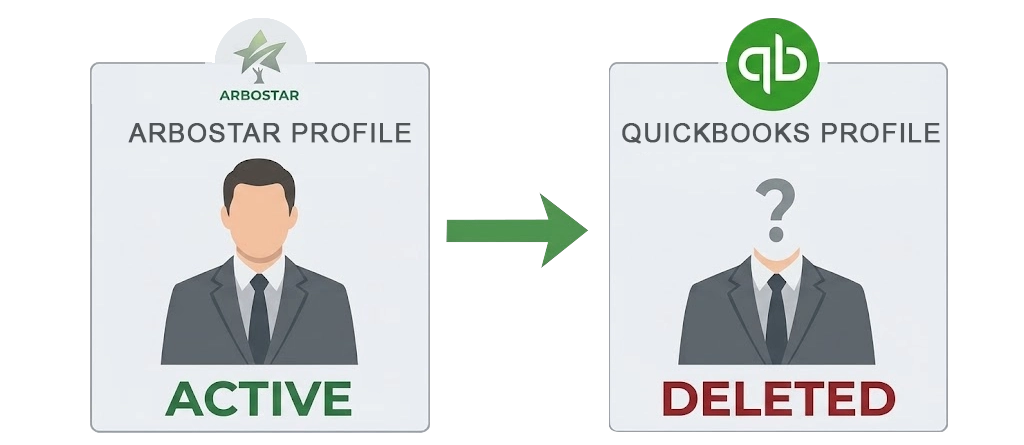
This happens when you delete or deactivate a client's profile, product, or service on the QuickBooks side, but it still exists in ArboStar.
Then, when you are trying to push it, ArboStar is referencing something that no longer exists in QuickBooks.
Solution:
If you chose to deactivate instead of delete, you can simply restore the missing client profile/service/product on the QuickBooks side and then try to push again.
If, however, you chose to delete it permanently in QuickBooks, the only solution is to contact ArboStar tech support so that we can restore and re-link it for you.
Message: Additional people cannot be added when the primary person has no email address set
Xero
Cause:
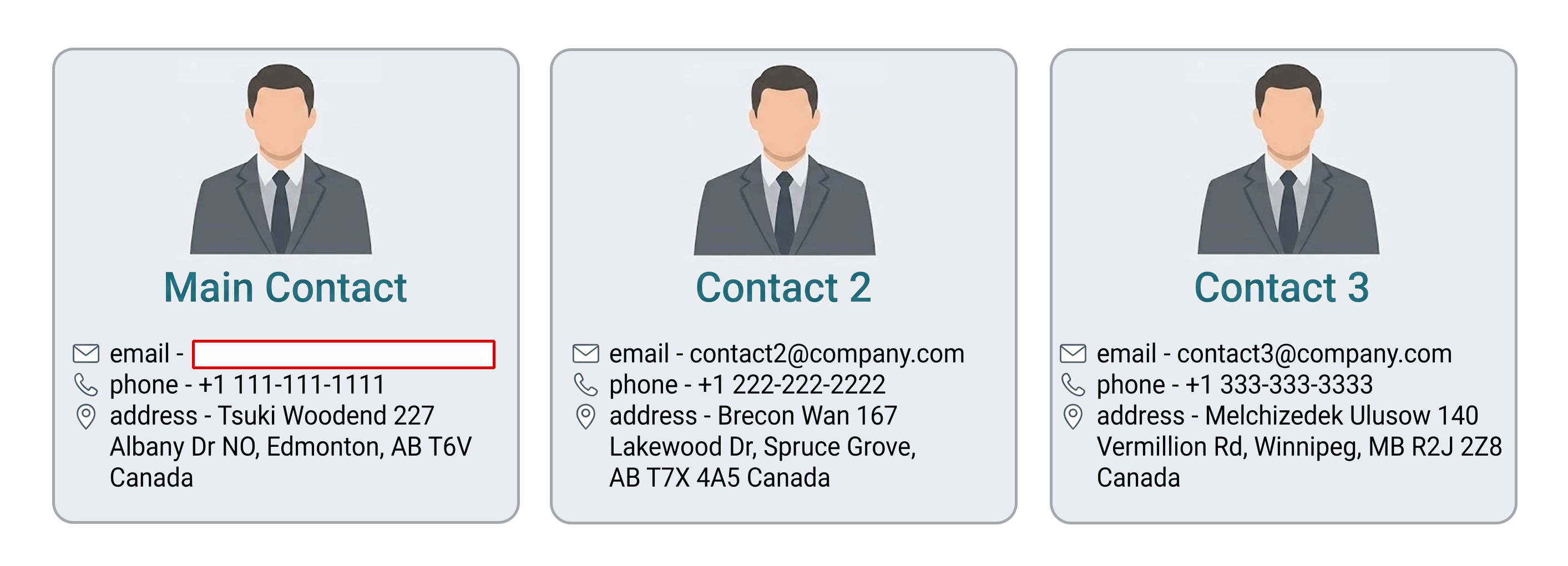
The client has multiple contacts in Xero, but the primary contact in ArboStar does not have an email address filled in.
Xero validation rejects it.
Solution:
Add an email for the primary contact in the client card within ArboStar, then re-sync the client.
Message: Account must be valid / Account code is missing.
Xero
Cause:
Xero requires a specific General Ledger (GL) account for every payment. Unlike QuickBooks it has no income-account fallback.
Solution:
Ensure every payment is mapped to a valid Xero revenue account, and every payment method is mapped to a bank account (which must be enabled for payments). Then re-sync.
Tax and validation messages
Message: Invalid Tax Rate id - #
Message: No tax with this name '…' was found in Xero
QuickBooks Xero
The tax rate or tax name in the estimate/invoice does not correspond to an active tax in QuickBooks or Xero.
The rate was deleted/renamed in QuickBooks, was never synced, or belongs to a different region than the company expects.
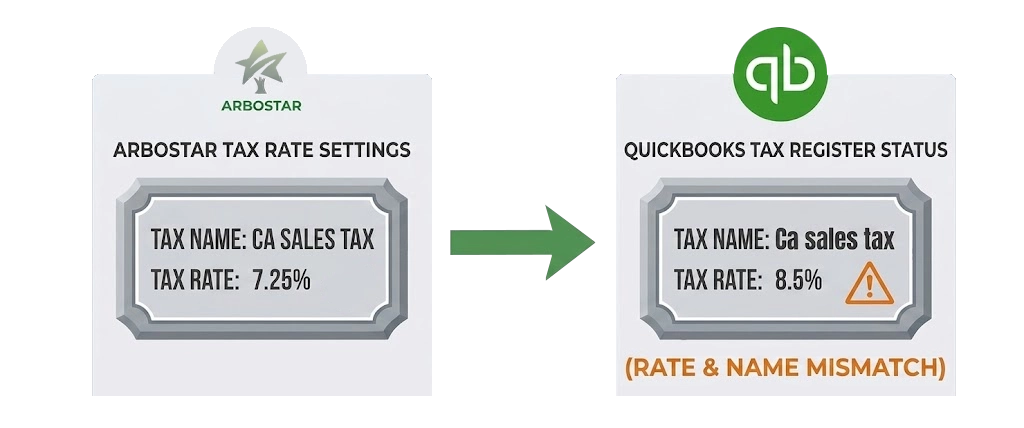
Make sure the tax rate on the estimate/invoice in ArboStar matches an active QuickBooks sales-tax rate and name.
Tax name and tax rate must match perfectly 1 to 1. Name is case-sensitive.
If it's absent in ArboStar - recreate it, then re-sync.
Message: Business Validation Error: Make sure all your transactions have a GST/HST rate before you save
QuickBooks Xero
In Canada, QuickBooks requires a GST/HST tax code on every line, and at least one line has none.
This can happen if your QuickBooks is connected to a US account, but your default brand in ArboStar is in Canada.
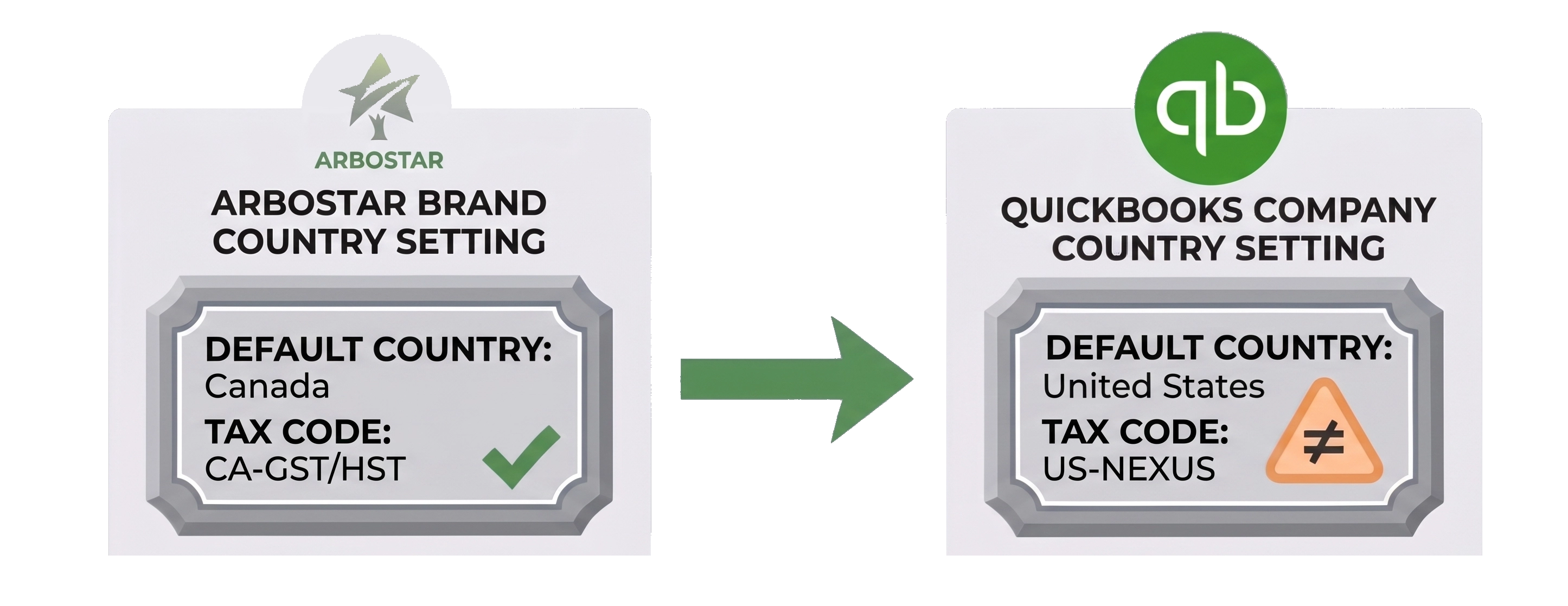
Make sure your QuickBooks/Xero (or ArboStar) is set up with the correct country, then re-sync.
Message: String length specified does not match the supported length. Min:0 Max:4000.
Message: Description line exceeds character limits or includes unaccepted symbols.
QuickBooks Xero
Usually, a description has too many characters and / or invalid characters (special symbols, emojis, etc)
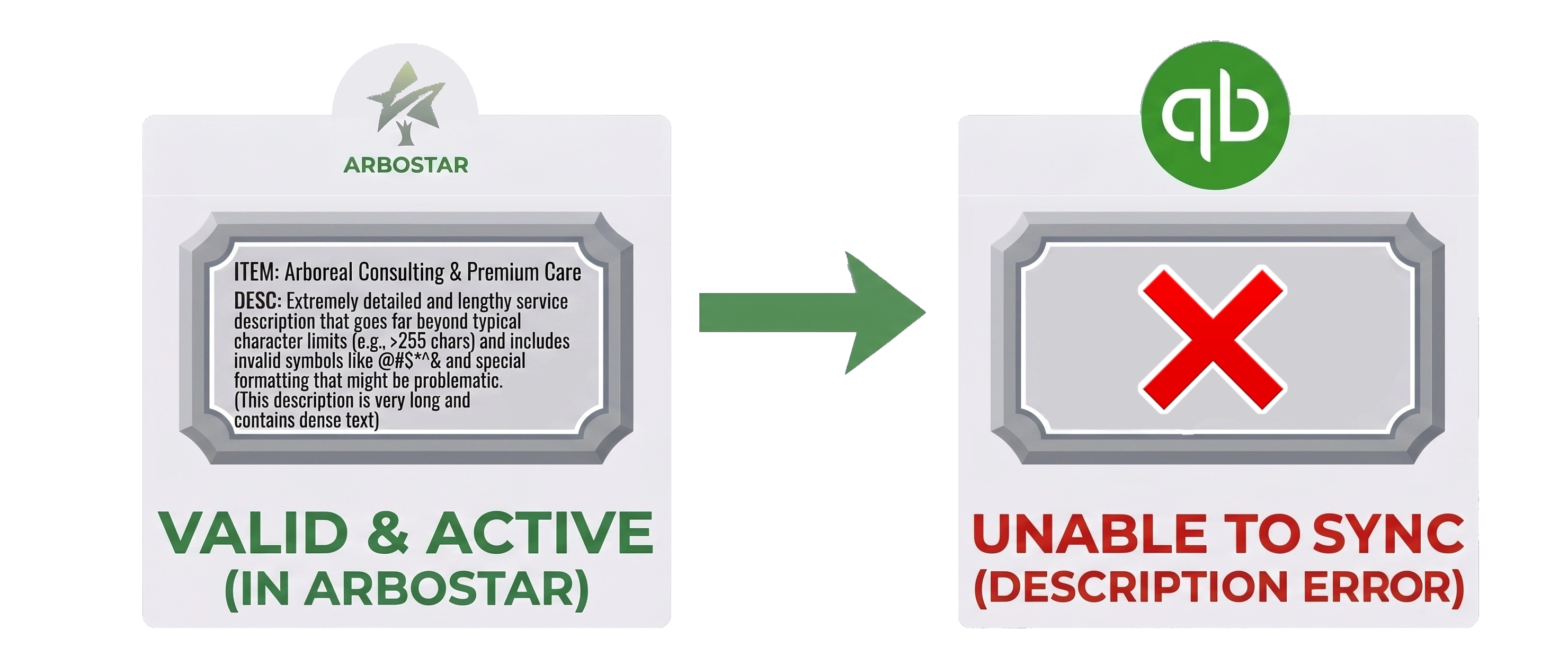
Clean up the description and re-sync.
Message: The TaxType code 'OUTPUT2' cannot be used with account code '200
Xero
Xero strictly links GL accounts to specific tax rates; an incompatible account / tax combination is rejected by Xero.
Ensure the tax rate applied to the invoice is compatible with the selected revenue account, and that the tax name matches a Xero rate exactly (Accounting → Advanced → Tax rates / Chart of accounts). Then resync.
Account period & subscription messages
Message: The account period has closed, and the account books cannot be updated through the QBO Services API. Please use QBO website to make these changes
QuickBooks Xero
The invoice / transaction date falls in a period that's been closed/locked, so ArboStar can't create or edit anything dated in that period.
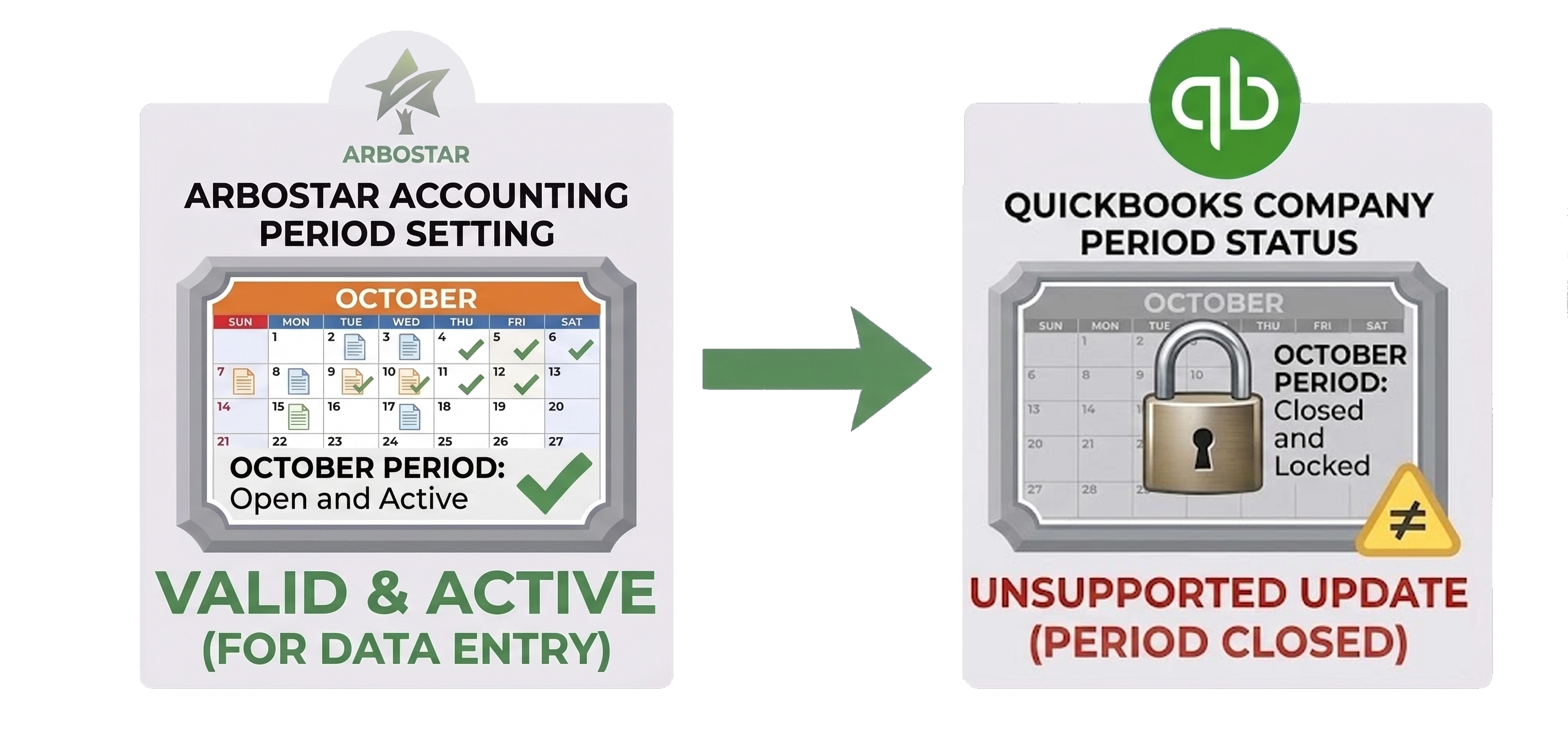
Move the invoice / transaction to the new date and then sync.
Alternatively, you can temporarily adjust the closing date in accounting and sync it to the old date, if that won't mess up your tax reporting.
Message: Subscription period has ended or canceled or there was a billing problem. You can't add data to QuickBooks Online because your trial or subscription period ended, you canceled your subscription, or there was a billing problem.
QuickBooks
The QuickBooks/Xero subscription is lapsed, cancelled, past due, or in read-only mode.
Log in to QuickBooks directly, resolve the billing/subscription so the account is active and writable, then re-sync from ArboStar
Summary and general advice
- Don't delete synced records in QuickBooks/Xero - deactivate instead (deletion causes "not found" and "ghost" errors).
- Keep names and descriptions clean - no colons, slashes, special symbols, or emojis in client / product / service names.
- Map every product/service to an account and a tax rate - especially for Xero, before a bulk sync.
- Use tax names that exist in the accounting platform, spelled identically.
- Fill in the primary contact's email for Xero clients.
- Mind closed periods - don't back-date into locked/closed periods.
- Keep the subscription active and the connection authorized.
- Fix invoices before payments, and clients/services before invoices.
- Keep notes/memos short to stay under field-length limits.
For any issue that requires developer intervention please contact tech support - support@arbostar.com
See also: