
Tree Inventory — Rebuilt from the Ground Up
Tree Inventory has been completely rebuilt. The core logic, the map, the connection to estimates, workorders, schedules, invoices, and the mobile app — everything has been redesigned from scratch.
Tree Inventory connects trees to every part of your workflow. Services are assigned to trees, giving each tree a complete picture of the work planned and performed.
Access Tree Inventory from Anywhere
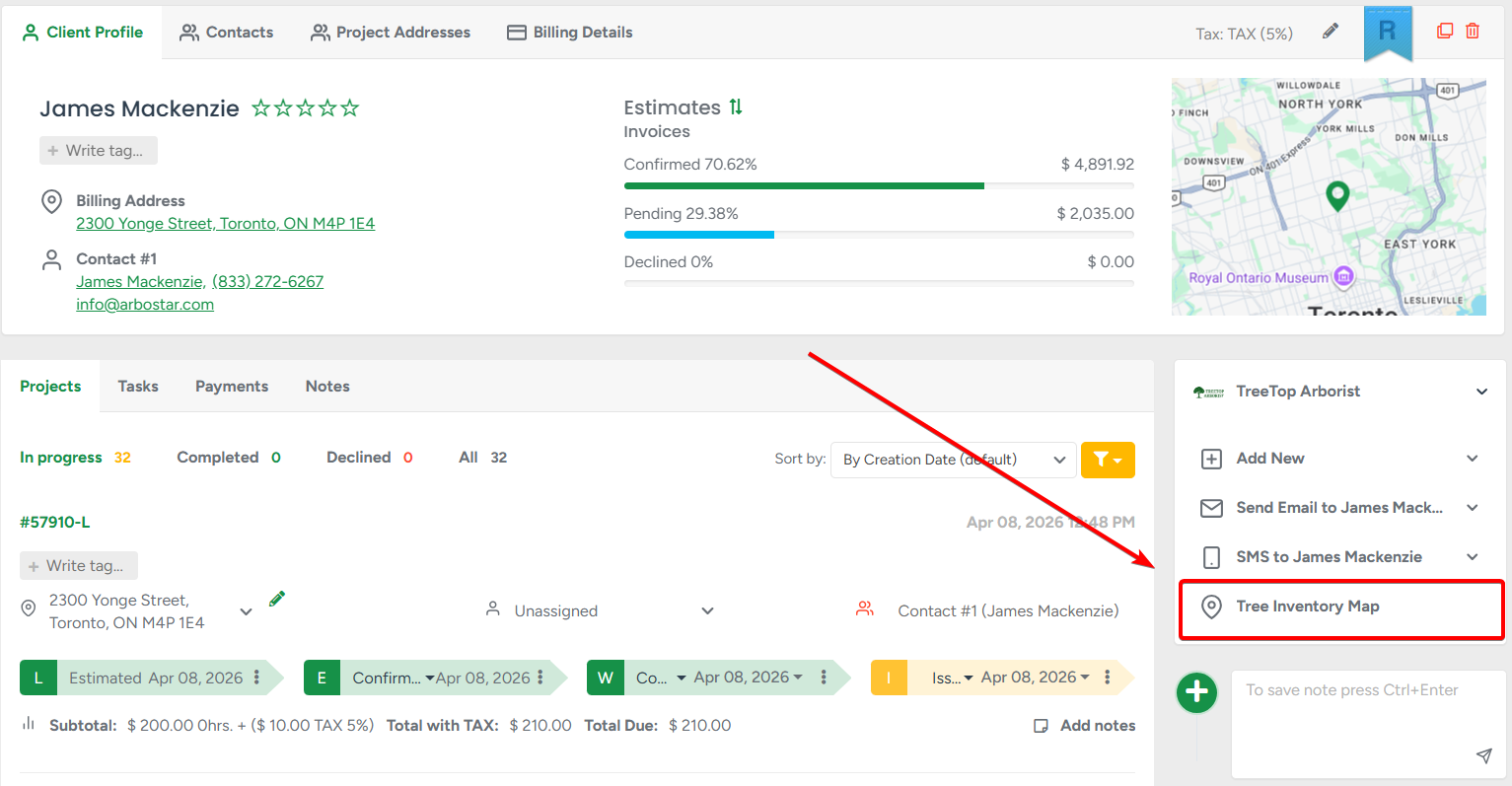
Tree Inventory is accessible directly from the Client Profile and from any Estimate.
Open it from the Client Profile to manage your client's trees independently of any specific job — add trees, fill in details, upload files, and keep the inventory up to date over time. |
|
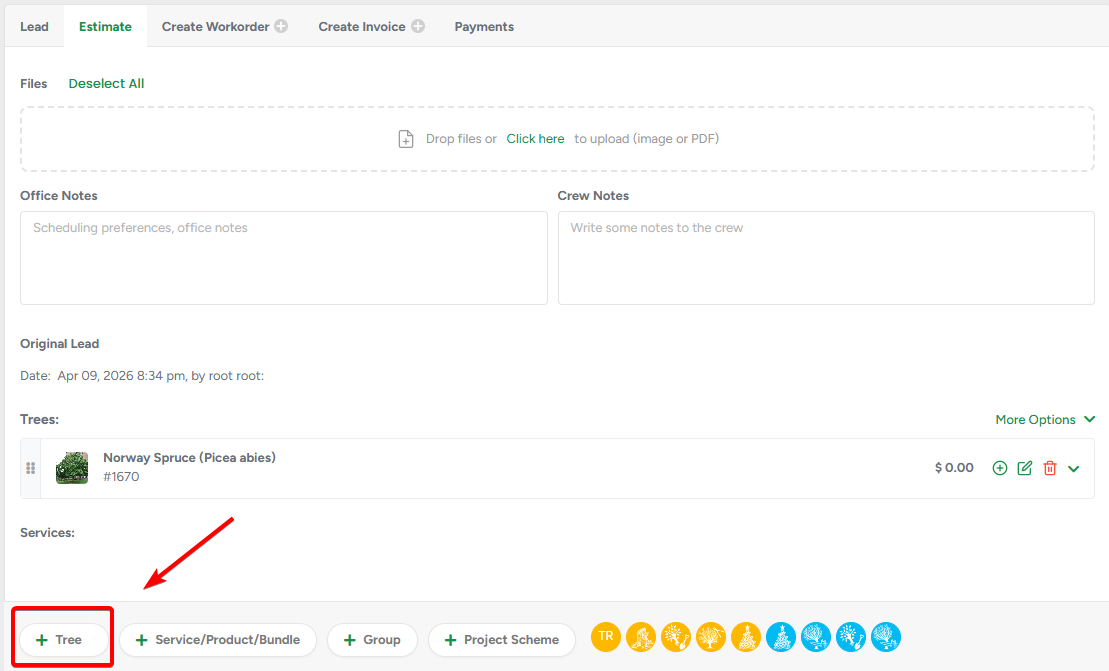
Open it from an Estimate when you're ready to scope work — select trees on the map, assign services to each one, and build the estimate without switching between screens. |
|
A Precise, Interactive Map
Each client can have multiple maps, and each map supports a full set of tools for working with trees on site. Place trees directly on the map, move them, clone them, and select multiple trees at once. Every tree appears as a color-coded pin based on Tree Species — making it easy to navigate large inventories at a glance.
Trees in Estimates
Open Tree Inventory directly from any estimate, select the trees that need attention, assign services to each one, and add everything to the estimate in a single action — no switching between screens, no manual data entry.
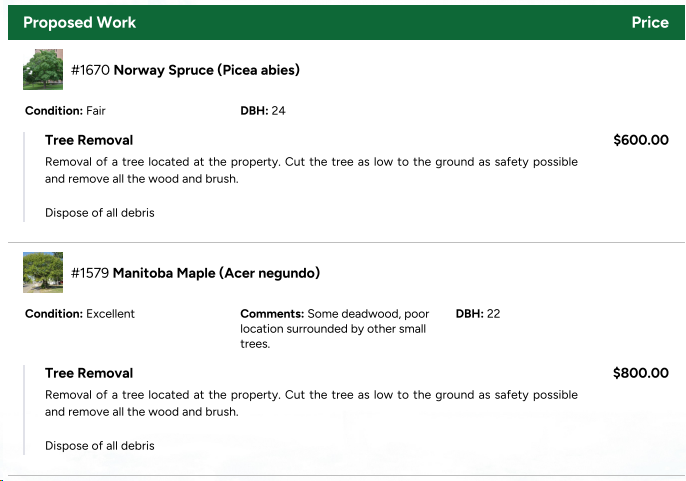
The estimate includes a dedicated Trees block — each tree with its own services, prices, and status. The same structure flows automatically into the Workorder and Invoice, keeping everything consistent from the first quote to the final invoice.
Note: A Workorder or Invoice cannot be created if any tree in the estimate has no services assigned. The system will prompt you to resolve this before proceeding.
Share the Full Picture with Your Clients
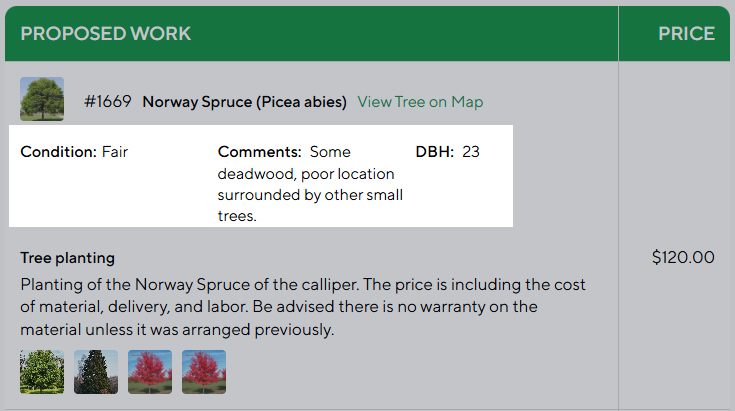
Trees and their assigned services now appear in PDFs and in the Customer Portal. Your clients can see exactly which trees are included in their Estimate or Invoice and what work is planned for each one. You have full control over what information is visible to clients — specific tree fields, services, or both.
|
Track Progress Tree by Tree, Right on Site
Field workers see every tree and its assigned services directly on the Job Profile screen. On site, they can open the map, tap any tree to view its details, and mark each service as complete one by one. Completed trees are highlighted on the map — making it easy to see what's done and what's still in progress without any guesswork. Before closing a job, a field report is required for each service — ensuring every completed tree has proper documentation on record. |
Every Tree Has a History
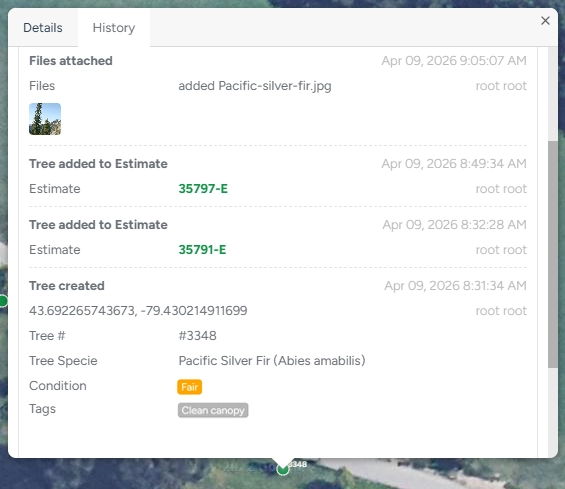
Every tree has a History tab that records all estimates it appeared in, all jobs performed, service status changes, and field reports — across its entire lifetime. No matter how many seasons or jobs have passed, the full service history of any tree is always there when you need it. Whether you're preparing a new estimate, reviewing past work, or answering a client question — the answer is one tap away.
Configure Tree Inventory Your Way
In Company Management → Tree Inventory Fields Management, you have full control over how Tree Inventory works for your business. Choose which fields appear on trees, set their order, configure default values, and decide what information is visible to clients. Every team works differently — Tree Inventory adapts to fit yours.
 |
Your Existing Data Is Safe
All your existing tree data — positions on the map, photos, Tree Species, and field values — carries over automatically. No action required on your end.
Crew Schedule — Filter by Crew
You can now filter the Crew Schedule to show only the crews you need. Select one or more crews from the filter and the schedule collapses to those rows only — making it easier to review workload or move jobs without scrolling through your entire team.
Job Statuses
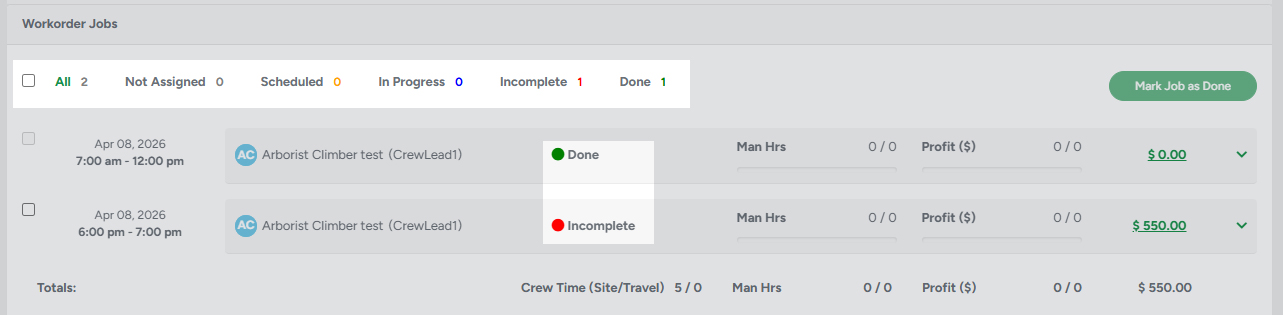
Jobs now have their own status — separate from workorder and service statuses. Five statuses track each job in real time:
|
In the Workorder, job statuses are visible at a glance. On the Crew Schedule, you can switch job colors to follow job status — enable Job Color Scheme for Crew Schedule in Company Management. In the mobile app, the status updates automatically based on the "Work is Done" checkbox.
Security Updates — MFA and Biometric Login
- MFA by SMS — SMS is now available as a delivery method alongside Email. Configure in My Profile → Multi-Factor Authentication or per user in User Management.
SMS verification messages are sent even when the company's SMS balance is negative. Monitor your balance if MFA by SMS is enabled for multiple users.
- Trust this device — a new option at login that skips MFA on the same device for 30 days.
- Biometric login (App) — the app now asks to enable Face ID / Touch ID / Fingerprint after first login. Once set, biometric bypasses both password and MFA for that device.