
Tree Inventory is ArboStar's built-in tool for documenting, mapping, and tracking individual trees at a client's property. It gives you a permanent record of every tree you work with — its details, location on the map, assigned services, and full job history — all in one place.
The core idea is simple: in tree care, work starts with the object, not the task. Tree Inventory lets you think the same way. You start with the trees on the map, assign services to each one, and every estimate, workorder, and invoice then reflects exactly which tree each service was performed on.
What a Tree Is
In ArboStar, a Tree is a long-lived record that represents a real physical object at a client's property — a tree, shrub, stump, or any other object your company works with regularly.
Each tree has:
|
|
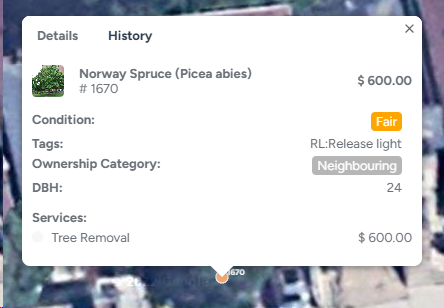
A tree is not tied to a single estimate. The same tree can appear in multiple estimates over time, building up a full history of all the work ever done on it.
Two Ways to Start
From the Client Profile - for inventory and documentation. Use this when you want to document all the trees at a property before any work begins. Open the client profile, tap Tree Inventory Map, and start placing trees on the map. Fill in their details, add photos, and organize the property. No estimate is required at this stage.
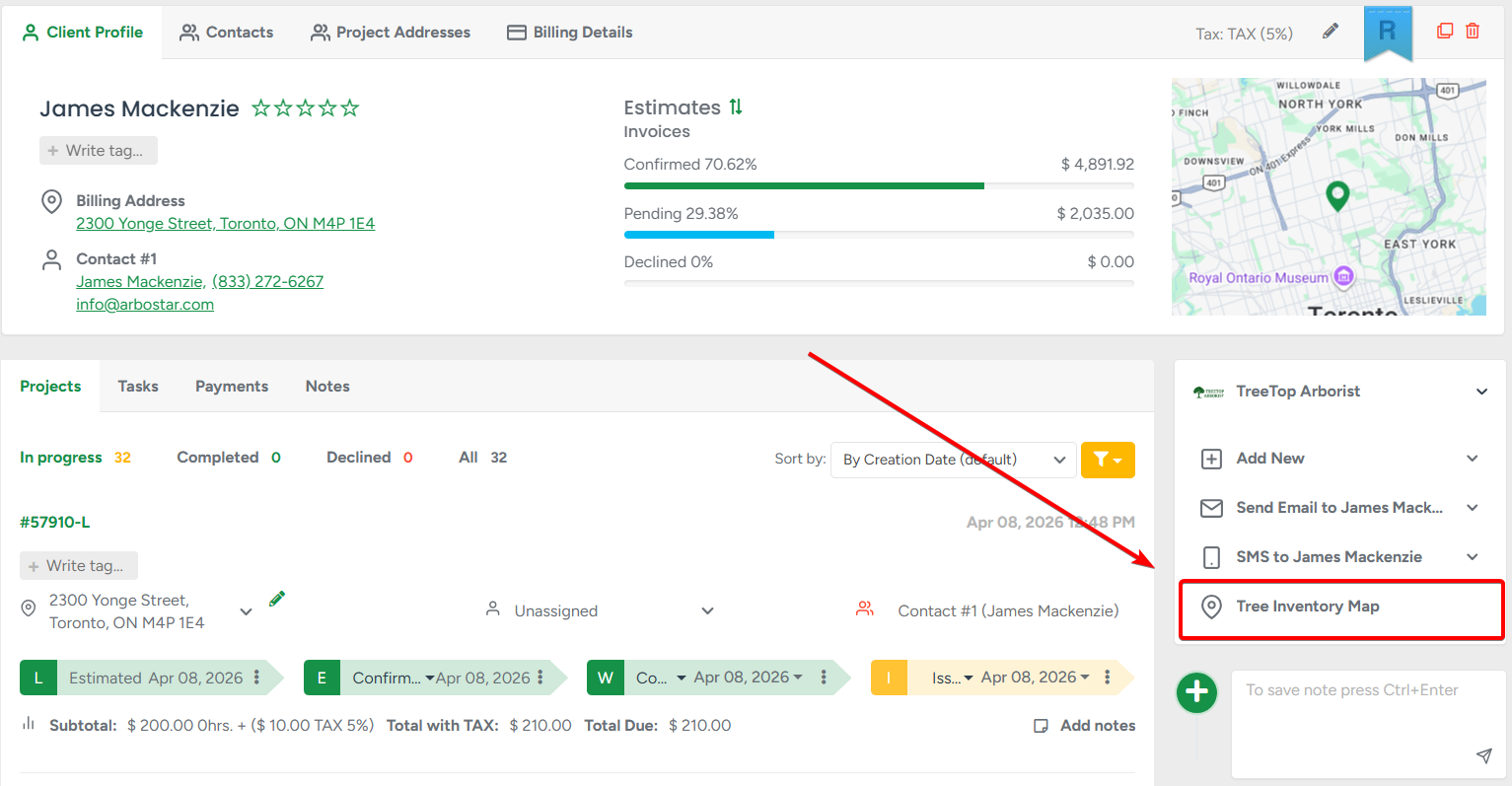
This is ideal for large sites - parks, residential complexes, commercial properties — where you want a complete picture of the property before quoting.
From an Estimate for job-specific work. Use this when you already know what needs to be done. Open or create an estimate, tap + Trees, select the relevant trees on the map, assign service and click "Save and add". Everything stays connected: the estimate shows exactly which tree each service belongs to.

The Save button now has a dynamic label that's changing depending on context:
- Save and update - when updating an existing Estimate tree
- Save and add - when adding a new tree with services
- Save - when no services are assigned
Where Tree Inventory Appears
Once trees are added to an estimate, they follow the job through every stage of the ArboStar workflow:
| Stage | What you see |
|---|---|
| Estimate | Trees block with services assigned per tree |
| Workorder | Same structure, with checkboxes for scheduling |
| Crew Schedule | Trees and services grouped for scheduling |
| Job(Mobile App) | Trees and their services on the field worker's job screen |
| Invoice | Trees block with services available for invoicing |
| Customer Portal | Trees with assigned services and details; clients can tap View on Map to see tree positions on an interactive map |
| PDFs | Trees listed in the services section with their details, a map with pin locations, and a summary table of all tree fields |
Read More
- Tree Inventory Map — Managing Trees — how to create, edit, move, clone, and delete trees on the map
- Tree Inventory in Estimates — adding trees to estimates, assigning services, working with the Trees block
- Tree Inventory on the Mobile App — how field workers see and interact with trees on the job
- Tree Inventory Settings (Company Management) — configuring fields, visibility, species, and custom fields