
Accessing Invoices
To access invoices from the app:
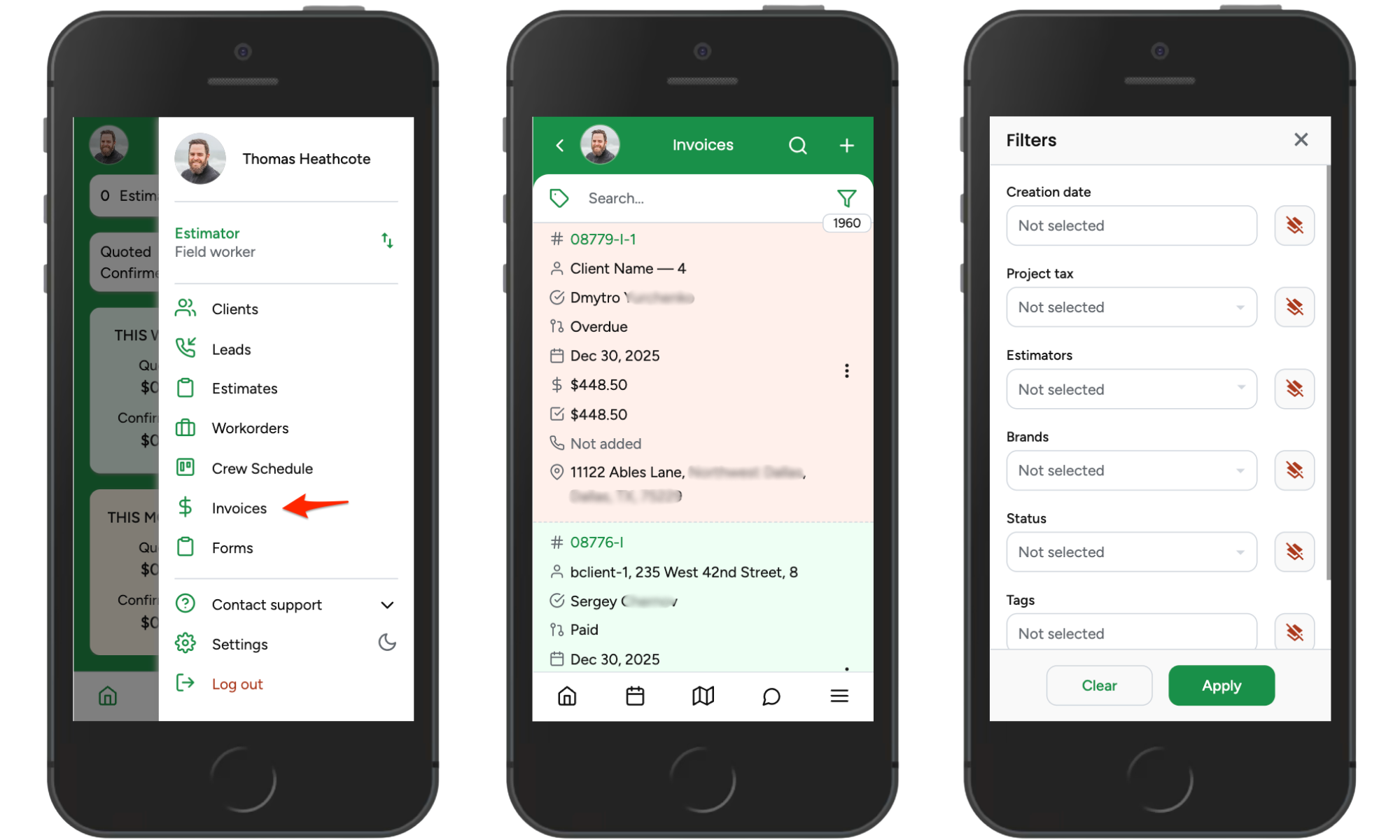
Tap the menu icon (three bars) at the bottom-right corner of the screen.
Select Invoices.
Invoice List Overview
Once inside the Invoices section, you’ll see a list of all invoices available to you, along with tools at the top to help you narrow down results.
Note: Invoices are color-coded: red for overdue, green for paid, and white for issued.
Tags View
In the top-left corner, tap the tag icon to view invoices along with their assigned tags.
When the tag icon is green, tags added to invoices or their related projects are hidden.
When the tag icon is orange, tags will be visible on the invoice list.
Search
Next to the tag icon is the search bar.
The search field only accepts Invoice Numbers or Project IDs.
Filters
Tap the Filter icon to refine the invoice list using specific invoice data. You can filter by:
- Creation Date
The date when the invoice was created or issued. - Project Tax
Displays the list of project taxes created in Company Management. - Estimators
Shows all support users assigned to Estimator roles. - Brands
Filters invoices based on the brand assigned to them. - Status
Displays invoices by status, such as Paid, Overdue, and other available invoice statuses. - Tags
Filters invoices based on tags added directly to the invoice or to the project it belongs to.
Only Overpaid
Checking this box will show only invoices with overpayments.
Using these tools, you can quickly locate and manage invoices directly from the ArboStar app without needing to access the desktop version.
Click here to explore and understand the invoice profile within the app.