Ways to Access an Invoice Profile
There are multiple ways to open an invoice profile in the app:
Search by Invoice ID
Tap the magnifying glass icon and enter the Invoice ID.From the Client Profile
Go to the Client Profile, open Projects, then tap the Invoice stage of the project.From the Invoices Section
Navigate to Invoices, then:Enter the Invoice ID in the search bar, or
Use filters to narrow down results and select the invoice you want to open.
Inside the Invoice Profile
To make it easier to follow, the invoice profile is broken down into sections.
Invoice Details SectionThis section displays the basic invoice and project information:
| 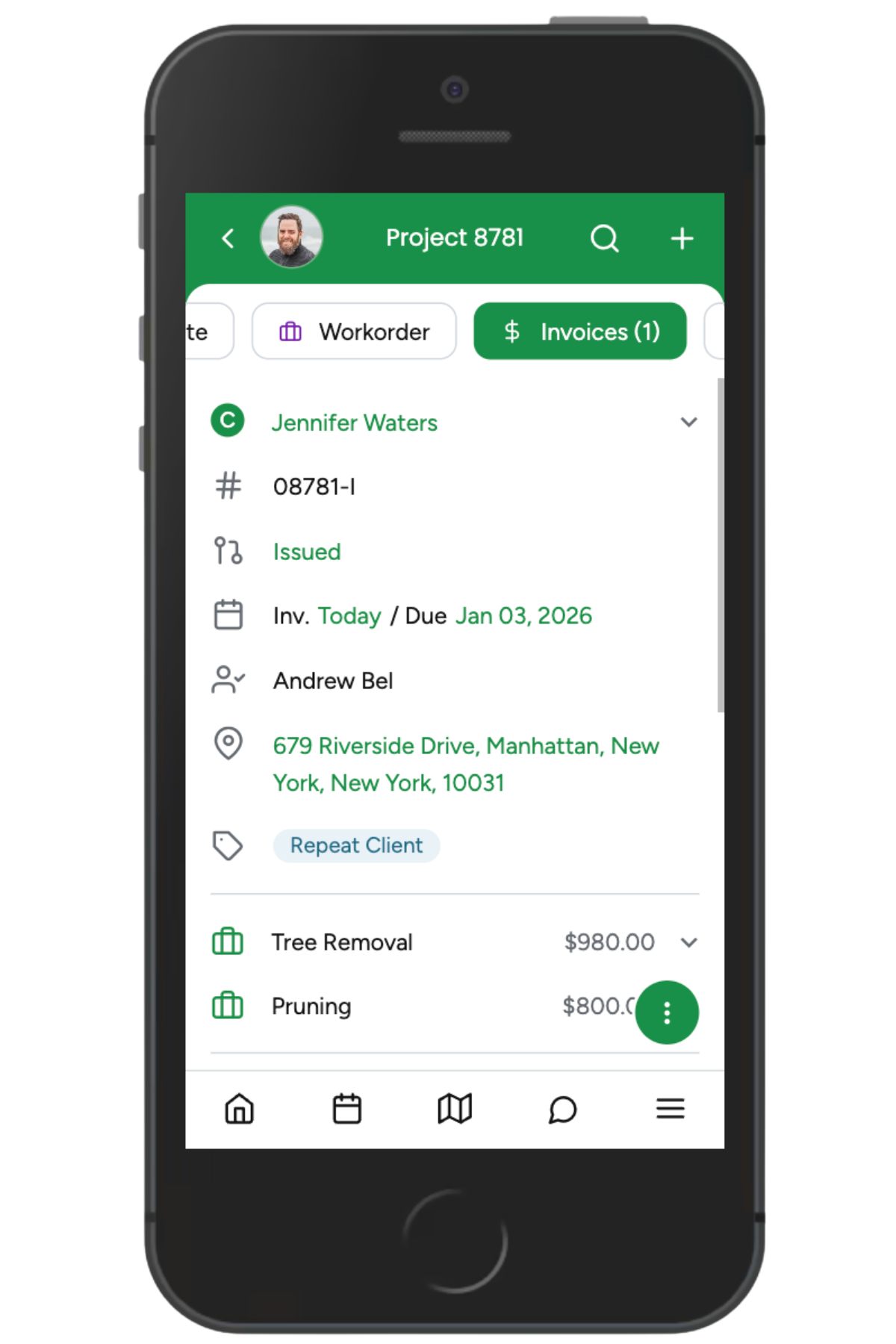 |
Services and Pricing SectionThis section shows the services or products included in the invoice along with their corresponding prices. |
Payments, Files, and Totals SectionBelow the services list, you’ll find payment details, attached files, and invoice totals:
| 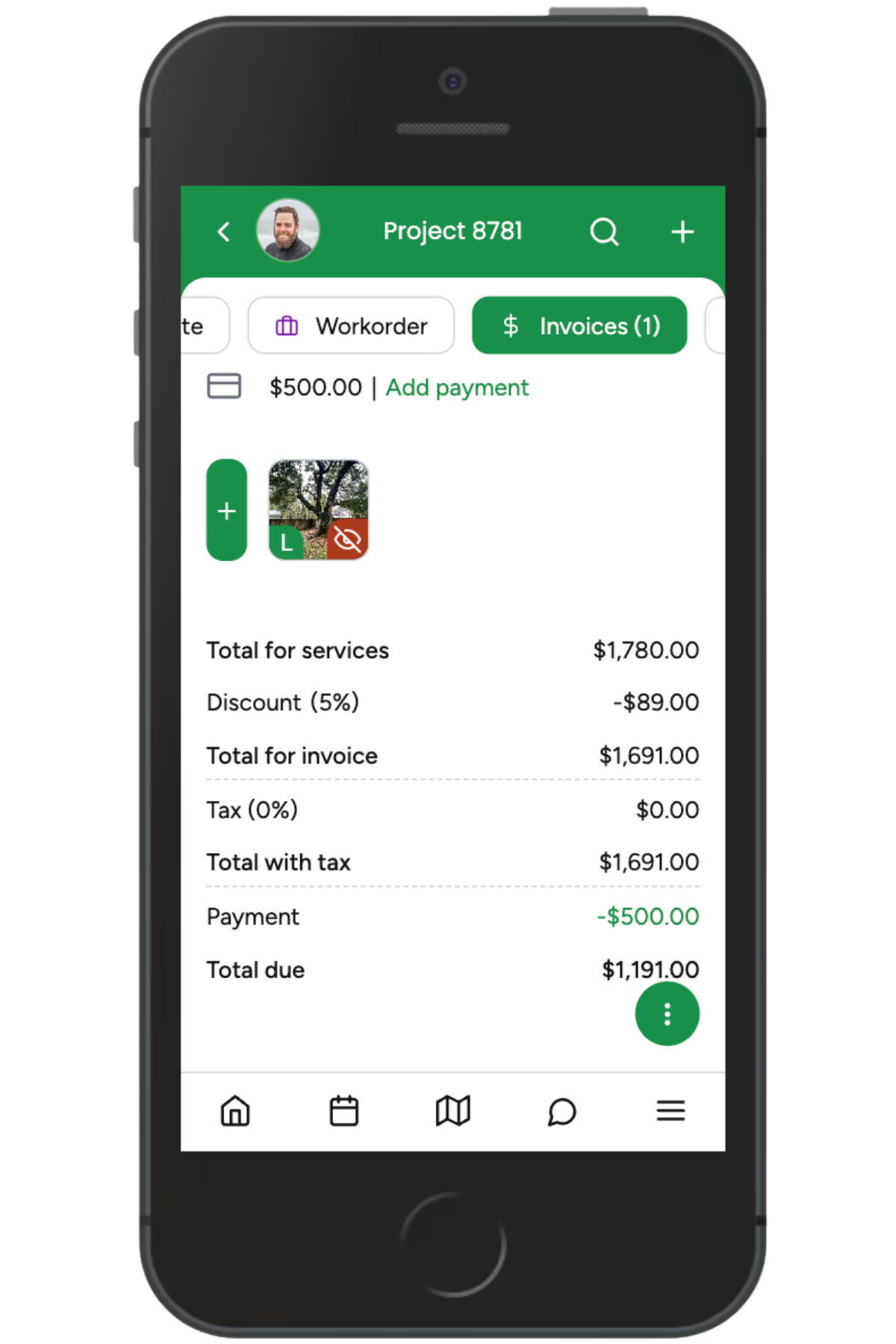 |
This layout allows you to quickly review invoice status, services, payments, and balances directly from the ArboStar app
Payments
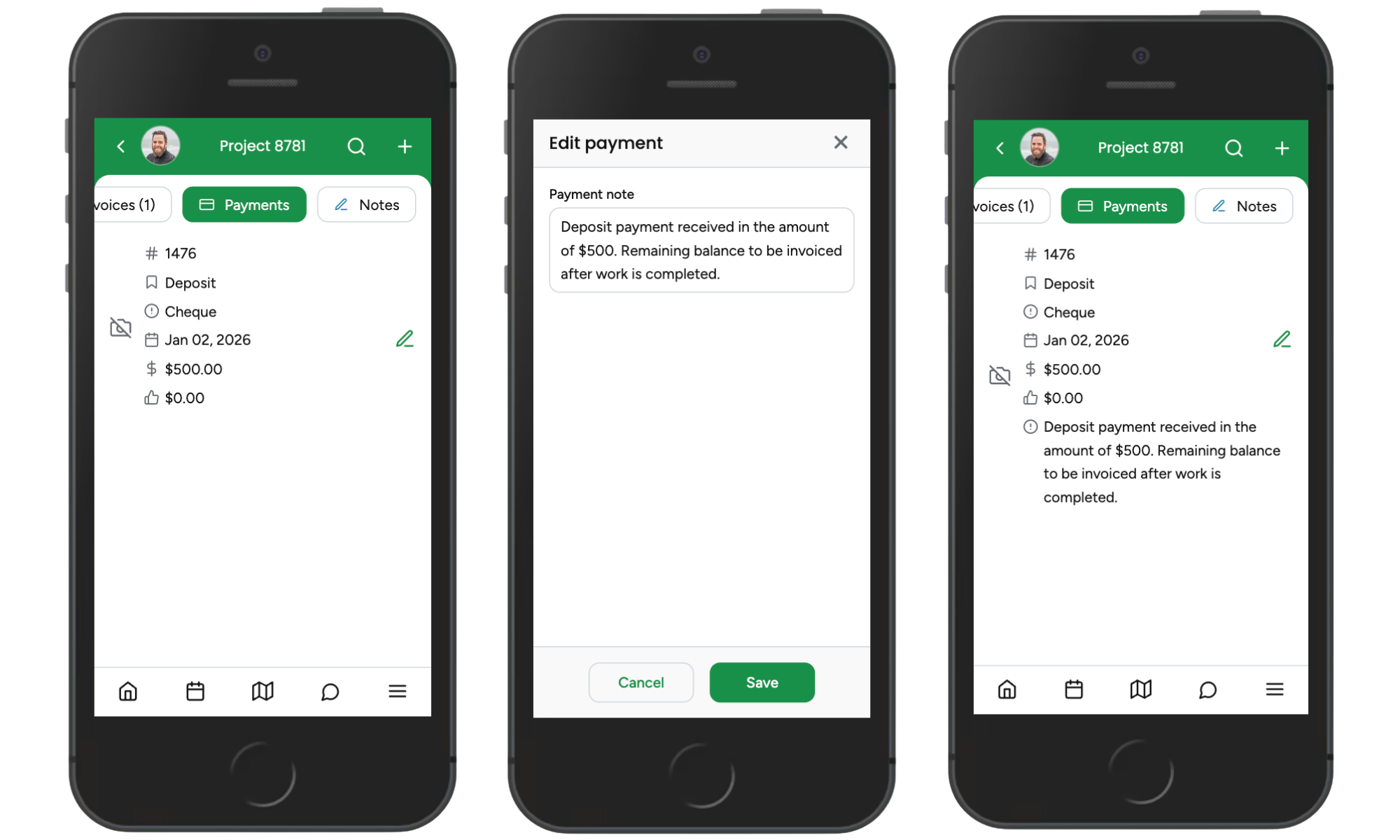
Payments made for the invoice are recorded in the Payment profile. Swipe right on the screen and tap Payments to view them.
Inside the payment profile, you’ll find the following details:
Payment Order - indicates the sequence of the payment
Payment Type
Payment Method
Payment Date - the date the payment was made
Payment Amount
Tips
Payment Notes
Payment notes are editable. Tap the pencil icon, update the note, and save your changes.
Invoice Options
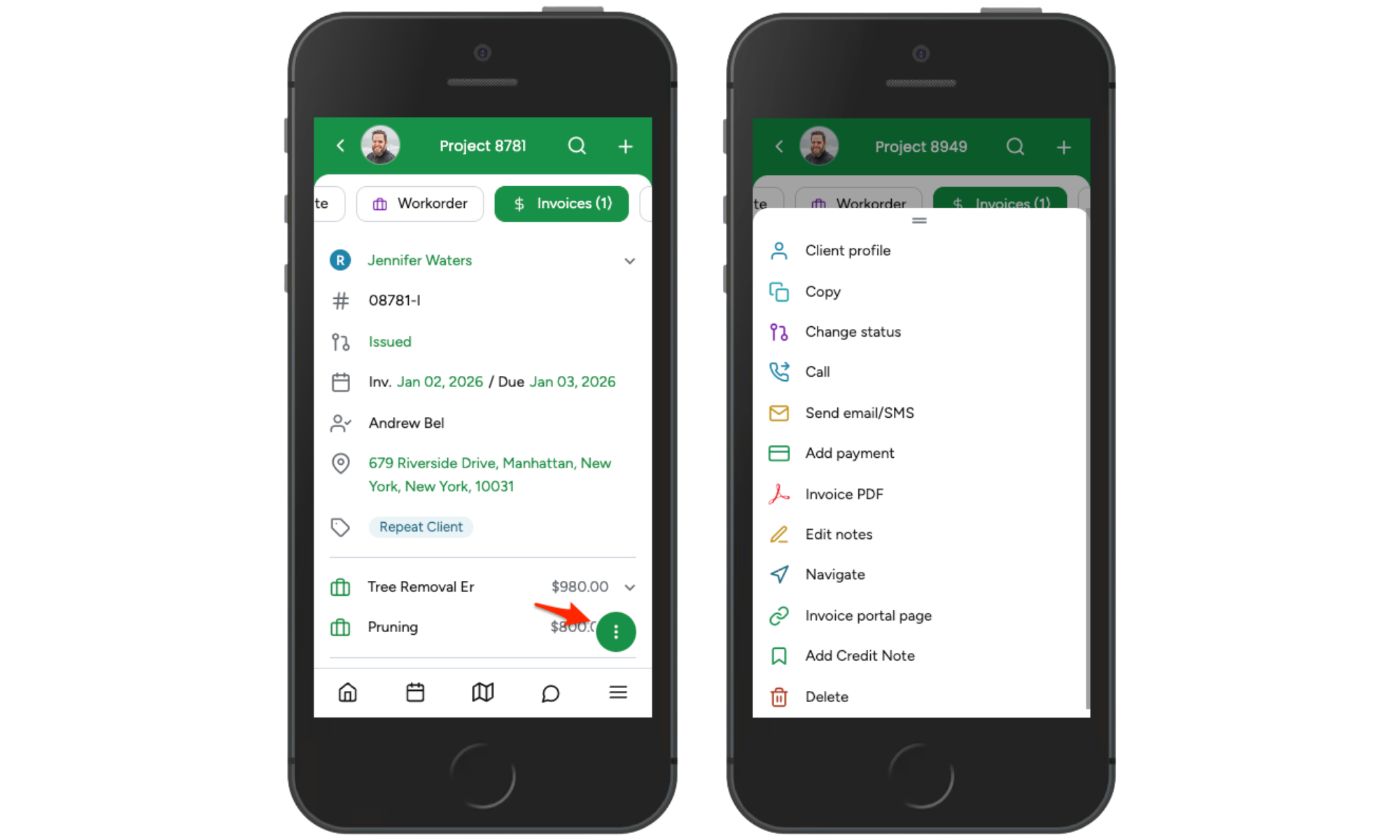
Within the Invoice Profile, tap the three-dot icon at the bottom of the screen to open Invoice Options. This menu provides quick access to common invoice-related actions:
Client Profile
Opens the associated client profile.Copy
Copies the entire project to the same client or to a different client profile.Change Status
Allows you to update the invoice status.Call
Launches your device’s phone app and calls the contact person assigned to the project.Send Email / SMS
Opens the email pop-up. Scroll to the bottom of the pop-up to enable the option to also send an SMS.Add Payment
Let's you record a partial or full payment for the invoice.Invoice PDF
Opens the invoice PDF, which you can download or print directly from the app.Edit Notes
Allows you to add or update crew notes and office notes.Navigate
Opens Google Maps and shows directions from your current location to the project address.Invoice Portal Page
Let's you copy the invoice portal link or open it directly in your phone’s browser.Add Credit Note
Creates a credit note linked to this invoice to apply a discount, correct an overcharge, or issue a partial or full credit. The credit note reduces the outstanding balance and is recorded in the client’s billing history.Delete
Deletes the invoice. Deleting an invoice does not affect the status of other project stages.