
The Billable Efficiency Report helps you understand how your crew’s time is being used by comparing total worked hours with billable job time. It gives you a clear picture of utilization—showing where time is spent on revenue-generating work and where unbillable hours occur.
This report is beneficial for identifying inefficiencies, comparing performance across different time periods, and making informed decisions about staffing and scheduling.
You can find this report under Business Intelligence → Workorders → Billable Efficiency Report.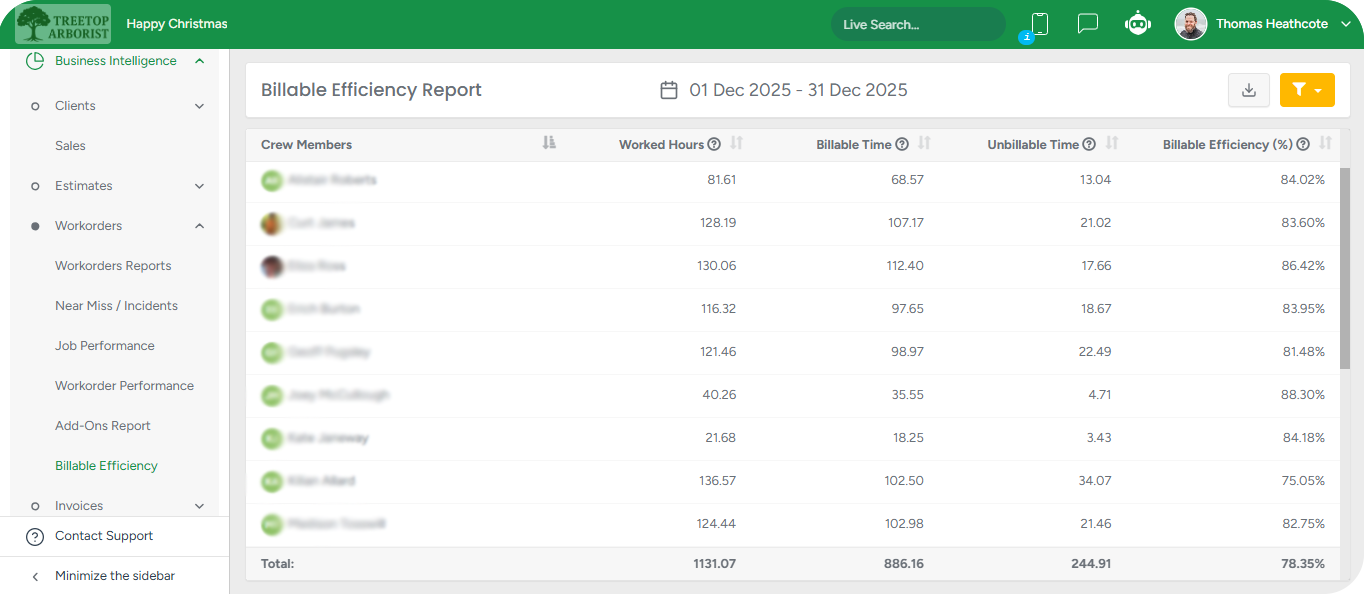
What the report shows
For each crew member, the report breaks time down into four key metrics:

Worked hours – The total time the crew member was clocked in, based on Time Tracker data (clock-in to clock-out, minus lunch).
Billable time – The total time spent on scheduled jobs, taken from Schedule Reports and calculated using Time on Site.
Unbillable time – The difference between worked hours and billable time.
% Billable – The percentage of worked hours that were billable.
A Total row at the bottom aggregates all values and shows a weighted billable percentage across the entire team.
Date range selection
At the top of the report, you can choose the time period you want to analyze. Available options include:
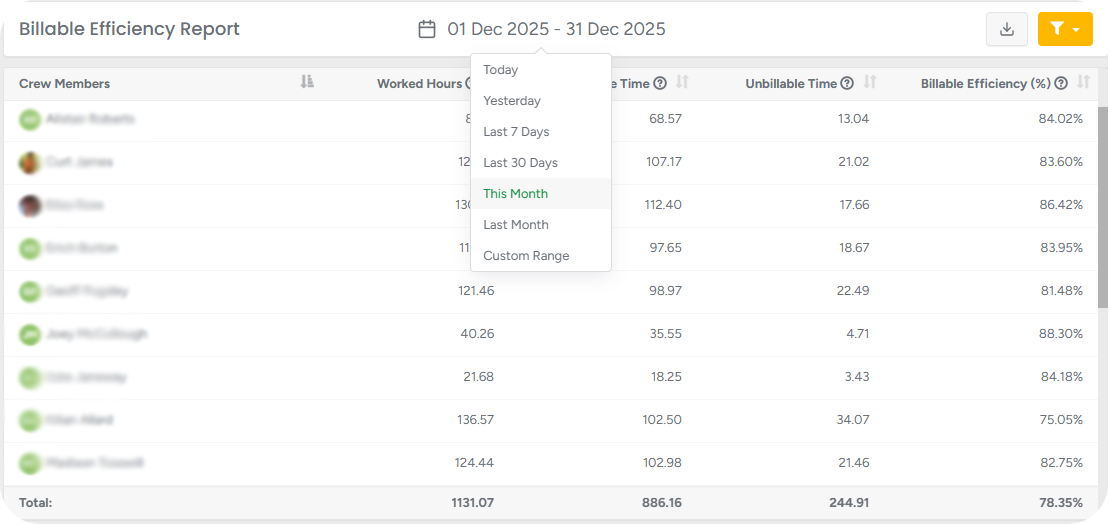
Today
Yesterday
Last 7 days
Last 30 days
This month
Last month
Custom range
Once applied, the report recalculates all values to reflect only the selected period. The selected date range is remembered during your session, so you can return to the report without reapplying it.
Filters
Use the Filters button to refine the report results.
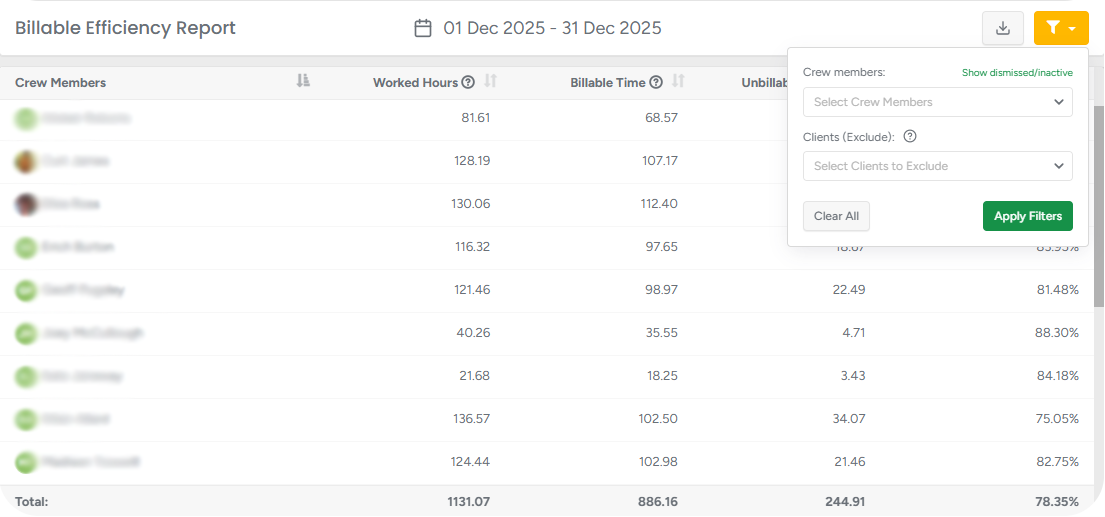
Crew members
Select one or more crew members to include in the report.
By default, only active crew members are shown.
You can choose to show dismissed or inactive crew members, which is helpful when reviewing historical data.
Inactive and dismissed users appear grayed out but can still be selected.
Removing inactive users from the filter automatically removes them from the report.
This ensures past reports remain accurate even if staff members are no longer active.
Clients (Exclude)
Select clients whose jobs should be excluded from billable time calculations.
This is commonly used to exclude internal or non-billable jobs (such as training or meeting schedules).
Excluded clients are removed only from billable time, not from worked hours.
The report always supports historical accuracy: Inactive and dismissed crew members can be included; their past work and billable time remain visible; this allows reliable month-over-month or year-over-year comparisons.
Exporting the report
Click Export to download the report as a CSV file.

The export includes the same columns shown in the table.
Applied date range and filters are respected.
The file is ideal for sharing, audits, or deeper analysis outside of ArboStar.
Calculations
Worked hours come directly from Time Tracker entries and represent the total time a crew member was clocked in.
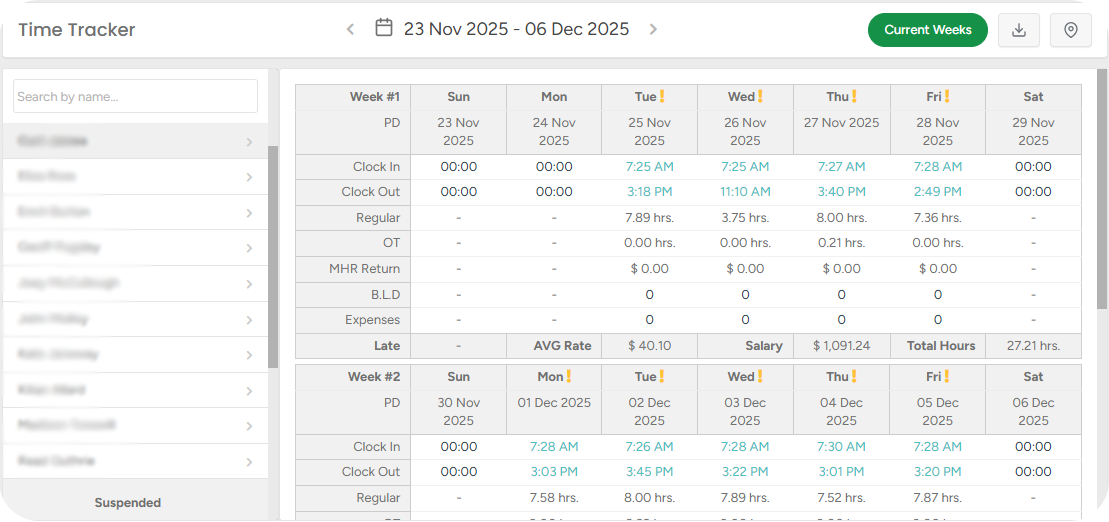
Billable time is based on Schedule Reports and uses Time on Site.
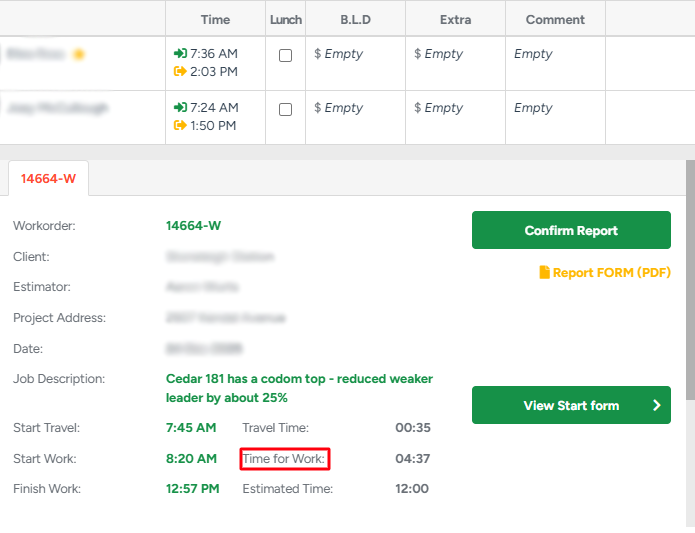
Travel time is included or excluded automatically based on your Company Management → Workorders & Job Management → Include travel time setting.
Unbillable time is calculated as:
Worked hours − Billable time
% Billable shows how much of a crew member’s worked time was spent on billable jobs.
If a crew member has no data for the selected period, their row still appears with zeroes or placeholders, ensuring a complete view of the team.
When to use this report
The Billable Efficiency Report is ideal for:
Tracking crew utilization
Identifying excessive unbillable time
Comparing efficiency across teams or time periods
Supporting payroll, scheduling, and operational decisions
It provides a clear, data-driven view of how effectively your team’s time is being used—without requiring manual calculations or spreadsheets.