
Estimate Confirmation
Clients can confirm estimates online through the Customer Portal. The link to their page can be added to the Estimate Email template from the Clients → Email Templates submodule. To access the direct link to the portal, select the project and choose the Estimate Portal link option from the list of actions to copy the link. 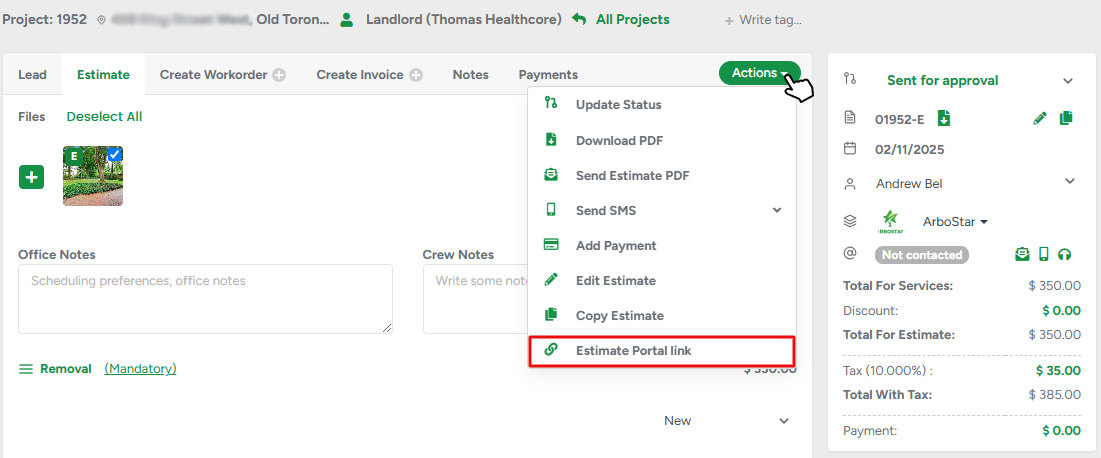 On the Customer Portal, clients can see the list of services, attached photos, and other estimate details. The PDF version of the estimate and the confirmation options are always accessible for clients at the top right corner of the page.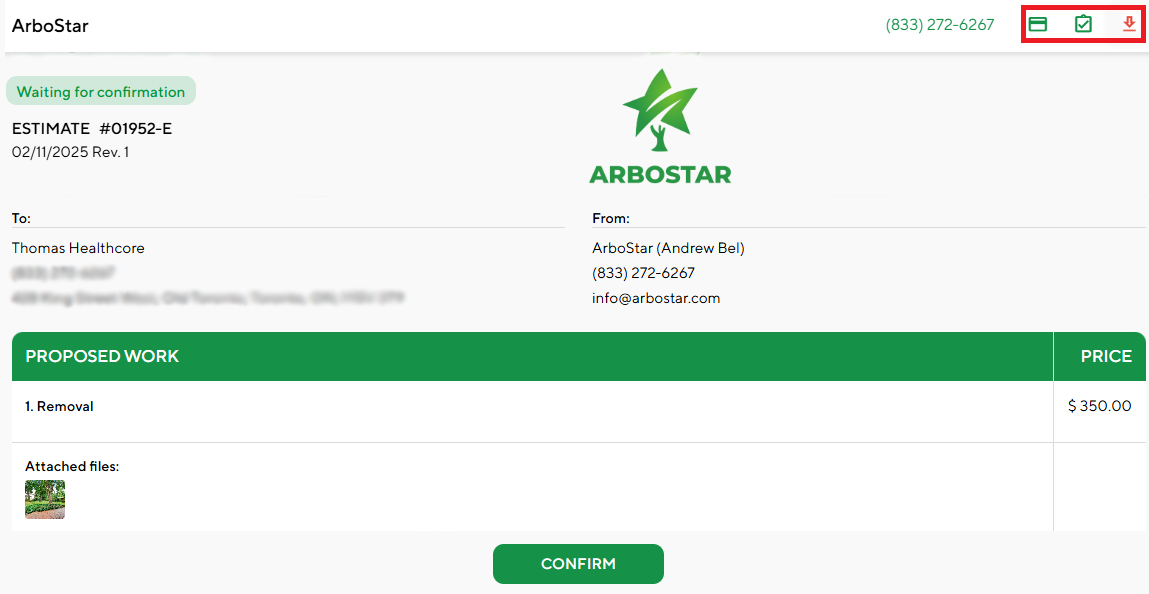
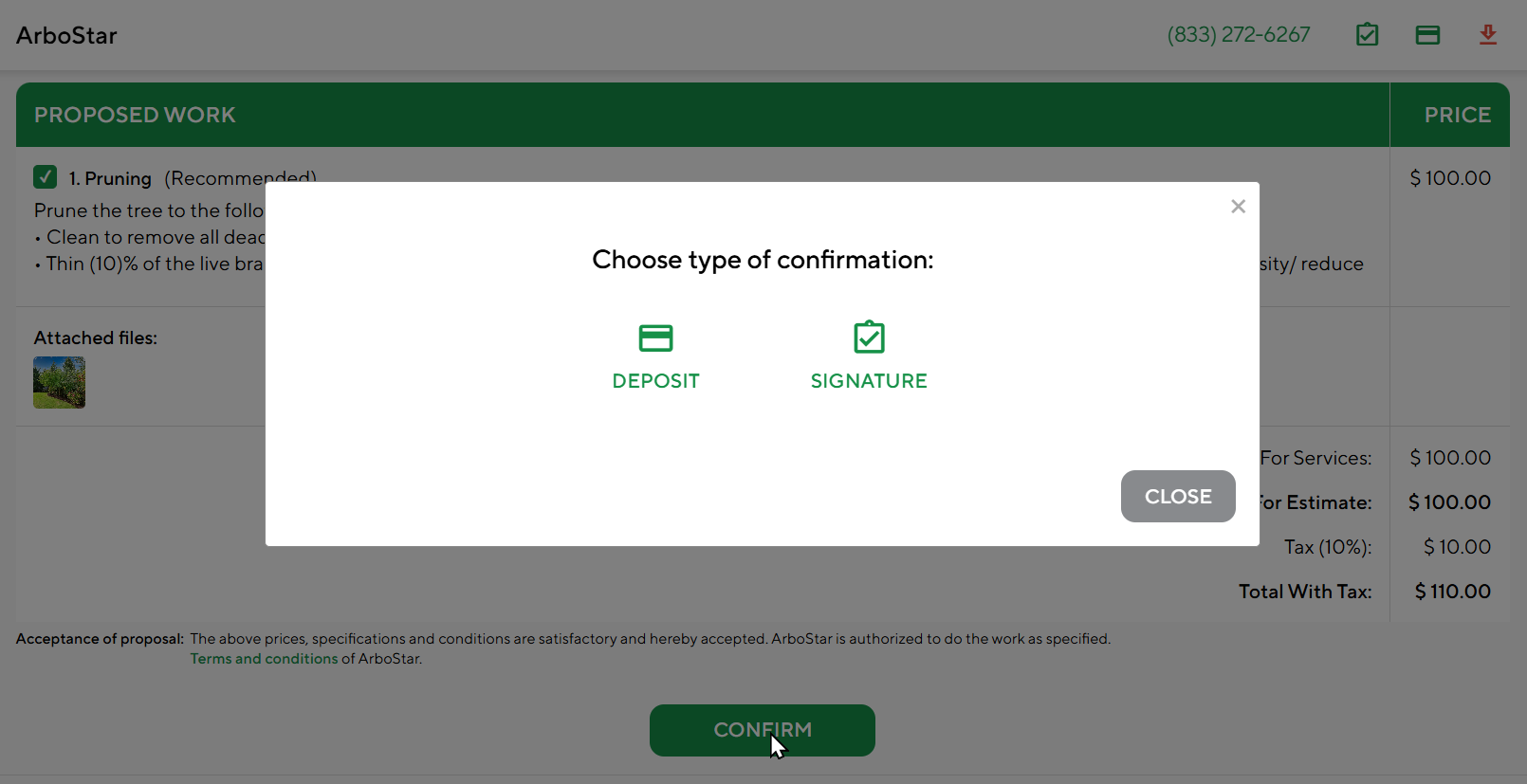
There are a couple of ways for clients to confirm the estimate, depending on the Estimate Management setting in Company Management. When clicking the Confirm button, if the payment processing is set up, clients usually have two types of confirmation: deposit or signing. If not, then they are directed to the signature page.
On the Signature confirmation page, a client can leave a comment for the operational team with their schedule preferences, additional info, etc. 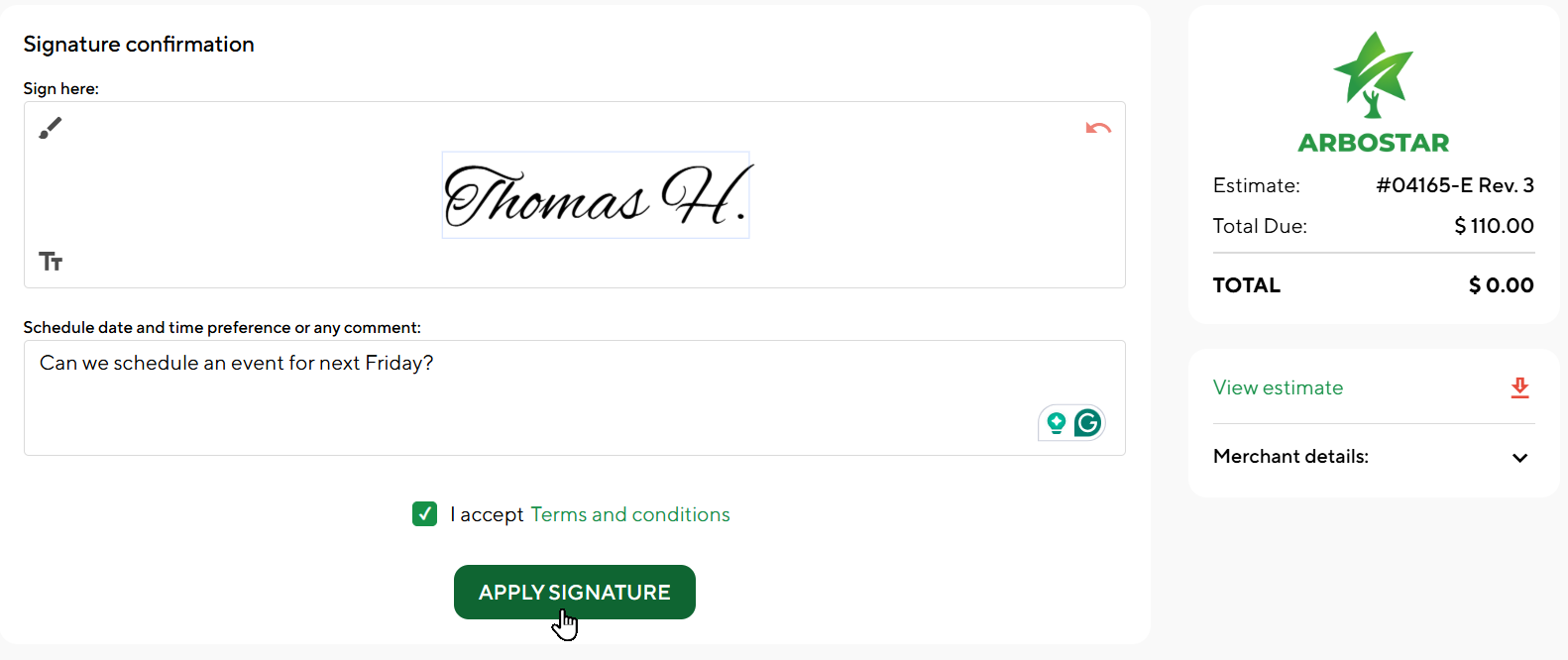
Important: If the estimate deposit is paid via ACH, the estimate status will remain as “Sent for Approval” while the payment is processing. ACH transactions typically take 3–5 business days to either clear or decline. Once the ACH payment is successfully processed, the estimate will automatically move to “Confirmed.” If the payment is declined, you will receive an email notification so you can revisit the project and reattempt the request for payment if needed.
After a client confirms the estimate through deposit or signature (or both), the estimate's status changes to Confirmed, and the workorder for the project is generated automatically. The client's comment is always available in the workorder profile, ensuring you never miss crucial info from a customer.
When the client confirms the estimate online, both the client and the company receive the Confirmed Estimate email notification with confirmation details
Invoice Payment
In the same way as estimates, invoices can be paid online from the Customer's Portal. You can attach the link to your invoice email template using one of our variables. Once the invoice is generated, the direct link to the Invoice Portal is accessible from the Invoice profile. 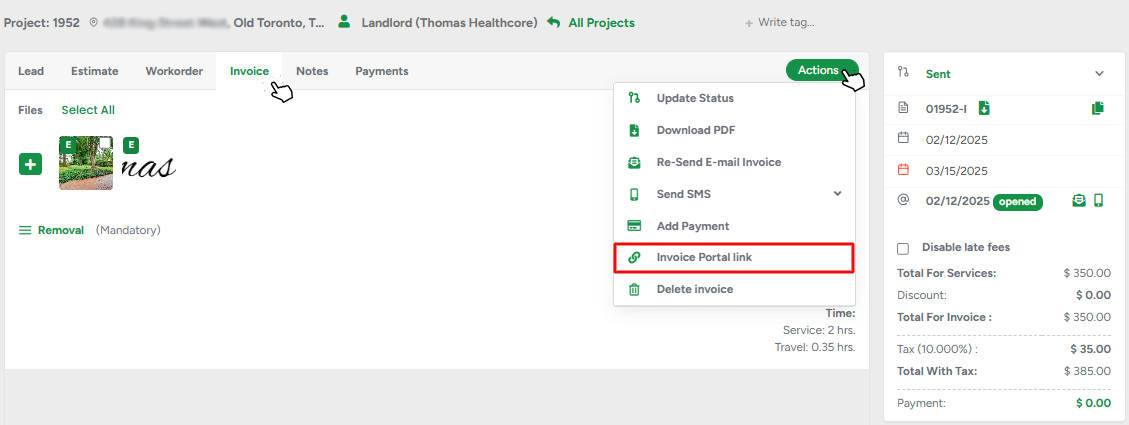
The coloring and the number of days on the label display if an invoice is overdue and the number of days the invoice is in this status.
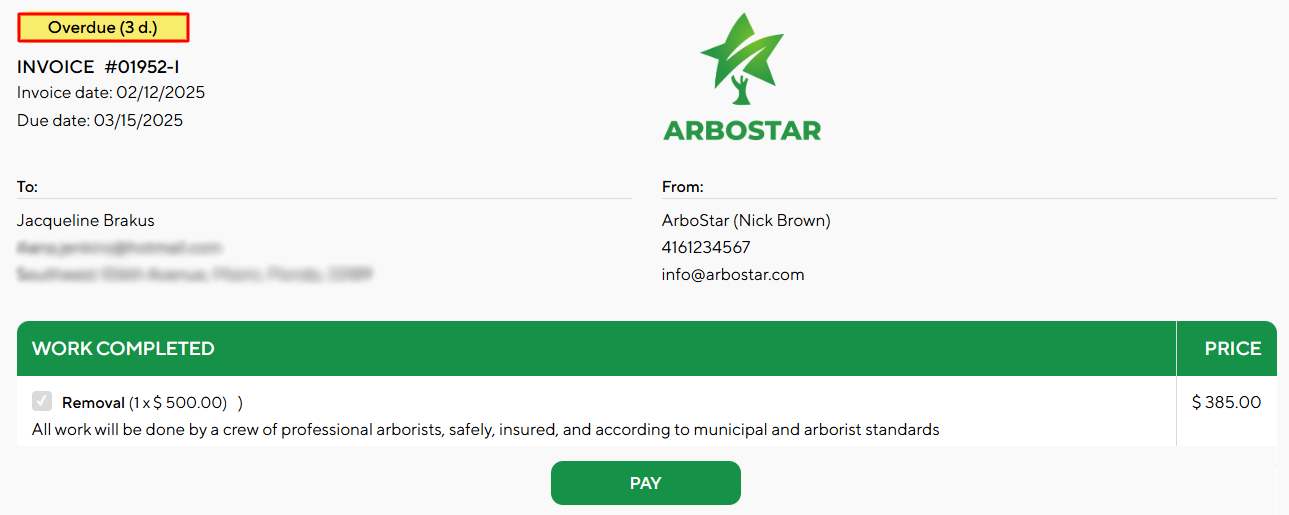
After clicking the "Pay" button, the customer will be redirected to the page where they can choose a payment method(1), input their credentials(2), choose tips(3), and proceed with payment(4). 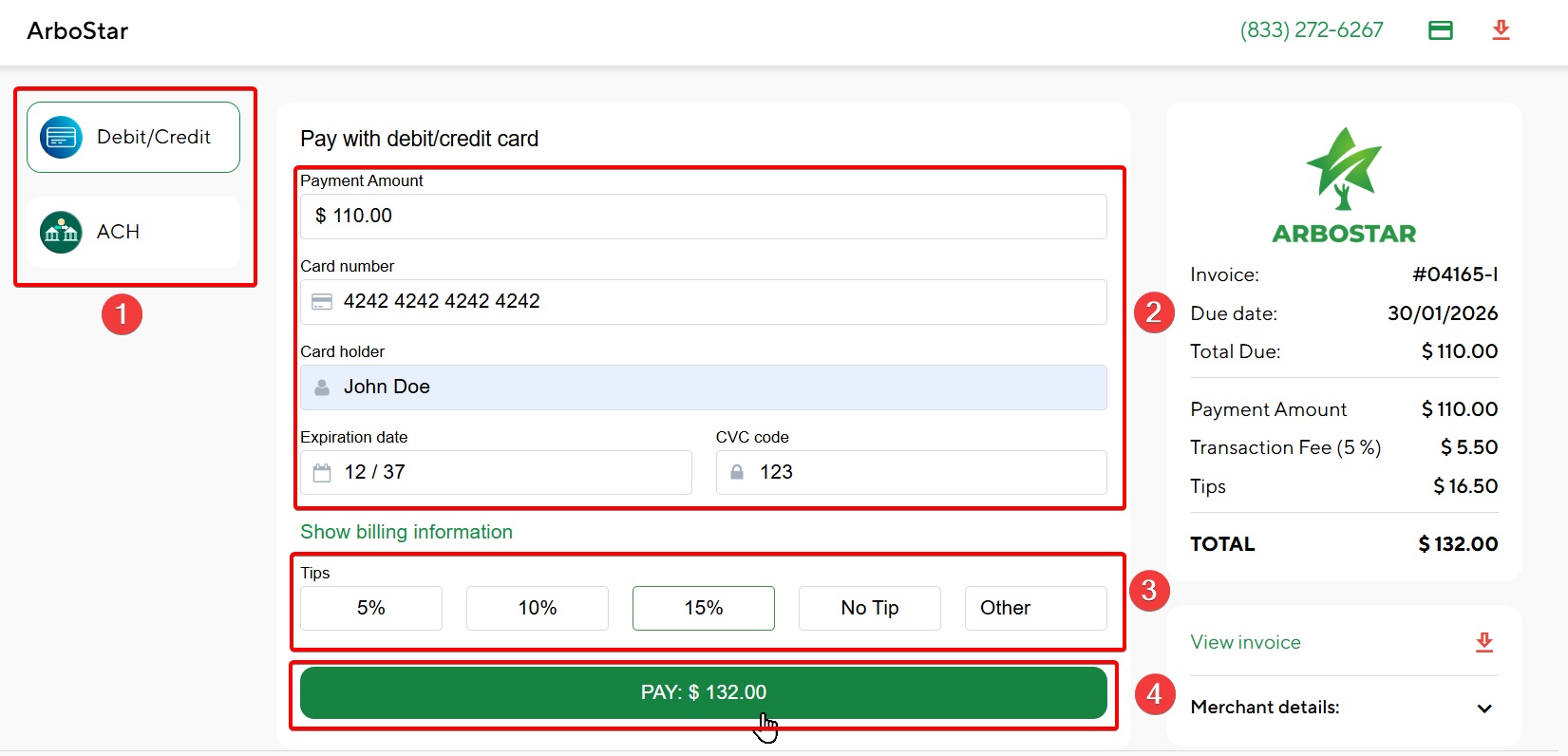
Tips(3) can be found later on the payments tab: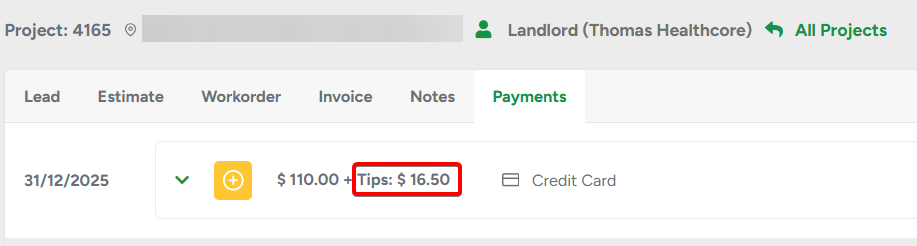
After a successful payment, the customer will be prompted by a small modal window to leave a review.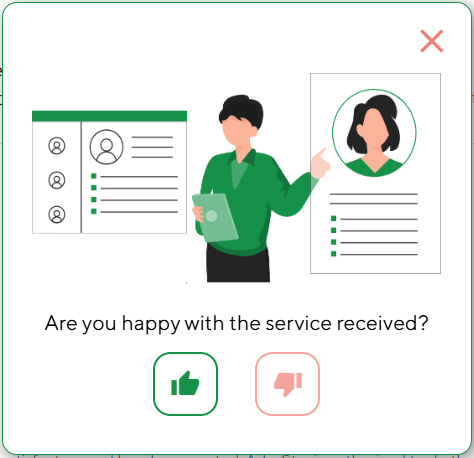
After clicking on either the like or dislike button, the customer will be redirected to the feedback page, where, depending on what option they've chosen previously, they will see the "thank you" message(1), text input for the review(2), and at the bottom, they can also see three custom links(3).
You can set up all of that in the brands module → review settings section.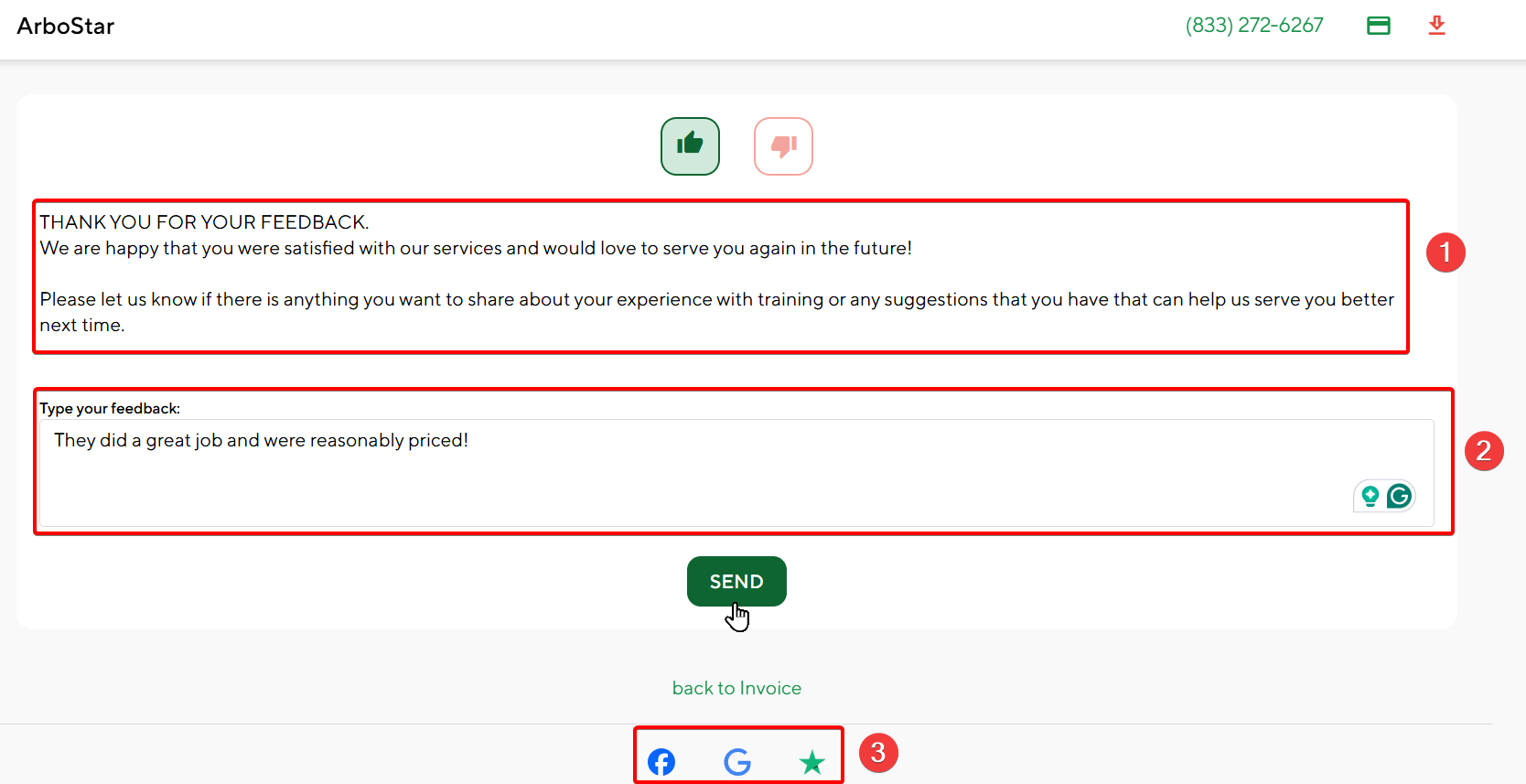
You can find a customer review later at the project page, by hovering your mouse cursor over the like(or dislike) button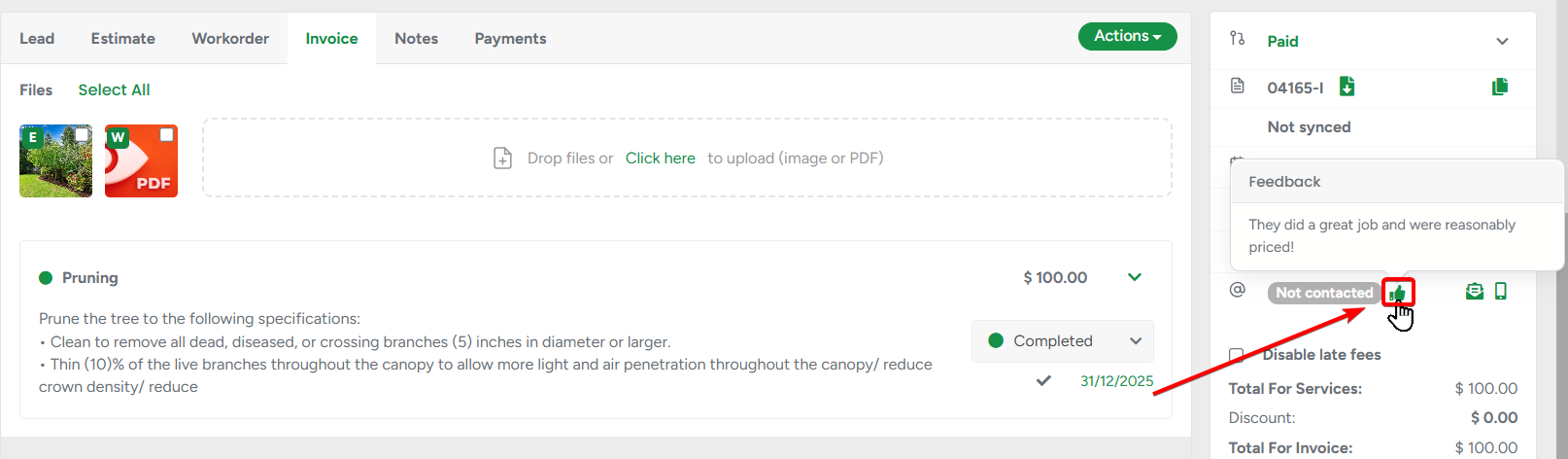
Wisestack
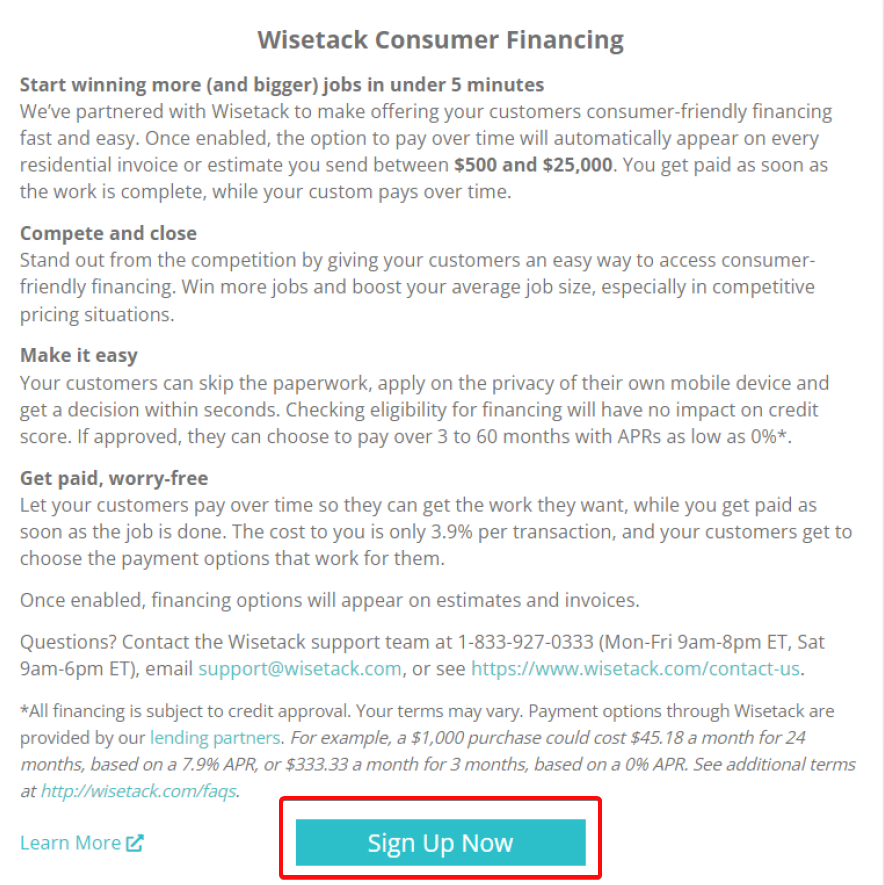
Our American clients have access to the Wisestack finance. This service allows you to get paid as soon as work is done, and your customer can pay over time. It is only available for jobs between $500-$25,000. After the job is complete, you’re paid in 1-3 business days.
To sign up for Wisetack, go to your settings on the top right → Company Management → Wisetack Consumer Financing → Sign Up Now.
How to prequalify your customer:
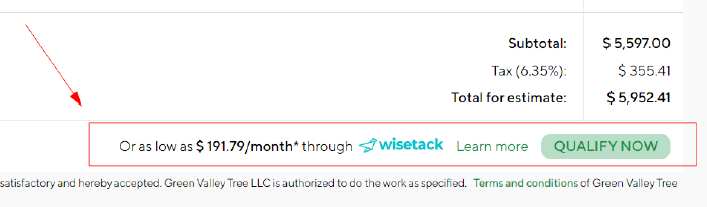
Send an estimate, as normal, for any dollar amount, and Wisetack will automatically appear. Your customer can pre-qualify directly from the estimate by clicking “Qualify Now.”
After opening a financing application, customers will have to enter some basic information about themselves and review their options.
Wisetack does a soft credit card check on a customer, and based on that, they will decide on how much APR (interest rate) they will charge.
They will see up to 6 options, with terms from 3 to 60 months and APRs (annual percentage rate) from 0% to 35.9%, depending on what they qualify for
Some customers may be asked to add a debit card or driver’s license after viewing their options.
Pro tip: You will receive an email letting you know what your customer prequalifies for
You can also track the Prequalification and Financing Applications on the client's profile page under the Wisetack Financing tab: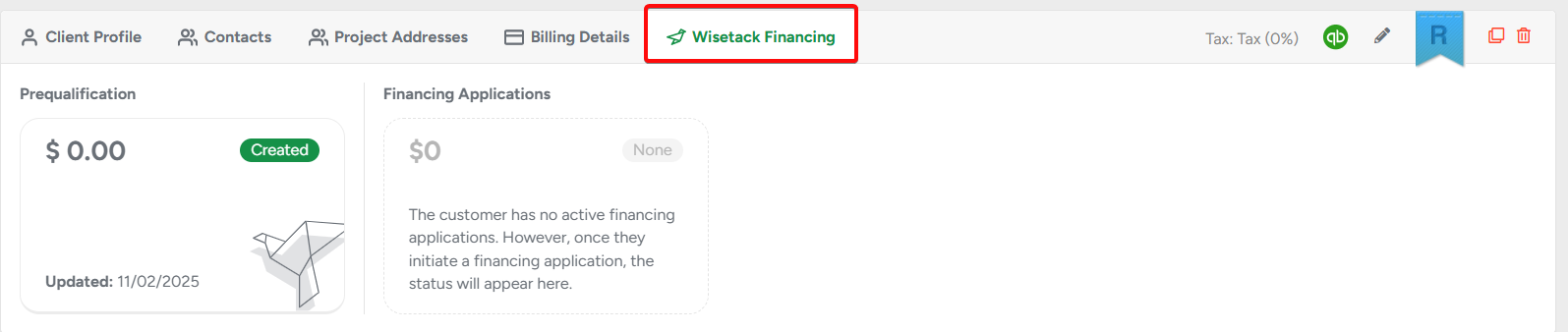
Credit Card, Debit Card, and ACH Payment Processing
Transaction fees are configured during the activation of your payment processor account. Depending on your setup, processing fees can either be:
Passed on to the customer, or
- Absorbed by your company
- Debit cards do not incur processing fees. Fees only apply to credit card transactions.
ACH bank payments also have zero processing fees, making them a cost-effective payment option. However, ACH payments typically require 3–5 business days to fully process and clear.
Learn how ACH payments work here
To ensure accurate fee handling, our system uses a secure BIN (Bank Identification Number) check to automatically determine whether a card is a debit card or a credit card during the payment process.
If your company accepts offline payment methods such as cash, checks, Venmo, Zelle, or other custom payment types, you can contact our support team to have additional offline payment options added to your account. These payment methods can then be selected when manually adding payments to a project or invoice.