
Clear communication is everything when you’re managing tree work, that's why MMS shines in the kinds of situations arborists deal with every day—moments where a picture or document makes all the difference. Whether you're sending photos, PDFs, or quick visual updates, you can now handle it all through ArboStar without switching apps or juggling email.
Supported File Formats:
Images: JPG, PNG, GIF, TIFF
Documents: PDF
Audio: MP4, 3GPP, 3GPP2, AMR, MP3, Ogg
Video: MP4, 3GPP, 3GPP2, QuickTime, WebM
Other: vCard, Calendar files
MMS Activation
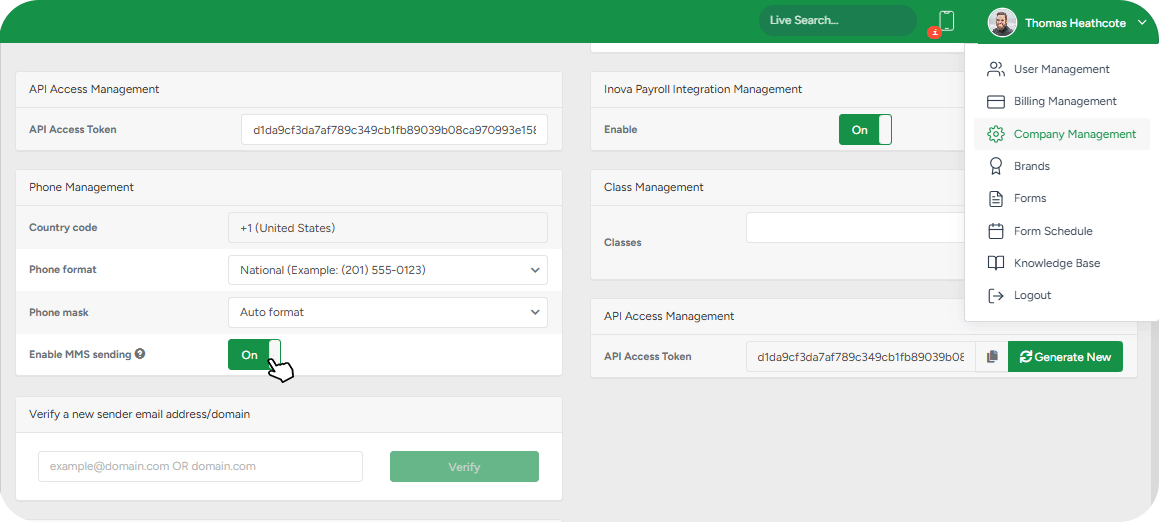
If your company’s default brand is located in the United States or Canada, you can enable MMS and send visual attachments when messaging clients. To activate MMS, go to Company Management → Phone Management → Enable MMS Sending.
MMS is currently outbound only, meaning you can send photos and documents, but incoming MMS messages aren’t supported yet.
How it works
Once it’s turned on, ArboStar will display a file-attach button anywhere you normally send SMS messages. In any message box across the system (client profile, lead, estimate, invoice), you’ll see a small attachment icon next to the text field. Click it, select the file, check the preview, and hit send. You can also remove files that were added by mistake before sending.
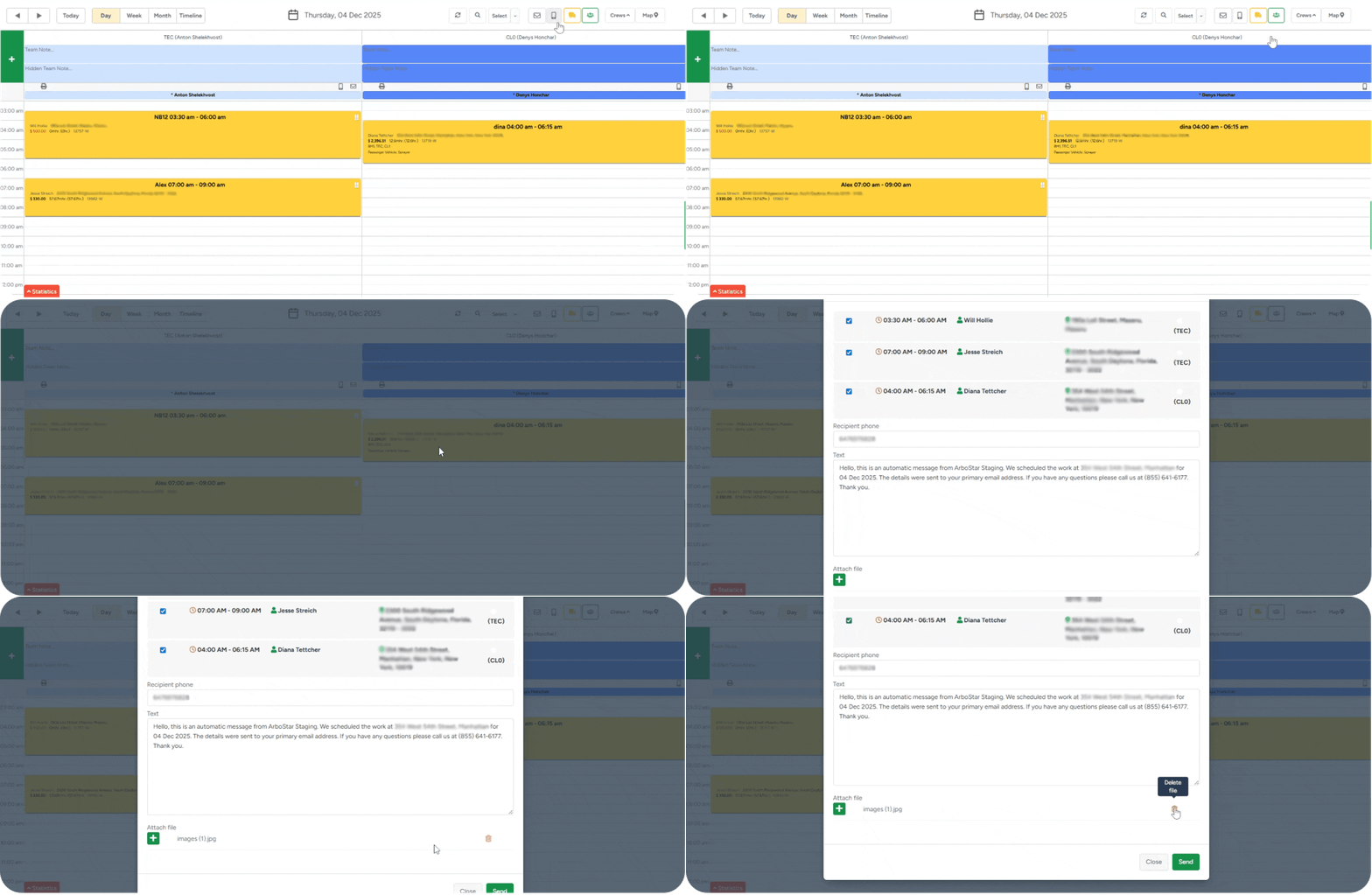
Please be advised that each MMS can include only one file at a time.
After the message is sent, you can find it under the Notes section of the Client Profile. Clients → Client Profile → Notes → SMS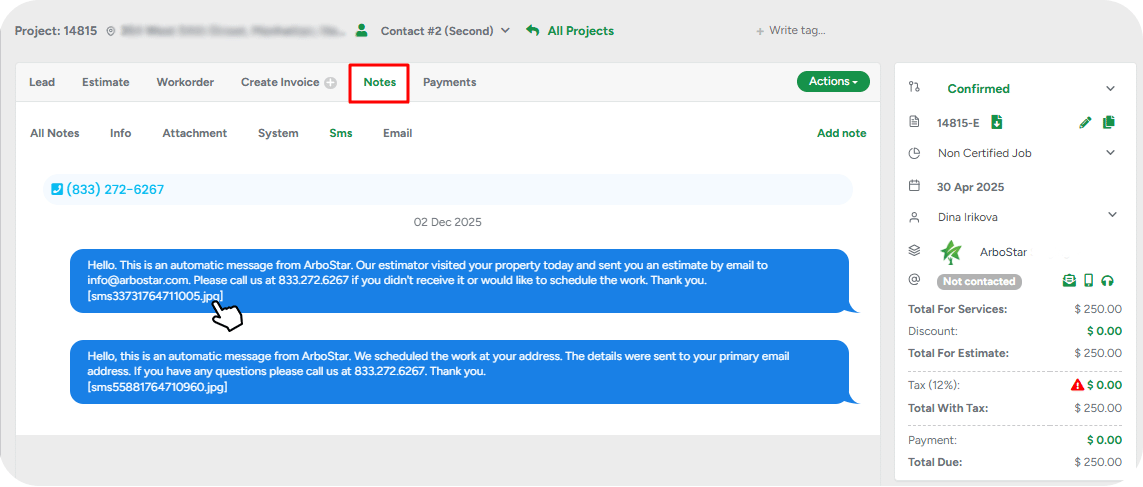
Here, MMS messages show your text, the attached file as a clickable item, an MMS indicator, and a full image preview (or open/download options for PDFs and other files). Everything stays in one clean timeline, so your communication history is easy to follow.
Sending Images or Files via SMS (Web Version)
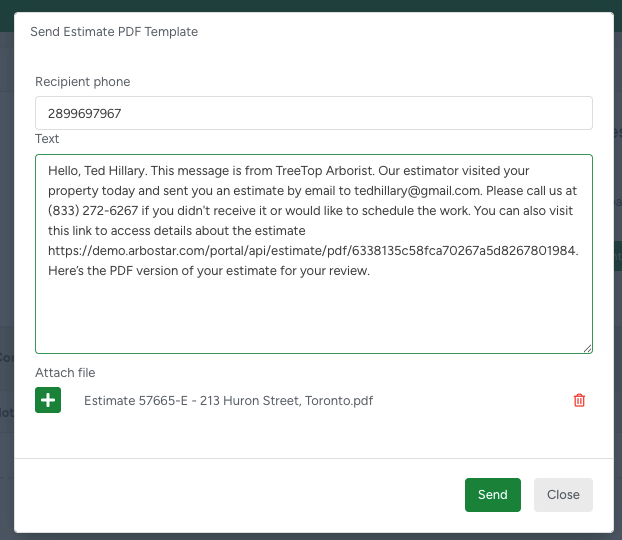
If you want to send a picture or attach a file to your client through SMS using the web version, you can do this anywhere SMS is available in the system, including:
Client Profile
Project Profile (Estimate or Invoice)
Crew Schedule
Office Schedule
Where MMS Is Available in ArboStar Plus
MMS can be sent from:
Client Profile
Project Stage Levels
Estimate
Invoice
Responses to SMS sent through the mobile app can only be viewed in the web version of ArboStar.
Sending MMS from the Client Profile
SMS sent from the Client Profile will start as a blank message, whether sent from the web or mobile app.
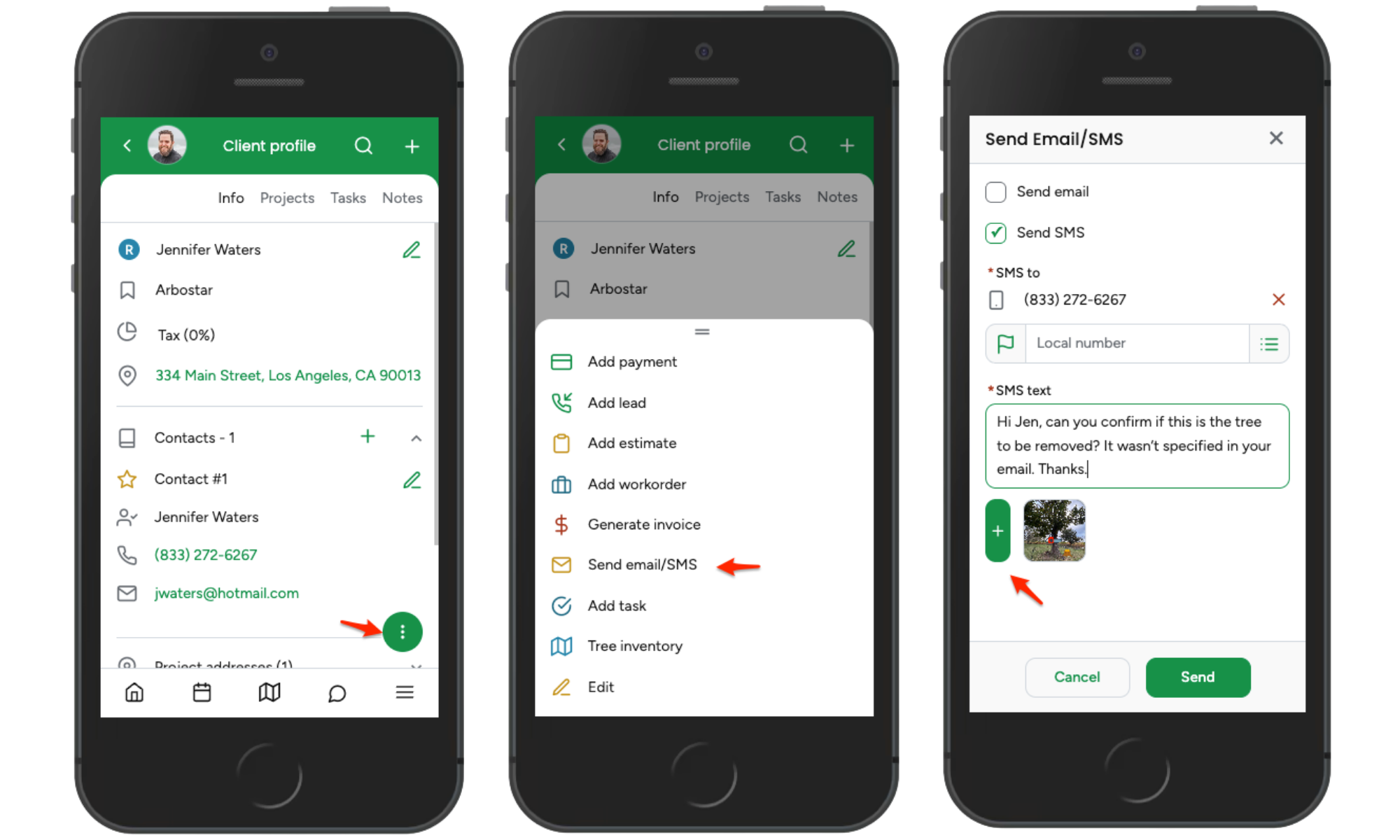
Steps:
Open the Client Profile you want to message
Tap the three-dot menu at the bottom of the app
Tap Send Email/SMS
Check the box to enable SMS
Type your message
Attach your image or file
Send the message
This is ideal for general updates and file sharing outside of a specific project stage.
Sending MMS from Estimate or Invoice (Project Stage Level)
Sending SMS from a project stage automatically loads the corresponding SMS template.
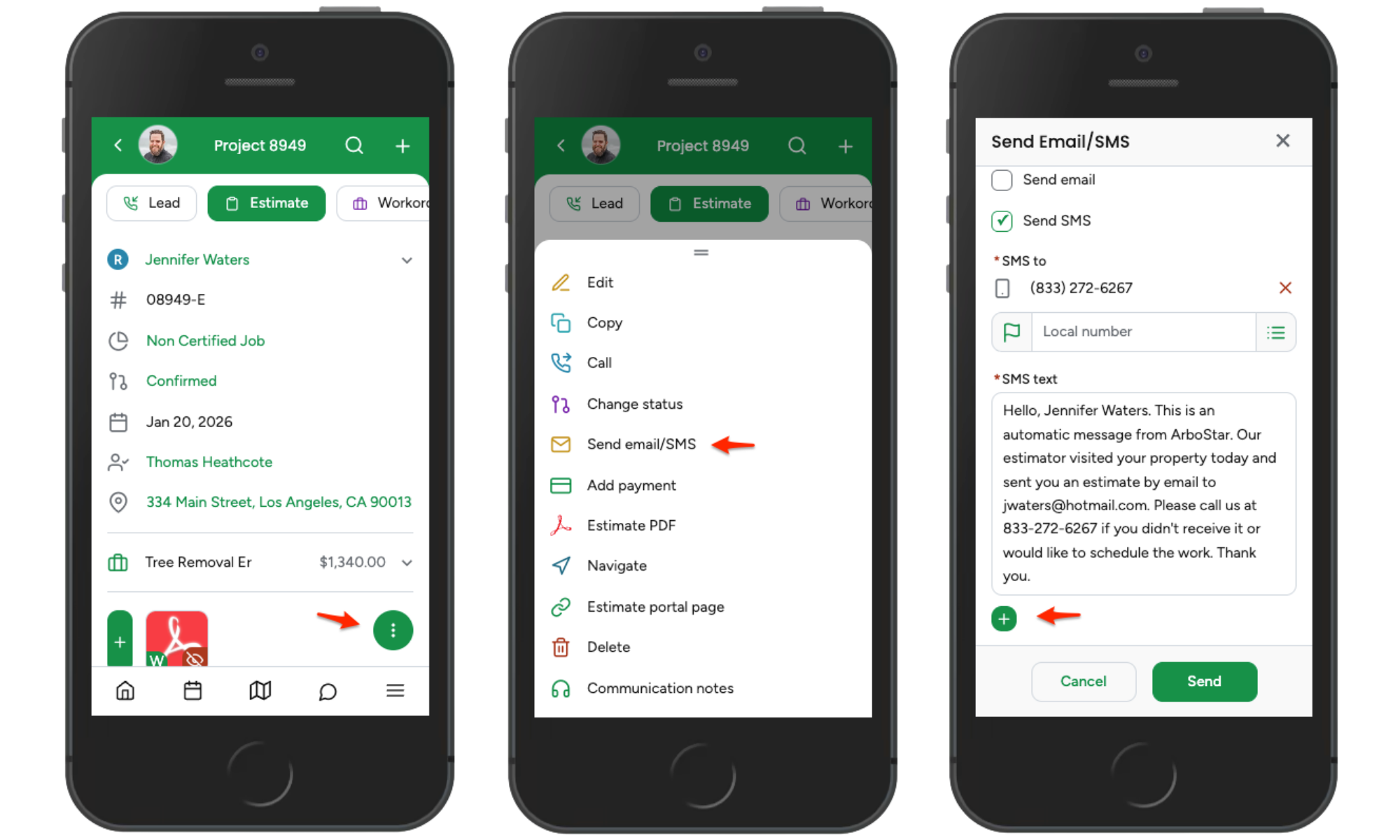
Steps:
Open the Estimate or Invoice profile
Tap the three-dot menu at the bottom
Tap Send Email/SMS
Check the box to enable SMS
From here, you can:
Edit the template message content
Attach images or files
Send immediately
Image Editing Feature
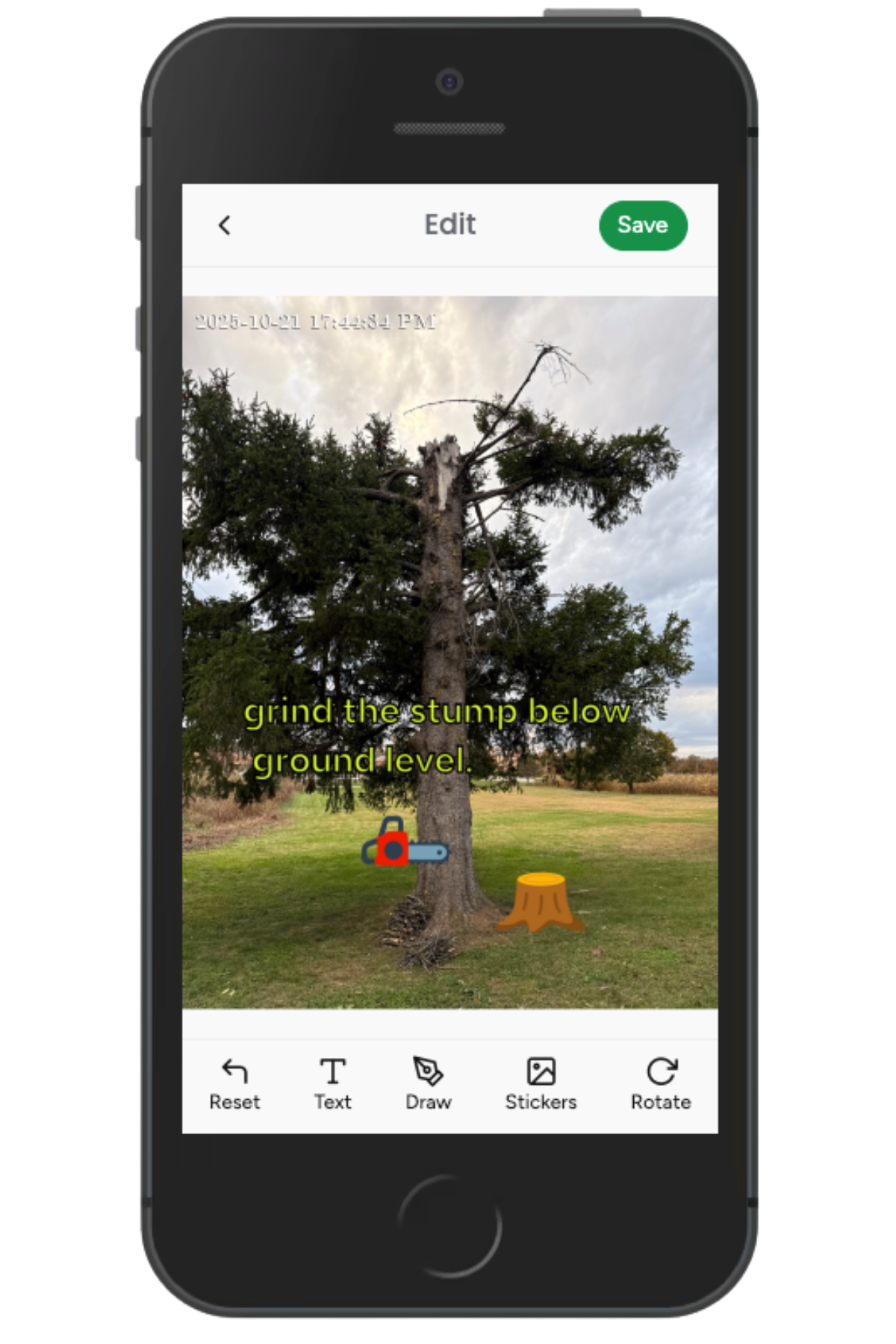
Images added to an SMS at any level - from the Client Profile, Estimate, or Invoice - allow you to add visual elements such as drawings, stickers, or notes before saving and sending.
This helps clearly communicate job details directly within the image.
Billing & Limits
Each MMS is billed as the cost of five SMS messages, following regular SMS pricing. MMS messages have a 600KB total size limit, including both the text and the attachment. If your file is too large, the system will notify you before sending.
MMS: Your On-Site Lifesaver
Now that we know what MMS can do, let’s see how sending photos, PDFs, and updates on the spot can simplify your workday and improve communication with clients.
Visualizing the plan: You’re preparing a complex pruning job with multiple sections of a property. Take a photo or mark up a diagram, then send it via MMS. The client instantly understands which areas will be worked on, avoiding confusion and last-minute questions.
Proof of completed work: After finishing a storm cleanup, you send “before and after” images directly to the client. They can see the results immediately, building trust and speeding up invoice approval.
On-the-go document sharing: A client asks for a copy of their estimate while you’re still on-site. Instead of emailing, attach the PDF to an MMS. They receive it instantly, keeping the process moving without delays.
Cutting down back-and-forth: A client spots an unusual branch and wants to know if it’s a hazard. Snap a picture, send it via MMS, and get a quick answer. No long explanations, no miscommunication—just clear, visual feedback.