
The Customer Portal is a secure, branded online portal where your customers can interact with your business. They can submit requests, review estimates, view scheduled events, access invoices, make payments, and view project information.
The portal is connected to your ArboStar system, so customer activity and submitted information can be reflected in ArboStar.
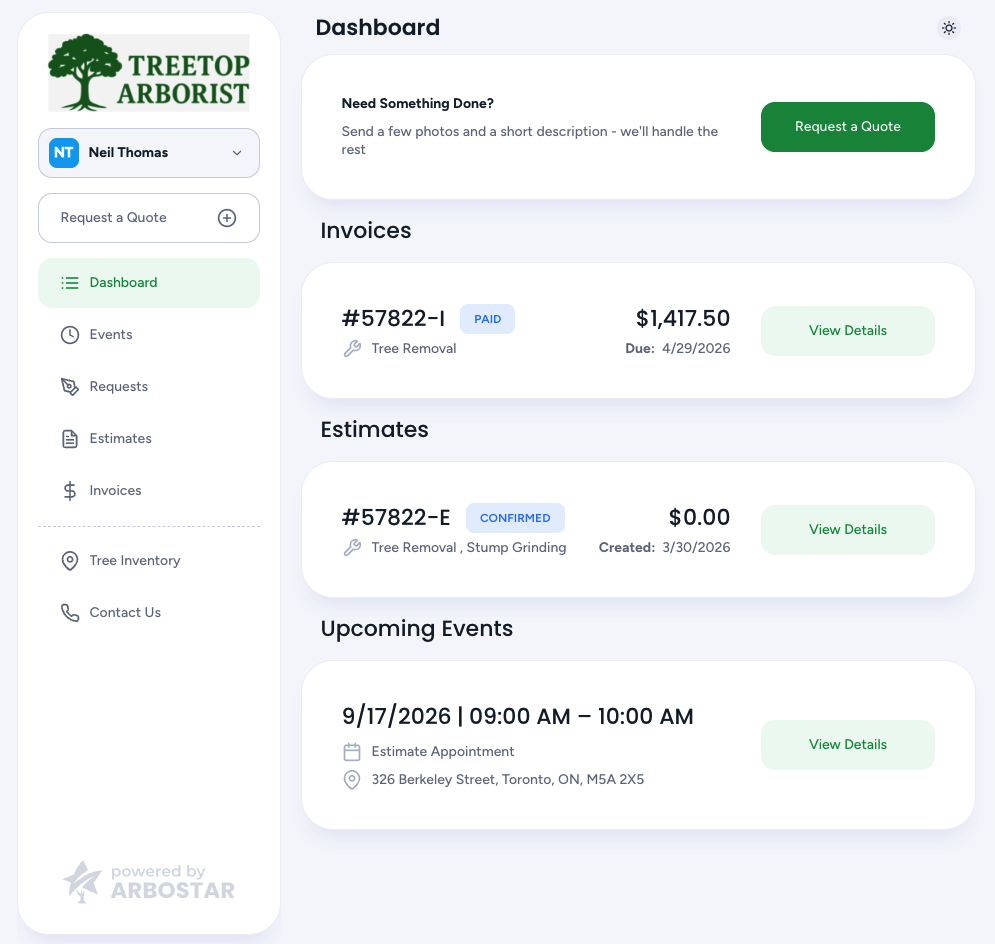
Customer Portal settings are configured under Brands.
How the Customer Portal Works
The Customer Portal is brand-specific. Each portal is connected to a specific brand, so customers only see the branding, projects, and information related to that brand.
If a customer has projects under multiple brands, they will only see the projects associated with the brand they are currently accessing.
This also applies to customers with multiple accounts or Shared Access. Their access is limited to the projects and information available under the selected brand.
Customer Portal Login
Customers access the portal using the branded Customer Portal URL.
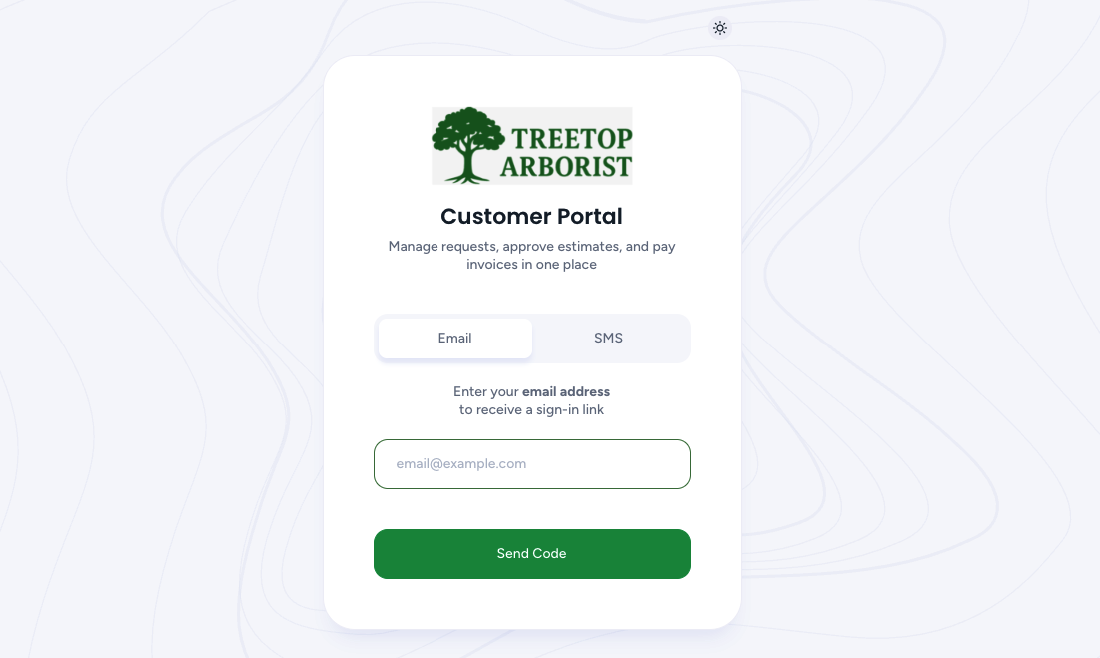
The login screen displays:
Your brand logo
Email or SMS login options
Day/Night theme toggle
The Customer Portal does not require customers to create or remember a traditional password.
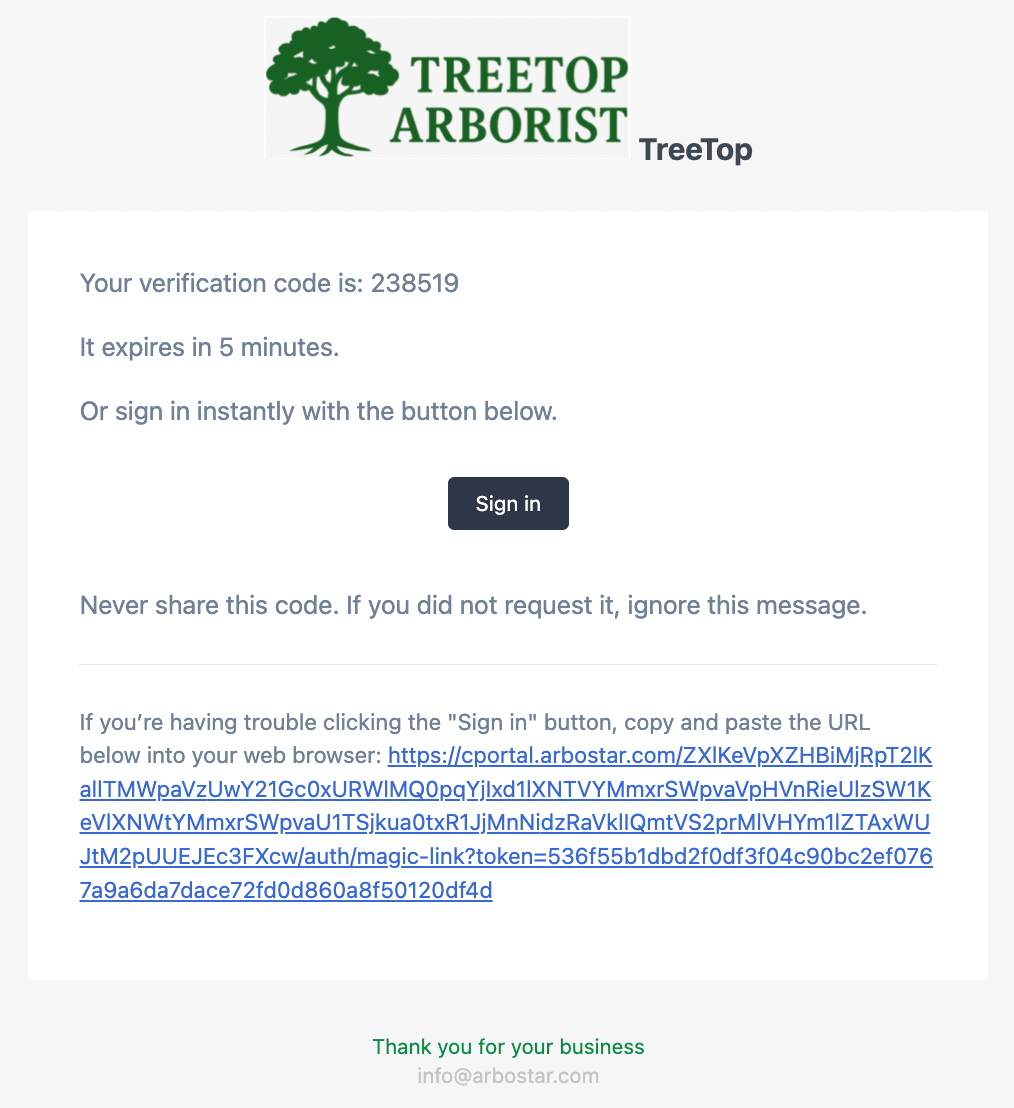
Email Login
Customers can authenticate using their email address.
Depending on your configuration, email authentication can support:
|
 |
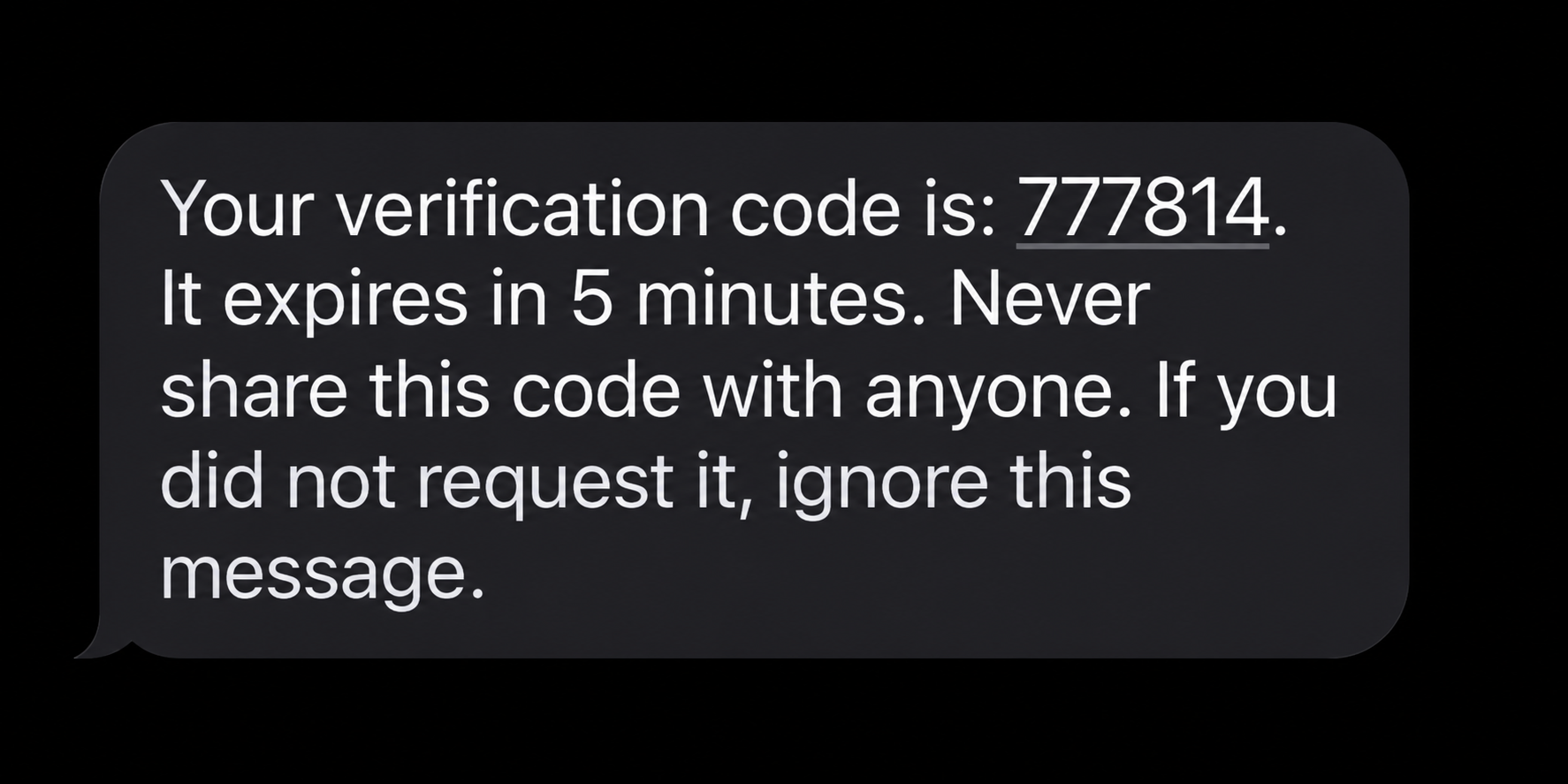
SMS Login
Customers can authenticate using their phone number.
| SMS authentication uses a 6-digit one-time verification code. |
 |
Sharing a Direct Portal Link
You can send a client a direct link to access their Customer Portal without having them manually enter the portal URL.
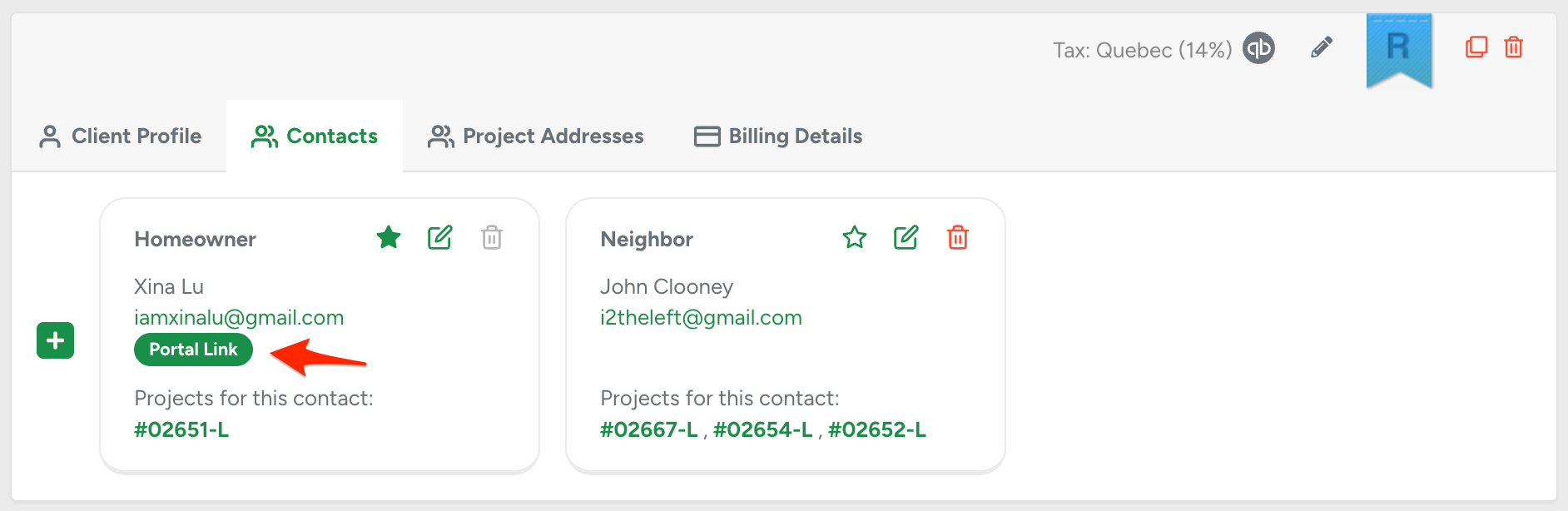
To generate a direct portal link:
- Open the client's Client Profile in ArboStar.
- Click Contacts.
- Click Portal Link.
- A secure Magic Link will be copied to your clipboard.
- Send the copied link to the client.
The Magic Link can only be used once and is valid for 15 minutes. If the link expires or has already been used, return to the client's profile and click Portal Link again to generate a new Magic Link.
Each time you need to provide the client with a direct portal link, generate a new Magic Link from the client's profile.
Sharing Portal Access with Other Contacts
Customers can share access to their Customer Portal with other contacts associated with their client profile.
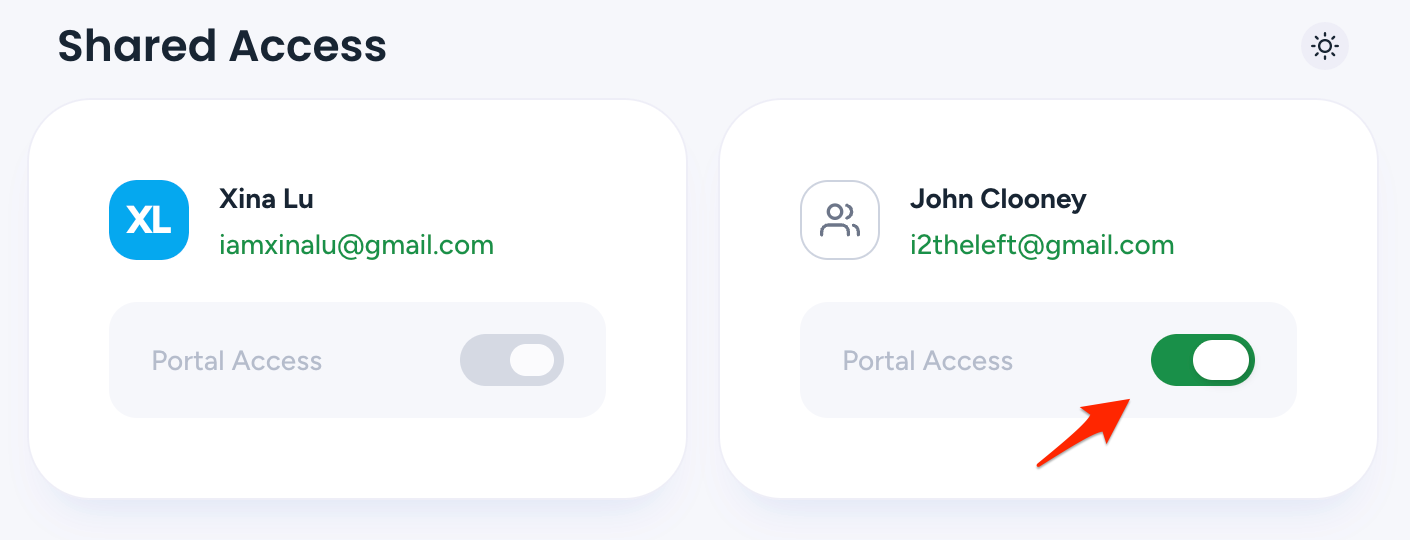
To share portal access, the customer needs to click their name in the Customer Portal, then:
- Click Share Access.
- Find the contact they want to give access to.
- Toggle Portal Access next to the contact's name.
Once portal access is enabled for the additional contact, they can log in to the Customer Portal using the email address or phone number associated with their contact profile.
Choose Account
A customer may be associated with multiple accounts.
When this occurs, the Customer Portal displays a Choose Account screen.
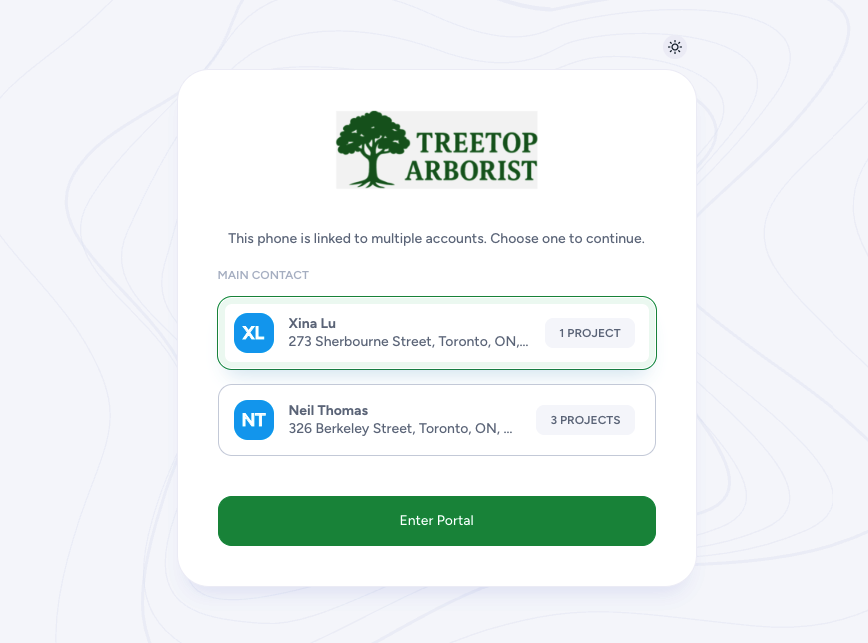
The customer only sees accounts that have at least one project associated with the brand they are currently accessing.
The account card displays the customer name, project address, and number of projects associated with the current brand.
If only one qualifying account exists, the account selection screen is skipped and the customer is taken directly to the Dashboard.
Customer Portal Navigation
Dashboard
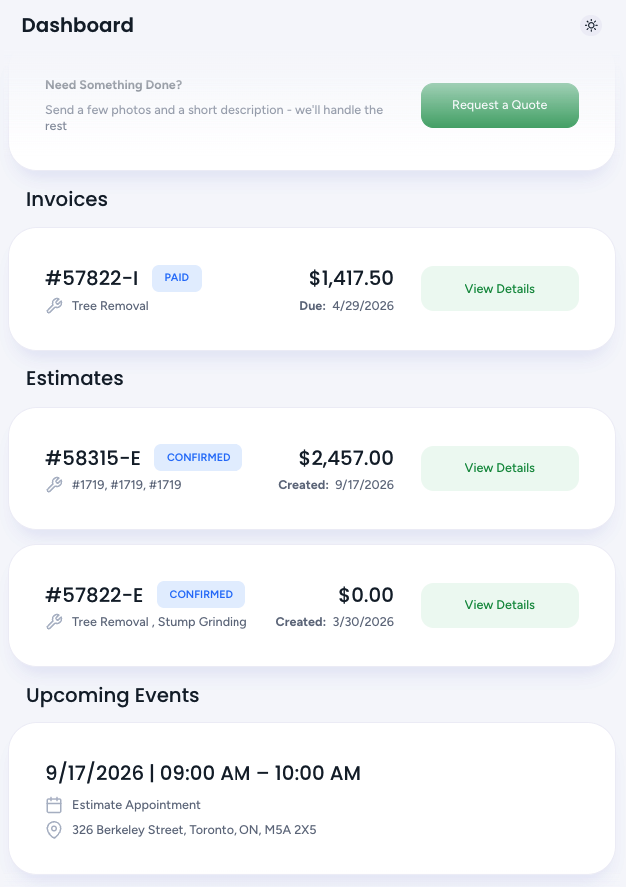
The Customer Portal Dashboard provides customers with an overview of important profile activity.
|
 |
Events
Customers can easily keep track of upcoming events and activities related to their projects.
This section shows all events associated with the customer profile, including both completed and upcoming events, across all projects. Customers can use the date range selector to view events within a specific period. The Events section is read-only, so customers can view event information but cannot adjust schedules, modify events, or make changes to their projects. |
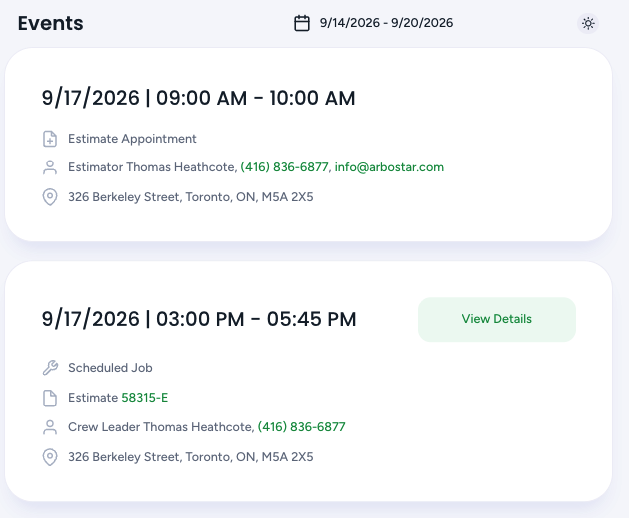 |
Each event displays the date and time, event type, project ID, assigned company contact, and the project address. Customers can select View Details to see more information about an event. Estimate Appointments and Scheduled Jobs are examples of events that may appear in this section. Other events may also appear when tasks are created in Office Schedule and assigned to the customer's project. |
Requests
Customers can submit service requests and track their status through the Customer Portal.
The Requests section shows requests submitted by the customer through the Customer Portal, including requests submitted through the Ready-to-Go Form on your website. Each request includes the Lead ID, status, submission date, and project address. |
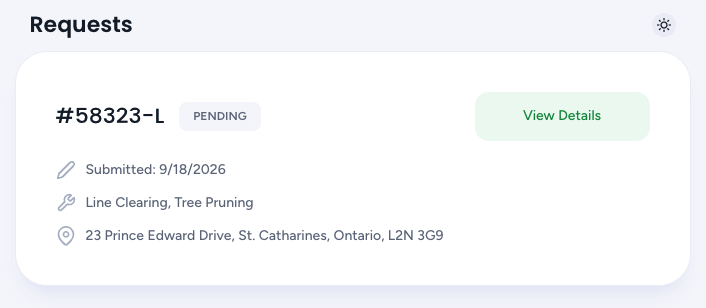 |
Requests that are declined or cancelled by the customer are displayed with a DECLINED status. Once a request progresses to an Estimate that has been sent for approval or confirmed, it is removed from the Requests section and becomes available under Estimates. Requests cannot be edited by customers after they have been submitted. |
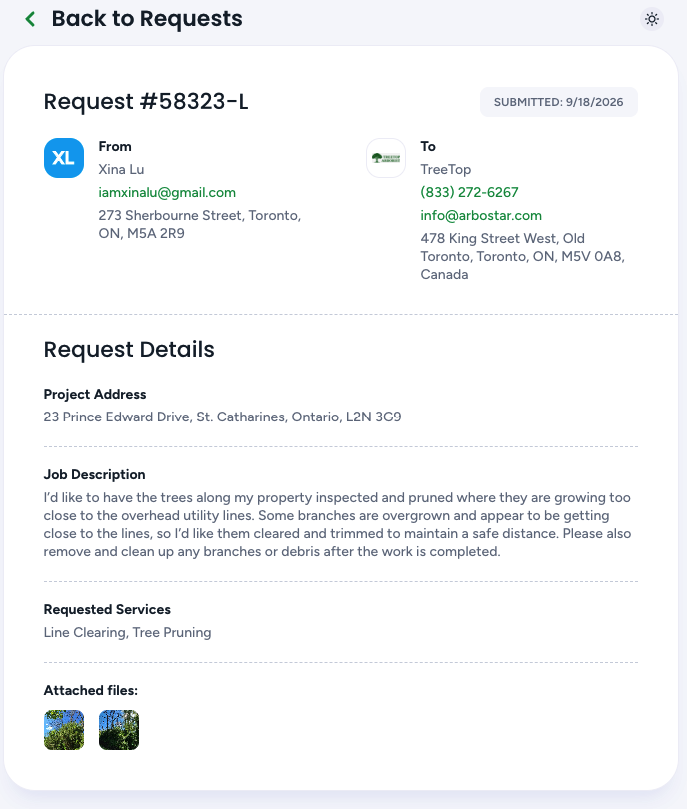
Customers can select View Details to review the information submitted with their request, including:
|
 |
Estimates
Customers can view, review, and respond to estimates for their projects through the Customer Portal.
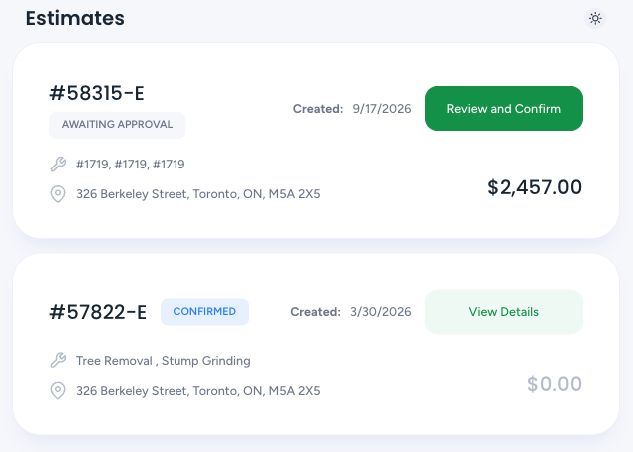
The Estimates section shows estimates associated with the customer's profile, including estimates that are Awaiting Approval, Confirmed, Expired, or Declined. Each estimate displays the estimate number, status, created date, requested services, project address, and total amount including tax. Estimates that are Awaiting Approval appear first, with the most recently created estimates at the top. Confirmed, Expired, and Declined estimates appear in a separate section at the bottom. Customers can select Review and Confirm for estimates awaiting approval or View Details to review other estimates. |
 |
For estimates that are Awaiting Approval, customers can select Review and Confirm to open the estimate portal page. From there, they can review the proposed services, pricing, photos, discounts and the reason for any discount, as well as the total amount including tax. Customers can then:
|
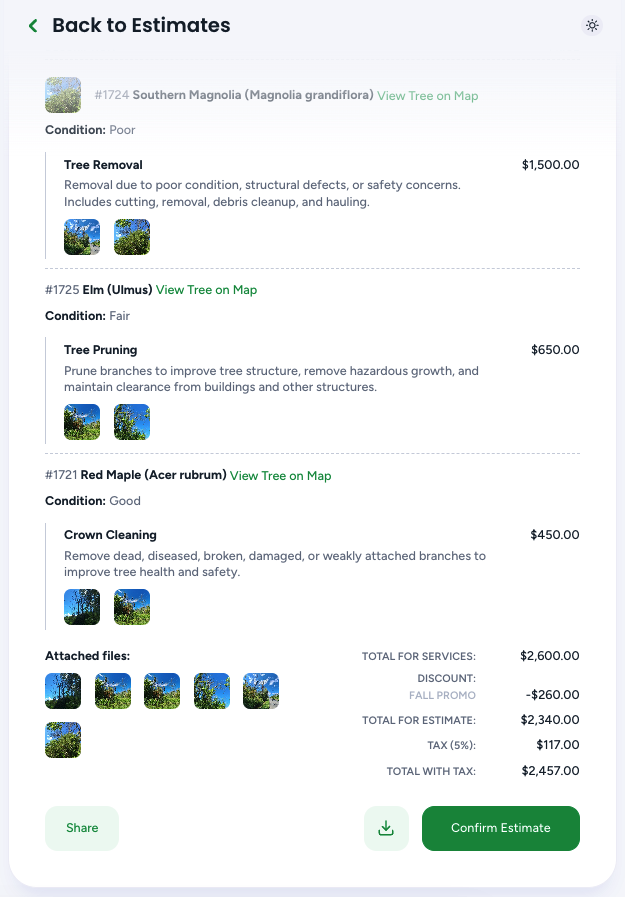 |
| If there are no estimates yet, the portal displays a message indicating that the request is currently being evaluated and provides an option to Create Request. |
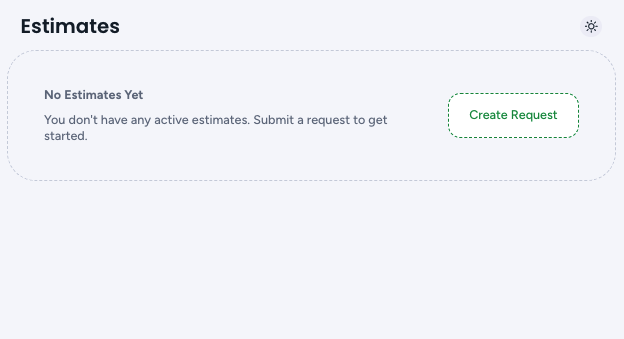 |
Invoices
The Invoices section allows customers to view and pay invoices through the Customer Portal.
The Invoices section gives customers an overview of invoices from their projects, including paid and unpaid invoices. Customers can review invoice details, view past invoices, or select Review and Pay to make a payment. |
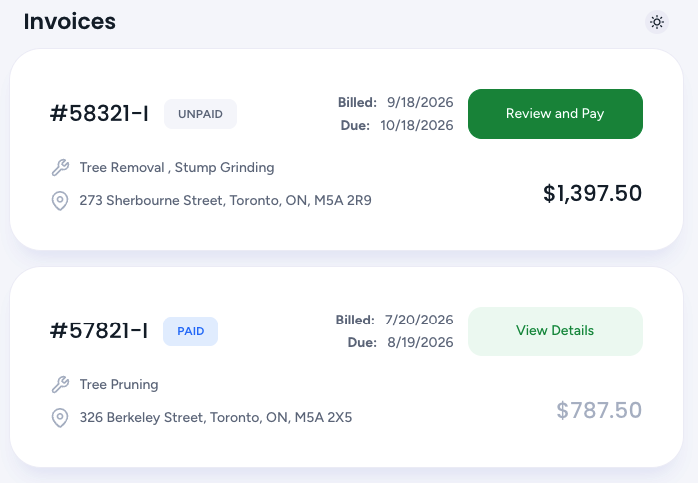 |
Clicking Pay takes customers to the Payment Portal, where they can enter their payment details and select an available payment method, such as ACH or a debit/credit card. If tips are enabled, customers can also add a tip to their payment. Wisetack financing may also be available to eligible customers when enabled. Availability and financing limits are subject to Wisetack's applicable financing requirements. |
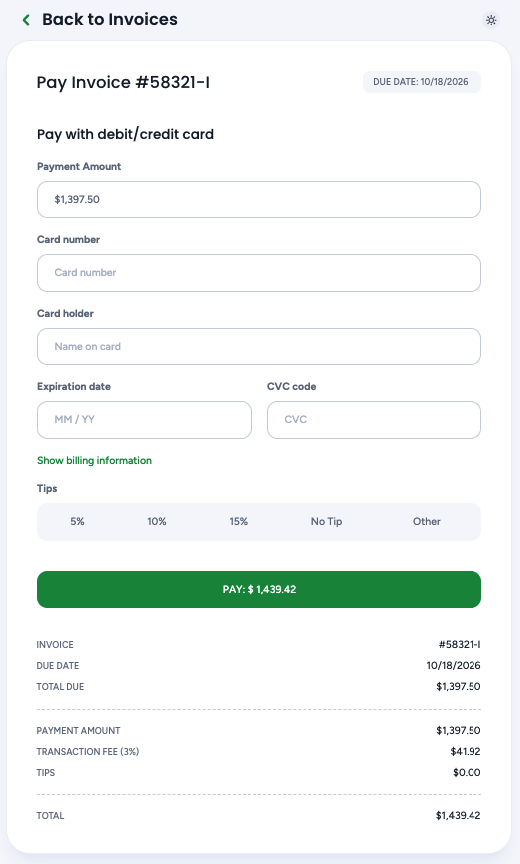 |
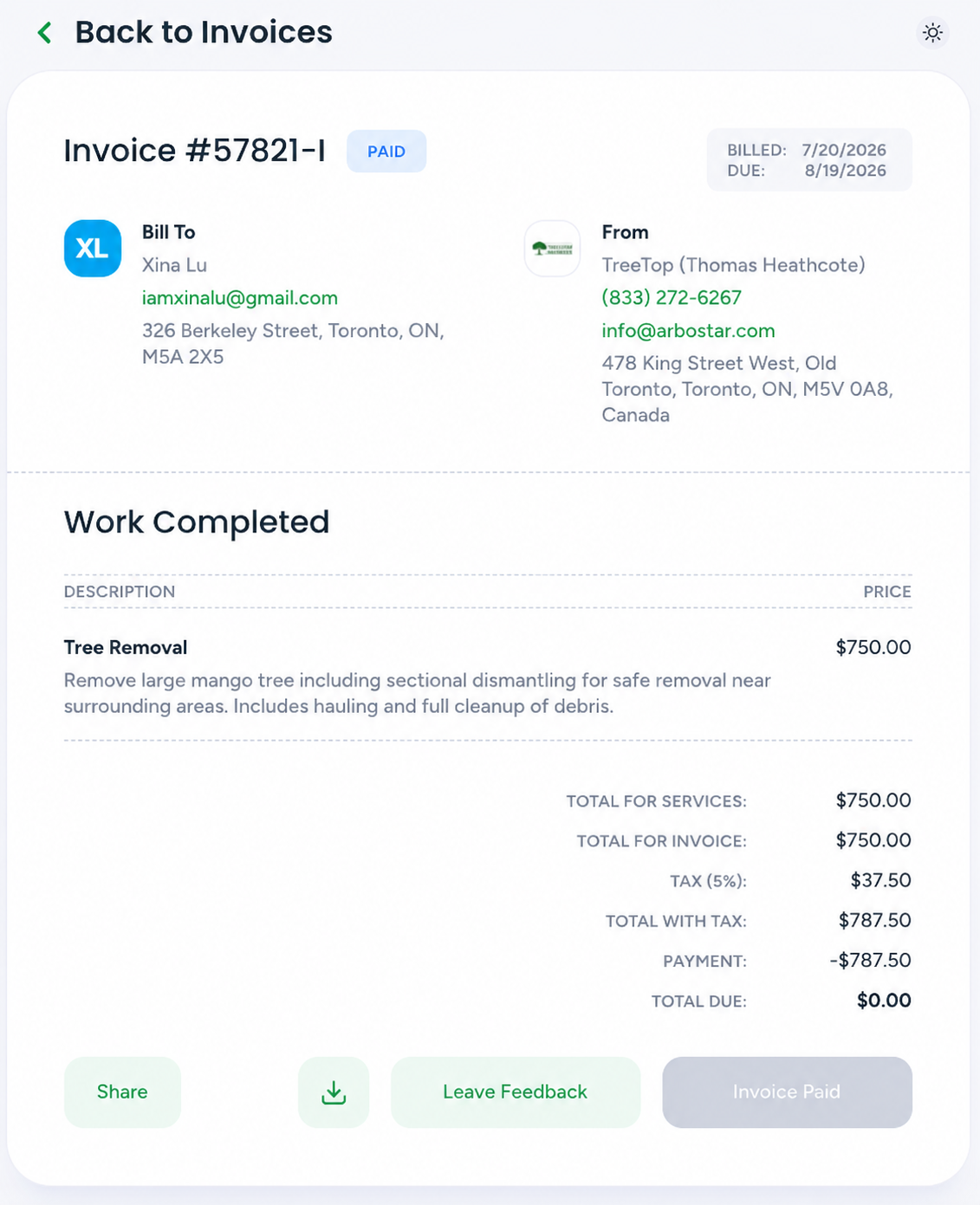
Clicking View Details for a past invoice opens a muted Invoice Portal where customers can review their completed project details, previous work, invoice amounts, and payment history. From the Invoice Portal, customers can share the invoice portal link, download the paid invoice PDF, or leave feedback. |
 |
Tree Inventory
If a Client Profile has Tree Inventory, the customer can view the tree information associated with their projects in the Customer Portal.
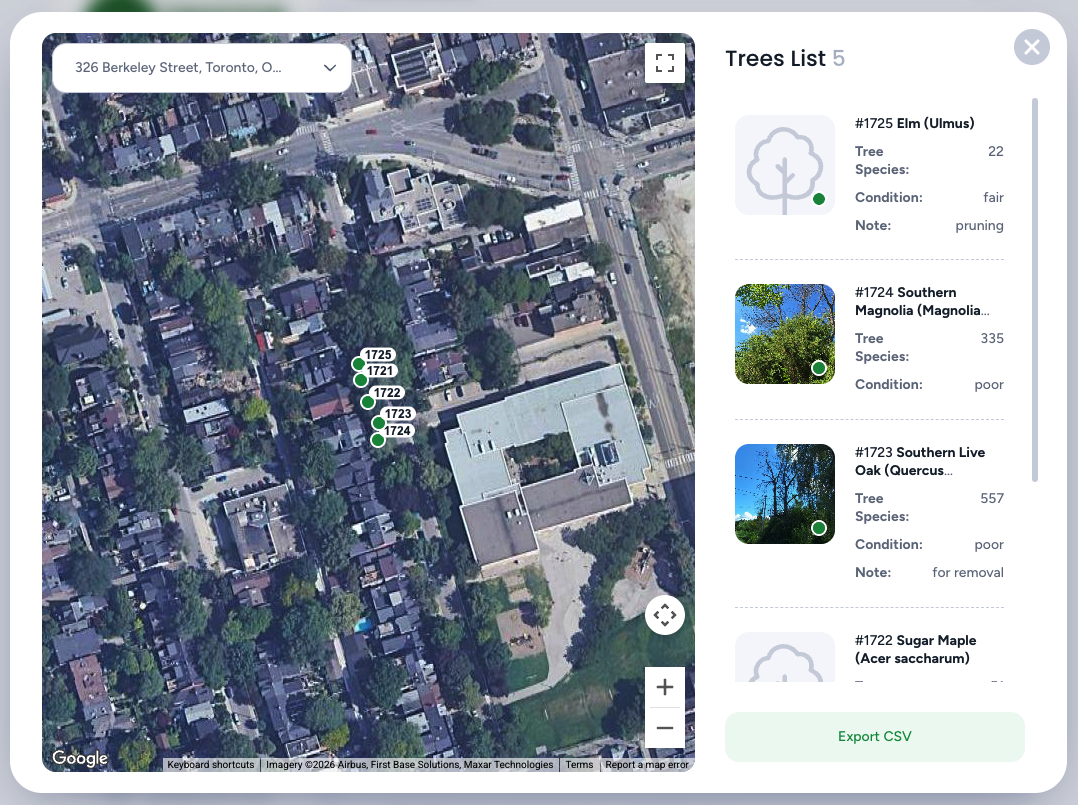
Customers can view the Tree Inventory associated with their client profile, including a list of trees, their locations, photos, species, condition, and other available tree details. They can view trees on a satellite view, select a tree to view its details and Tree History, and export the inventory as a CSV. |
 |
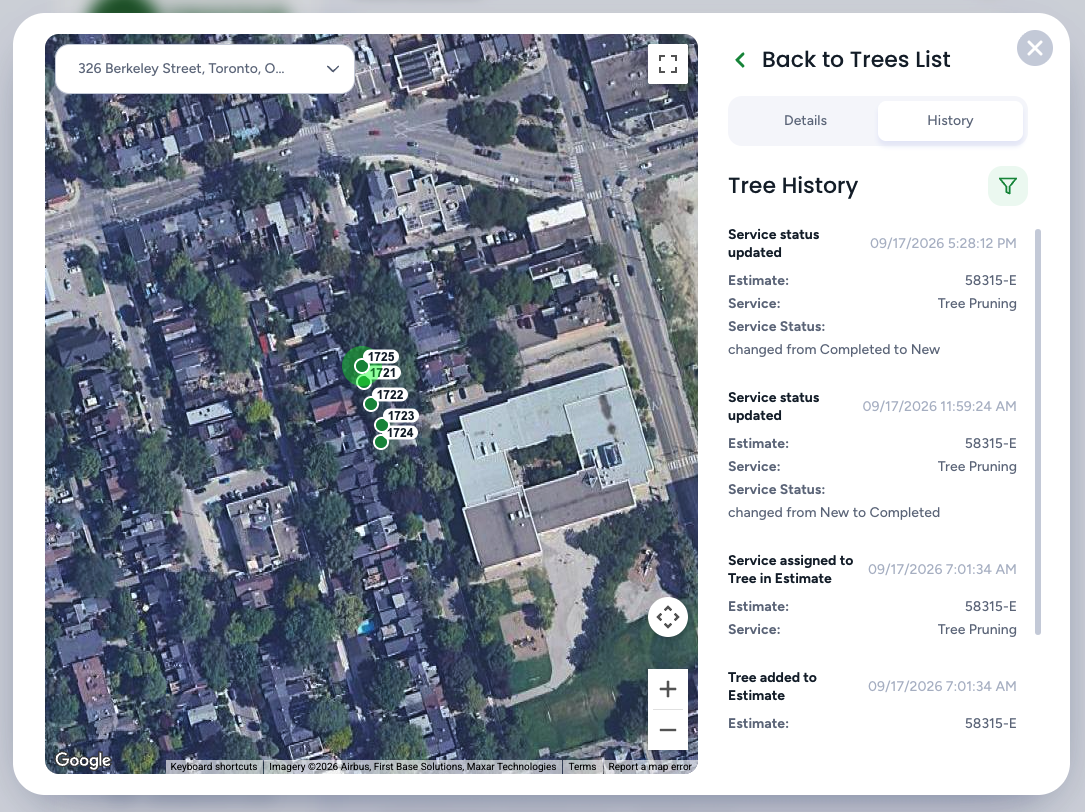
Tree History allows customers to see activity and changes associated with each tree, such as updated locations and coordinates, attached files, service information, and other available tree records. |
 |
Contact Us
The Contact Us section allows customers to access your company's contact information.
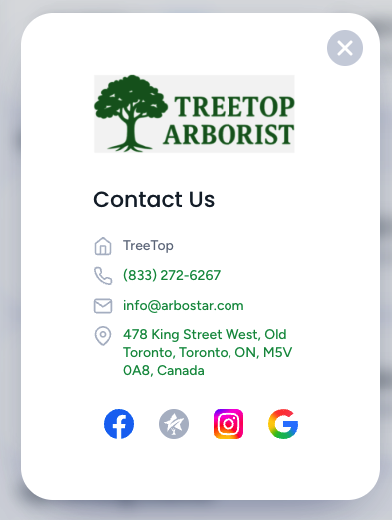
Depending on your configuration, it may include your phone number, email address, business address, and social media links. The contact information displayed is associated with the brand the customer is accessing. |
 |