
What Is Google Click ID (GCLID)?
Google Click ID, also known as GCLID, is a tracking parameter automatically added to URLs when someone clicks your Google Ads.
Example:
https://yourwebsite.com/request-form?gclid=123abc456xyz
This ID helps identify:
- Which Google Ads campaign generated the lead
- Which click brought the customer to your website
- Which marketing efforts are producing results
ArboStar can capture and store this value automatically when leads are submitted through the ArboStar-supported lead contact form.
What Is Form ID?
Form ID is a tracking value used to identify which form generated the lead or request.
This is especially useful when:
- You have multiple request forms
- You use third-party forms
- You use custom-built forms
- You connect forms through Zapier or API integrations
Examples:
- Homepage Request Form
- Emergency Service Form
- Facebook Lead Form
- Landing Page Form
- Spring Campaign Form
Form IDs help identify exactly where the lead came from for reporting and marketing analysis.
What Marketing Information Can Be Captured?
ArboStar can capture and store the following marketing attribution details:
- UTM Referral
- UTM Source
- UTM Medium
- UTM Campaign
- UTM Term
- UTM Content
- Google Click ID
- Form ID
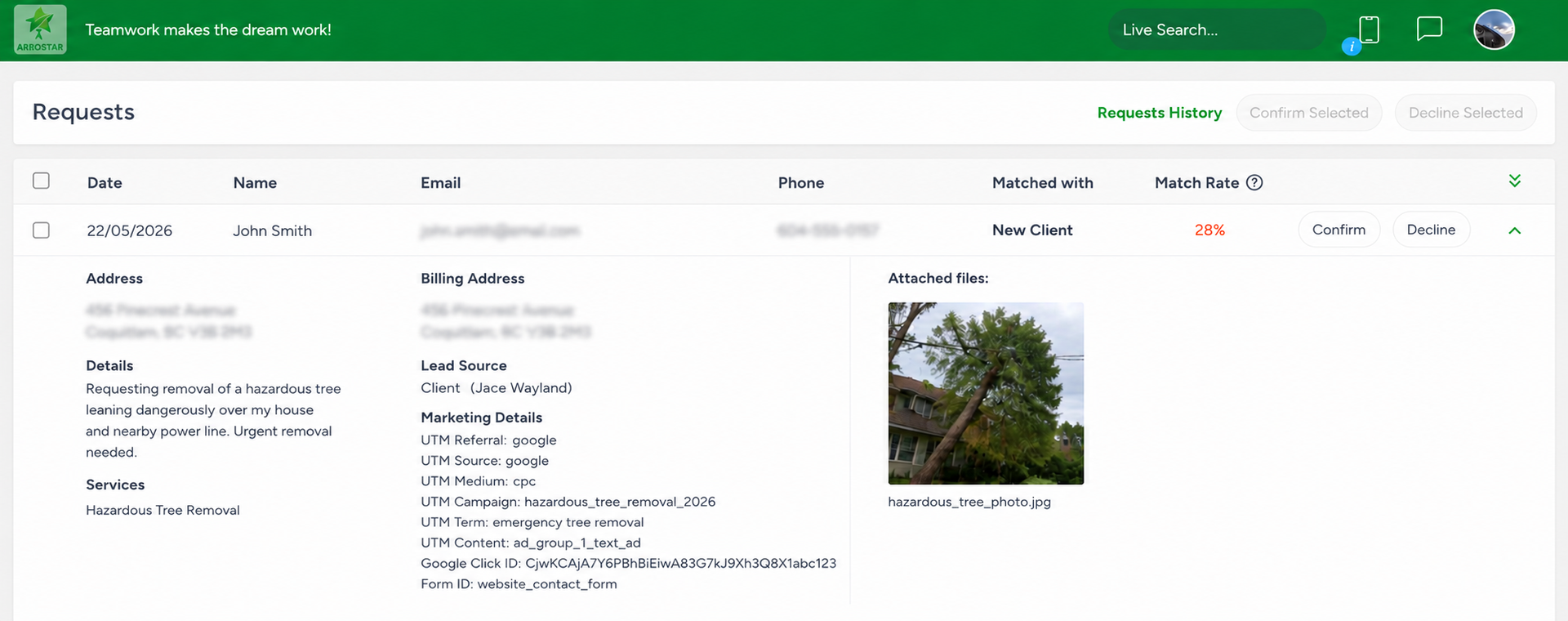
These fields can be displayed on Leads - Requests - Click the dropdown arrow for the lead to view more information, including Marketing Details
How Google Click ID and Form ID Work in ArboStar
Using the ArboStar Request Form
When customers submit requests through the ArboStar iframe request form:
- ArboStar can automatically capture UTM parameters
- Google Click ID can automatically be captured from the URL
- Marketing data is saved within the Lead - Request
- Data is copied to the Lead after confirmation
This allows businesses to track how customers found them.
Using Custom or Third-Party Forms
If you use:
- Zapier
- API integrations
- Facebook forms
- Website builders
- Third-party lead forms
- Custom forms
…you can pass:
- UTM parameters
- Google Click ID
- Form ID
directly through the API into ArboStar. To access the API doc, go to:
https://yourcompanyID.arbostar.com/docs/api
Why This Feature Is Important
Marketing attribution helps businesses understand:
- Which ads generate leads
- Which campaigns perform best
- Which forms convert the most customers
- Which lead sources produce revenue
This helps improve:
- Marketing ROI
- Advertising decisions
- Campaign optimization
- Reporting accuracy
- Lead tracking
How to Enable Marketing Details in ArboStar
Go to Company Management, scroll down to the bottom of the page, and under the References section, enable the option: Display Marketing Details for Requests and Leads.
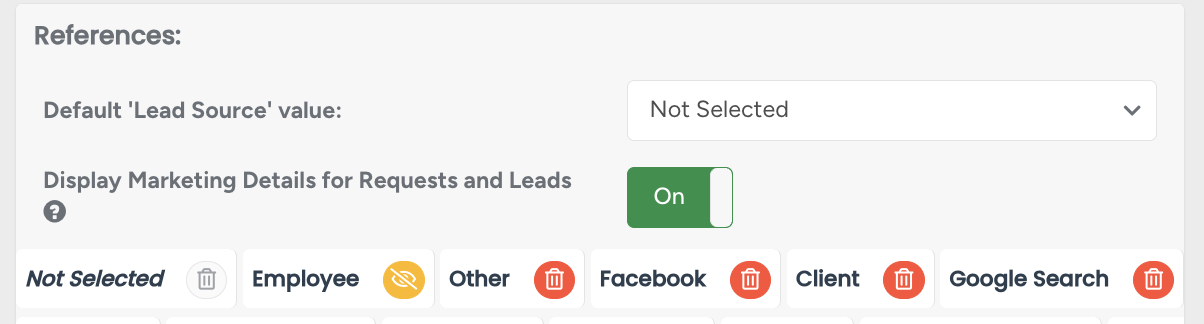
When enabled:
- Marketing data is displayed on Leads - Requests
- Columns become visible in Lead Lists
- Fields become available in Lead Statistics
- Data is included in CSV exports
When disabled:
- Marketing fields are hidden from the interface
- Data is still collected and stored internally
How to Set Up Google Click ID Tracking
Step 1 — Enable Auto-Tagging in Google Ads
Inside your Google Ads account:
- Go to Admin
- Open Account Settings
Enable:
Auto-tagging
This allows Google to automatically add GCLID values to your ad URLs.
Step 2 — Use an ArboStar-supported method for a lead generation contact form
When visitors arrive through Google Ads and submit the form:
- ArboStar captures the Google Click ID automatically
- Marketing details are saved with the Request
Step 3 — Confirm the Request
Once the Request is confirmed into a Lead:
- Marketing data transfers to the Lead profile
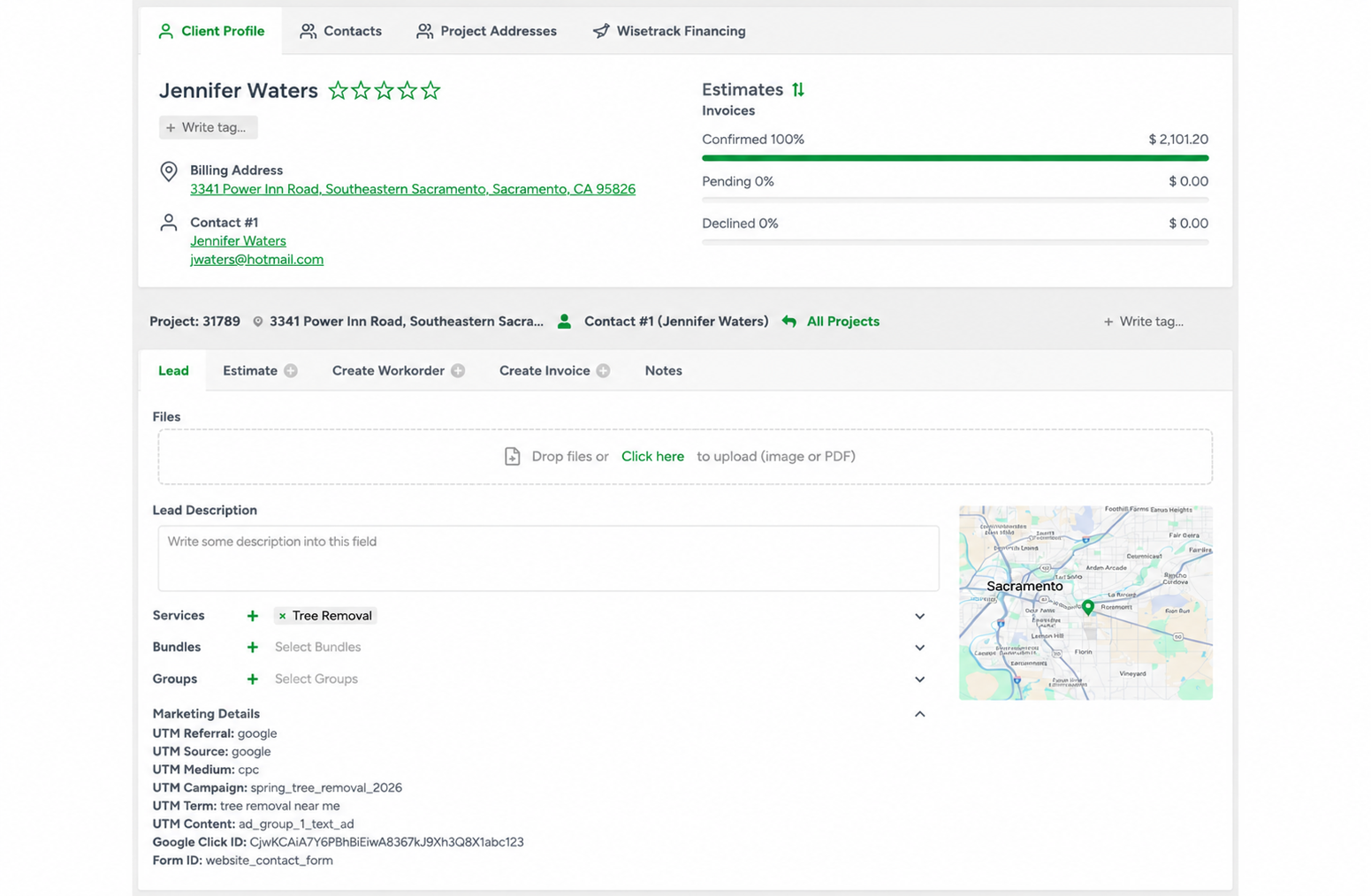
- Google Click ID and Form ID remain attached for reporting
How to Set Up Form ID Tracking
Option 1 — Custom/API Forms
If using API or integrations:
- Pass the Form ID directly through the API
- Assign unique Form IDs for each form
Example:
homepage-form
facebook-lead-form
spring-campaign-form
Option 2 — Multiple Website Forms
Use different Form IDs for:
- Service request forms
- Landing pages
- Seasonal campaigns
- Marketing funnels
This helps identify which forms produce the most leads.
Lead Statistics
Lead Statistics can filter by:
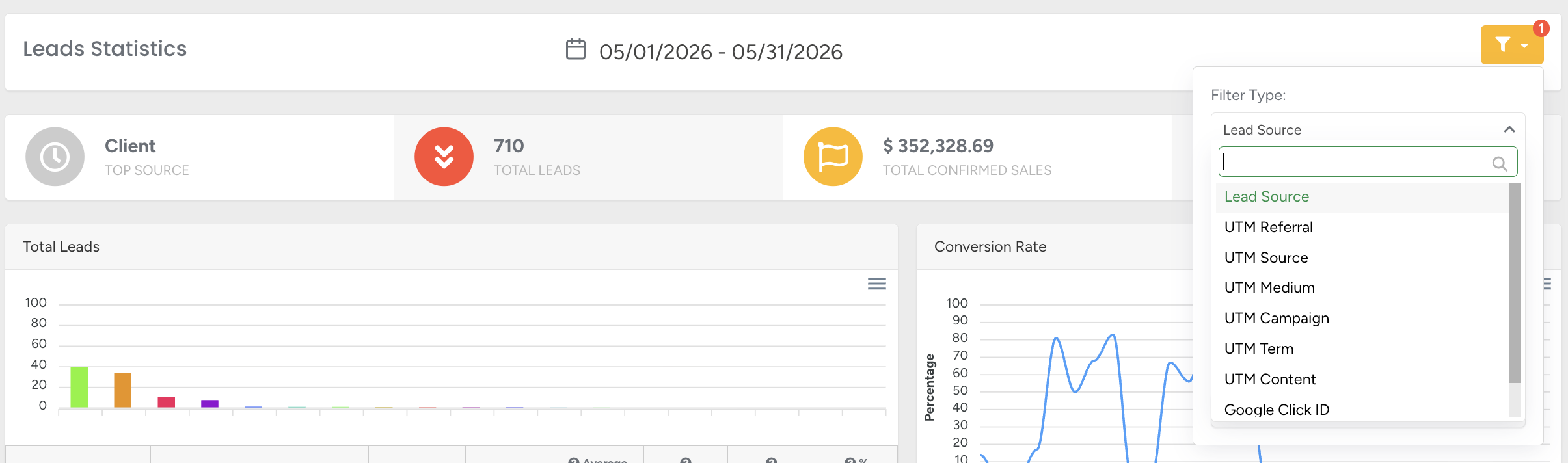
- UTM parameters
- Google Click ID
- Form ID
This allows businesses to analyze marketing performance and lead sources.
Important Notes
- Marketing fields display only when values exist
- If no marketing values are available, the Marketing Details section will not appear
- Marketing values are stored exactly as submitted at Request creation time
- All fields are read-only within Requests and Leads
Example Workflow
Example: Google Ads Lead Tracking
- Customer clicks your Google Ad
- Google adds a GCLID to the URL
- Customer submits the ArboStar-supported request form
- ArboStar captures:
- Google Click ID
- UTM values
- Request is created
- Request becomes a Lead
- Marketing data becomes visible in:
- Request profile
- Lead profile
- Lead statistics
- CSV exports
Get the Lead Generation Form embed code from Company Management