
Set Up MFA for a User
MFA can only be configured by the user or an admin.
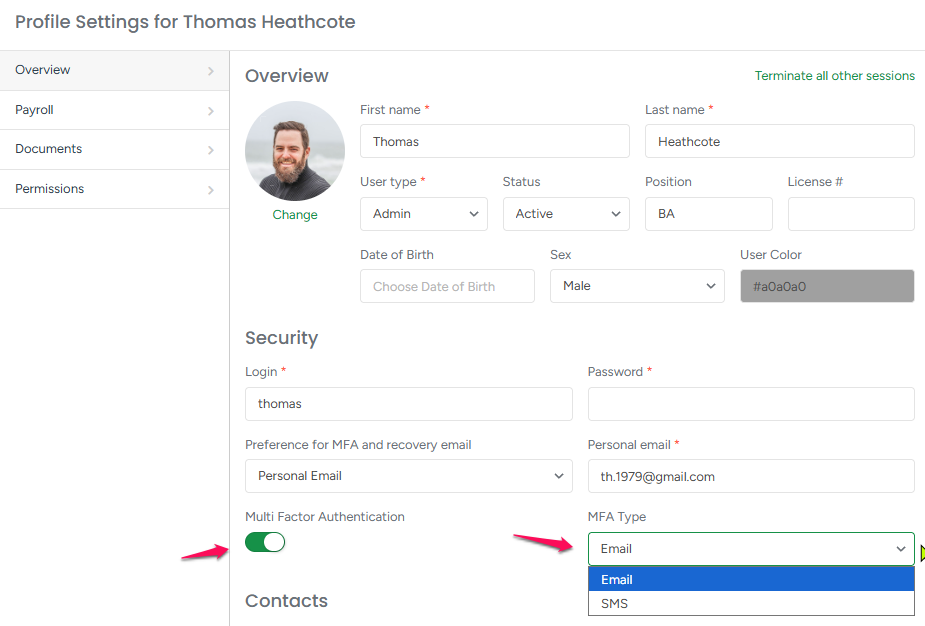
- Go to User Profile
- Enable switch for Multi-Factor Authentication
- Select a method:
- Email - enter a valid email address the user has access to
- SMS - enter a valid mobile number (VoIP numbers may not work)
- Click Save Changes
⚠️ Important: SMS verification messages are sent even if your company’s SMS balance is negative. If multiple users use MFA via SMS, monitor your SMS balance to avoid unexpected overdraft charges.
Login & Verification Screen
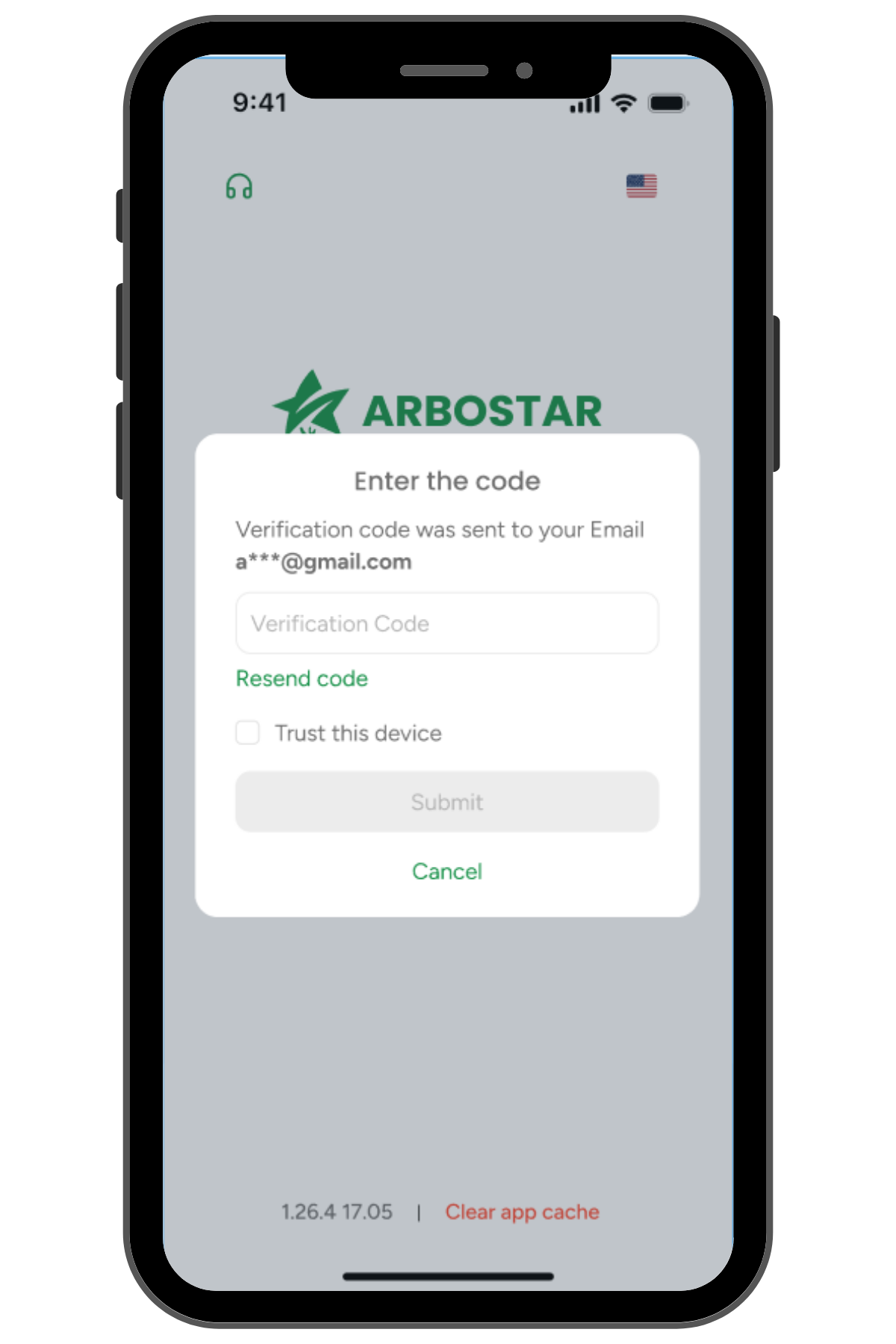
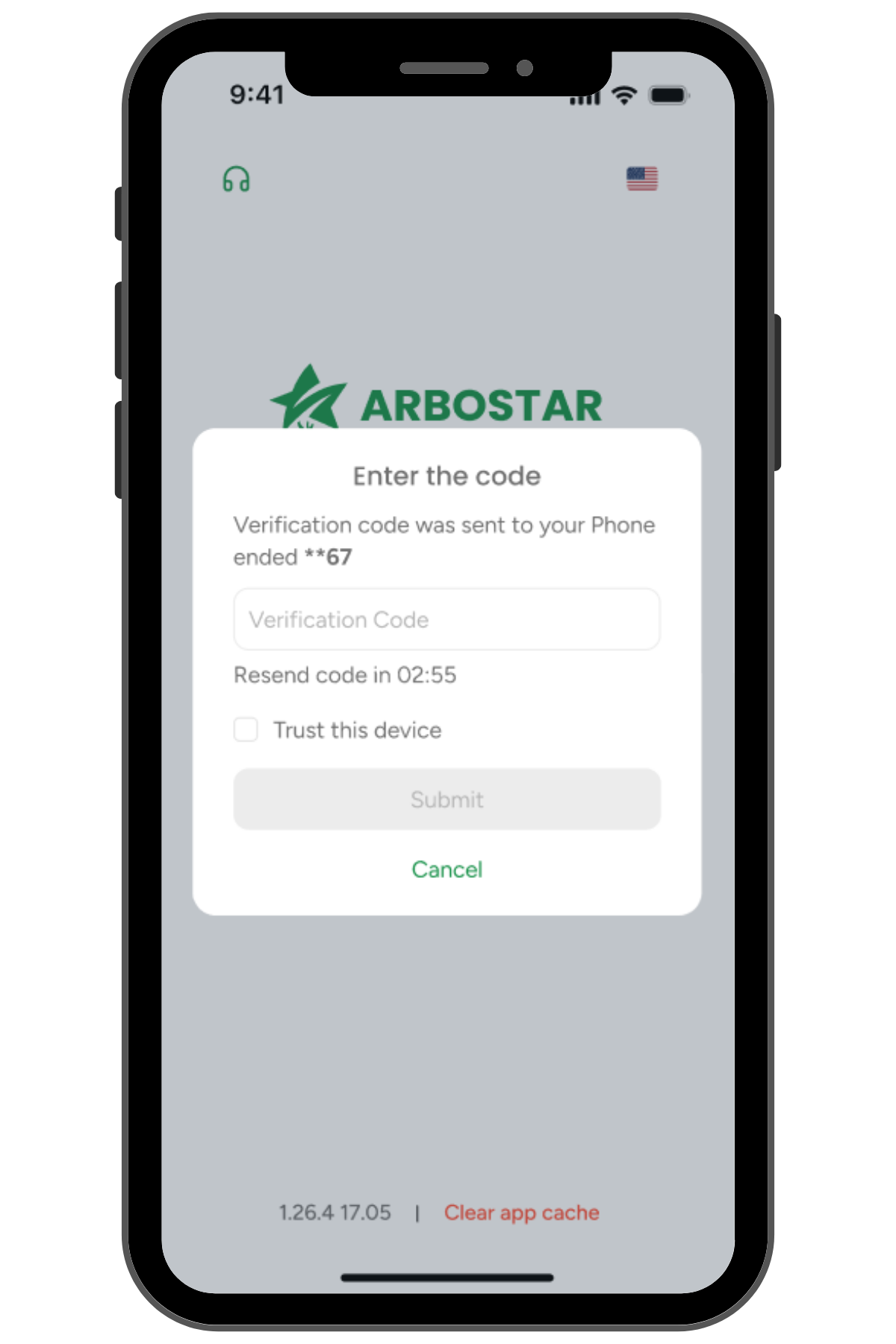
After entering your login credentials, you will be prompted to enter a verification code.
If MFA Type is Email: | If MFA Type is Phone: |
 |  |
Sign-In Code Guidelines
When signing in, you’ll need to enter the 6-digit verification code sent to you. The code is valid for 5 minutes.
If needed, you can request a new code after 3 minutes. Selecting Cancel will take you back to the login screen.
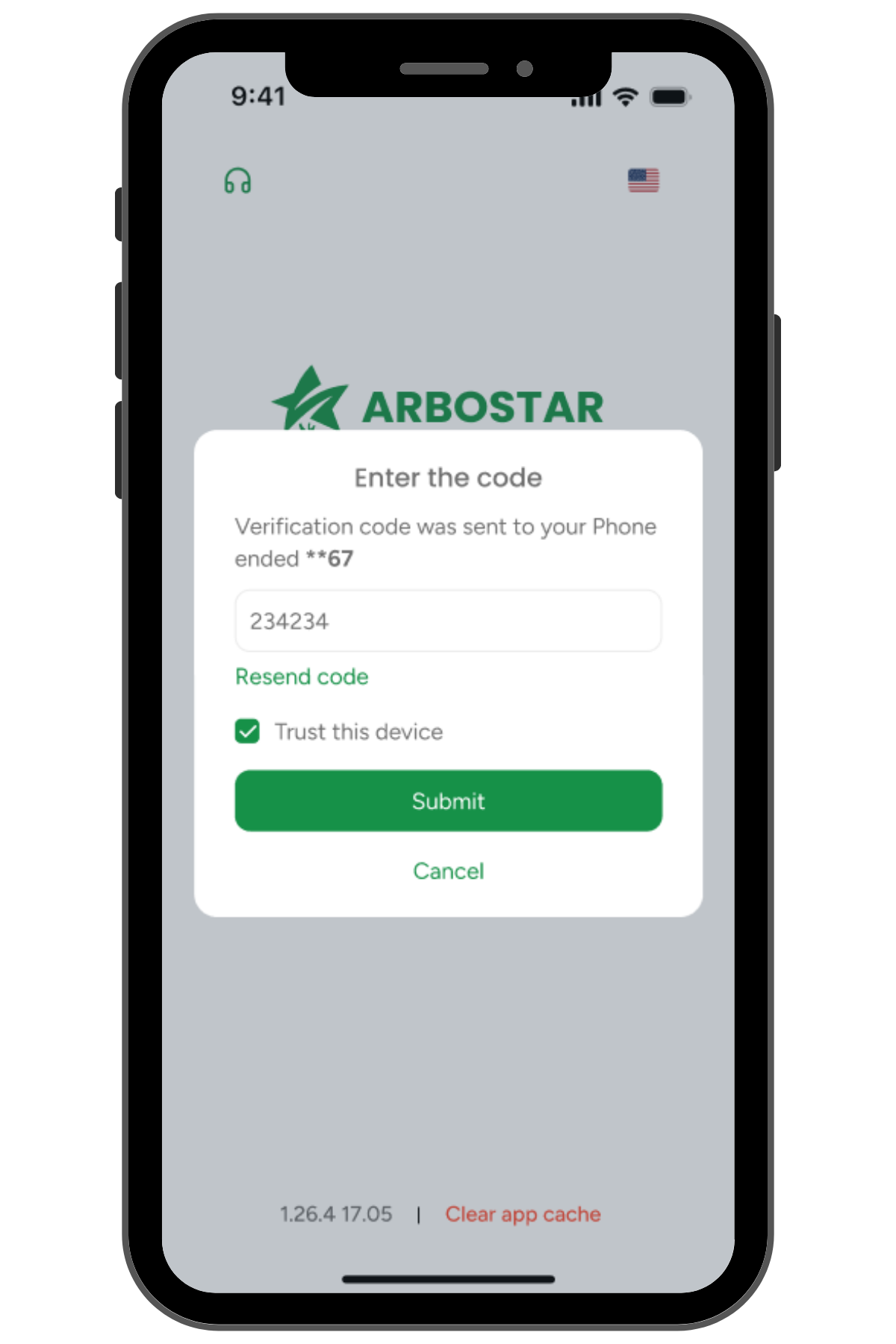
Trust This Device
When logging in with MFA, you can select “Trust this device” to skips MFA on future logins for 30 days on all devices.
You will be asked to verify again if:
|  |
Biometric Login (Mobile App Only)
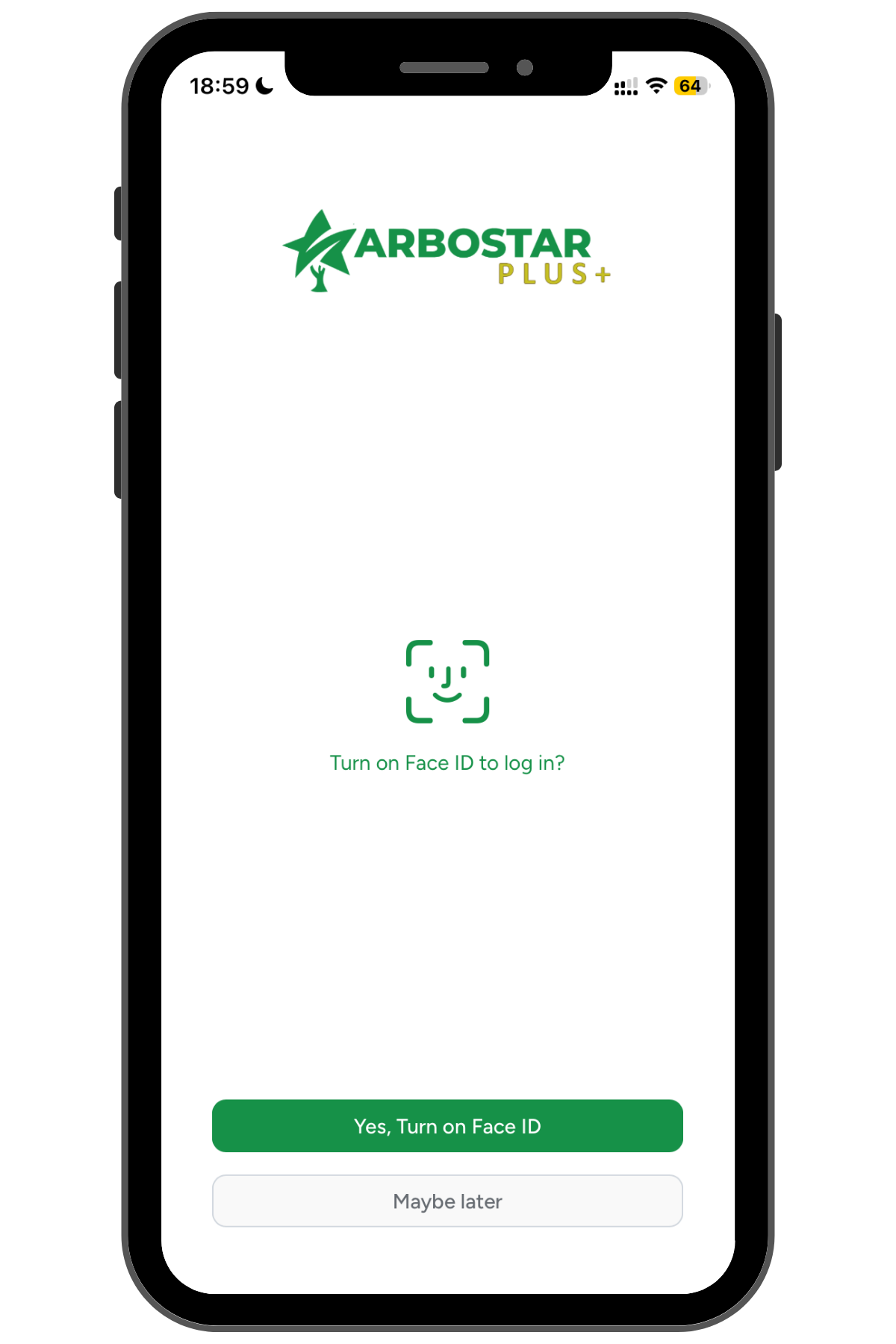
After your first successful login on the app, you will be prompted to enable biometric authentication. If enabled, biometric login replaces both the password and MFA on that device. You can choose “Maybe later” and enable it anytime in App Settings.
Biometric options vary by device:
|  |