
Overview
Job Status is a dedicated operational layer designed to reflect the real-time state of a job on the schedule.
It works independently from:
Workorder Status (overall job progress)
Service Status (line item/service completion)
Instead, Job Status answers one key question: What is happening with this job right now?
This makes it critical for:
Dispatching
Crew coordination
Live schedule visibility
Job Status Lifecycle
Each job moves through five system-driven statuses, automatically updated based on actions taken in the platform.
1. Not Assigned (Gray)
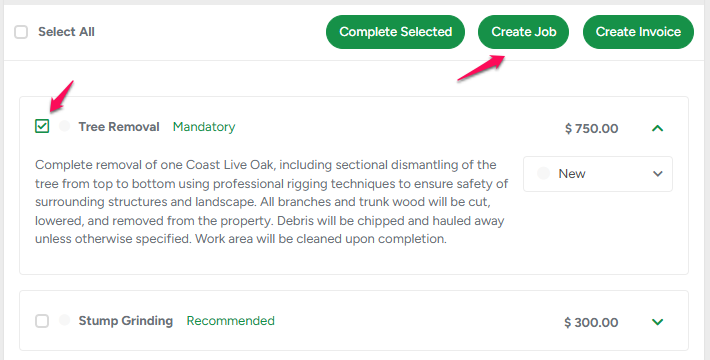
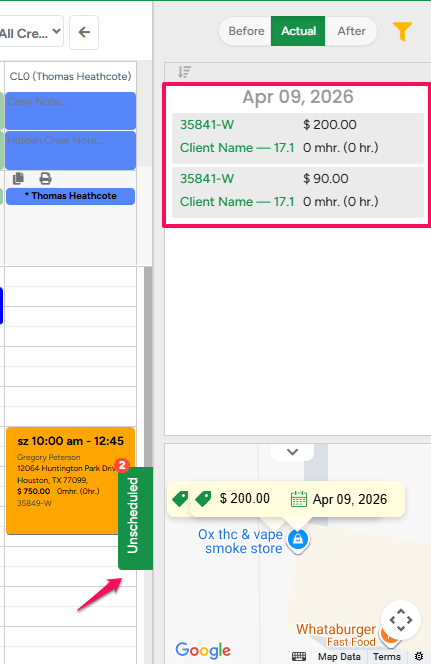
Job is created but not yet scheduled
No crew or time slot assigned
You can find these jobs in the Unscheduled panel on the Crew Schedule (right sidebar).
💡 Tip:
|
 |
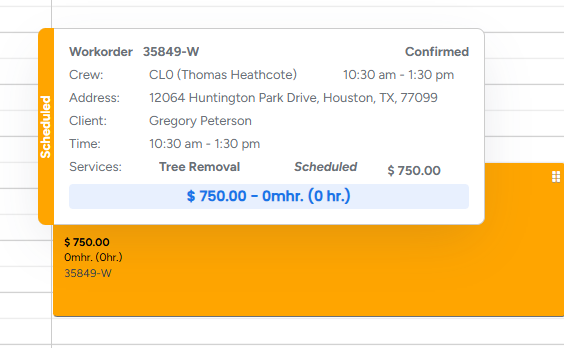
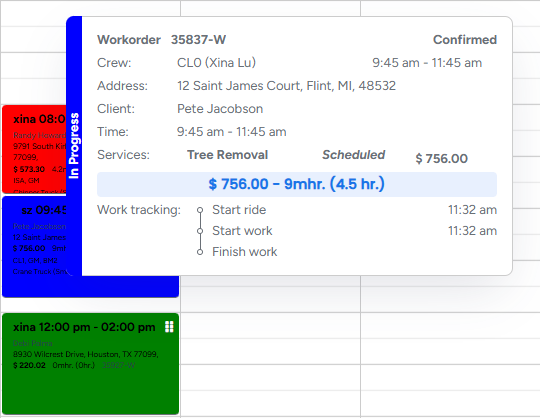
When you hover your mouse over a scheduled job on the Crew Schedule, a small pop-up will appear showing key job details. On the side of the pop-up, you will also see the current Job Status, allowing you to quickly identify the job’s progress without opening it.
2. Scheduled (Orange)
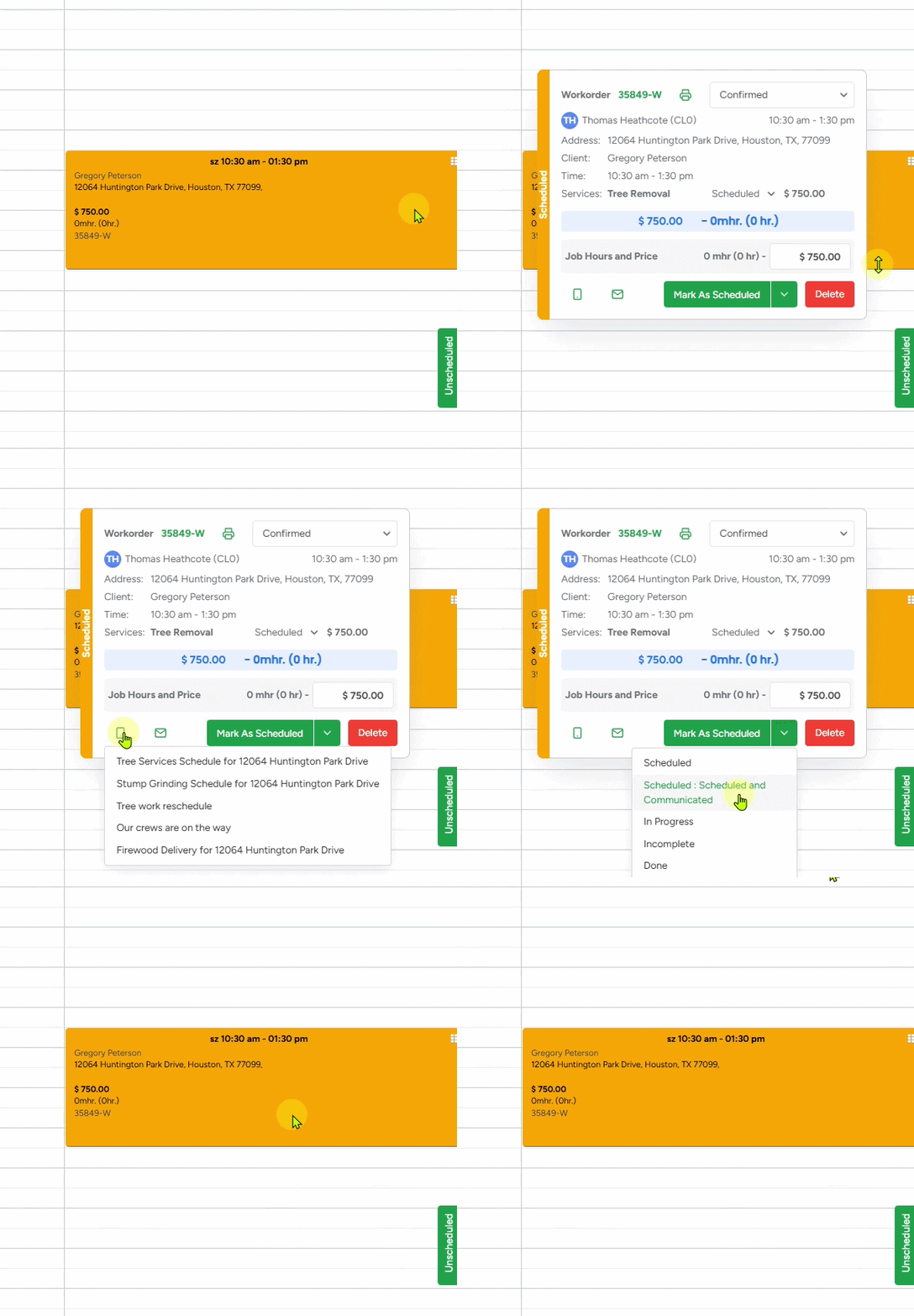
Job is placed on the Crew Schedule
Sub-status:
Scheduled and Communicated — triggered when you click the job and send an email or SMS to the client. If the client was notified or the job was confirmed through another communication channel, you can manually change the job status to Scheduled and Communicated.
 |
 |
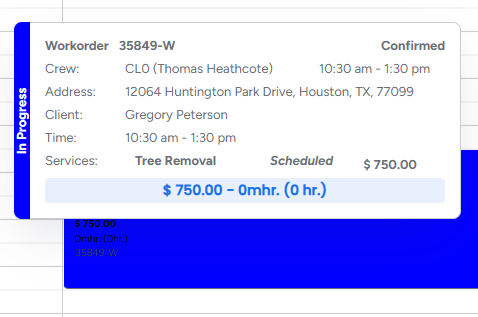
3. In Progress (Blue)
Crew has started the job by pressing Start Work
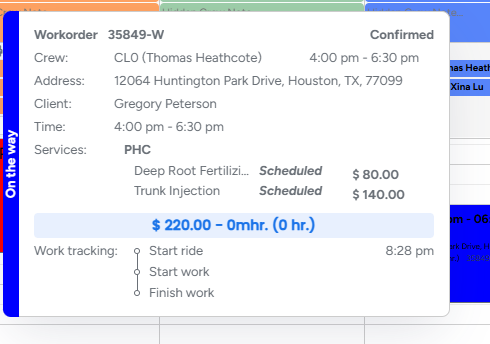
Sub-status:
On the Way — triggered when crew presses Start Travel
 |
 |
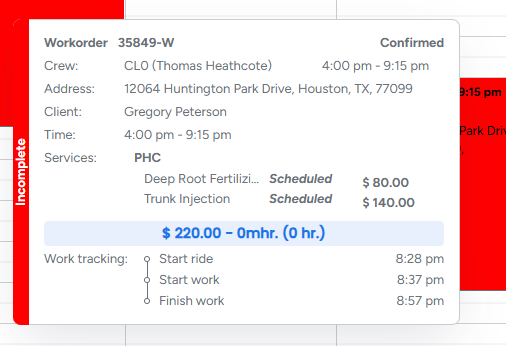
4. Incomplete (Red)
Work was started but not fully completed
Occurs when “Work is Done” is NOT checked
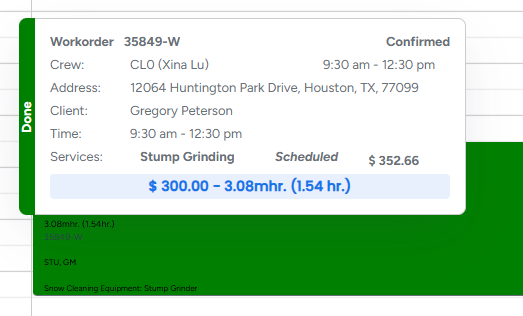
5. Done (Green)
Job is fully completed
Triggered when the crew checks “Work is Done” in the app after finishing the job
What Triggers Status Changes
Job Statuses are fully system-driven—they are not manually selected.
| Action | Resulting Status |
|---|---|
Job created (not scheduled) | Not Assigned |
Added to Crew Schedule | Scheduled |
Crew taps Start Travel | On the Way |
Crew taps Start Work | In Progress |
Work completed but checkbox NOT checked | Incomplete |
Crew checks “Work is Done” in the app | Done |
This ensures consistency and prevents manual errors in job tracking.
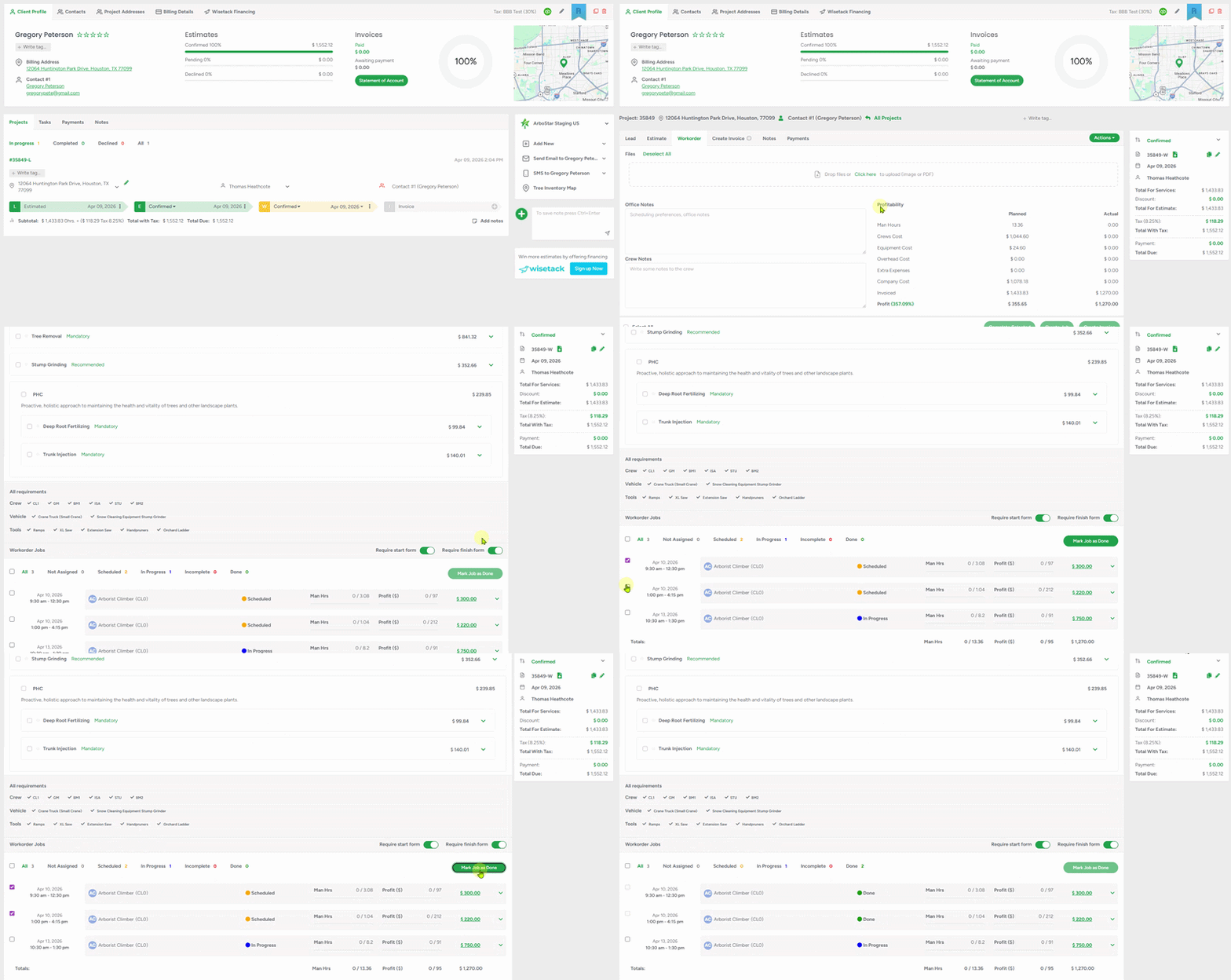
Workorder: Mark Job as Done (Bulk Action)
Open a Workorder
Select one or multiple jobs
Click “Mark Job as Done”
The button appears only when at least one job is selected and works for jobs that have been added to the Crew Schedule (Scheduled, In Progress, or Incomplete). Once applied, the selected jobs are instantly updated to Done (Green).
This helps office users quickly complete multiple jobs in just a few clicks.
Crew Schedule: Job Color Scheme
Job Status can directly control how events appear on the Crew Schedule. This helps office managers quickly identify job states without opening each event.
Company Management → Job Color Scheme for Crew Schedule

What it does:
Changes schedule event colors to reflect Job Status instead of Workorder Status
If Job Color Scheme for Crew Schedule is disabled, Crew Schedule will follow the Workorder Status settings:
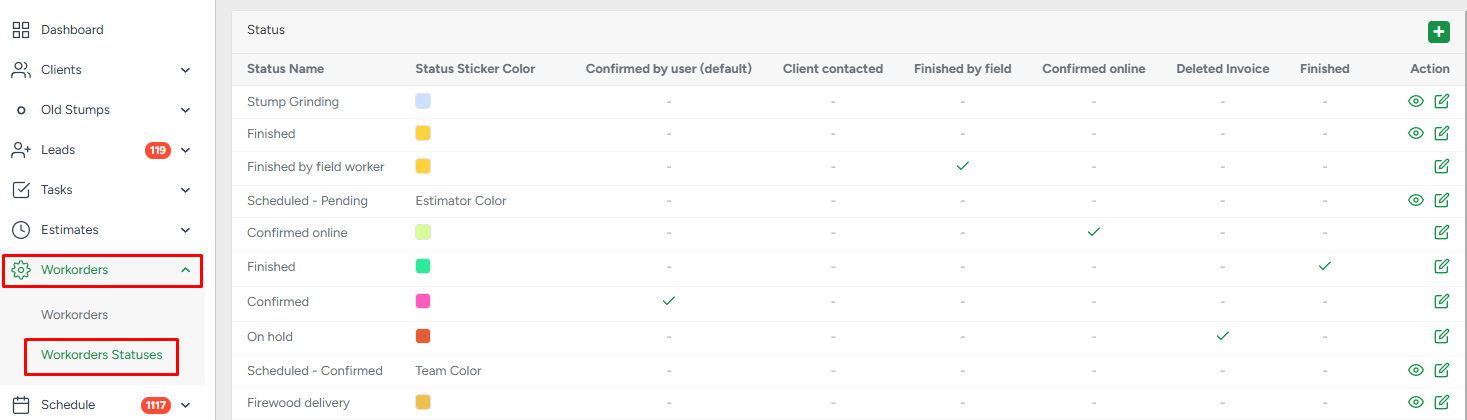
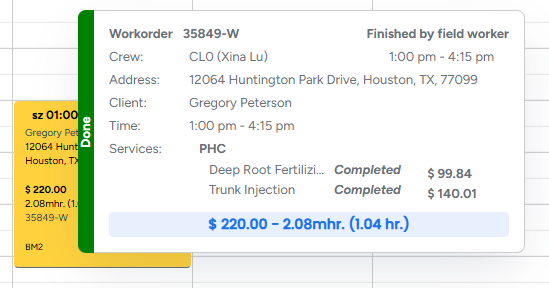
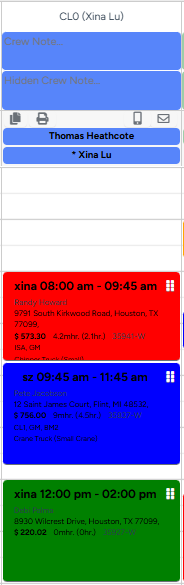
Job Color Scheme provides a real-time operational view:
This helps dispatchers quickly identify job states without opening each event. |
 |
 |
Mobile App Behavior
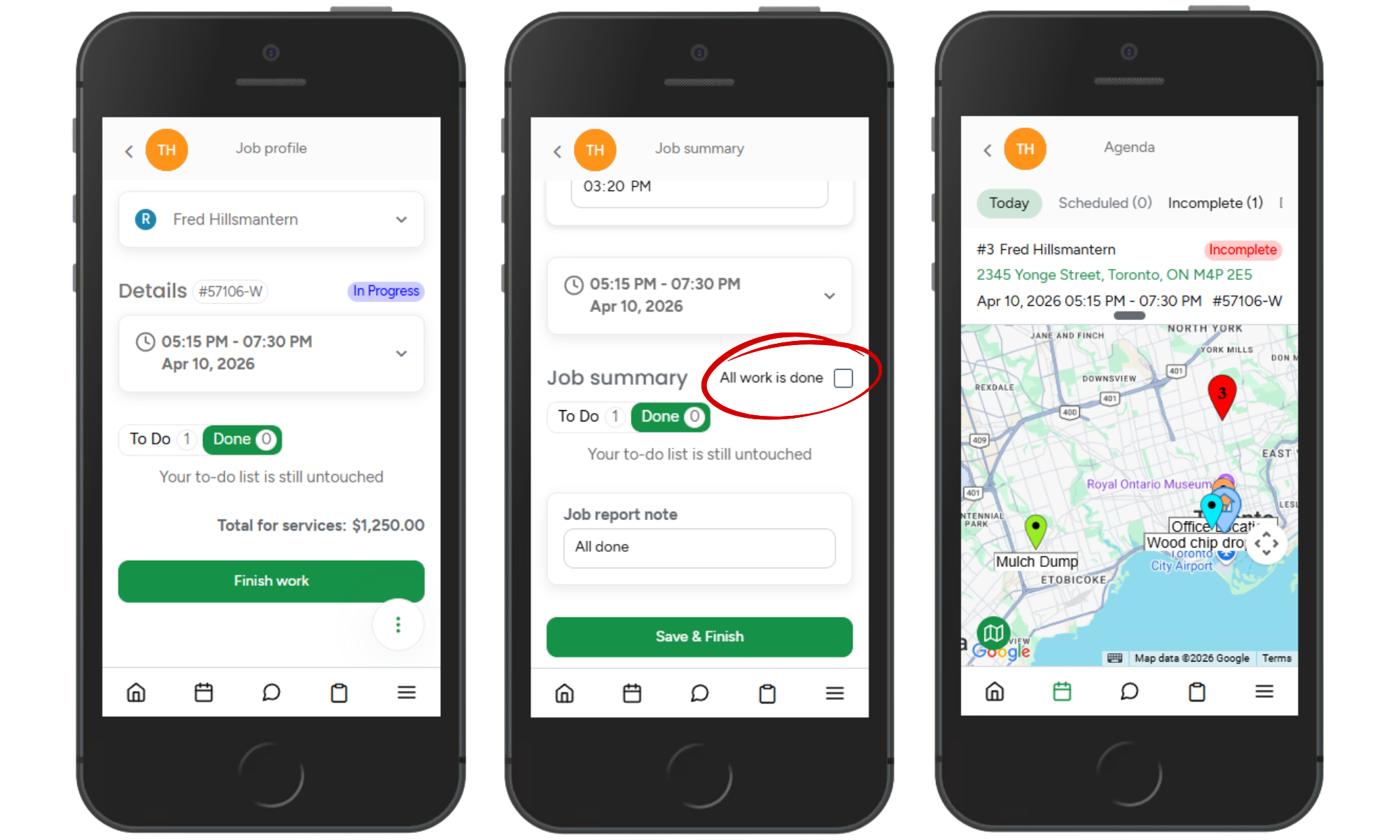
On mobile, Job Status is driven by crew actions in real time. Where statuses appear: Agenda view, Crew Schedule, and Job details (status strip). This ensures field crews and office staff stay aligned on job progress at all times.
- Start Work → Job becomes In Progress (Blue)
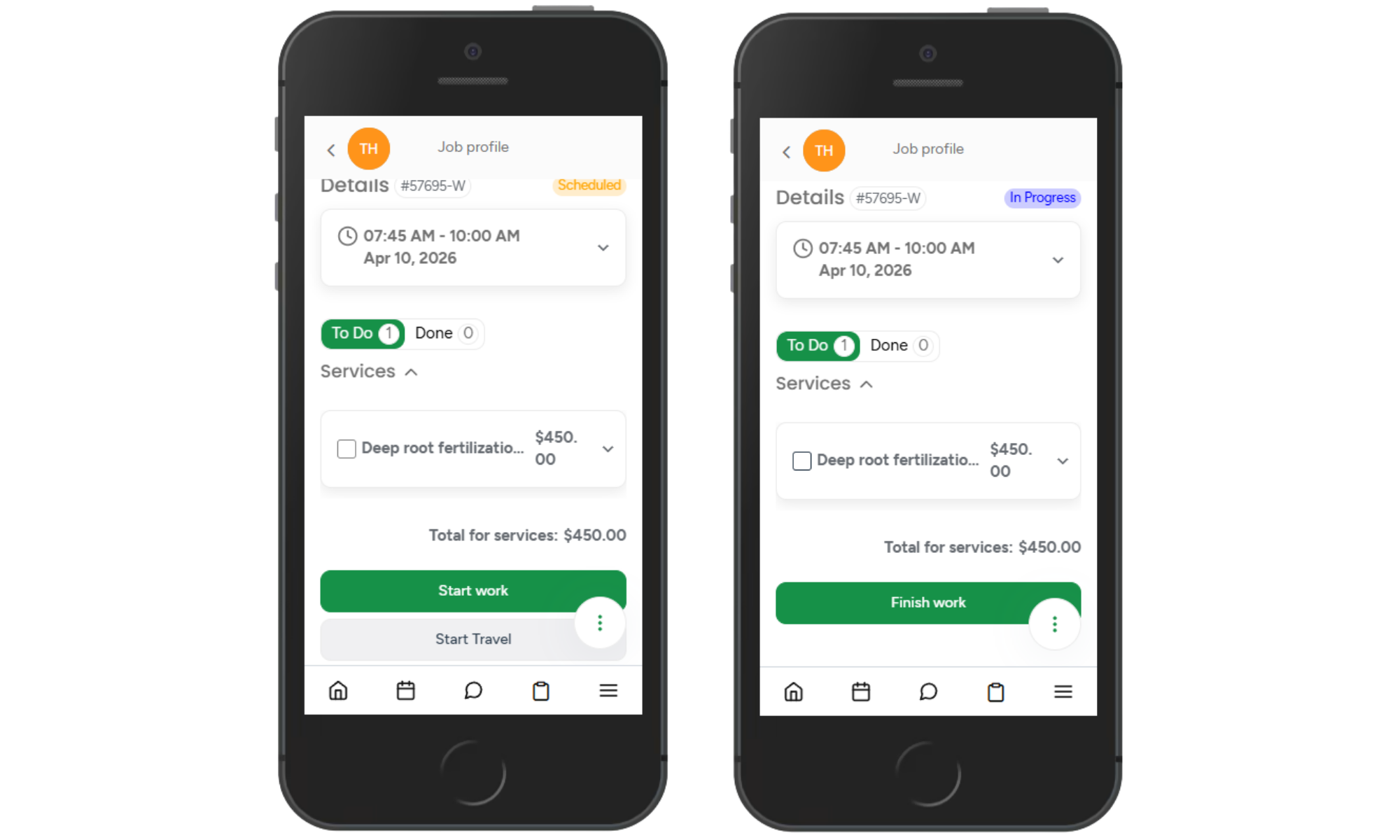
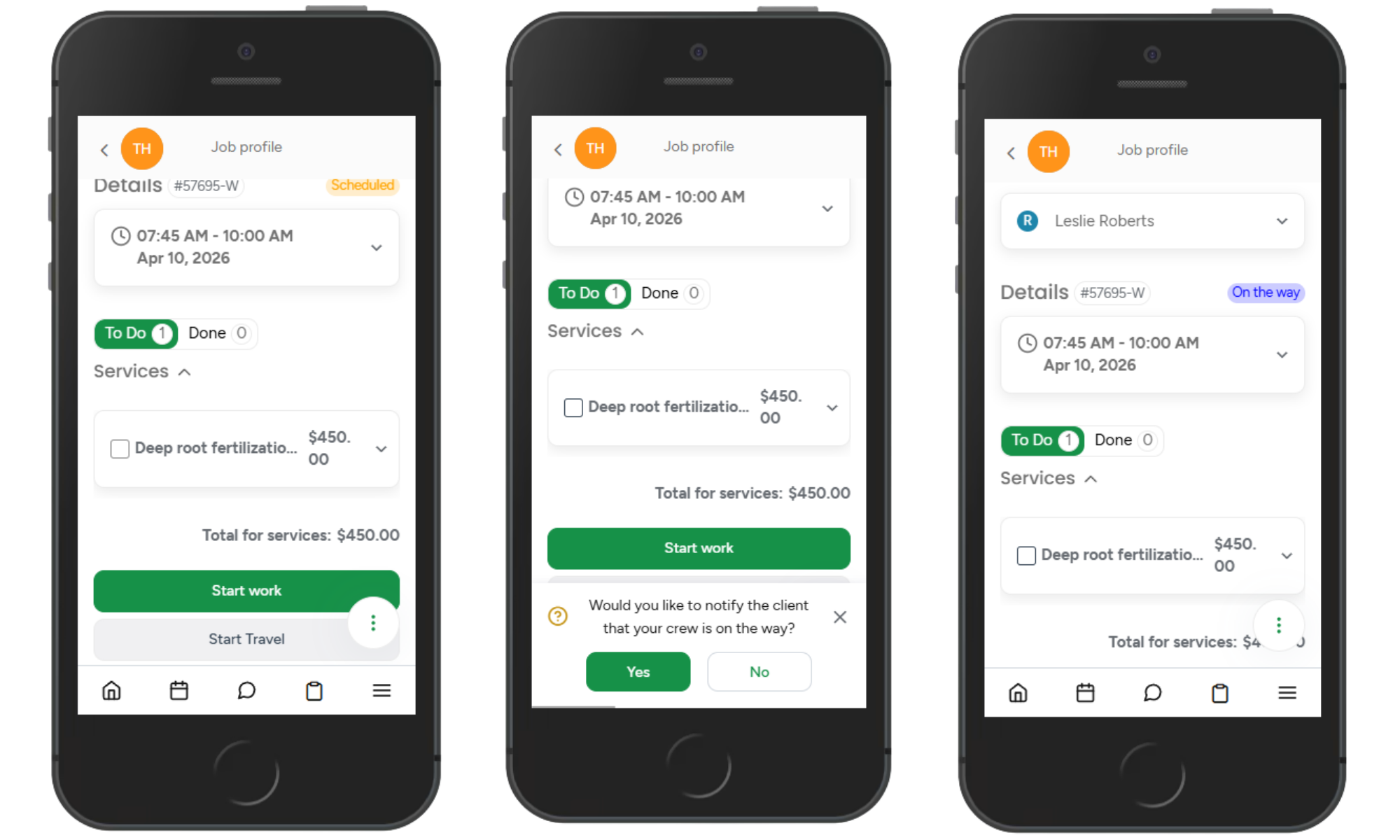
- Start Travel → Job becomes On the way (Blue)
Checked → Job becomes Done (Green)
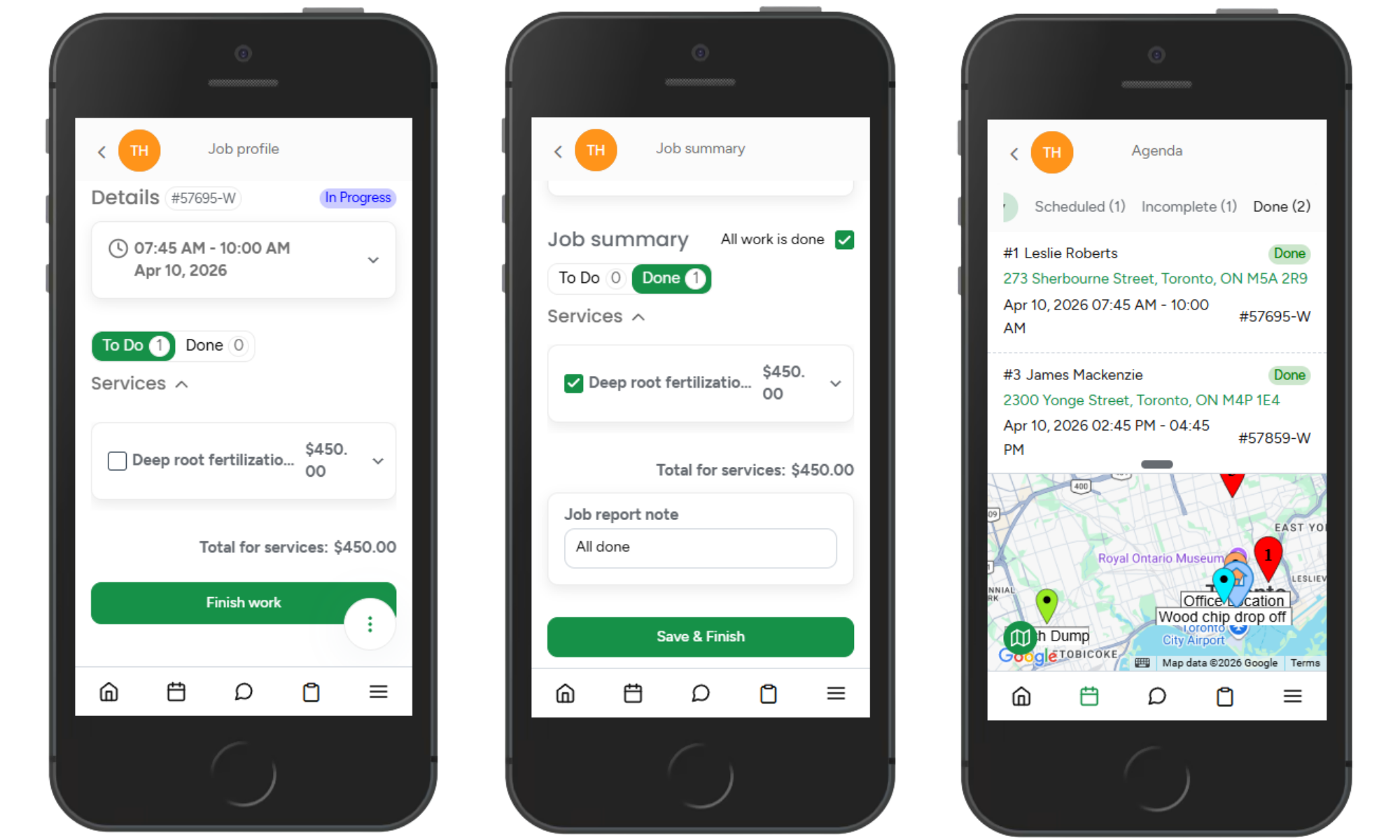
Unchecked → Job becomes Incomplete (Red)
If the “Job Color Scheme for Crew Schedule” setting is enabled on the web, events on both the web and mobile Crew Schedule will be color-coded based on the job status.
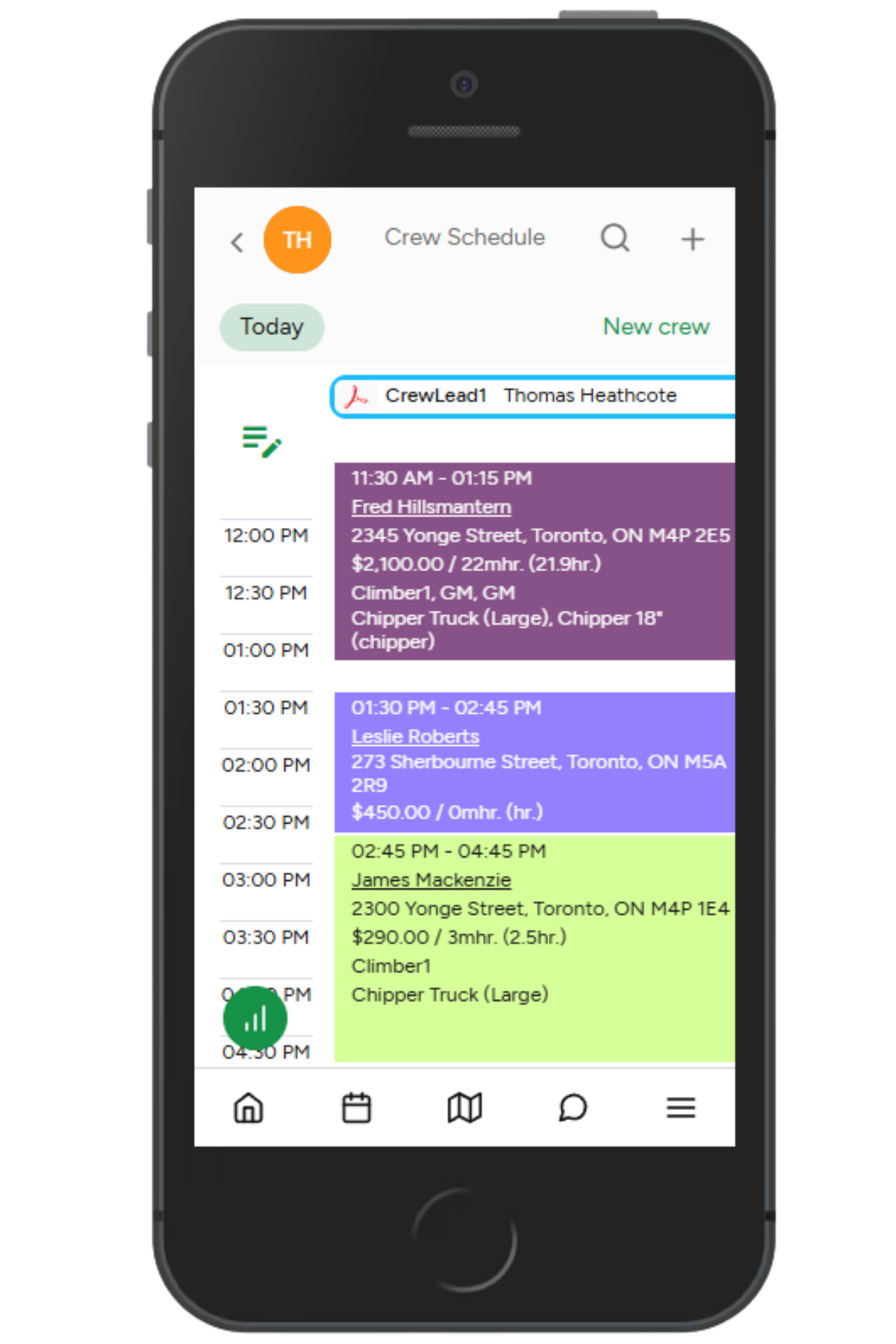
If Job Color Scheme for Crew Schedule is disabled, Crew Schedule will follow the Workorder Status settings: |
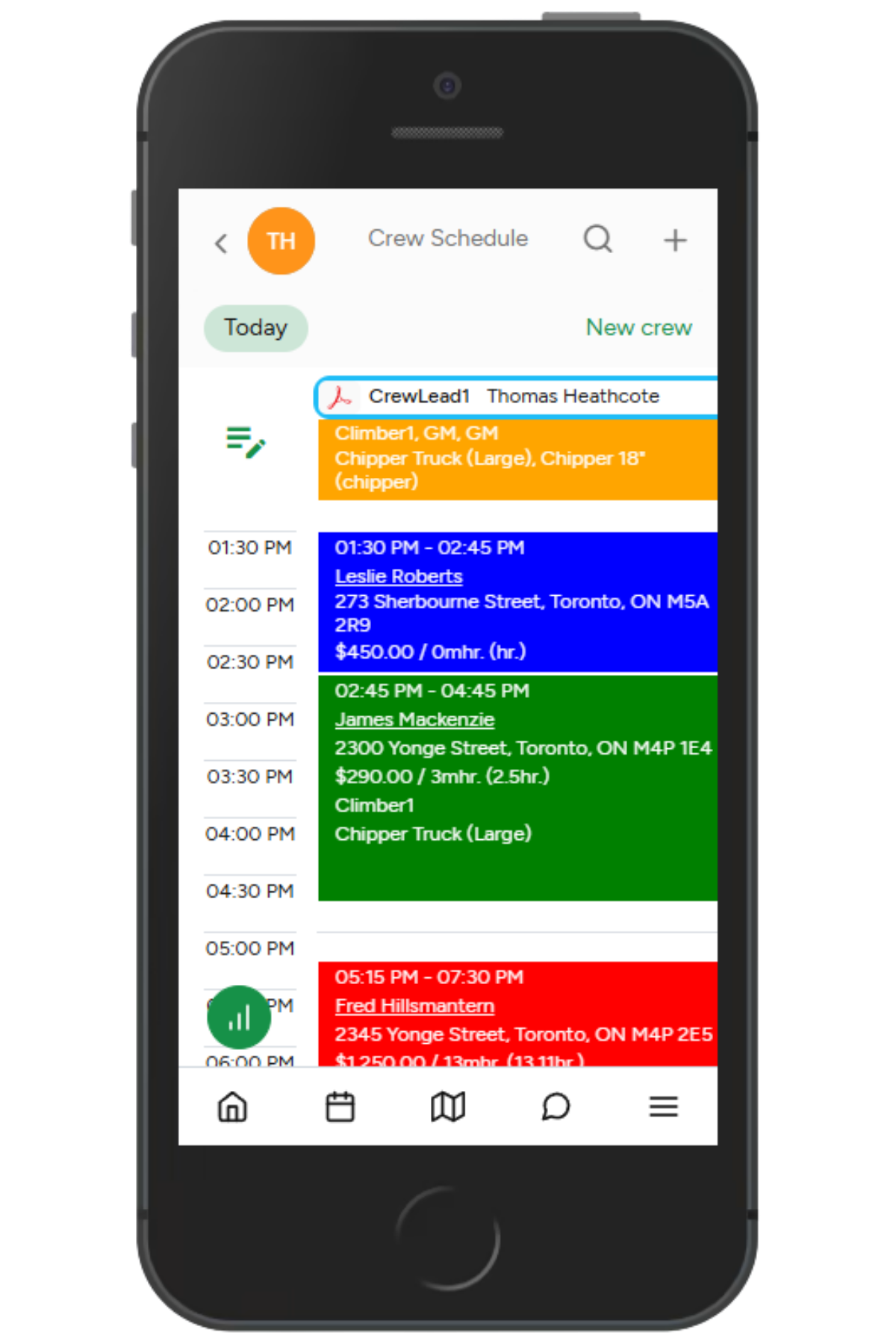
If the “Job Color Scheme for Crew Schedule” setting is enabled on the web, events on both the web and mobile Crew Schedule will be color-coded based on the job status.
 |