Choose the Right Option for Your Workflow
Recurring Jobs — for repeating individual service visits (best for routine maintenance or multi-day work)
Recurring Projects — for repeating entire estimates or workorders that also create new invoices (best for contracts and renewals)
Before You Begin
Recurring Jobs repeat specific service line items and place them on the crew schedule
Recurring Projects duplicate the entire project including services and create new invoices
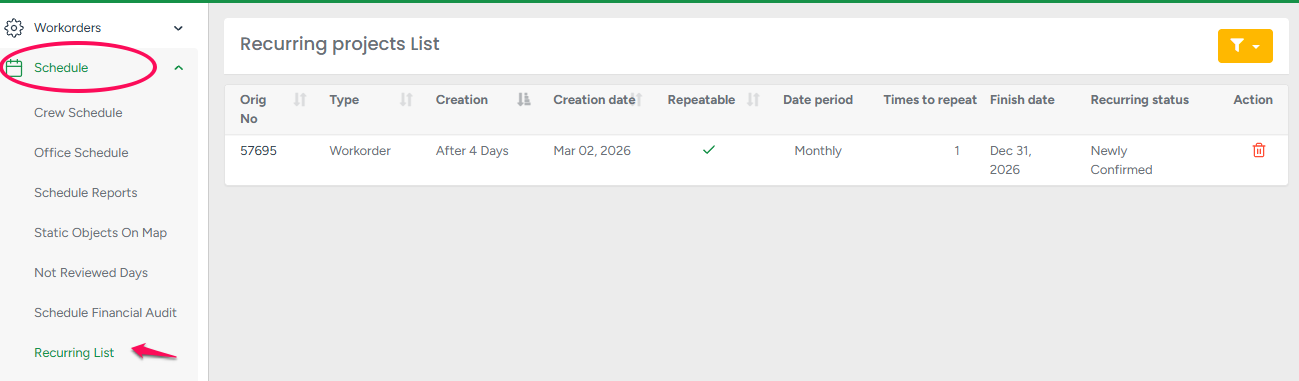
You can view and manage recurring projects anytime from Schedule → Recurring List
Once you’ve decided which option fits your needs, follow the steps below to set it up.
Option 1: Create a Recurring Job (Repeating Service Visits)
Use this option when the same service needs to be completed multiple times — such as daily work, weekly maintenance, or scheduled treatments over a period of time.
Recurring Jobs allow you to repeat individual service line items and automatically create future jobs without manually scheduling each visit.
Step-by-Step:
Open the Workorder Profile
Select the service line item you want to repeat
Click Create Job
In the Recurring Job window, set:
Start Date – the first date the job begins
Repeat Type Options
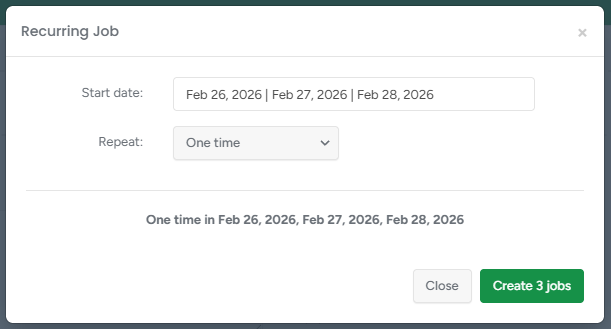
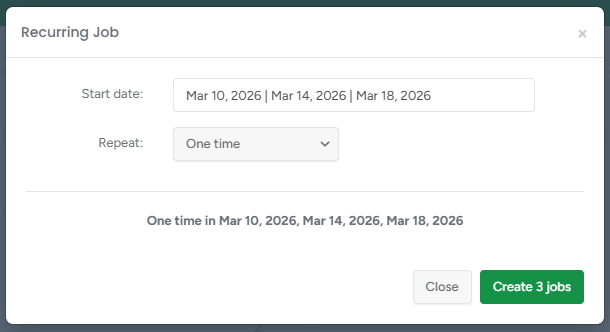
One Time
Select one or multiple specific dates directly on the calendar.
Each selected date creates a separate job.
See the examples below:
Tree Risk Assessment & Light Pruning Description: This service requires specific return visits, such as:
|
Tree Pest Treatment – Targeted Spray Application Description:
|
Multiple Times
Repeats the job based on a selected pattern for a specific number of occurrences.
The box next to “Multiple Times” is the multiplier (number of occurrences).
This determines how many jobs will be created.
Once the multiplier count is reached, the system automatically stops creating additional jobs.
You will also set:
Date Period (Daily, Weekly, Monthly, Yearly)
Every (interval between repeats)
See the examples below:
Tree Health Treatment – Pest & Fungus Control Description: Certain tree treatments work in stages:
Spacing the visits by 4 days ensures the treatment is effective without damaging the tree. 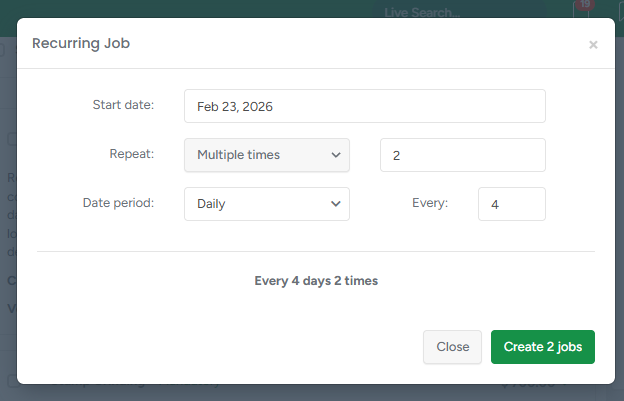 | Deep Root Fertilization – Soil Nutrient Recovery Description: This service is structured in two weekly cycles:
Repeating this pattern for 2 weeks ensures proper absorption, reduces tree stress, and supports root recovery. 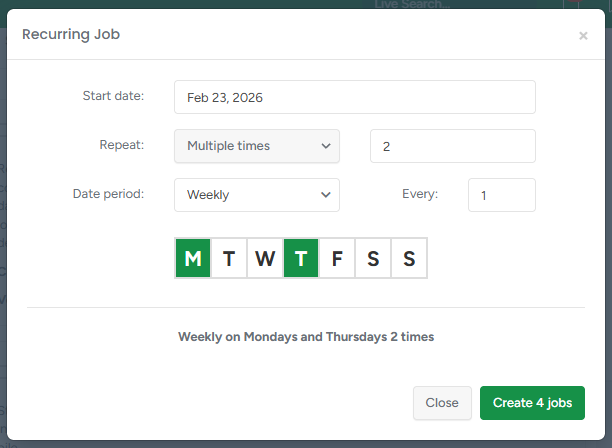 |
Until Finish Date
Repeats the job continuously until a selected end date.
The box next to “Until Finish Date” is the end date.
The system will continue generating jobs based on the selected pattern and automatically stop once that end date is reached.
You will also set:
Date Period (Daily, Weekly, Monthly, Yearly)
Every (interval between repeats)
See the examples below:
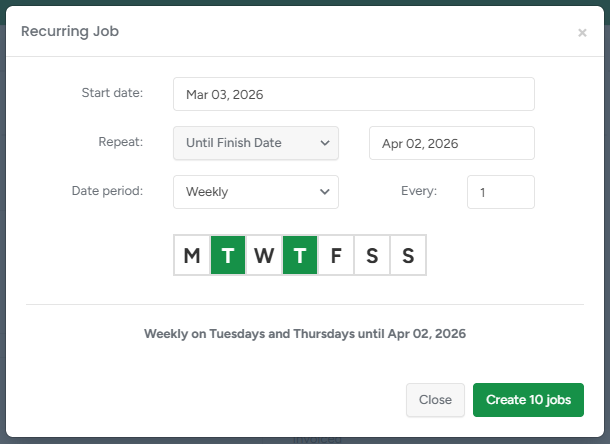
Tree Growth Regulator (TGR) Applications Description: 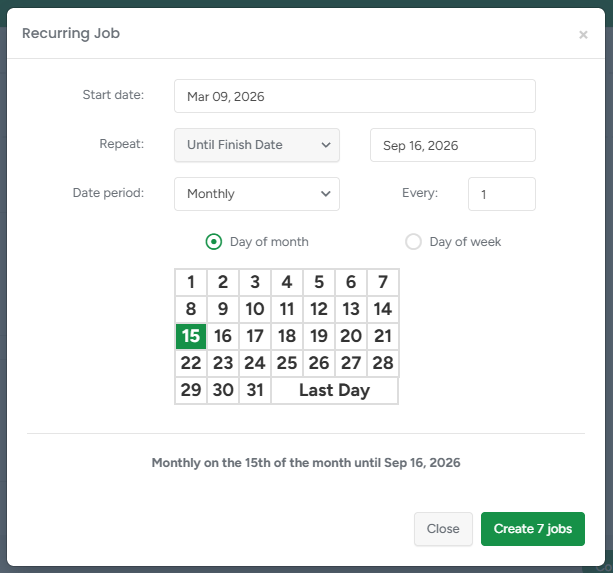 | Phased Tree Removal with Stump Grinding & Cleanup Description:
|
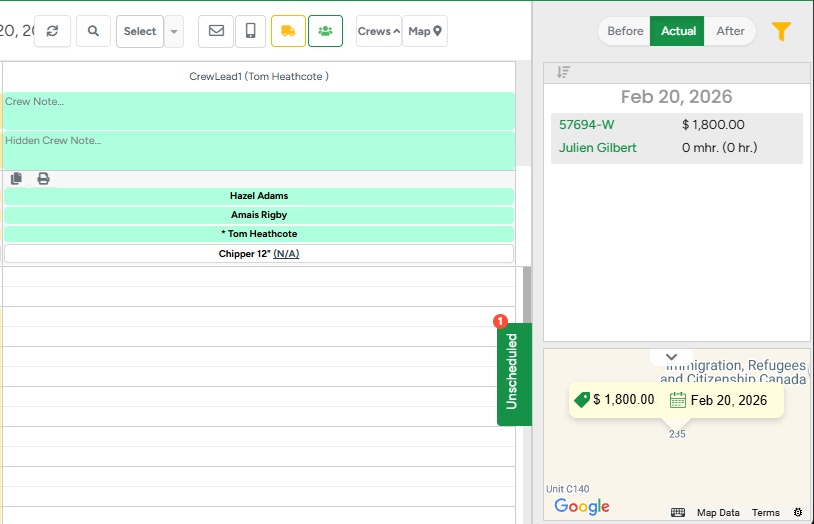
Results: The system automatically creates future jobs and adds them to the Unscheduled sidebar in Crew Schedule, where they can be dragged onto a crew’s calendar when ready to be completed.
Option 2: Create a Recurring Project (Copy Entire Estimate or Workorder)
Recurring Projects allow you to automatically duplicate an entire Estimate or Workorder on a scheduled basis.
Unlike Recurring Jobs (which repeat service line items), Recurring Projects copy the full project — including all services, pricing, and details — and generate new project profiles based on your selected repeat settings.
This is ideal for:
Seasonal service programs
Long-term contracts
Promotional multi-visit packages
Ongoing maintenance agreements
Before You Begin
Recurring Projects can be created from either:
Estimate Profile → Best for flexible pricing
Workorder Profile → Best for fixed-price confirmed agreements
Choosing the correct profile determines how pricing and approval will be handled.
Step-by-Step:
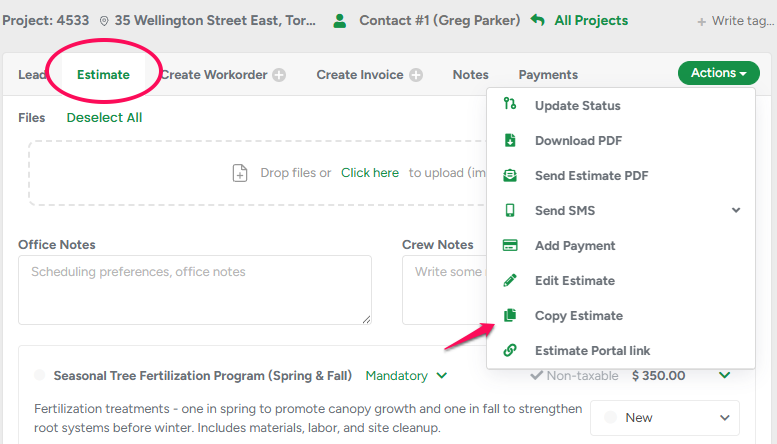
Open the Estimate or Workorder Profile that you want to repeat.
Click the Actions button.
Select Copy Estimate or Copy Workorder
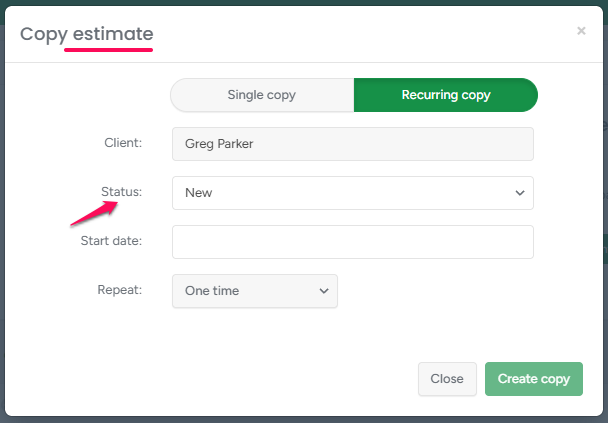
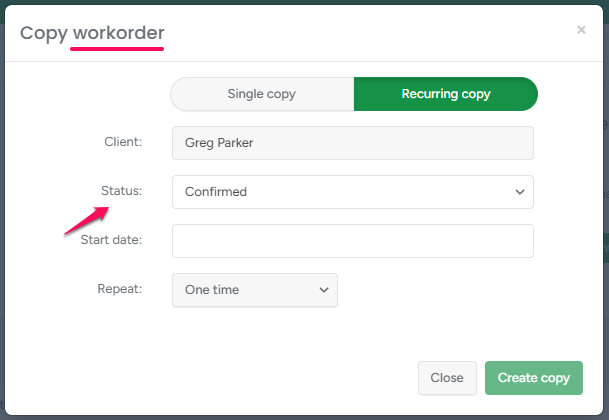
In the Recurring Copy window, set:
- Status – Choose the appropriate status based on where you are creating the copy from:
| If Created from the Estimate Profile Set Status to New. Use this when:
| If Created from the Workorder Profile Set Status to Confirmed. Use this when:
|
- Start Date – the first date the next copy should be created.
Repeat Type Options
One Time Recurring ProjectWhen to Use: A client wants two specific visits this year — one at the beginning of the fertilization season and one at the end. The estimate will be created only for these dates. Result: Pricing Flexibility Example: | 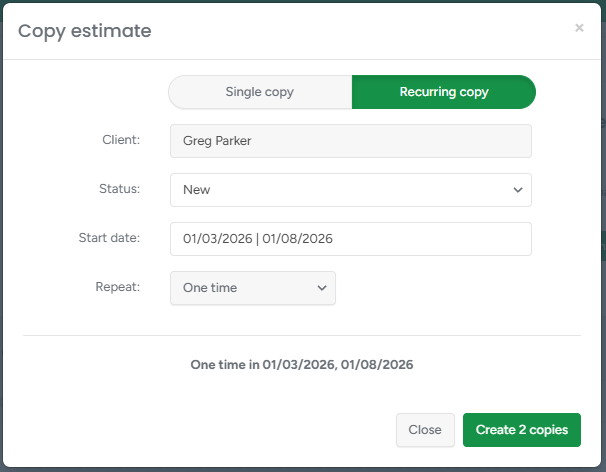 |
Multiple Times Recurring ProjectWhen to Use: Example Scenario: Result: Promotional Pricing Example: | 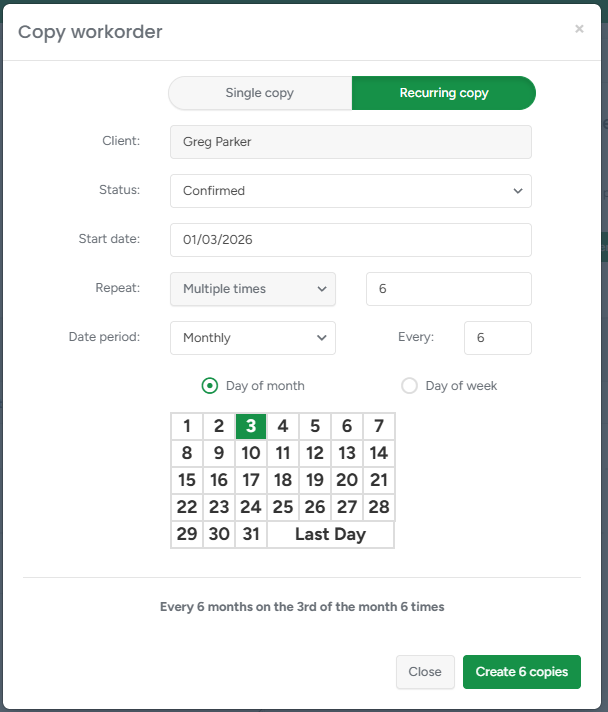 |
Until Finished Date Recurring ProjectWhen to Use: A Fire Blight prevention program for a crabapple tree requiring a yearly trunk spray in early spring. Because this is created from the Estimate Profile, each new estimate copy can be reviewed and adjusted before being sent for approval if material or labor costs change. Result:✔ Creates project copies on: ✔ Stops automatically once December 31, 2028 is reached 2026 spray: $225 | 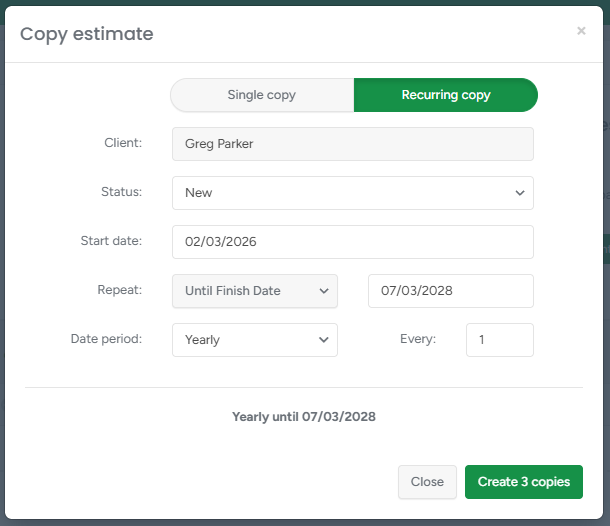 |
Results: The system automatically creates project copies on your selected schedule, carries over all services and pricing, generates separate billable projects, and stops once the set count or end date is reached.
If the recurring setup is deleted, the system will immediately stop generating future project copies (existing copies will remain).
You can manage recurring projects under Schedule → Recurring List. Use the yellow funnel filter button to filter the list by project type (Estimate or Workorder) and by available project statuses.