
Add a credit note on the web
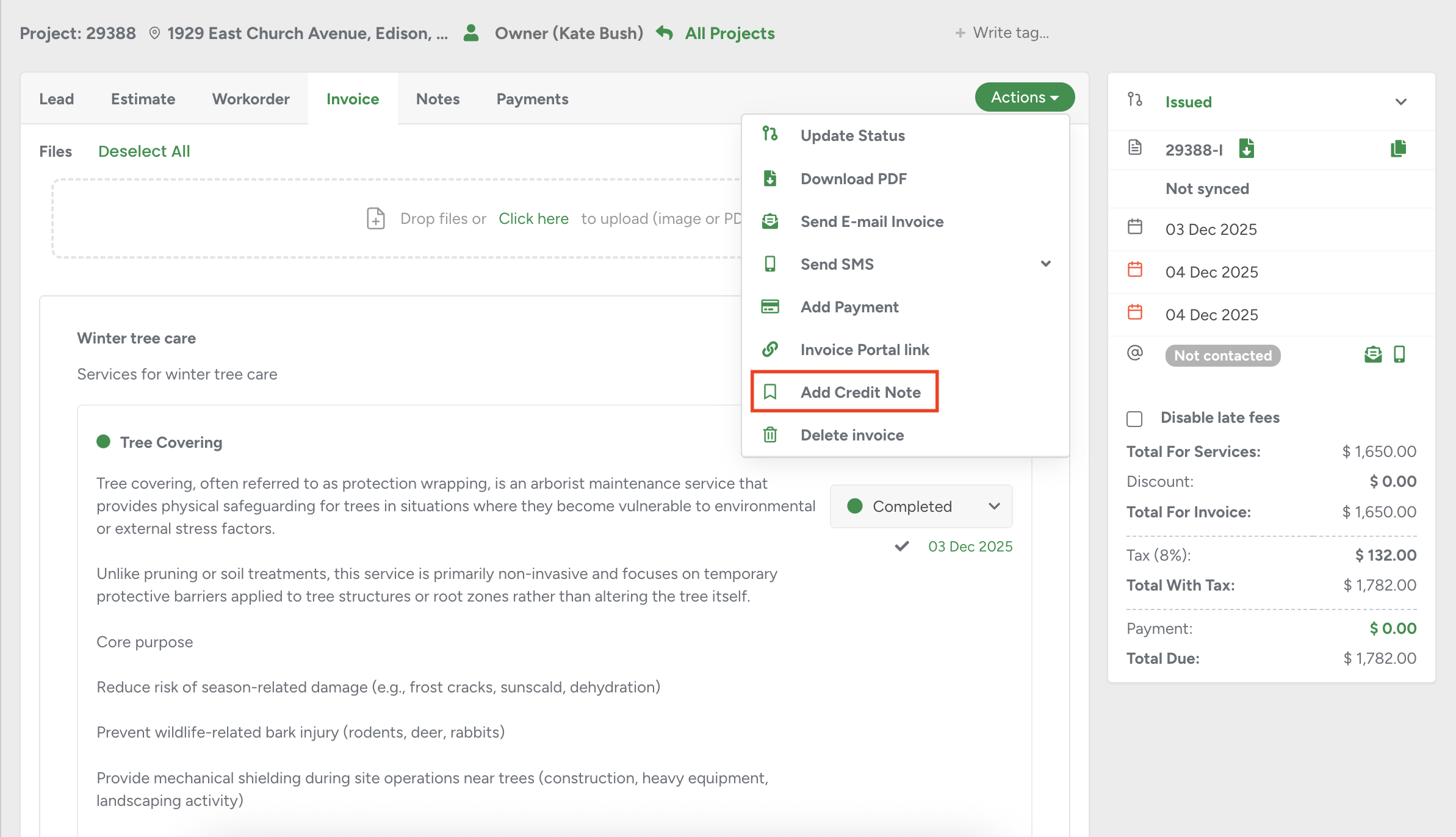
A new option, Add Credit Note, is now available directly from the Invoice Profile.
The Credit Note is used to create one or multiple credit notes for a specific invoice. It provides a structured way to adjust invoice totals while ensuring all financial changes remain transparent, consistent, and logged.
You can find the new action in the Actions dropdown on the invoice page. The option appears immediately after Invoice Portal Link and before Delete Invoice, maintaining consistent navigation within the invoice tools.
The modal can be opened in two ways:
By selecting Add Credit Note from the Actions menu on the Invoice Profile.
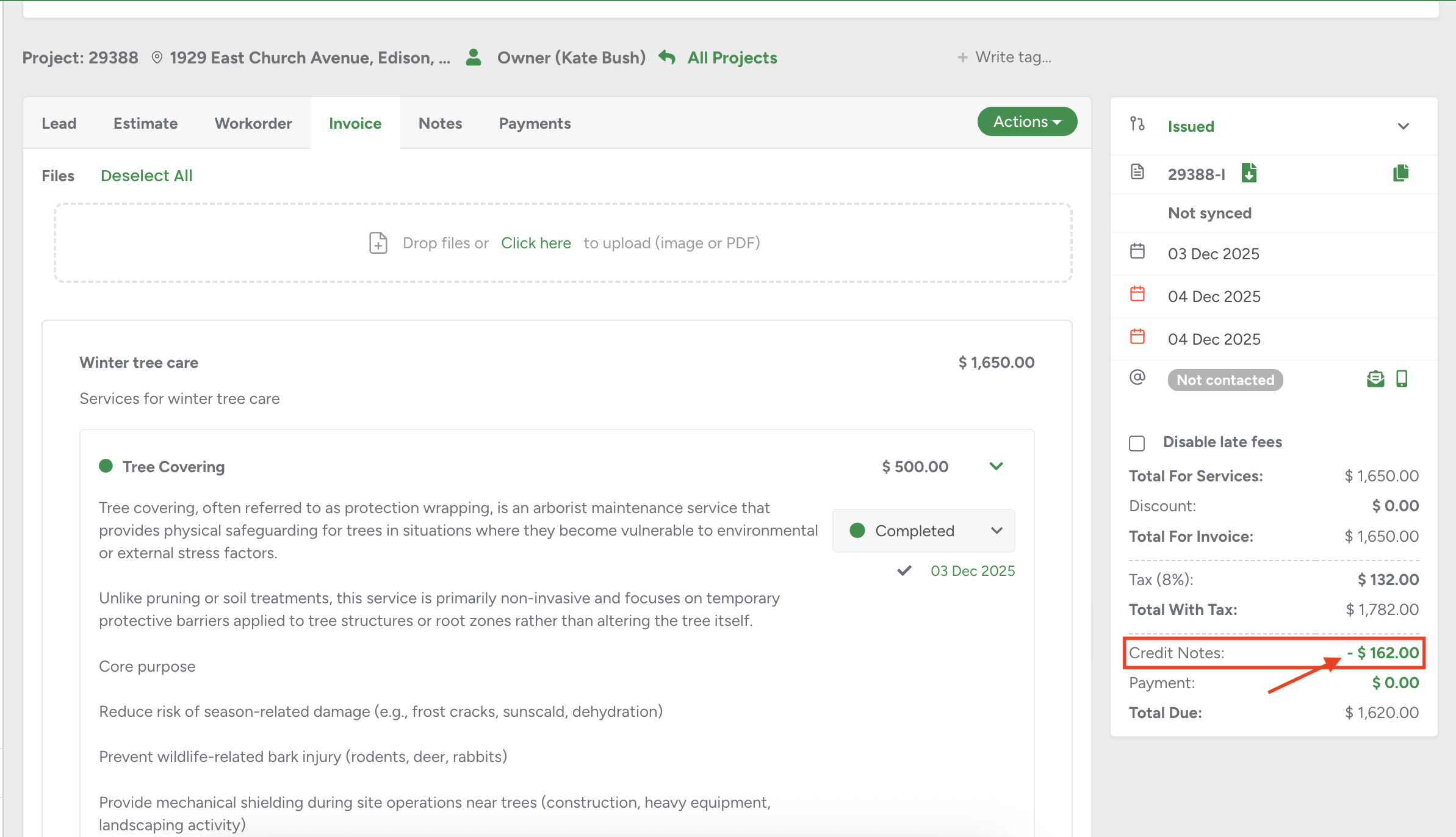
By clicking the green Credit Notes total displayed in the invoice sidebar (available once at least one credit note has already been added).
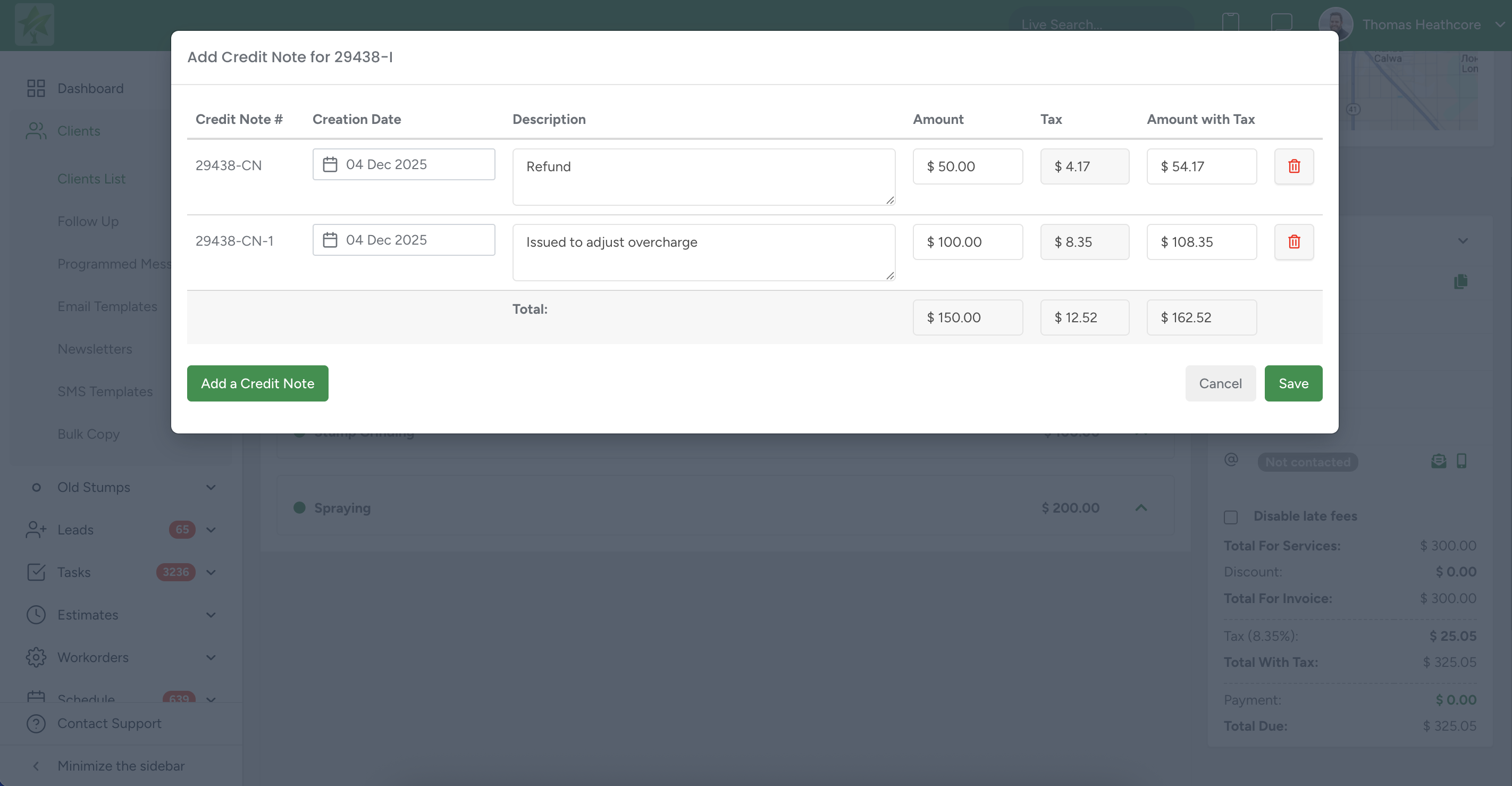
The modal header displays the title: Add Credit Note for [Invoice Number], where the invoice number dynamically updates based on the invoice being adjusted.
Permissions
The action is accessible only to users who have permission to edit invoices.
If a user does not have the required permission, the action will not be displayed in the menu.
Credit Note Rows
Each credit note is displayed as an individual row with clearly defined fields:
Credit Note #
Assigned automatically based on the project number.
Format: [Project No]-CN, [Project No]-CN-1, [Project No]-CN-2, etc.
The field is read-only and cannot be edited.
Creation Date
Defaults to credit note creation date.
Users can manually change the date within the allowed range.
The credit note date cannot be set earlier than the invoice creation date and cannot be set to a future date.
The allowed date range also depends on your Lock Financial Period settings:
- The Creation Date cannot be set to a date within a locked financial period.
- If the Creation Date falls within a locked period, the credit note cannot be deleted.
- If the Creation Date falls outside a locked period, the credit note can be deleted.
- This ensures that closed financial periods remain accurate and cannot be affected by changes made later.
Description
Optional text field for internal notes or clarifications.
Amount
Editable input representing the net amount (without tax).
When this field is filled, the Tax and Amount with Tax values are calculated automatically.
Tax
Read-only field.
Calculated automatically based on the tax rate of the associated invoice.
Amount with Tax
Editable input representing the gross amount.
If this field is filled instead of Amount, the system recalculates the Amount and Tax fields automatically.
Calculation Logic
Users may enter either Amount or Amount with Tax.
When one field is populated, the other values are calculated automatically using the tax rate from the original invoice.
Summary Bar
Below all credit note rows, the system displays a summary section with:
Total Amount – sum of all net values
Total Tax – sum of all calculated tax values
Total Amount with Tax—full gross total across all rows
This section updates automatically as values change.
Once a credit note is saved:
The row becomes read-only inside the modal.
Previously saved credit notes cannot be edited.
To make modifications, the user must delete the existing entry and create a new one.
Add a credit note on the app:
Creates a credit note linked to this invoice to apply a discount, correct an overcharge, or issue a partial or full credit. The credit note reduces the outstanding balance and is recorded in the client’s billing history.
Click on the three dots, then select Add Credit Note:

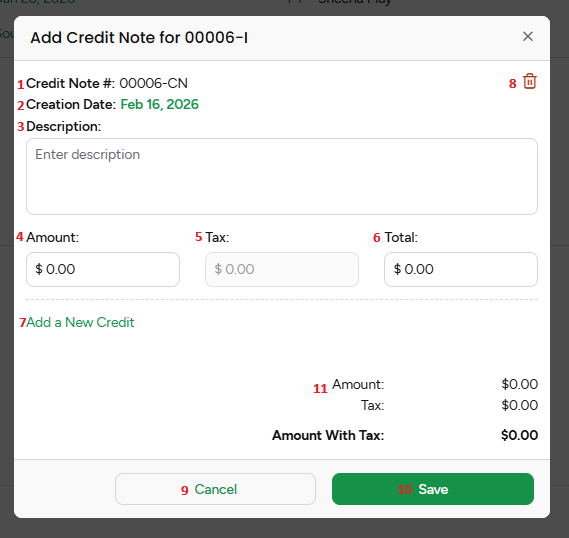
1. Credit Note
Auto-generated unique reference number.
The suffix CN indicates Credit Note.
2. Creation Date
Automatically populated with the current date.
3. Description
Free text field. Enter the reason for the credit. Recommended for documentation and audit clarity.
4. Amount
Enter the base credit amount before tax. This reduces the invoice subtotal.
5. Tax
Displays the calculated tax amount based on the entered amount. This is auto-calculated depending on tax settings. This ensures tax adjustments align with accounting records.
6. Total
Displays the total credit, including tax.
Formula:
Total = Amount + Tax
7. Add a New Credit
Allows multiple credit line items to be added within the same credit note. Useful when crediting different services or adjustments separately.
8. Trash Icon
Deletes the current credit entry before saving.
9. Cancel
Closes the window without saving changes.
No credit note will be created.
10. Save
Finalizes and applies the credit note to the invoice.
The invoice balance will be reduced accordingly.
11. Summary Section (Bottom Panel)
This section ensures accuracy before saving. Displays a running total of:
Amount
Tax
Amount With Tax (Final Credit Total)
Credit note on the portal:
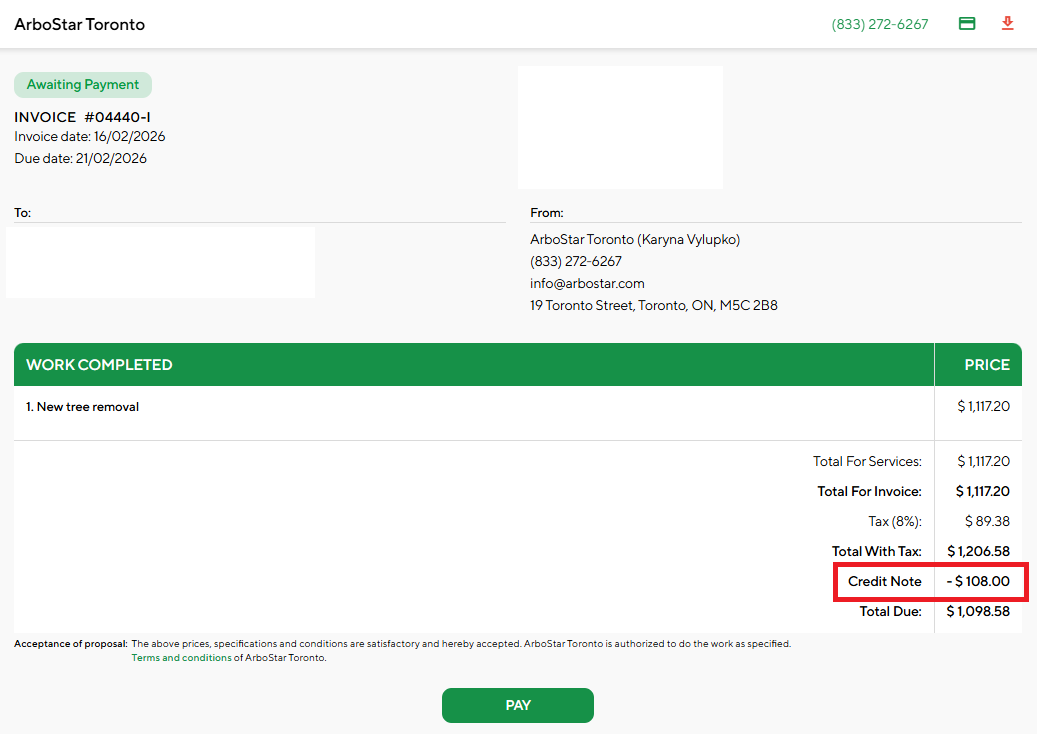
A new line item labeled Credit Notes is displayed in the Totals section of the Invoice Portal Link page.
- This is positioned directly above the payment line and total due, the same as in the PDF.
- Show the sum of all credit notes for this invoice as a negative amount.
- If credit notes are added or deleted, the Portal Link totals update accordingly.
Calculation
Total Due = Total for Invoice – Credit Notes
Invoice PDF Updates
Credit notes are now included in the invoice PDF to ensure consistent and transparent financial reporting.

Credit Notes Line
A new Credit Notes line appears in the totals section of the invoice PDF:
Positioned above the Payments line and above Total Due
Displays the total value of all credit notes linked to the invoice
Shown as a negative amount (e.g., –$100.00). Negative values are always displayed with a leading “–” sign.
Follows the same number and currency formatting used throughout the invoice
Total Due Calculation
The Total Due on the PDF reflects credit notes correctly:
Total Due = Total for Invoice – Credit Notes
The value must always match the Total Due displayed in the invoice sidebar.
Invoice Sidebar Calculations
When credit notes are added or updated, the invoice sidebar recalculates all financial totals to ensure accuracy and transparency.
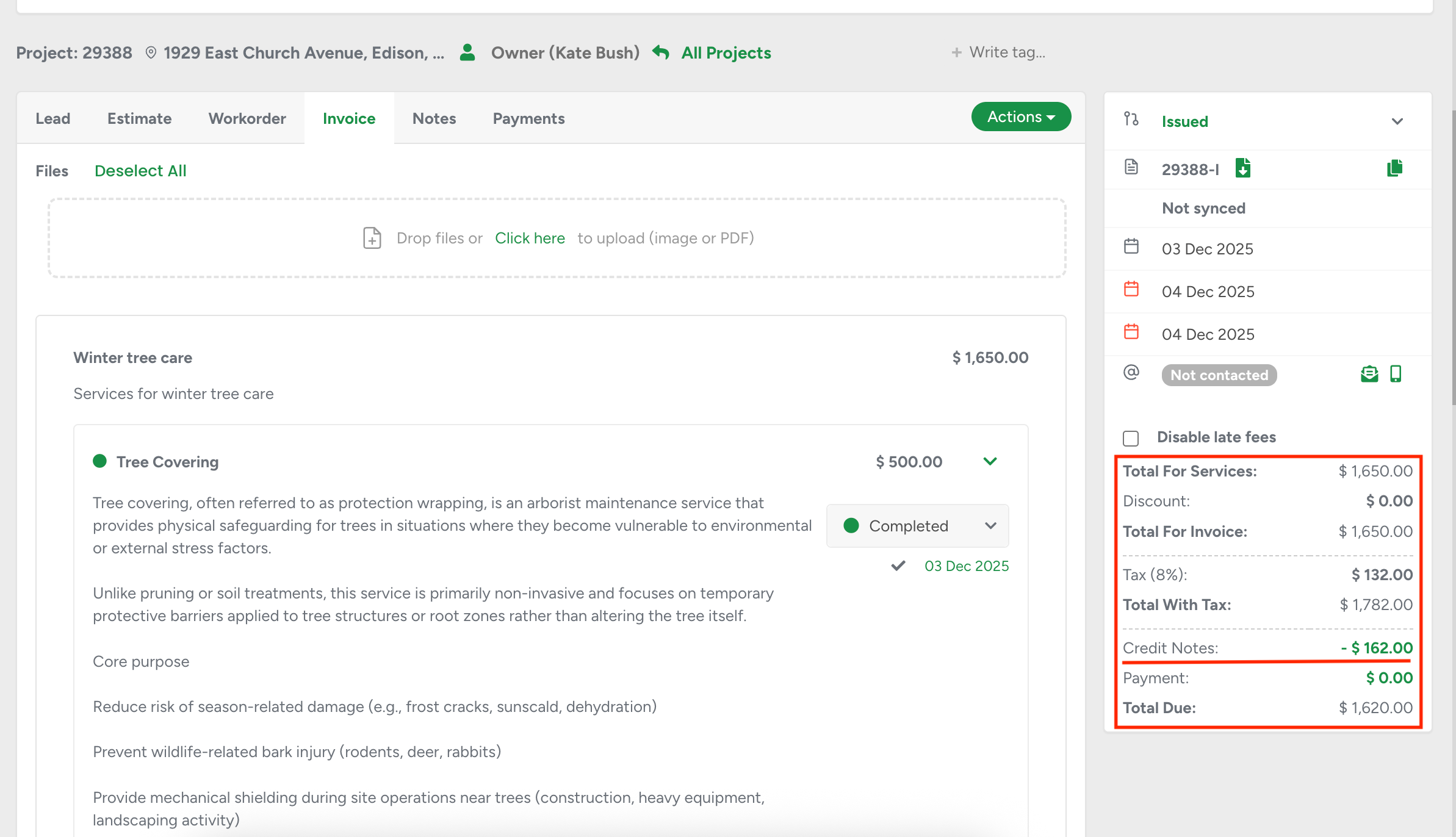
Credit Notes Line
A new Credit Notes row is displayed in the right-hand sidebar:
Positioned above the Payments line.
Shows the total value of all credit notes applied to the invoice.
Displayed as a negative amount (e.g., –$250.00).
The value updates automatically as credit notes are created or deleted.
Total Due Recalculation
The system applies the following formula to determine the updated balance:
Total Due = Invoice Total – Credit Notes – Payments
Recalculation occurs automatically after:
Adding a new credit note
Removing a credit note
Real-Time Updates
Once credit notes are saved in the modal, the sidebar totals refresh immediately.
If more credit notes are added later, both the Credit Notes line and Total Due update dynamically.
Affected Modules
Credit notes are fully integrated across all financial modules to ensure consistent calculations and reporting.
Invoices List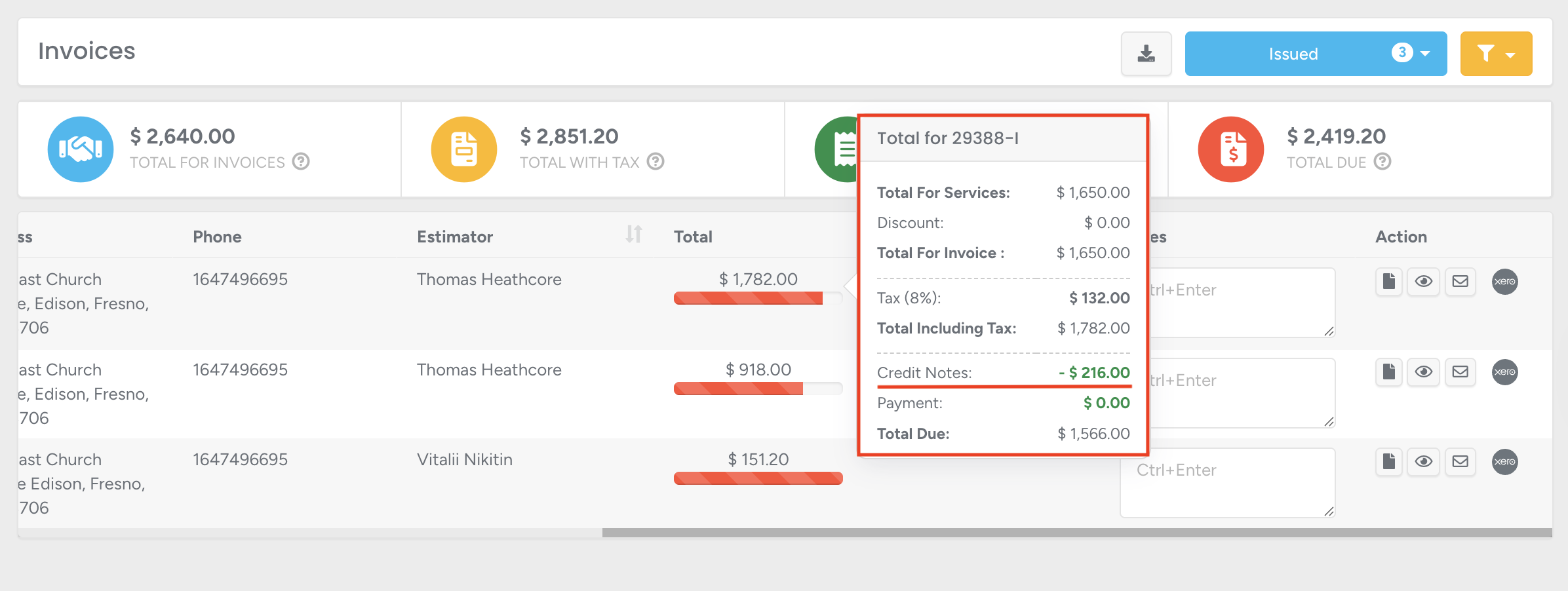
Total Due updates automatically whenever credit notes are applied.
When clicking the Total column to view the tooltip:
A Credit Notes line appears above Payment (if any credit notes exist).
The credit note value is displayed as a negative amount.
Total Due is recalculated in real time.
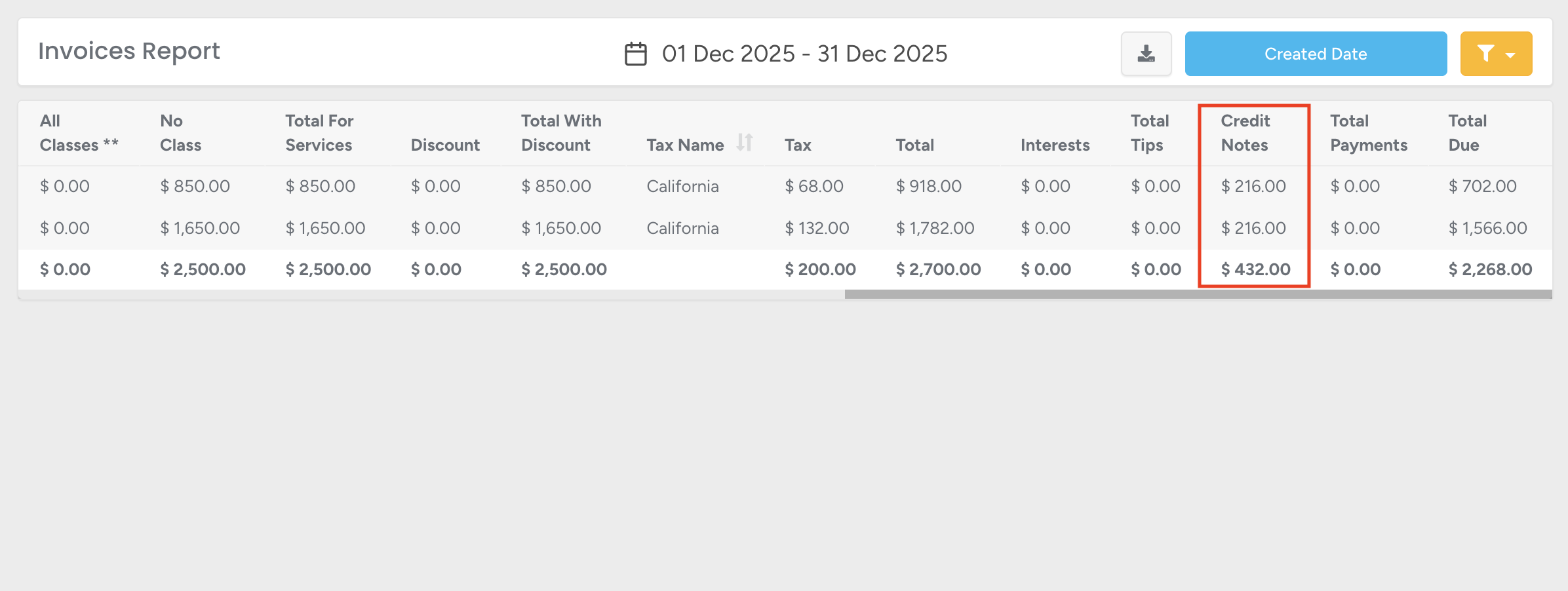
CSV Export now includes:
A new Credit Notes column showing the total credit notes per invoice.
An updated Total Due column reflecting credit-note adjustments.
Business Intelligence—Invoice Statistics
All metrics based on Total Due automatically include credit note adjustments without additional configuration.
Business Intelligence—Sales
All totals and sales metrics are calculated after credit notes are applied.
Exported datasets include the updated Total Due, with no separate credit note column required.
Consistency Rule
Across all modules, Total Due is recalculated dynamically whenever a credit note is created or deleted, ensuring alignment between the invoice profile, reports, exports, and dashboards.