
The Newsletter feature allows you to send bulk email messages to selected clients. You can filter clients by creation date, tags, client type, and related records such as Leads, Estimates, Work Orders, or Invoices to ensure your message reaches the intended recipients.
Filters:
Client Created From / Client Created To
Select a start date and an end date to target clients created within a specific time range.
Tags
Enter or select a tag to include only clients with that tag.
Client Type
Select a client type from the dropdown to target a specific group (Residential, Commercial, Municipal)
Search Method: Leads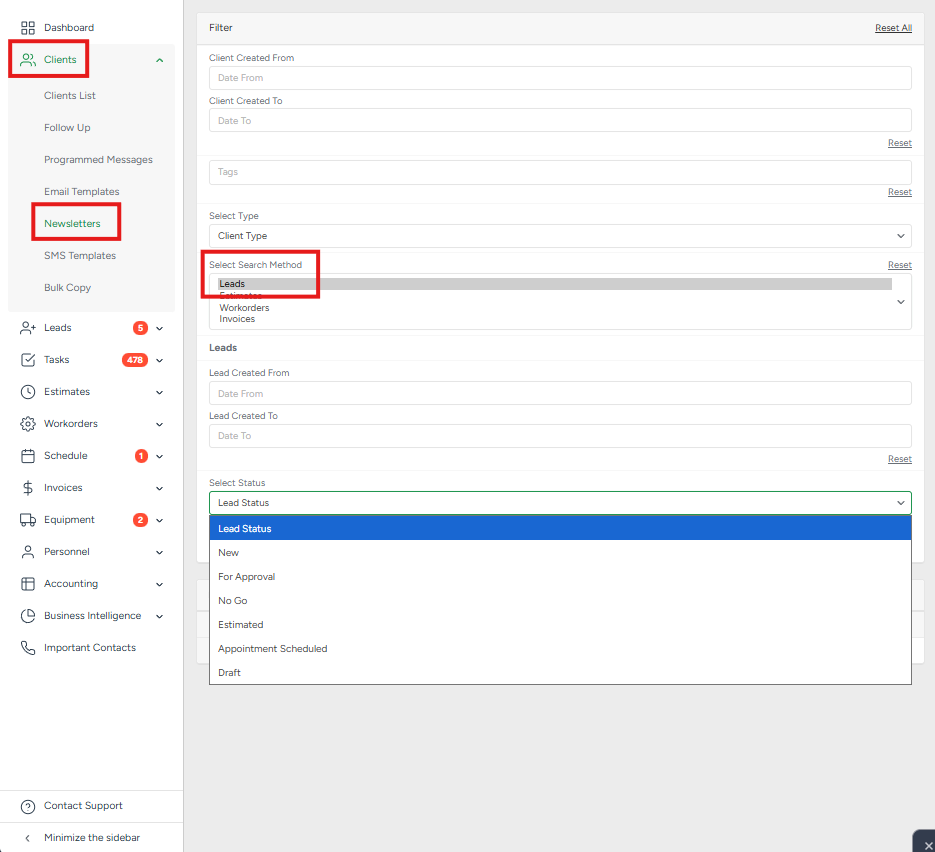
Lead Created From / Lead Created To
Enter a date range to narrow down lead records.
Lead Status
Select one or more statuses to refine the list. Available statuses may include:
New
For Approval
No Go
Estimated
Appointment Scheduled
Draft
Search Method: Estimates
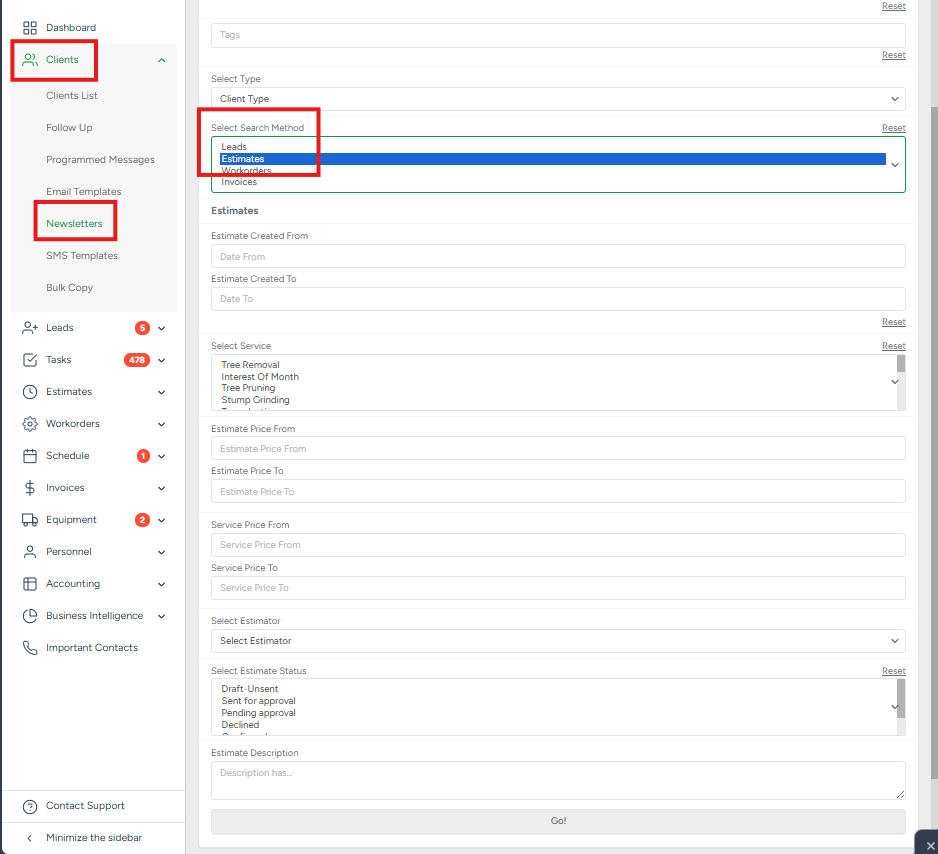
Estimate Created From/To
Filters estimates by creation date.
Select Service
Filters clients by services included in their estimates.
Estimate Price From/To
Filters estimates by total estimate amount.
Service Price From/To
Filters based on individual service pricing.
Select Estimator
Filters by the estimator assigned to the estimate.
Select Estimate Status
Filters by estimate status, such as:
- Draft – Unsent
- Sent for approval
- Pending approval
- Declined
- Confirmed
- Expired
Estimate Description
Searches for keywords within estimate descriptions.
Search Method: Workorders
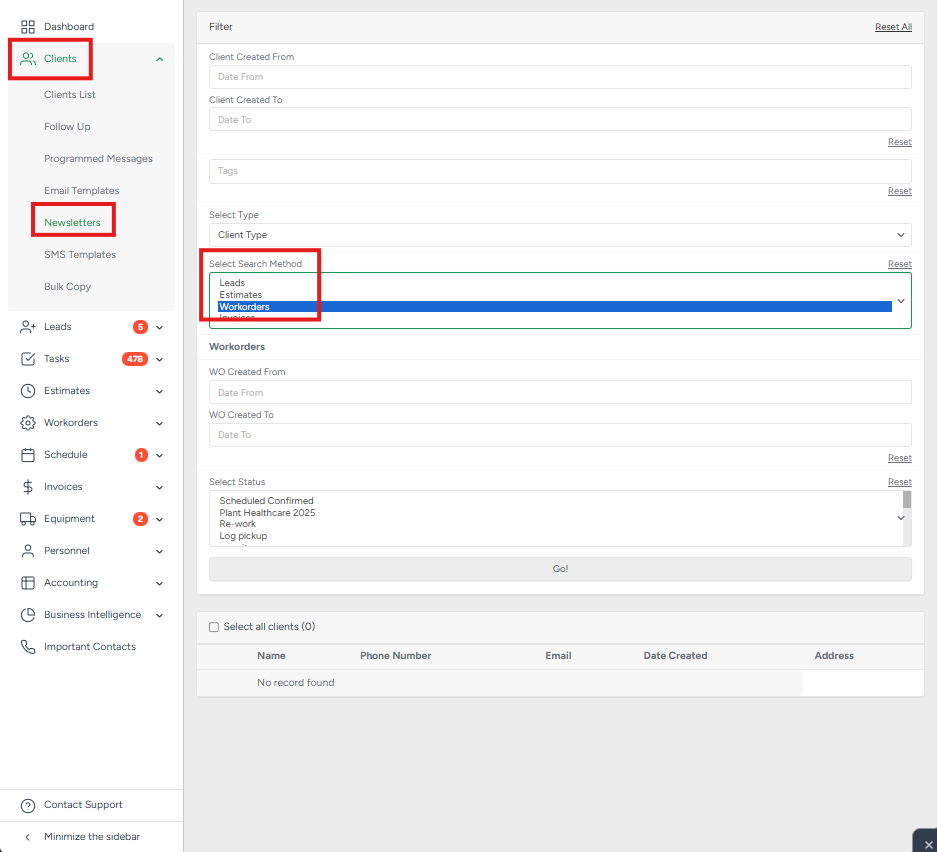
Workorders Created From / Lead Created To
Enter a date range to narrow down the workorders records.
Workorders Status
Select one or more statuses to refine the list.
Search Method: Invoices
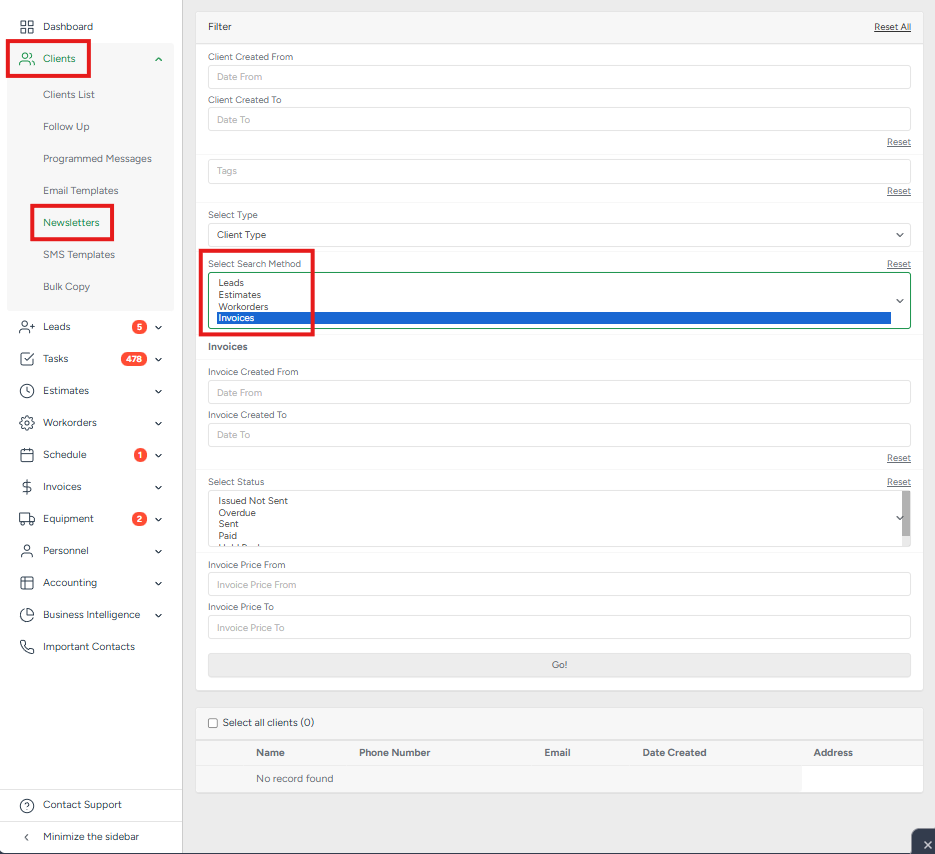
Invoice Created From / Lead Created To
Enter a date range to narrow down the invoice records.
Invoice Status
Select one or more statuses to refine the list.
Invoice Price From/To
Filters invoices by total invoice amount.
Important: Results will not display until Go is clicked.
Apply the desired filters to narrow down your customer lists.
Click Go to generate the results based on your selected filters.
Review the generated list, which displays the customer name, phone number, email address, date created, and address.
Select all customers or choose specific customers from the list.
Click the green Newsletters button.

From the dropdown menu, choose one of the following options:
Create a newsletter without a template to compose a message from scratch, or
Select a template to use an existing newsletter created from your email templates.
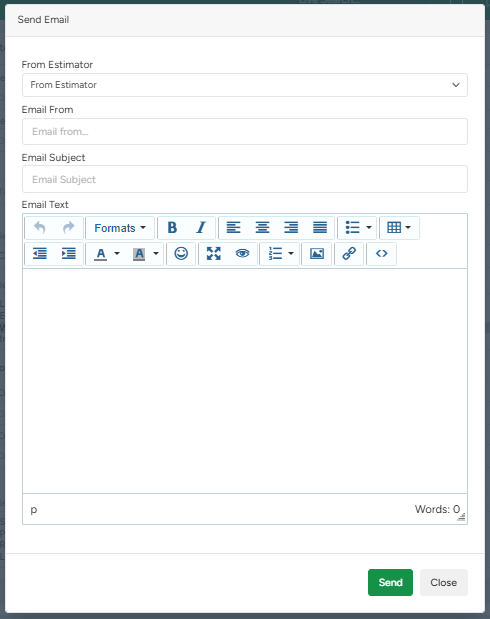
Review your newsletter content, then proceed to send it to the selected customers.