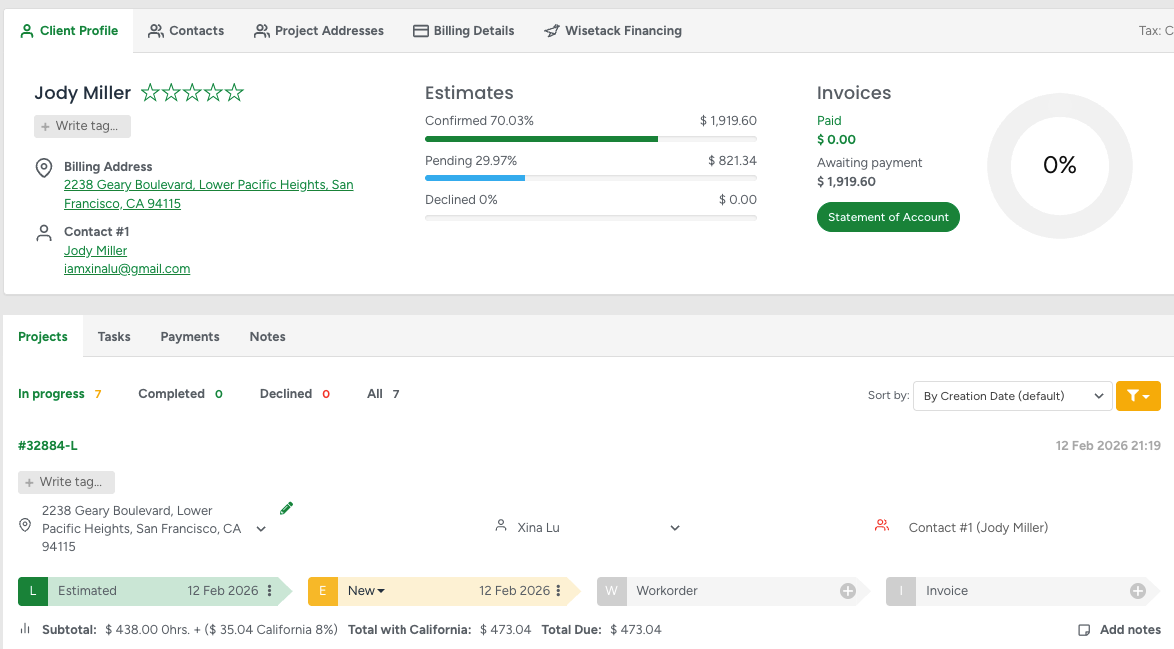
The bulk renewal can be created for the same clients as the original Estimates or Workorders.
- To get started, navigate to the Estimates → Bulk Renewal, where you’ll go through three key sections: Filter, Bulk Renewal and Pricing Manager, and Renewal Settings.
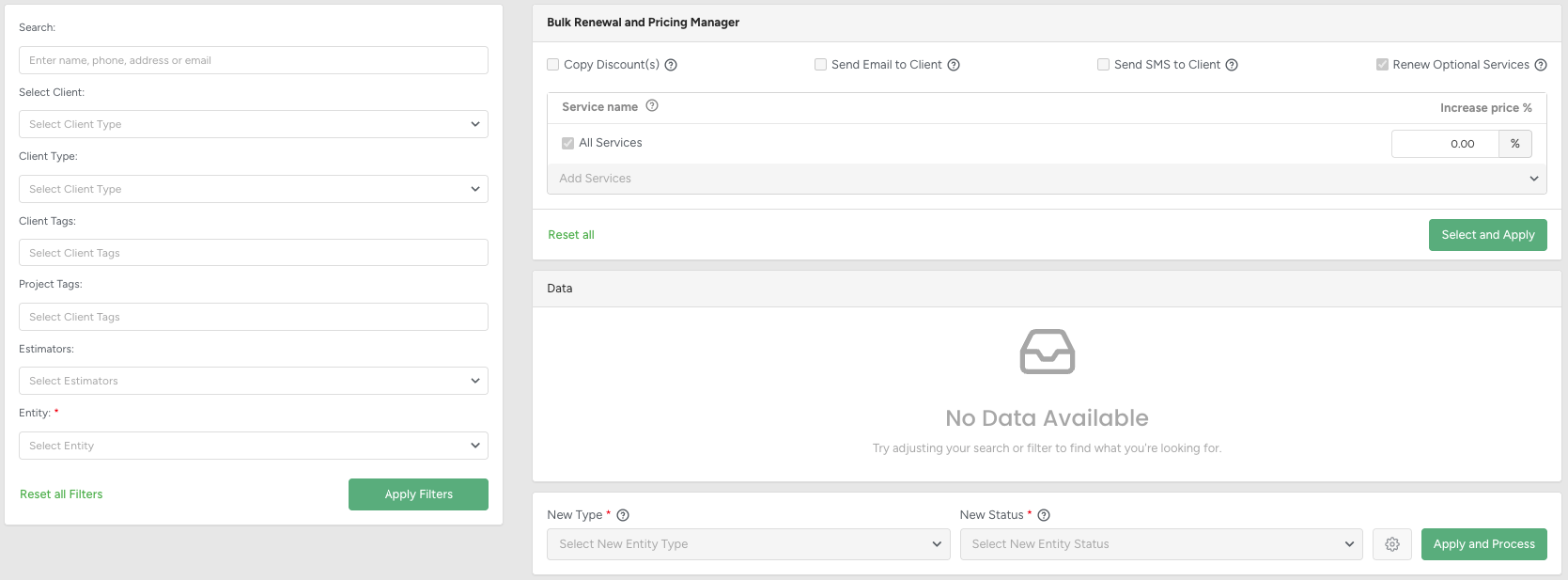
Filtering
This is where you define what you want to copy.
You can filter down to exactly the set of Estimates or Workorders you're interested in using a combination of client types, tags, services, pricing ranges, and more.
Selecting an entity — such as Estimate or Workorder — unlocks additional filter options.
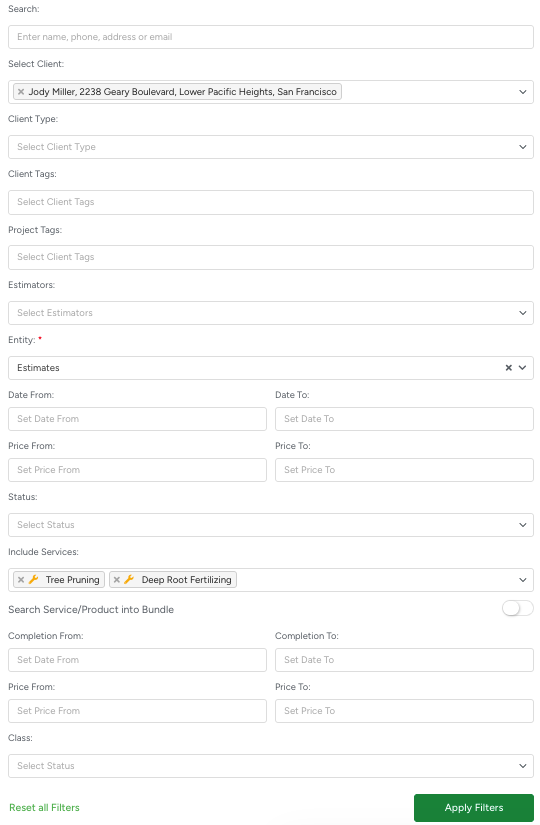
At any point, you can reset individual fields or use Reset All to clear the form.
If you're working with a large dataset, such as hundreds of Estimates or Workorders, it may take a moment for the system to fully load the results or apply settings.
Bulk Renewal and Pricing Manager
After applying filters, the system displays a structured list of matching Estimates or Workorders, including their associated services.
The top section controls pricing behavior, optional services, and client notifications.
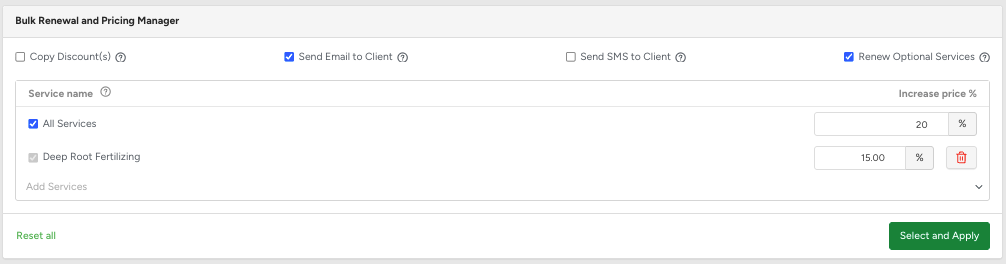
Available Options
Copy Discount(s)
Copies any discounts from the original Estimate or Workorder into the new one.Send Email to Client
Sends an email notification when a new Estimate or Workorder is created.Send SMS to Client
Sends an SMS notification when a new Estimate or Workorder is created.Renew Optional Services (ON by default)
Controls how optional services are handled during renewal.When enabled (default):
Optional services with a Declined status are copied with the status New
Services with the status New appear as Recommended in the new project
- When disabled:
Optional services are copied without status changes
Declined services remain declined and optional
All Services (Default: ON)
All services in the selected projects are included automatically
A global Increase Price % is applied to every service
Individual services can still be adjusted manually
Click Select and Apply to apply these rules to all filtered projects.
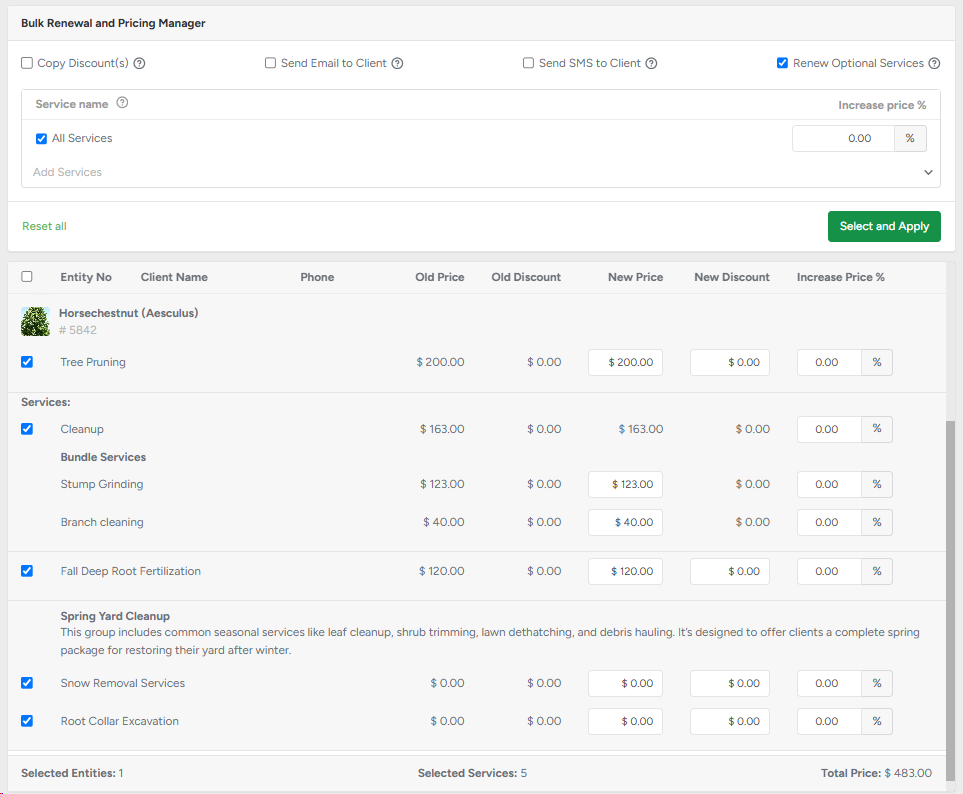
Select specific Estimates/Workorders to copy
Expand items to view and select individual services
Use checkboxes at multiple levels (all, per item, or service)
Adjust pricing per service via the percentage increase
Include/exclude services on the fly
Trees and Groups allow you to do anything with their services, but Bundles have some limitations:
Bundle details are included but disabled for editing
Individual services within the bundle remain editable (except for discounts)
Once everything is reviewed, click the Apply and Process button to finalize the copy process.
Renewal Settings
This defines how the new projects will be created.

New Type (Required)
Choose whether the new projects will be:
Estimate – Typically used when you’re still waiting for client approval or plan to add additional services before moving forward.
Workorder – Commonly used when pricing has already been agreed upon with the client and the renewal is ready to be scheduled immediately.
The default value matches the filtered project type, but you can change it.
New Status (Required)
Defines the starting status of the new projects.
Defaults are applied automatically based on project type
Final statuses are not available to prevent unintended automation
You may choose another valid status if needed
Clicking the gear icon opens additional options:
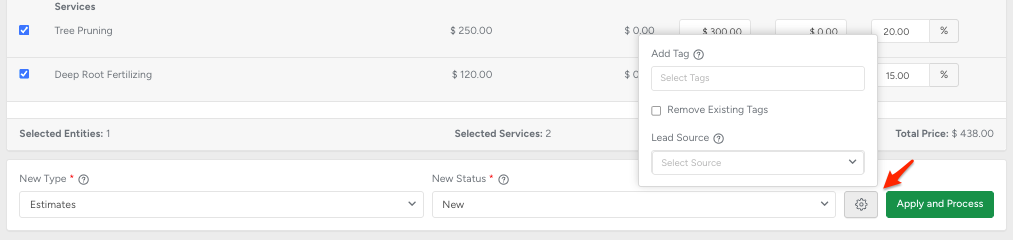
Project Tags
Existing tags are kept by default
Tick off Remove Existing Tags to replace them with the selected tags
Tag creation follows your company permission settings
Lead Source
- Assign a Lead Source to all new projects
If Client or Employee is selected, you’ll be prompted to choose a specific person
Confirmation Before Processing
When you click Apply and Process, a confirmation screen appears so you can review the renewal.
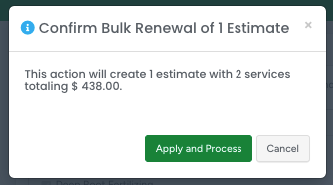
When All Services Are Active
You’ll see a summary showing:
Number of projects to be created
Total services included
Total calculated price
You can cancel or proceed with processing.
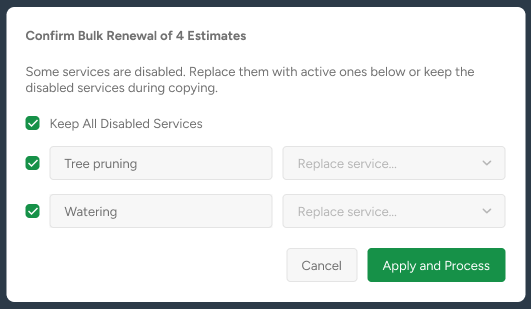
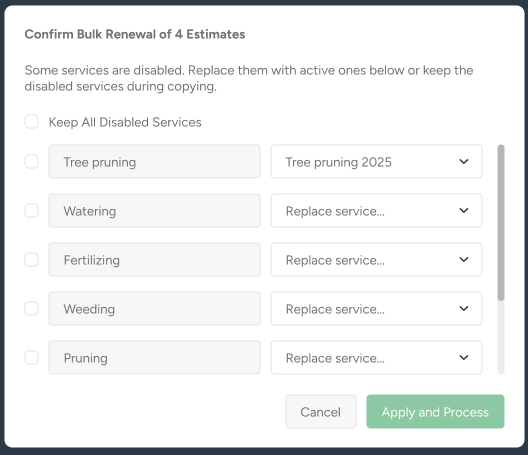
When Disabled Services Are Found
If any disabled services, products, or bundles are included:
You can keep them as-is, or
Replace them with active alternatives
The system requires a decision for every disabled item before processing can continue.
 |
 |
Finalizing the Renewal
Click Apply and Process to generate all new Estimates or Workorder
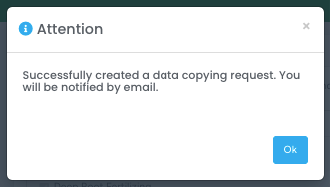
Results
The email you'll receive after clicking Apply and Process:
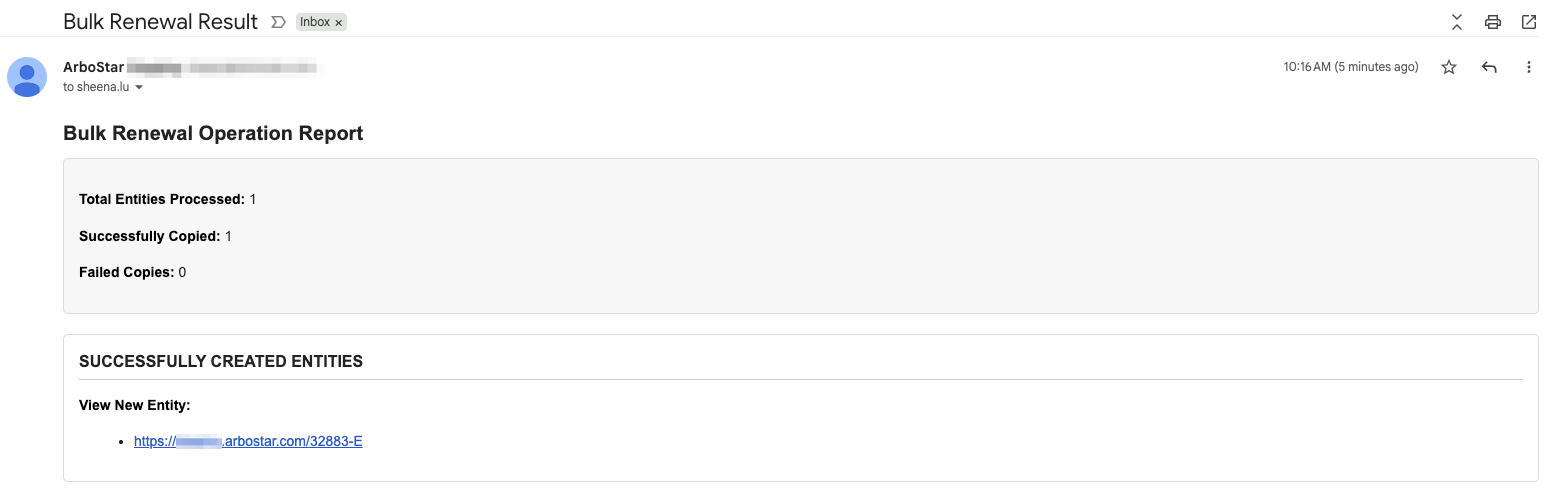
New estimate from Bulk Renewal is created and added to the client profile: