
The Tree Inventory Map is an interactive map of all trees at a client's property. You can open it from the Client Profile for general inventory work, or from an Estimate to work with trees in the context of a specific job.
The map itself works the same way in both cases. This article covers everything you need to know about the map: how trees are displayed, how to create and edit them, and all the available map tools.
Opening Tree Inventory Map
From the Client Profile:
| Web: Open any client profile and click Tree Inventory Map. |
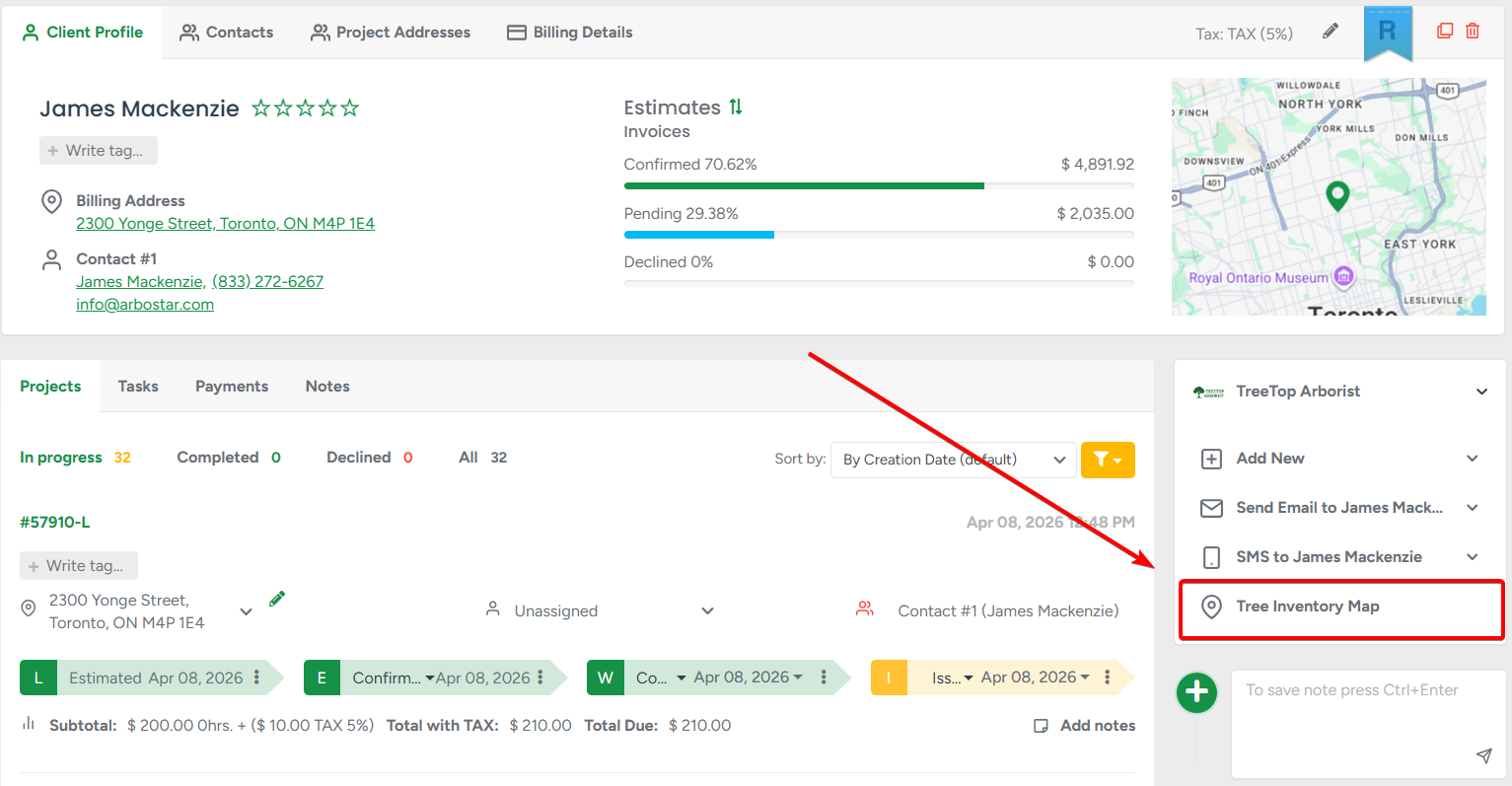 |
| App: On the client profile, tap the 3-dots menu → Tree Inventory. |
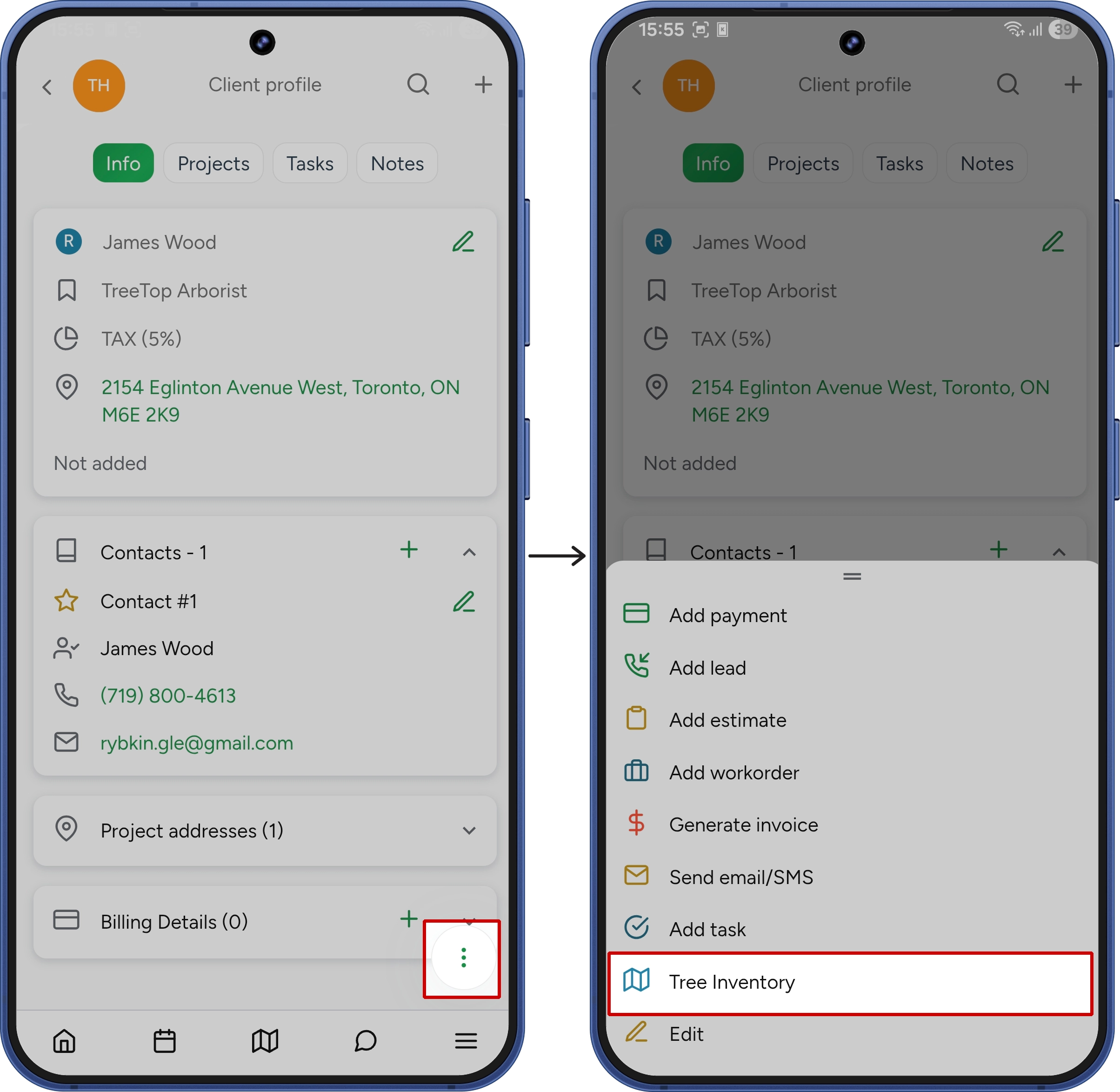 |
If no map has been created yet, one will be created automatically using the client's billing address as the starting location.
From an Estimate:
| Web: On the Create/Edit Estimate page, click + Trees or Add or Edit Trees on Map. The map opens in a modal window in the context of the current estimate. |
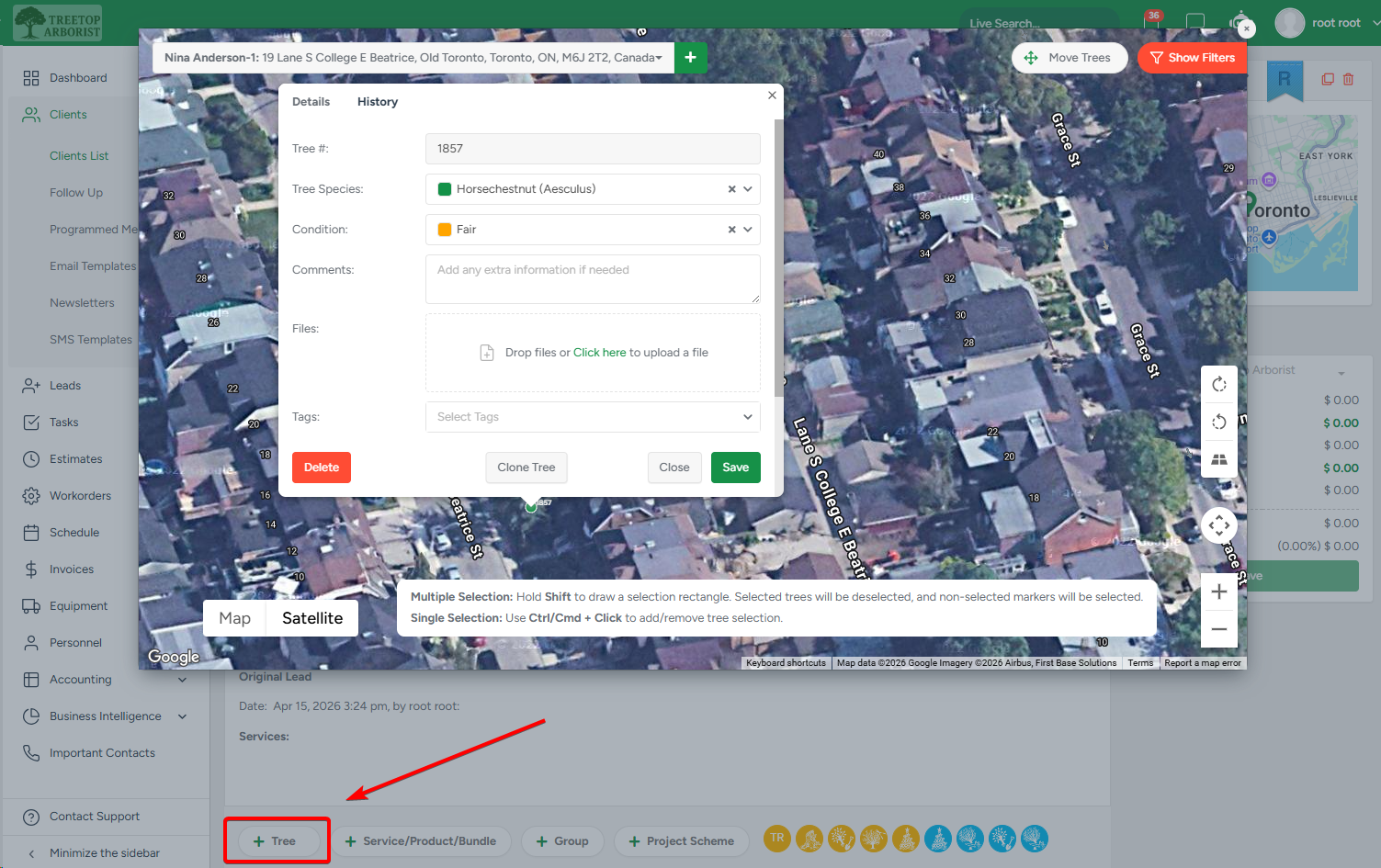 |
| App: On the Create/Edit Estimate screen, tap + Trees. |
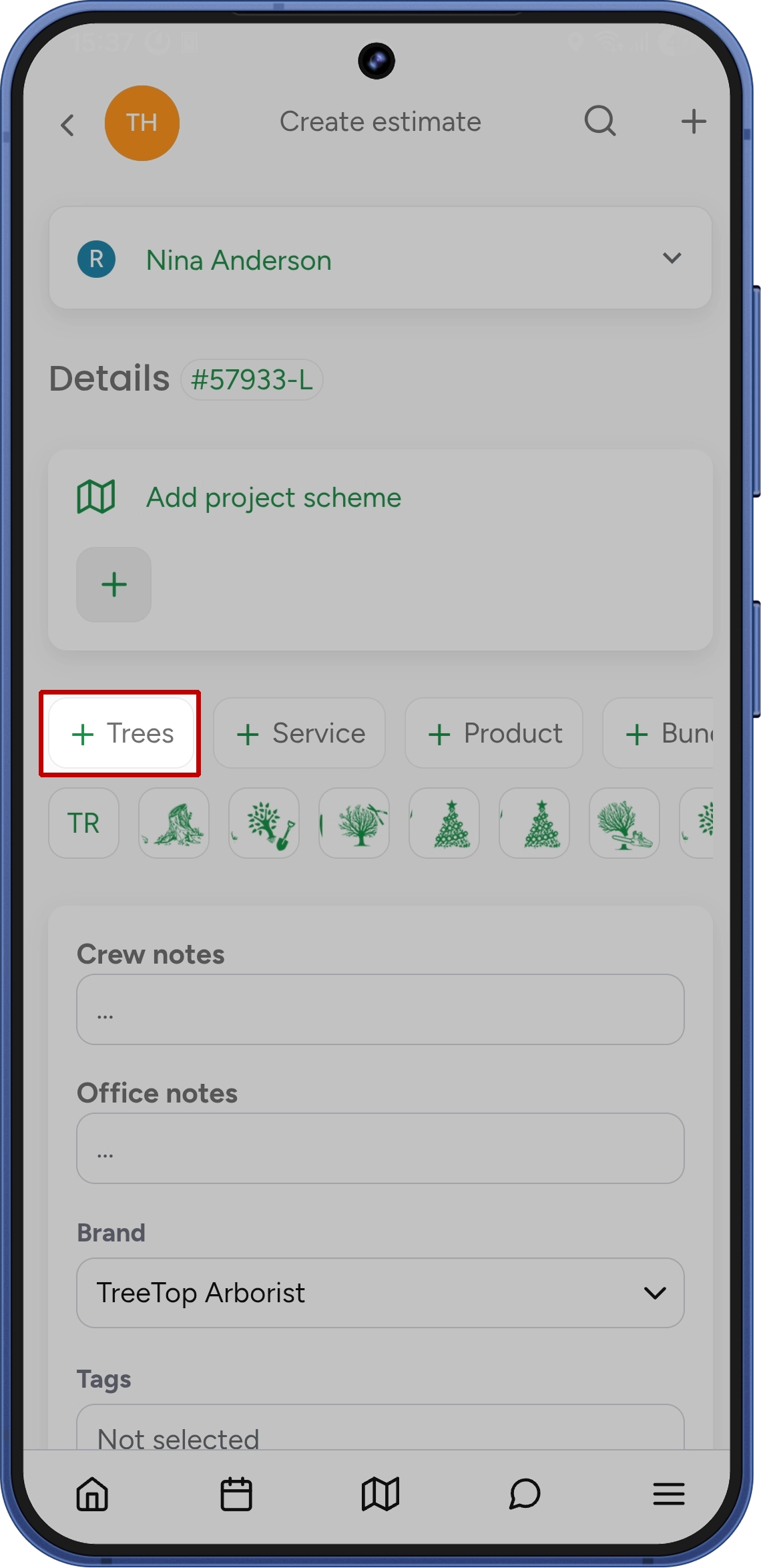 |
Working with Trees
How Trees Are Displayed
Each tree appears as a colored pin on the map. The pin color corresponds to the Tree Species value assigned to that tree — colors are configured in Company Management → Tree Inventory Fields Management → Tree Species settings. Trees without a species assigned show as grey pins. The Tree # is always displayed next to the pin. |
When you zoom out, trees automatically cluster together. Zoom in to see individual pins. |
Creating Trees
On web: Double-click anywhere on the map to place a new tree. A details window opens immediately so you can fill in the tree's information before saving.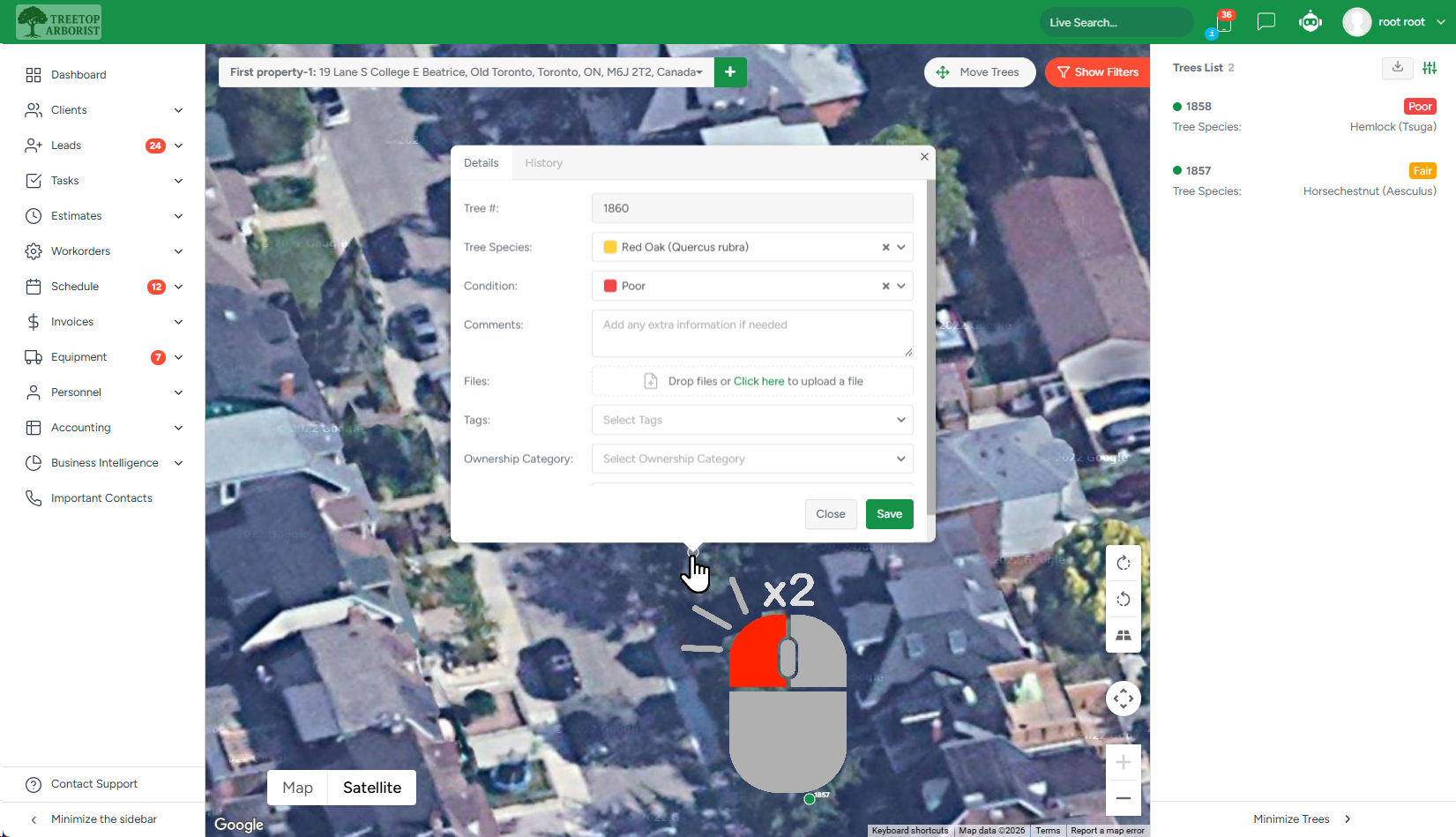
On mobile: Tap Add in the bottom action bar to enter Add Mode, then tap the map to place trees. A new tree screen opens after each tap. Exit Add Mode by tapping Stop Adding. You can also search by tree species. |
Tip: You don't need to fill in every field when creating a tree. You can add species, condition, notes, and files later by editing the tree.
Tree Details
When you open a tree (by clicking/tapping its pin), a window with two tabs opens:
Details tab - all fields* for this tree:
|
|
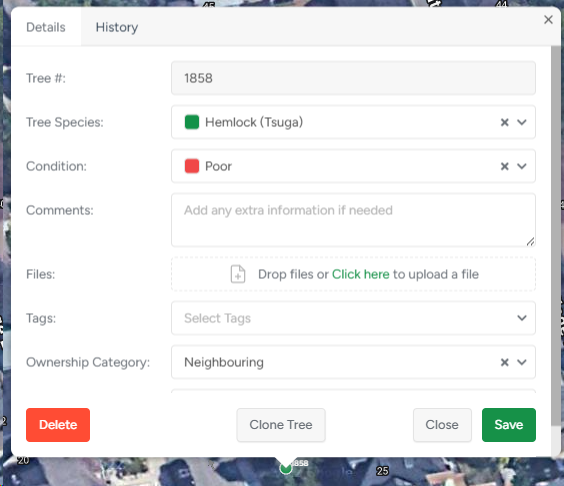
History tab - a complete record of everything that has happened with this tree: when it was created, when its details changed, which estimates it appeared in, which jobs were performed, which invoices were issued. You can also use |
|
 filters to narrow down the long history of changes to only those you are specifically interested in.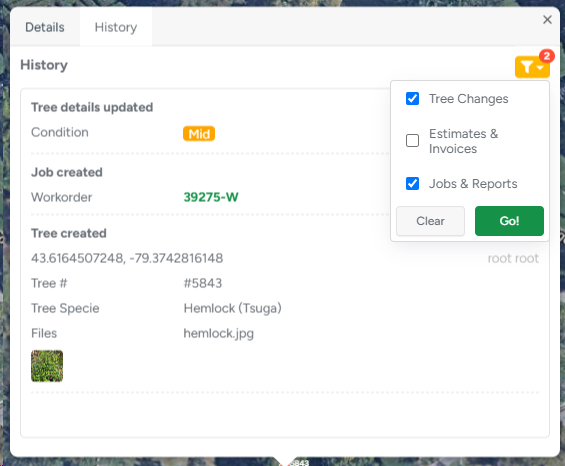
*and any custom fields your company has configured in Company Management. Fill in as many or as few as needed.
Selecting Trees
You can select one or more trees to perform bulk actions (delete, edit, add to estimate).
On web:
|
On mobile:
|
Selected trees are highlighted in green. The selection count is shown in the top right of the map.
Editing Trees
Single tree: Click/tap the tree's pin to open its details, make changes, and save.
Multiple trees (Bulk Edit): Select several trees and click Edit Selected (web) or Edit (mobile). A shared edit window opens. Only the fields you change will be updated. Fields you leave blank will not overwrite the existing data on individual trees. Tree # and Files are not editable in bulk edit mode.
Moving Trees
On web: Click Move Tree in the toolbar to enter Move Mode. Drag any tree to its new position. Click Stop Moving to exit. |
On mobile: Tap Move in the bottom bar to enter Move Mode. Tap and hold a tree, then drag it to its new position. Tap Stop Moving to exit. |
While in Move Mode, other actions (select, create, add to estimate) are temporarily unavailable.
Cloning Trees
Cloning is useful when you have many similar trees to add to the map quickly.
On web: Open a tree's details and click Clone Tree. The details window closes and clone mode activates — each click on the map creates a copy of that tree with all its fields pre-filled (except Files and History). |
On mobile: Open a tree's details → 3-dots menu → Clone. Tap the map to place copies. Exit clone mode by clicking/tapping Stop Cloning. |
Cloned trees receive new Tree # values following the normal numbering sequence.
Deleting Trees
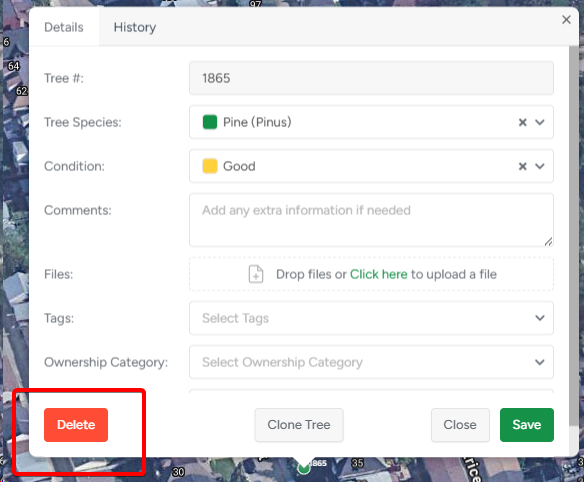
Select one or more trees and click Delete. A confirmation alert will appear.
| If the tree has never been added to an estimate: The tree is deleted from the map after confirmation. |
 |
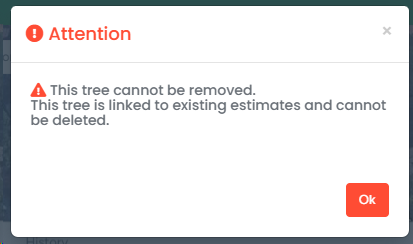
| If the tree has been added to an estimate: Deletion is blocked. An alert explains that the tree cannot be deleted because it's linked to an estimate. To delete the tree, you must first remove it from all estimates that contain it. |
 |
Navigating the Map
Filtering Trees
Use the Filter button (funnel icon) to filter which trees are shown on the map:
- Tree # — search by tree number
- Only with Files — show only trees that have photos or files attached
- Tree Species — filter by one or more species values
- Only with Comments — show only trees that have notes filled in
- Custom fields — any custom fields configured in Company Management appear here, with appropriate filter controls (text search, number range, date range, or dropdown)
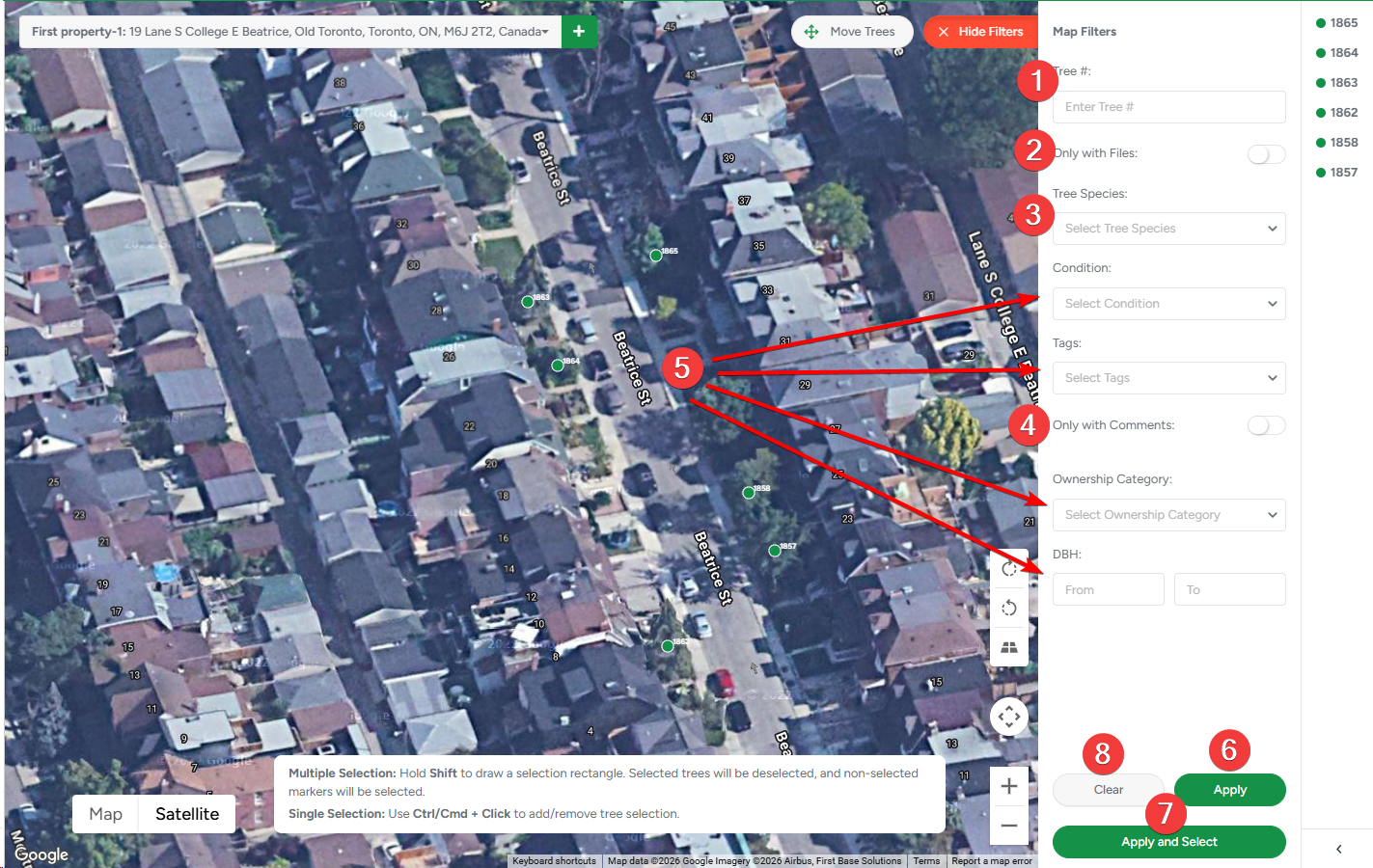
Filters affect both the map display and the Trees List panel. Three buttons are available after setting filters:
- Apply — applies the filter and updates the map and Trees List
- Apply and Select (web only) — applies the filter and automatically selects all matching trees on the map
- Clear — resets all active filters
Trees List Panel
On the web, a collapsible Trees List panel shows all trees on the current map in a list view. Clicking a tree in the list highlights it on the map and scrolls the map to center on it.
You can customize which tree fields are shown as columns in the list — use the column settings in the panel to choose what information is displayed. Tree # is always visible and cannot be hidden.
On mobile, tap the Trees List icon in the top bar to open the list. Tapping a tree in the list jumps to it on the map and selects it. |
Importing and Exporting trees (Web only)
Exporting Tree Data
Click the Export button on the map to download your tree data. The export includes only the trees currently visible on the map - if a filter is active, only the filtered trees will be exported. Three export options are available:
- CSV - all tree data in spreadsheet format
- Export KMZ - export trees to Google Earth or other supported GIS systems
- Images Only - all files attached to trees
- All Files - both CSV and attachments in one archive
Files in the archive are named by Tree ID and organized in a single folder named after the map.
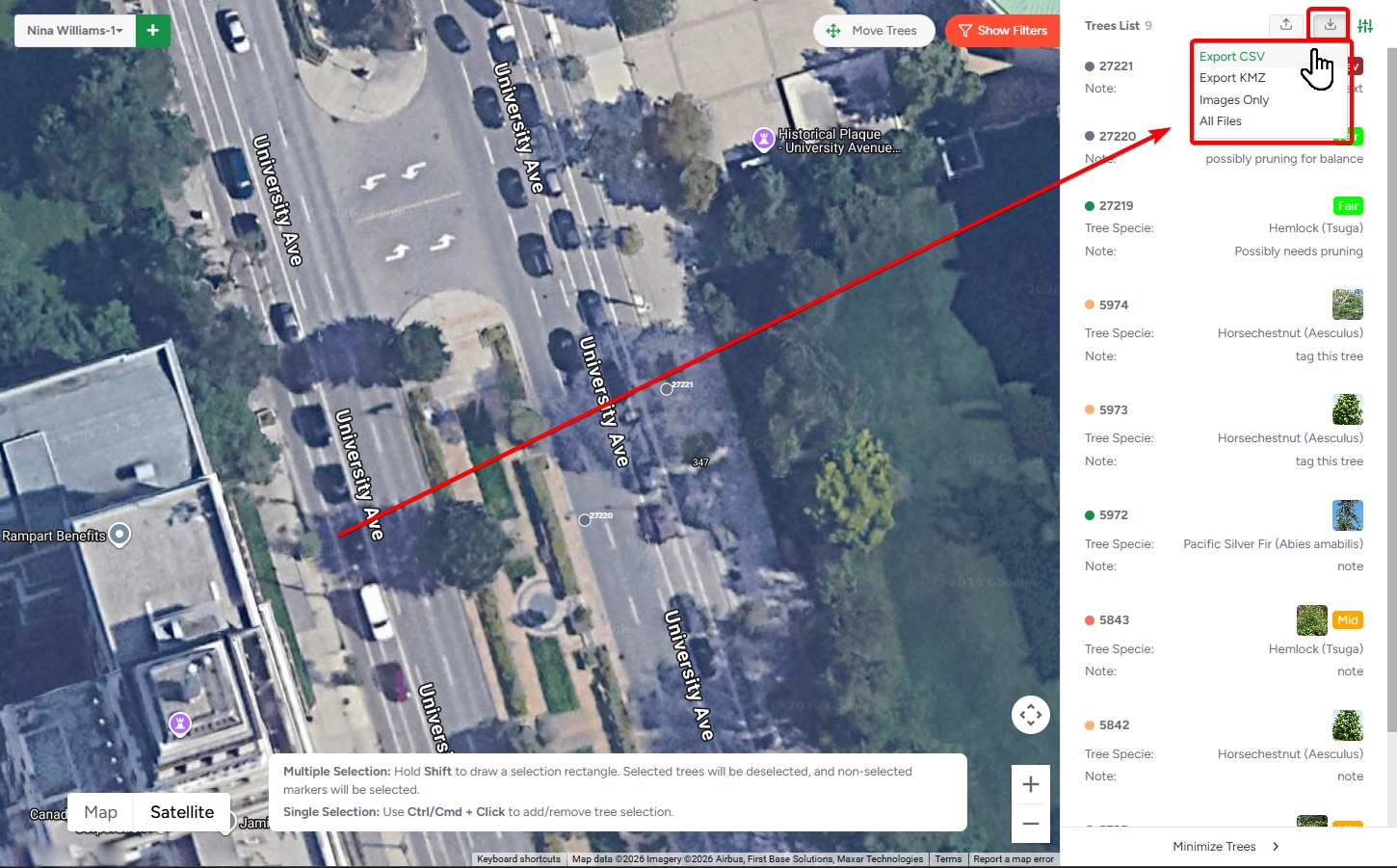
You can use the selection tool to export only specific trees instead of the entire tree inventory.
Export in KMZ format for Google Earth
The .kmz file opens in Google Earth on desktop, on the web, and on iOS and Android, and imports into Google My Maps and QGIS, with the tree data arriving as an attribute table.
Each tree is a pin at its stored coordinates, labelled with its number, and clicking a pin shows a table of that tree's data.
The same data as your CSV. The field set is identical to the Export CSV field set, in the same order: tree number, latitude, longitude, species, condition, note, tags, and every active custom field.
Values match too, including species shown with its alternative name and dates in your company's format. Every field is present on every tree, so an empty value stays as an empty field rather than disappearing, which keeps the attribute table predictable when importing it.
Scope you control with the filters you already use. The file contains the trees matching whatever filters are applied to the map when you click.
Files, photos, and tree history are not included in any form.
The file is named [Client name] - [Map name] - [date].kmz, so it is ready to attach without renaming.
Google My Maps refuses imports over 2,000 objects or 5 MB, which is Google's own limit.
Google Earth opens files of any size ArboStar produces.
Importing Tree Data
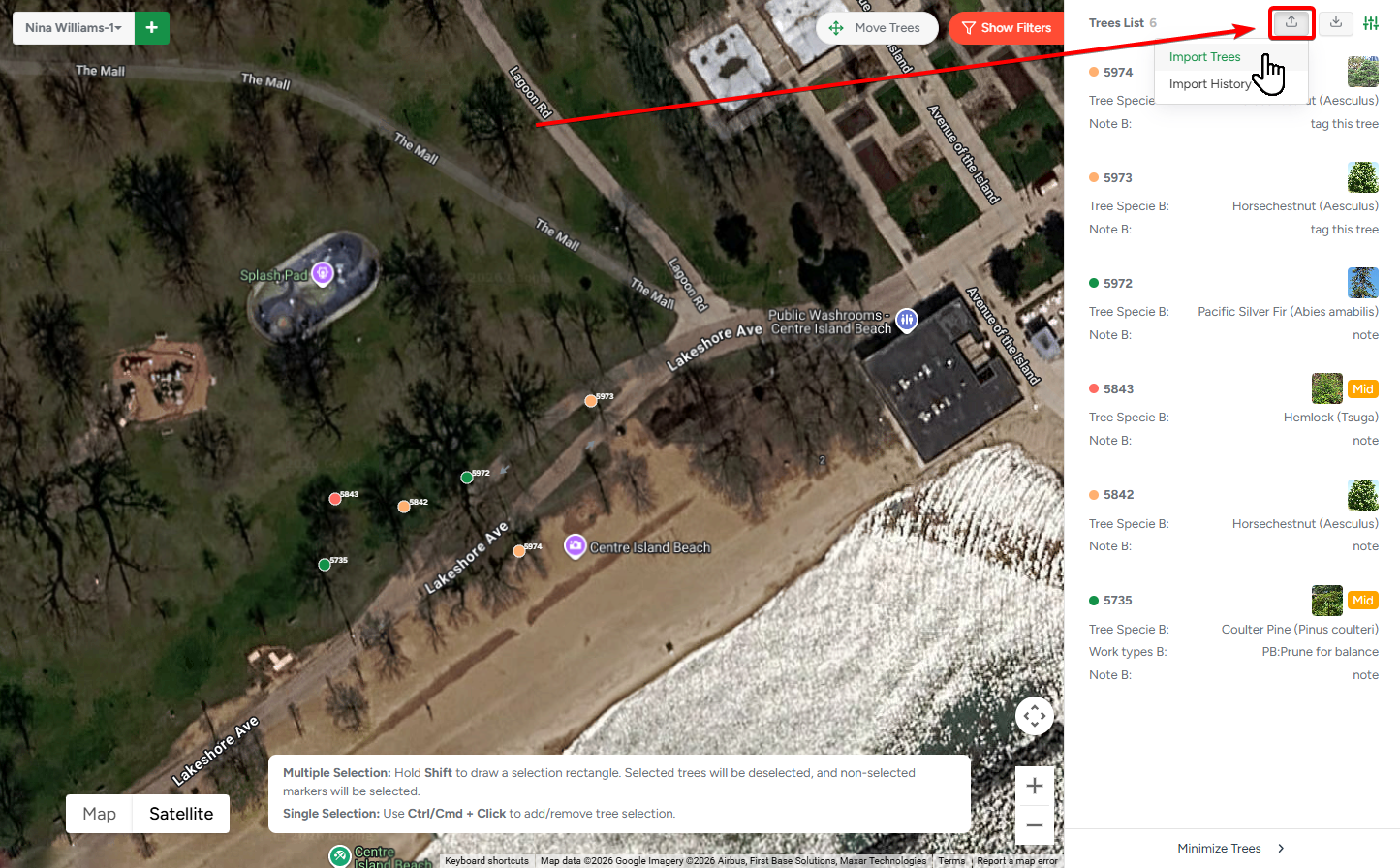
Click the Import button to upload a .CSV file with tree information.
1. Upload file
Click the Import button to open the upload window.
From there, you can upload your tree file or download a template to see the required ArboStar format.
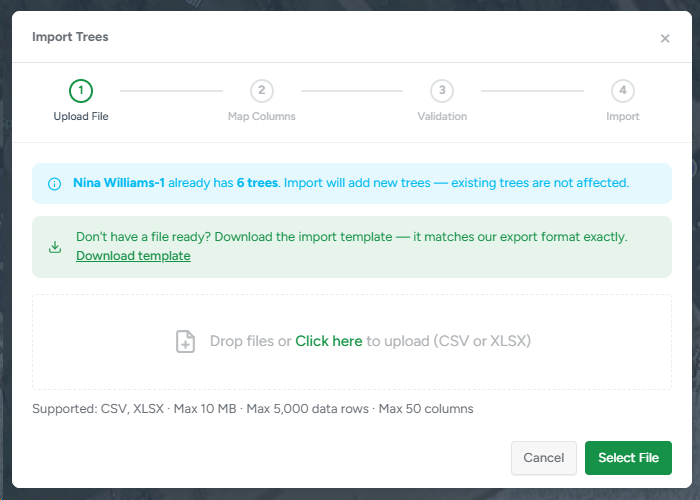
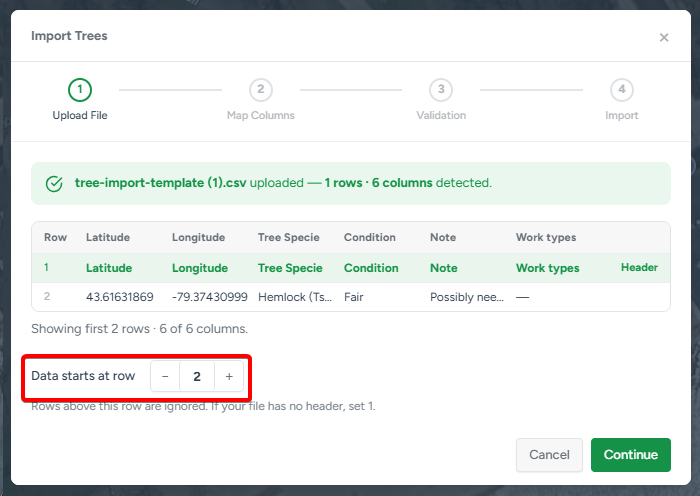
After the upload, you need to specify the start row.
Normally, a .CSV file starts with a title row that indicates what each cell is.
If you used the example file from the first step, your start row will be - 2.
That is also true for the vast majority of any .CSV imports.
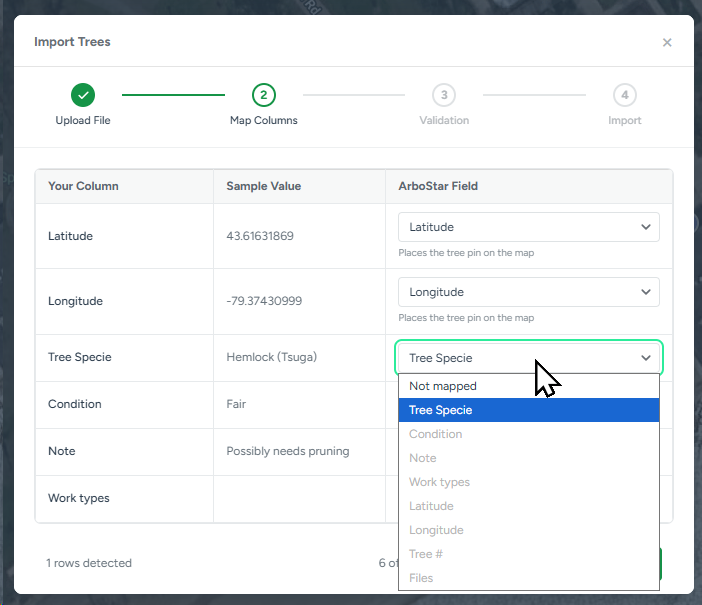
2. Map Columns
The next step is to map those cells to corresponding fields for the tree.
Just like with the previous step, if you used an example file, this should be easy and straightforward since your field names would match 1 to 1.
If they don't match - simply click on the dropdown menu in the ArboStar Field column to adjust that.
3. Validation
In this step, ArboStar will validate the values in your .CSV files, check them for correctness, and match them to corresponding ones in the system.
If ArboStar won't find a match, you have two options:
- Skip & leave blank - the value will be ignored and won't be added to the tree
- Create new values in Company Management - the value will be added to the list of the corresponding field in Tree Inventory Fields Management
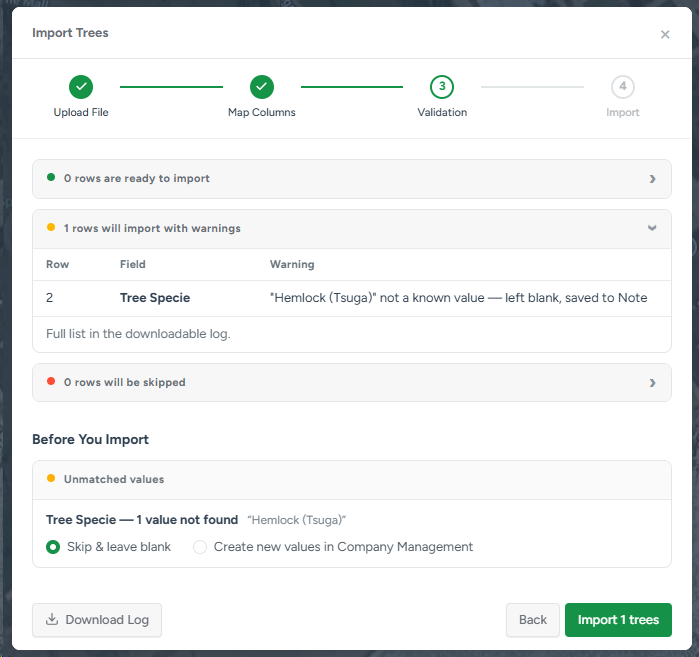
If you have many errors and warnings, here you can also Download Log of the import to further analyze it.
If any fields are missing or were mapped incorrectly in the previous step, you will see a warning. The affected trees will still be imported, but without that specific data.

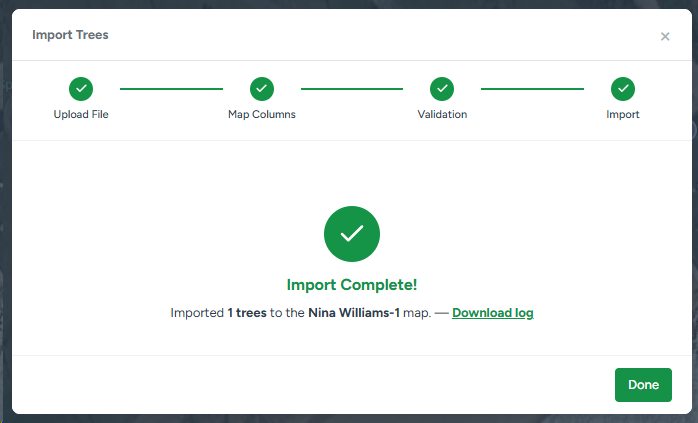
4. Import complete
After you click you will see the successful import page.
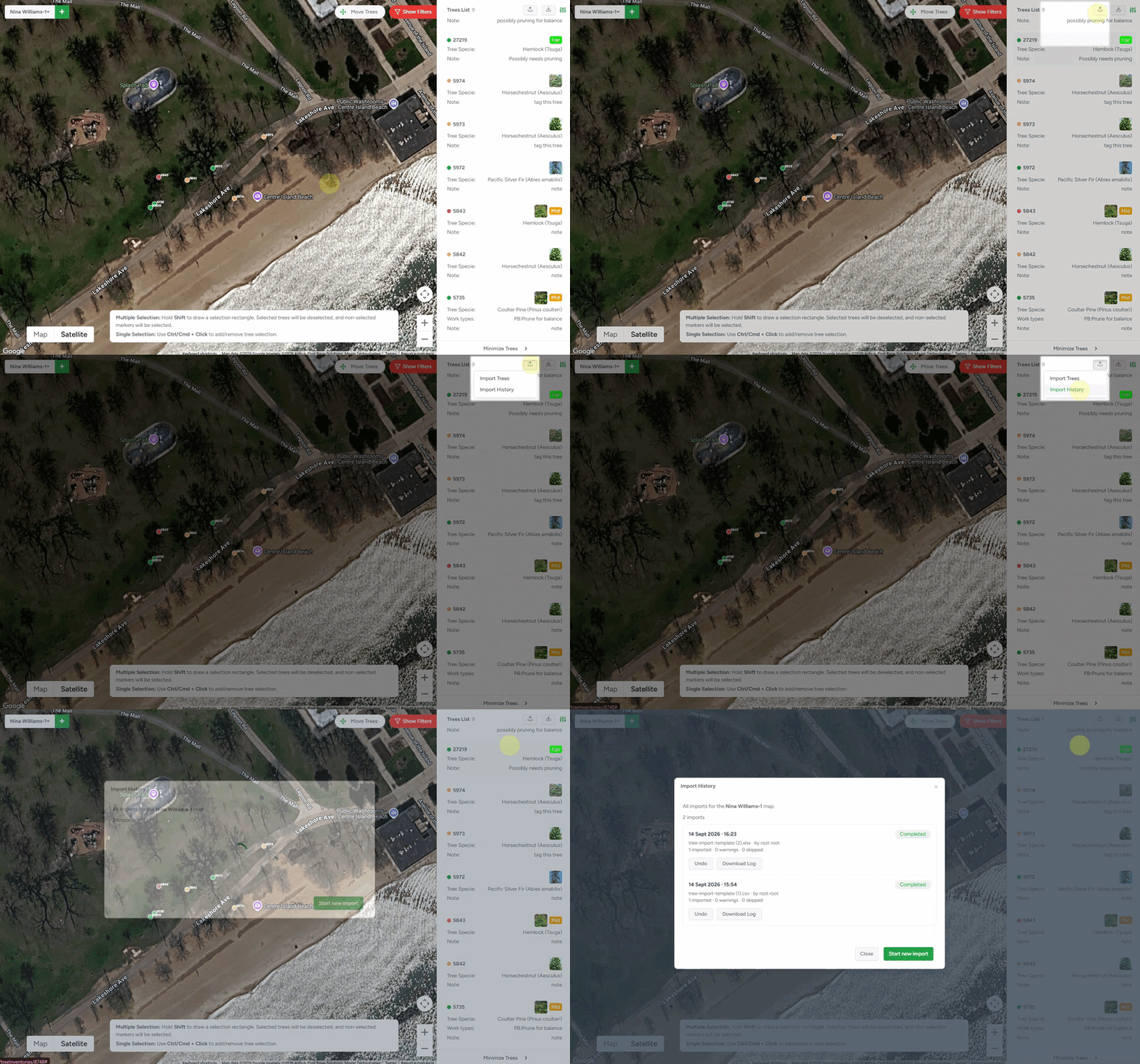
You can also view Import History. From that modal window, you can:
- see every import session in detail (date and time, how it went, who did the import)
- view logs for each import
- undo any import
- start a new import
Creating an Estimate from the Map
When working from the Client Profile (not inside an estimate), you can select trees and start an estimate directly from the map:
- Select one or more trees
- Click Create Estimate with [X] Selected Trees (web) or Create Estimate (app)
- You'll be taken to the Create Estimate page with the selected trees already added.