
Programmed Messages using the Manual communication type automatically generate follow-ups for:
Call
Email
Estimate Follow-Up
These appear in the Follow Up sub-module, which you can access under the Clients module.

Follow Up Filters
At the top of the Follow Up page, you’ll find four filters:

- Estimator – Filters follow-ups based on the estimator assigned to the lead, estimate, workorder, or invoice.
Follow Up Type – Filters by the programmed message type, such as Call, Email, or Estimate Follow-Up, showing how the client is meant to be contacted.
Follow Up Status – Filter by New, Completed, Postponed, or Cancelled to prioritize active tasks, review finished follow-ups, or clean up inactive ones.
Module – Isolate follow-ups coming from Leads, Estimates, Workorders, Invoices, Client Tasks, or Schedule to manage each stage of the client journey more efficiently.
By default, the system displays all clients that require follow-up. You can narrow the results by applying any of these filters.
How Follow Up Results Are Generated
The follow-up list is directly based on how each Programmed Message was configured. The columns reflect the programmed message settings and related project data:

Column Breakdown:

Client – The client associated with the project. Clicking any client’s name redirects you to the client’s profile.
Phone – Client’s contact number
Estimator – The estimator assigned to the estimate
Profile – The project profile ID number
Ends in L = Lead
Ends in E = Estimate
Ends in W = Workorder
Ends in I = Invoice
Due Date – The scheduled follow-up date, automatically calculated based on the programmed message periodicity
Item Status – The current project status tied to the follow-up
Date Type – The date reference used by the programmed message
Period – The periodicity set in the programmed message
Text – The info ⓘ icon displays the template content entered when creating the programmed message
Follow Up Actions
Each follow-up item includes the following management fields:
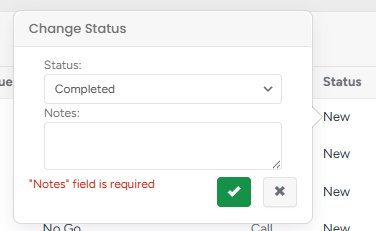
Status – Can be updated from New to:
Completed
Postponed
Cancelled
(A note is required when changing the status)
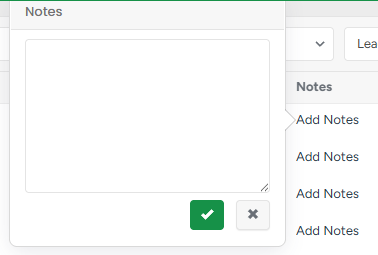
Notes – Add any follow-up comments or updates
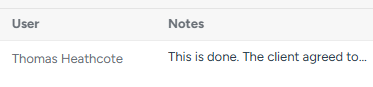
User – Automatically fills in the name of the user who added the notes
When changing Programmed Message configurations while previous follow-ups exist, the previous follow-ups will be altered to Canceled status with the following note: "Canceled due to changes in the Programmed Message".
New follow-ups can be created in the Programmed Messages module.