User Profile Overview
Configure user details, roles, and access to ensure each team member has the right permissions and contact information.
The User Profile page lets you quickly update your personal information, upload a profile photo, and manage key settings - all in one place. Keeping your contact details and calendar preferences up to date helps ensure smoother team coordination and more efficient day-to-day work.
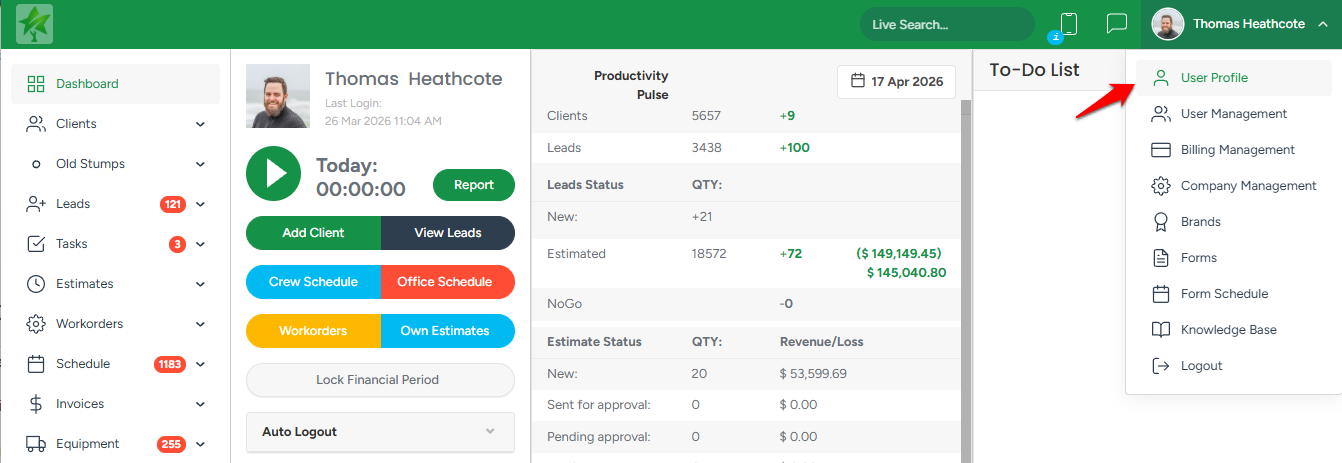
To access your profile, click on the drop-down arrow next to your name in the top-right corner and select User Profile from the menu.
Fields You Can Update in the User Profile
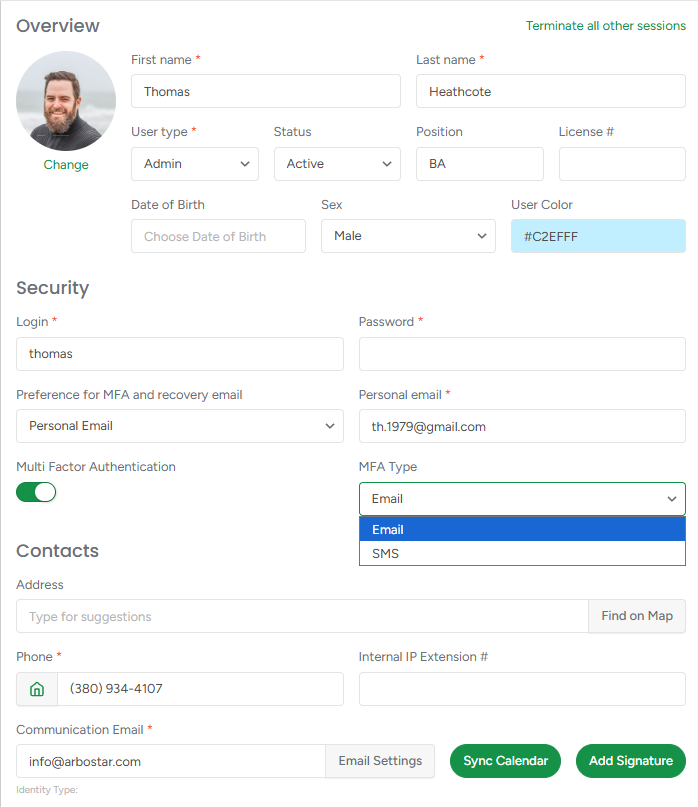
Photo: Click Change to upload a new profile picture. First Name: Fill in your first name Last Name: Fill in your last name. User Color: Assigned by the system; this read-only field determines your color label in scheduling views. Login: You can enter a new login to update your login credentials. Password: You can enter a new password to update your login credentials. Preference for MFA and recovery email: Choose which email will be used for two-factor authentication and recovery. Personal email: You can enter a personal email. Multi-Factor Authentication: Toggle MFA on or off. Address: Enter or update your location information. Use Find on Map for more accurate results. Phone: Enter or update your mobile number.
Communication Email - The primary email address used by the system to send estimates, invoices, notifications, and other client communications. Sync Calendar – Keeps your Office Schedule synced with your personal or business calendar. Sync with iCal Link - When enabled, an iCal link will be generated. Click the copy icon and paste the link into your preferred calendar app such as Outlook Calendar, Apple Calendar, or Google Calendar. Sync with Google Calendar - This will open a Google account pop-up where you can select which Google Calendar you’d like to sync your Office Schedule with (if you have multiple accounts).
|  |
Once you’ve made your changes, click Save Changes in the top-right corner to apply updates.
